Agent Sessions on iOS
On this page
Part of the Mobile Apps guide · Back to Getting Started on iOS.
Use Minions to watch and drive agent sessions that are running on the desktop. The iOS app is a remote control: it shows terminal output, lets you send follow-up prompts, starts mobile-visible sessions, and routes you back to related Scrolls or Rituals through the cloud relay.
Open Minions
Tap Minions in the bottom navigation. Choose the right workspace first, because the selected workspace filters the visible sessions.
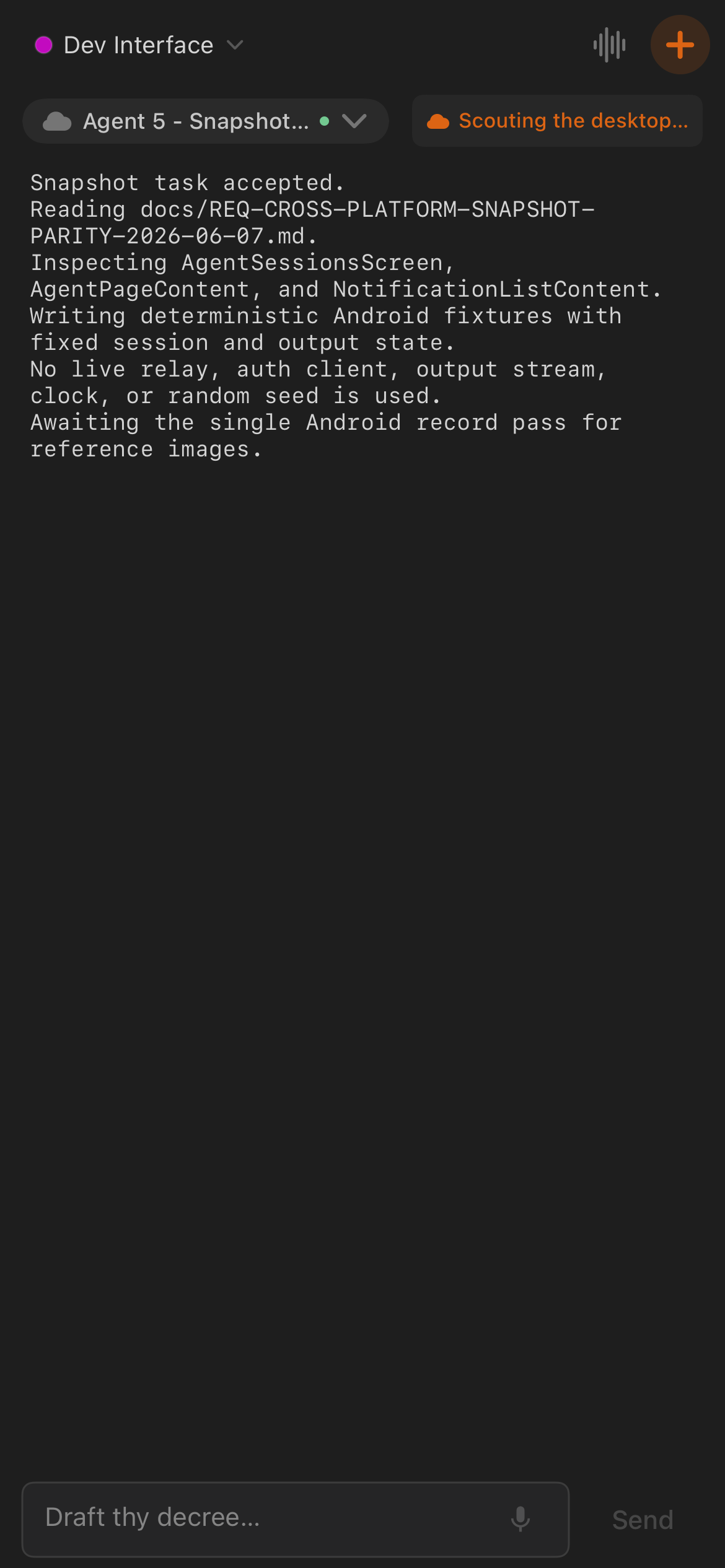
The top bar includes:
- The workspace selector.
- The Voice Mode button for the current agent.
- Summon for starting a mobile-visible session.
- The current agent selector for switching sessions.
- The sync chip showing whether the relay state is current.
If no sessions appear, the desktop may be offline, the workspace may be inactive, or there may be no mobile-visible sessions for the selected workspace.
Switch Between Sessions
The current agent chip opens the Switch agent sheet. Sessions show agent name, status, workspace context, and whether they are local or cloud-backed when that distinction is available.
You can also swipe through session pages. The app remembers the last session you viewed, and Omens can jump directly to the session related to a notification.
Common status meanings:
- Working: the agent is actively producing output.
- Idle: the agent is waiting for more input.
- Victorious or Done: the run completed successfully.
- Fallen or Failed: the run ended with an error.
Summon a Session from iOS
Tap + in Minions to open Summon. Choose the agent type, working directory, and first prompt. If both controller modes are available, choose whether to run locally on the desktop host or through the cloud option shown by the app.
After the summon request is accepted, the session appears in Minions and behaves like a desktop-started session.
Read Agent Output
An agent page shows the status dot, agent name, repository, last-sync state, terminal output, and input bar.
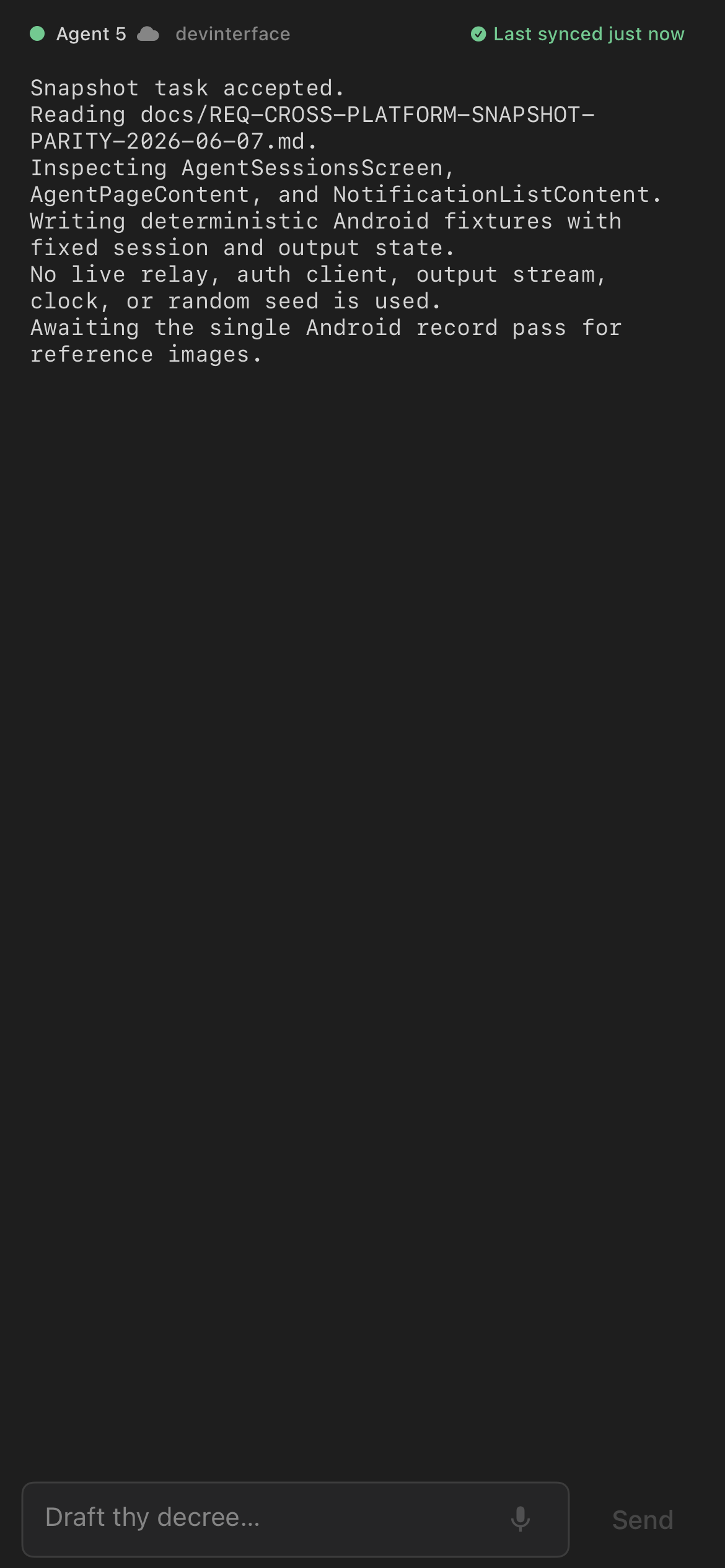
Terminal output is optimized for log and transcript reading on a phone:
- Output is monospace and selectable.
- New output keeps the view near the bottom while you are following the run.
- Empty sessions show a waiting state while the desktop wakes or sends the first output snapshot.
- Failed refreshes show a retry action.
The session action menu can include Rally Again, Resume Session, and Dismiss, depending on the session state.
Send Input Back to Desktop
Use the prompt field at the bottom of the agent page to send instructions back to the desktop session. The iOS input bar supports:
- Typed prompts.
- The dictation mic.
- Input history.
- Royal Decrees prompt shortcuts and workflows.
- Image attachment from gallery, camera, or clipboard when attachments are available for the session.
- Special, shown with a keyboard icon, opens arrows, Enter, Escape, and control keys for command-style input.
Tap Send to deliver the prompt through the relay. If delivery fails, retry after checking phone and desktop connectivity.
Voice Mode
Voice Mode is an iOS-specific agent-reading flow. It reads agent output aloud and gives playback controls for listening while away from the desktop.
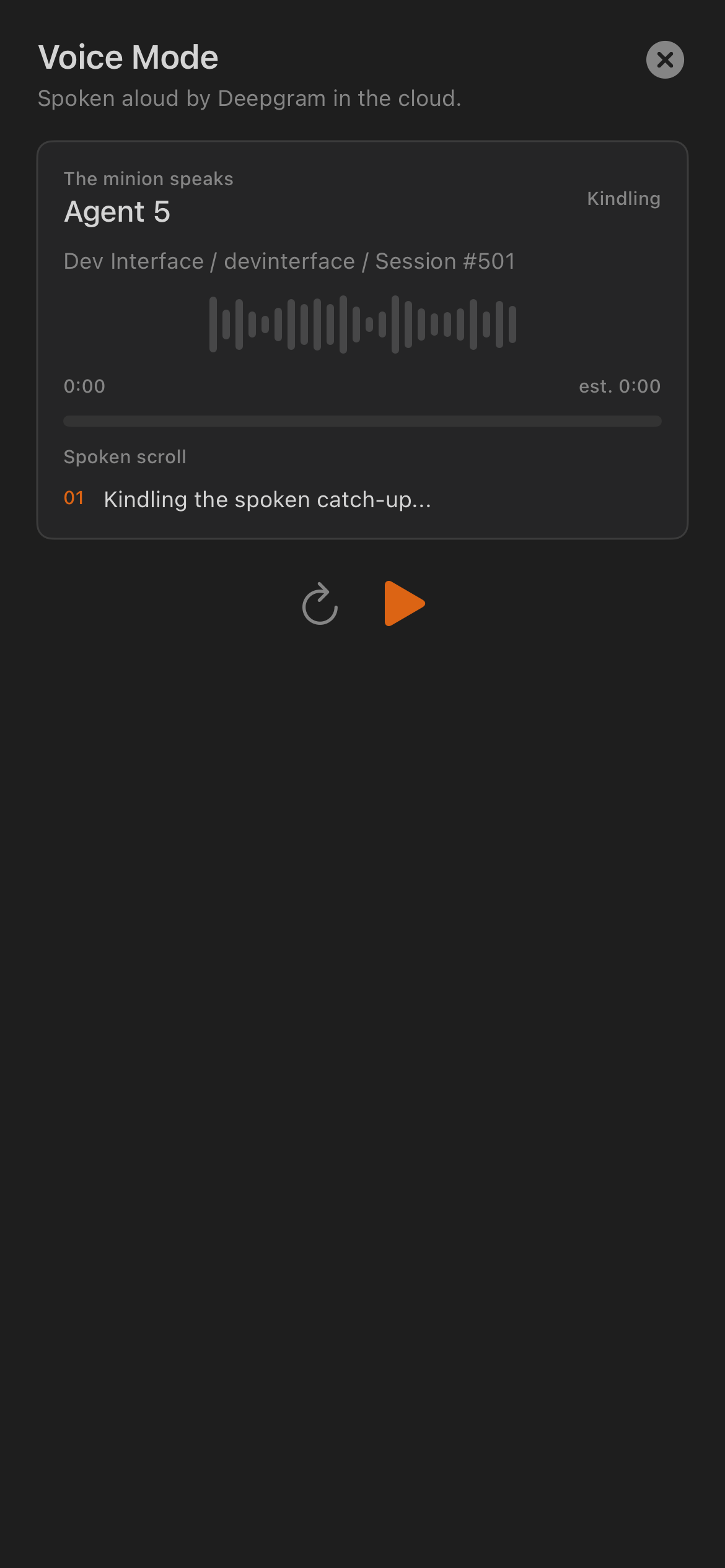
Open Voice Mode from the waveform button in the Minions toolbar. The sheet shows the spoken output, playback state, and replay/play/pause controls. The app labels the state clearly, such as Kindling, Speaking, Ready, Stilled, or Fallen.
Voice Mode is different from dictation:
- Dictation turns your speech into text for prompts or notes.
- Voice Mode reads agent output aloud.
Voice Mode may use cloud speech services when configured by your build and account.
Tip: Voice Mode is a listen-only companion for keeping up with a run away from the keyboard — it does not send anything back to the agent. To reply, use the prompt field or the dictation mic on the agent page.
Scrolls While Driving Agents
Use Scrolls when an agent opens files on desktop or when you want to inspect desktop-open files without returning to the computer.
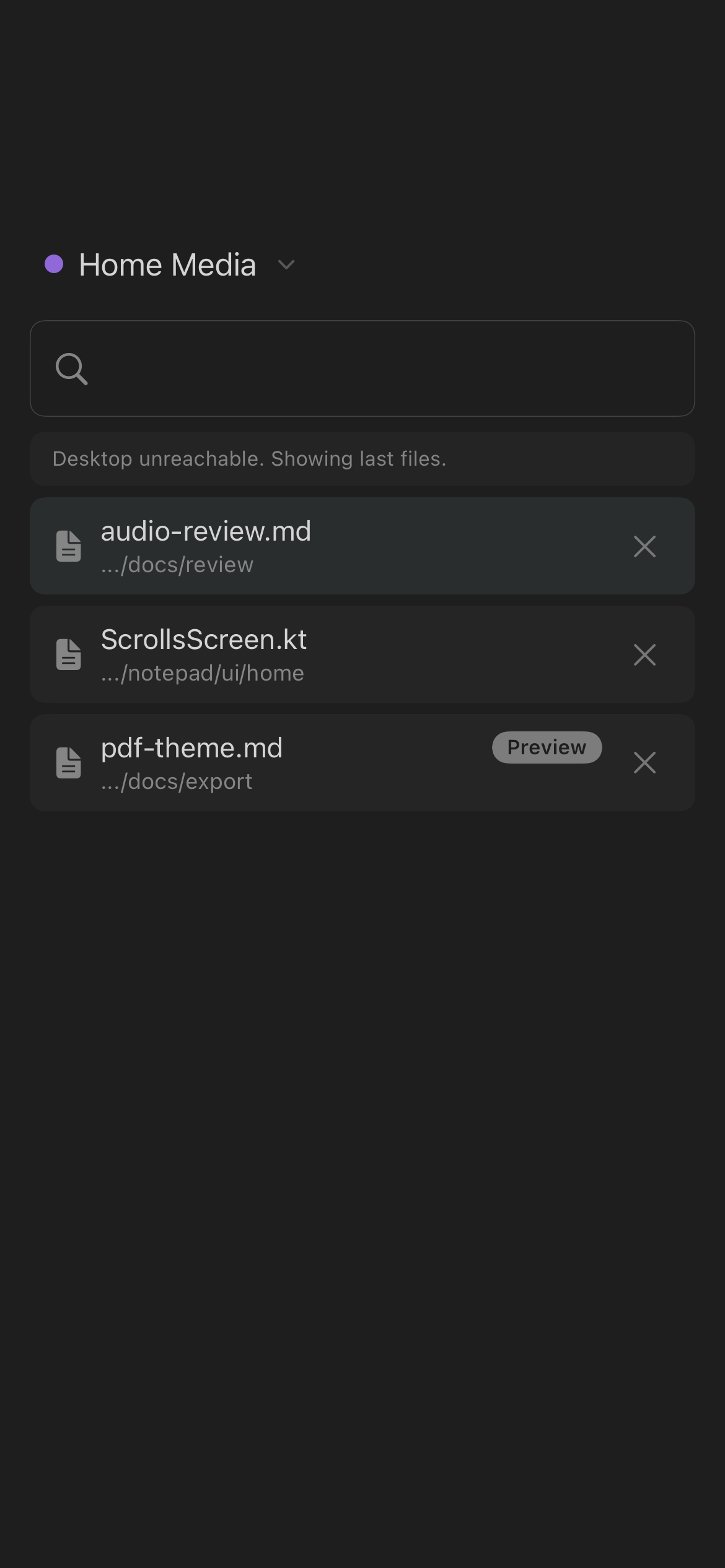
Scrolls are scoped to the selected workspace. The list can show filename, path, preview state, and stale/offline warnings. Tap a row to open the file viewer. Use the close button on a row to ask the desktop to close that file.
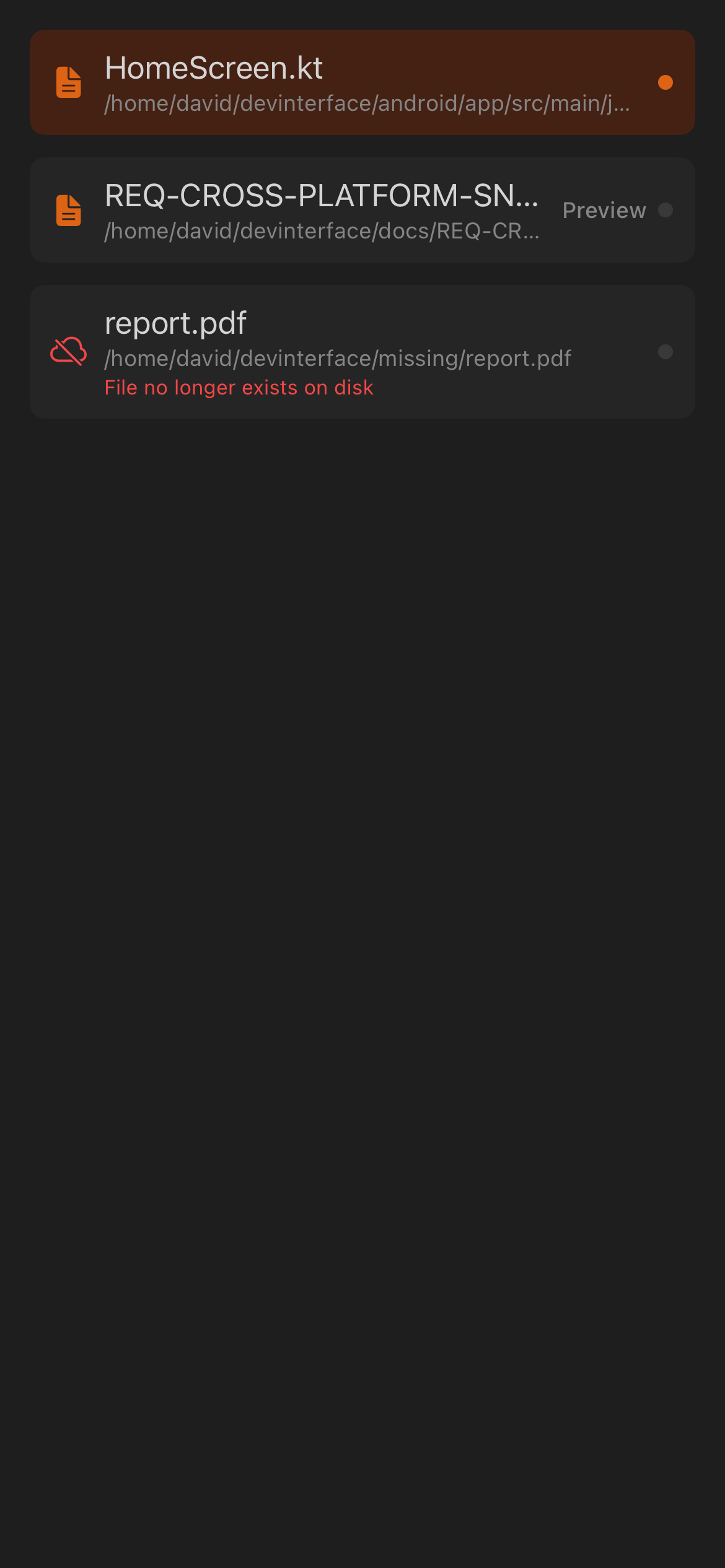
If the desktop is unreachable, Scrolls may show stale data until the desktop reconnects.
Open File Viewer
The open file viewer shows read-only file content from the desktop. Markdown files render as formatted text, and plain text files use a readable monospaced view.
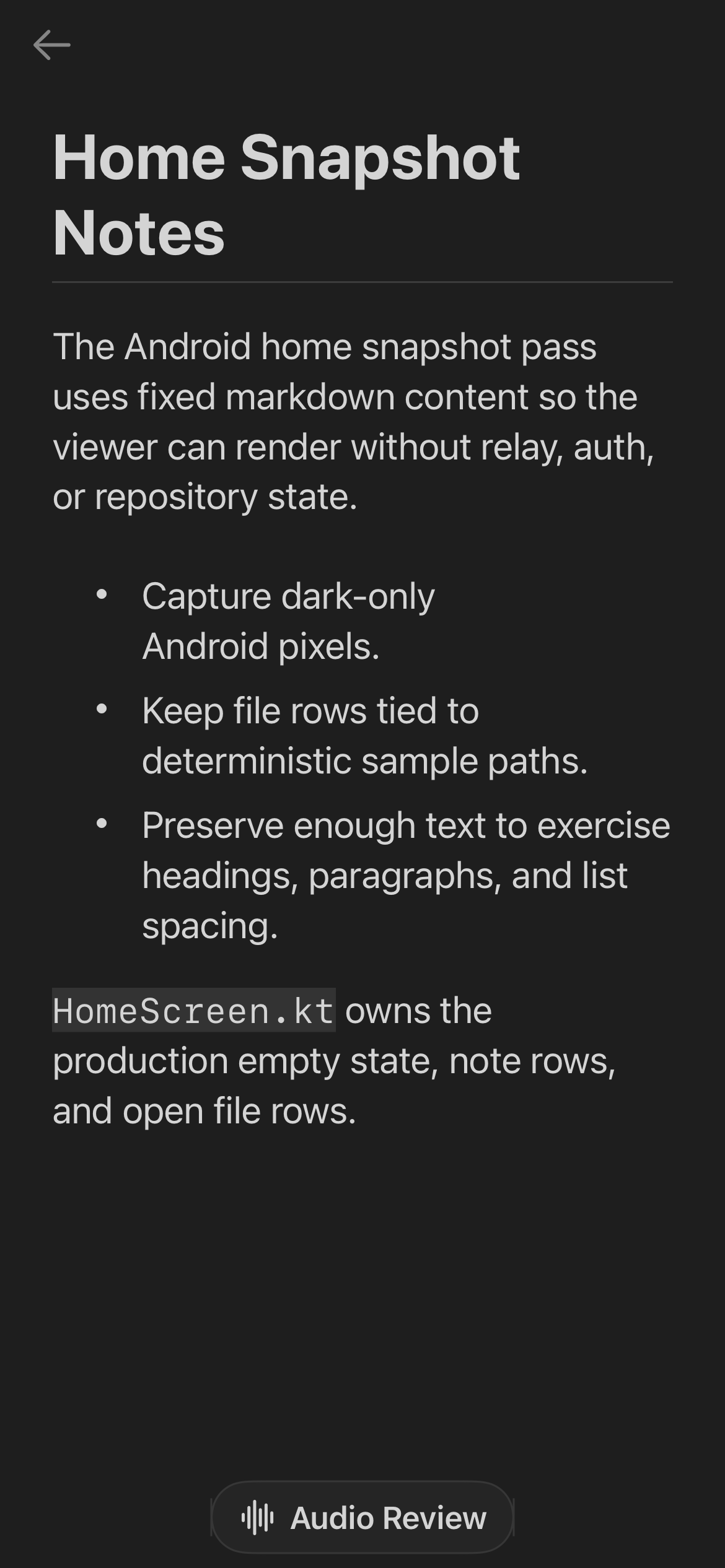
From the viewer:
- Tap the back arrow to return to Scrolls or the previous flow.
- Use Audio Review on Markdown files to listen through the document and capture feedback.
- Use Export PDF on Markdown files when the export option is available.
- Watch for Content truncated if the relay only returned part of a large file.
For review and PDF export details, continue with Notepad and Dictation on iOS.
Troubleshooting Minions
- Desktop unreachable: open the desktop app, sign in, and keep it awake.
- Lost signal: check the phone network and retry.
- No manual sessions: use Summon or start a mobile-visible session on desktop.
- Prompt will not send: wait for the relay to reconnect, then retry the same prompt.
- Scrolls look stale: refresh, then confirm the file is still open on desktop.
Continue
- Notepad and Dictation on iOS — dictation, Audio Review, and PDF export from Scrolls.
- Scheduled Tasks, Omens, and Settings on iOS — Rituals, Omens, and the Armoury.
- Back to Getting Started on iOS or the Mobile Apps Overview.