Notepad and Dictation on iOS
On this page
Part of the Mobile Apps guide · Back to Getting Started on iOS.
Thy Quill is the iOS notepad for the selected workspace. It syncs with the desktop through the cloud relay and supports fast note capture, indentation, done flows, attachments, dictation, audio review, and PDF export for Markdown Scrolls.
Use Thy Quill
Open Thy Quill from the bottom navigation. Choose the workspace at the top before editing, because notes are workspace-scoped.
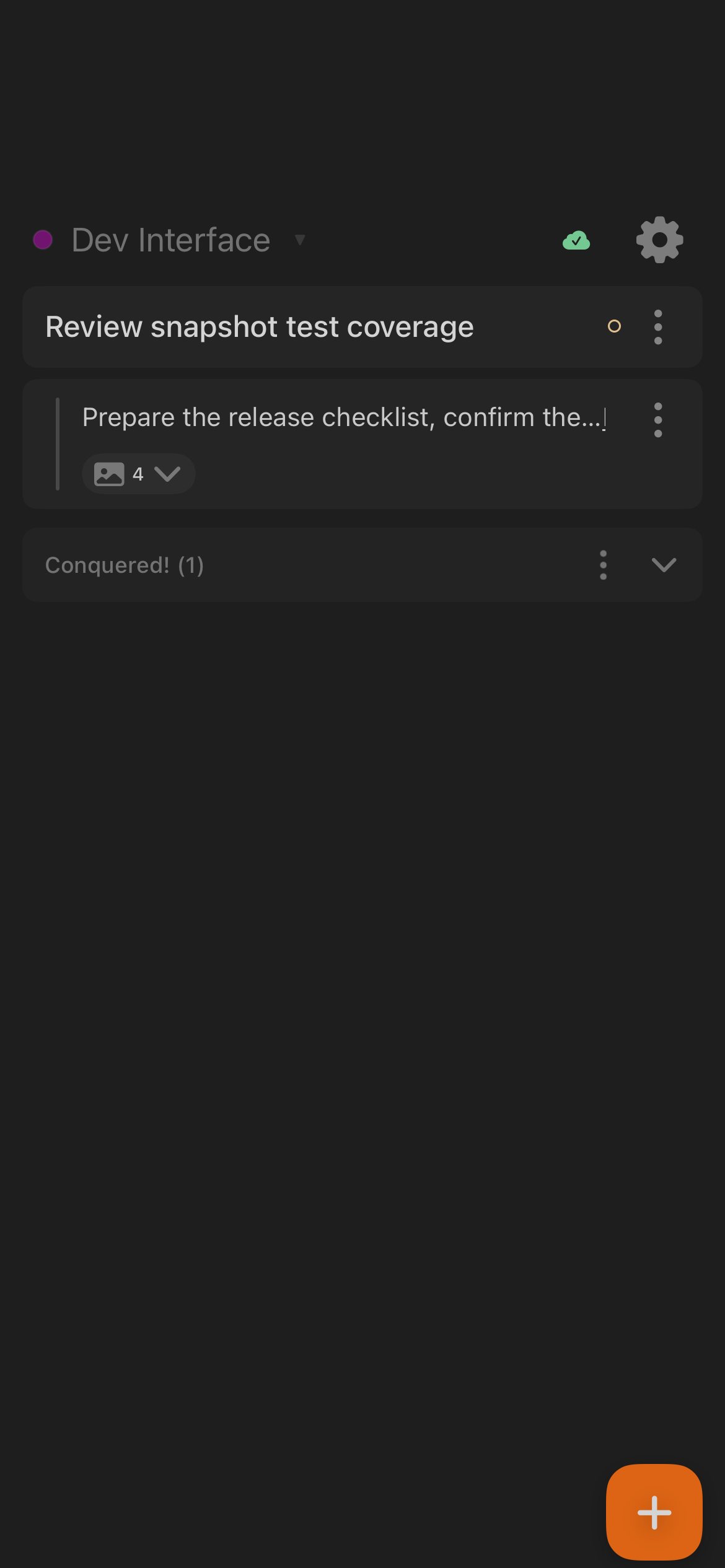
Common note actions:
- Tap + to create a new item.
- Tap a note to edit it inline.
- Mark a note done to move it under Conquered!.
- Drag notes to reorder them.
- Pull to refresh when you want to force a sync.
- Use Copy conquered items or Clear all conquered from the completed section.
If you edit while offline, the app keeps local changes and syncs again when the relay is available.
Note Row Actions
Each note row has an actions menu. The available actions can include Done, Add, Indent, Outdent, Affix a scroll, and Delete.
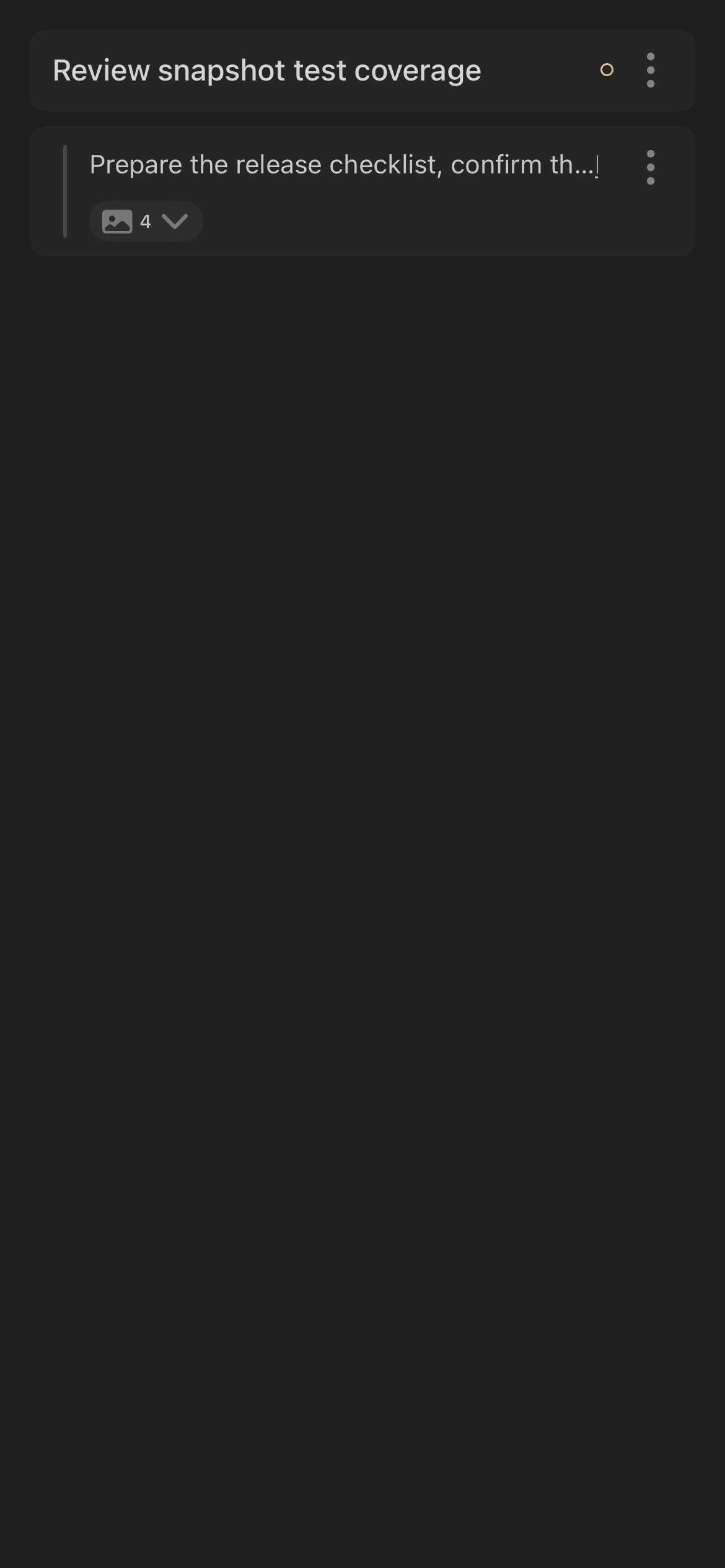
Use Affix a scroll to connect note context to workspace files or attachments. Rows can also reveal images and documents when materials are attached.
Dictation Basics
Dictation is available from mic buttons in note and prompt flows. It converts speech to text and inserts the result into the active field.
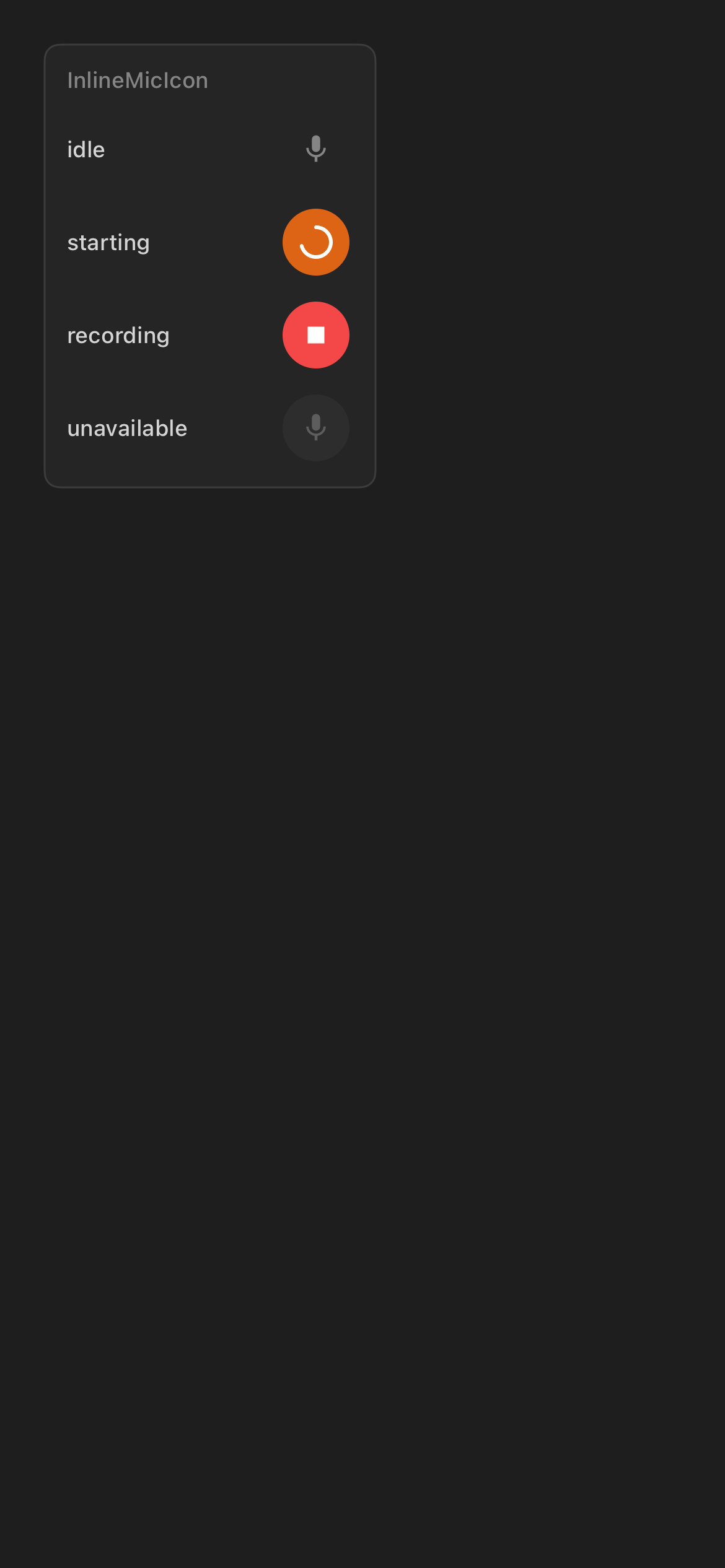
The mic moves through clear states:
- Idle: tap to start dictation.
- Starting: the recorder is preparing.
- Recording: tap again to stop.
- Transcribing: wait for text to appear.
- Unavailable: the speech model, microphone permission, or audio session is not ready.
The first use can require the on-device speech model to be prepared. During that time, the app may show model readiness banners such as voice dictation ready, paused, downloading, or failed.
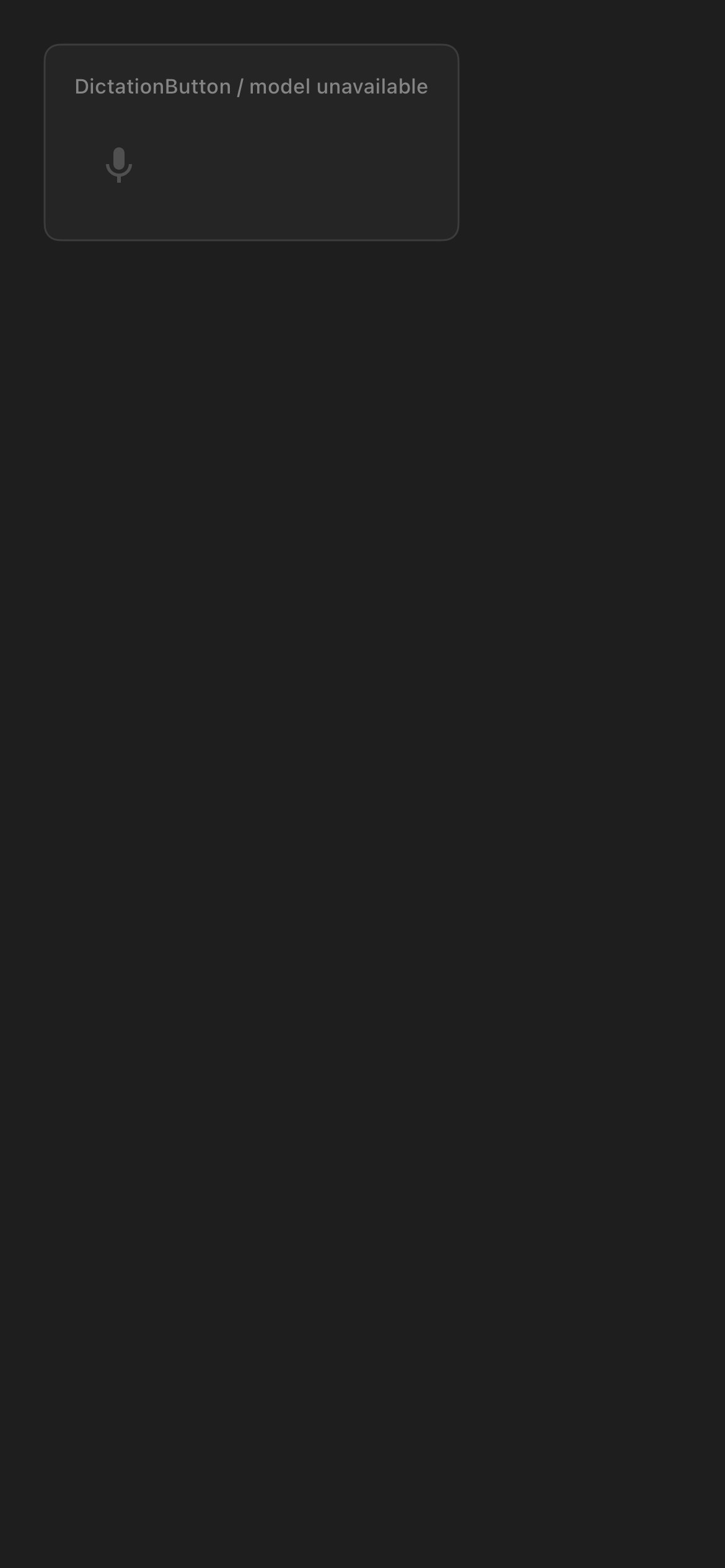
If microphone permission is denied, iOS sends you to Settings so you can allow microphone access for Code Overlord.
Once recording starts, you can inspect other Code Overlord tabs, switch apps, go Home, or lock and unlock the phone. Return to the exact draft that started the recording to stop it; the transcript is appended there for editing and is never sent or saved automatically.
Dictation Privacy and Connectivity
The dictation stack is designed around an on-device speech model after the model is available. Network access may still be needed while the app obtains or prepares required model files.
Voice Mode and Audio Review are separate from dictation. They can use speech playback and summarization services when those services are configured for your build and account.
Use Scrolls for Review
Scrolls lists files that are open on the desktop. Tap a Markdown Scroll to open the viewer, then use Audio Review or Export PDF when available.
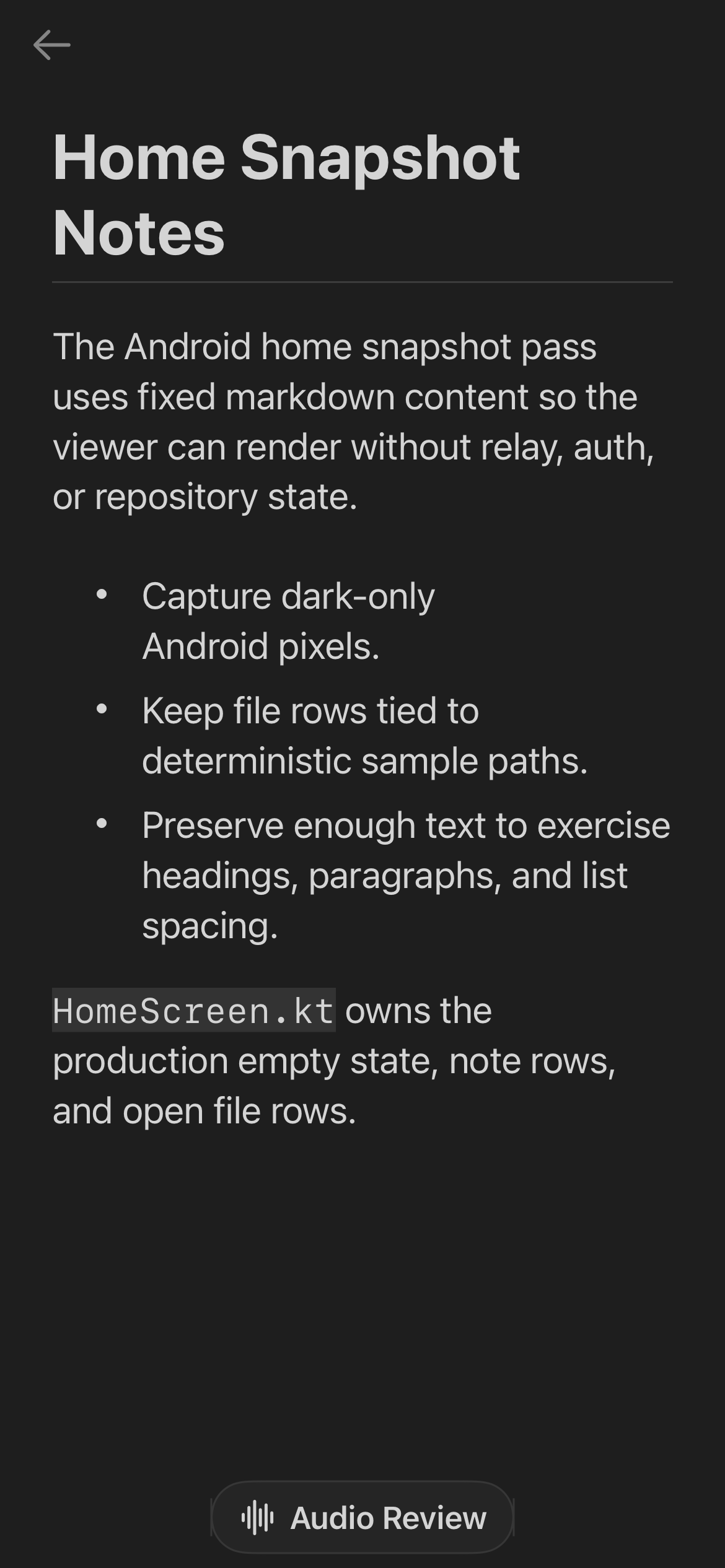
The viewer is read-only on iOS. Edit the file on desktop, then refresh Scrolls if you need the latest content.
Audio Review
Audio Review reads a Markdown file aloud and lets you capture spoken feedback chapter by chapter.
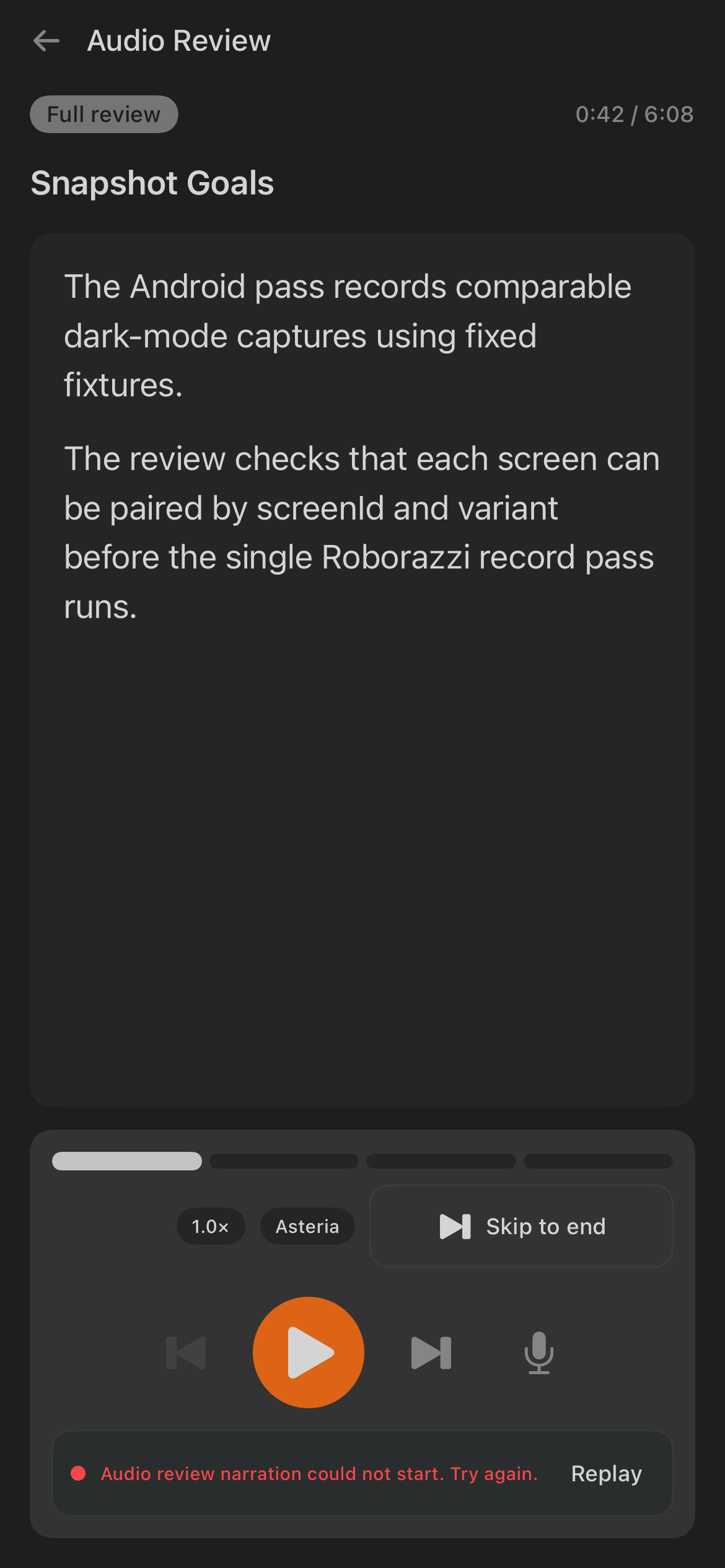
When Audio Review opens, playback starts automatically when audio is available. Use the controls to play, pause, replay, skip, or record feedback. If narration cannot start, the screen shows a retry action.
During review:
- The current section is shown as large readable text.
- Playback progress and chapter progress stay visible.
- Tap the mic to record feedback for the current section.
- Use Skip when a section needs no feedback.
- Use Finish Review when you are done.
If you leave Audio Review before finishing, iOS asks whether to resume or discard the review progress.
Tip: Feedback you have already recorded is preserved when you leave mid-review, so you can safely step away and resume the same session later instead of starting over.
Review Summary
The summary screen shows reviewed, skipped, and feedback-bearing chapters. You can open a chapter again, add more feedback, or choose a submit target.
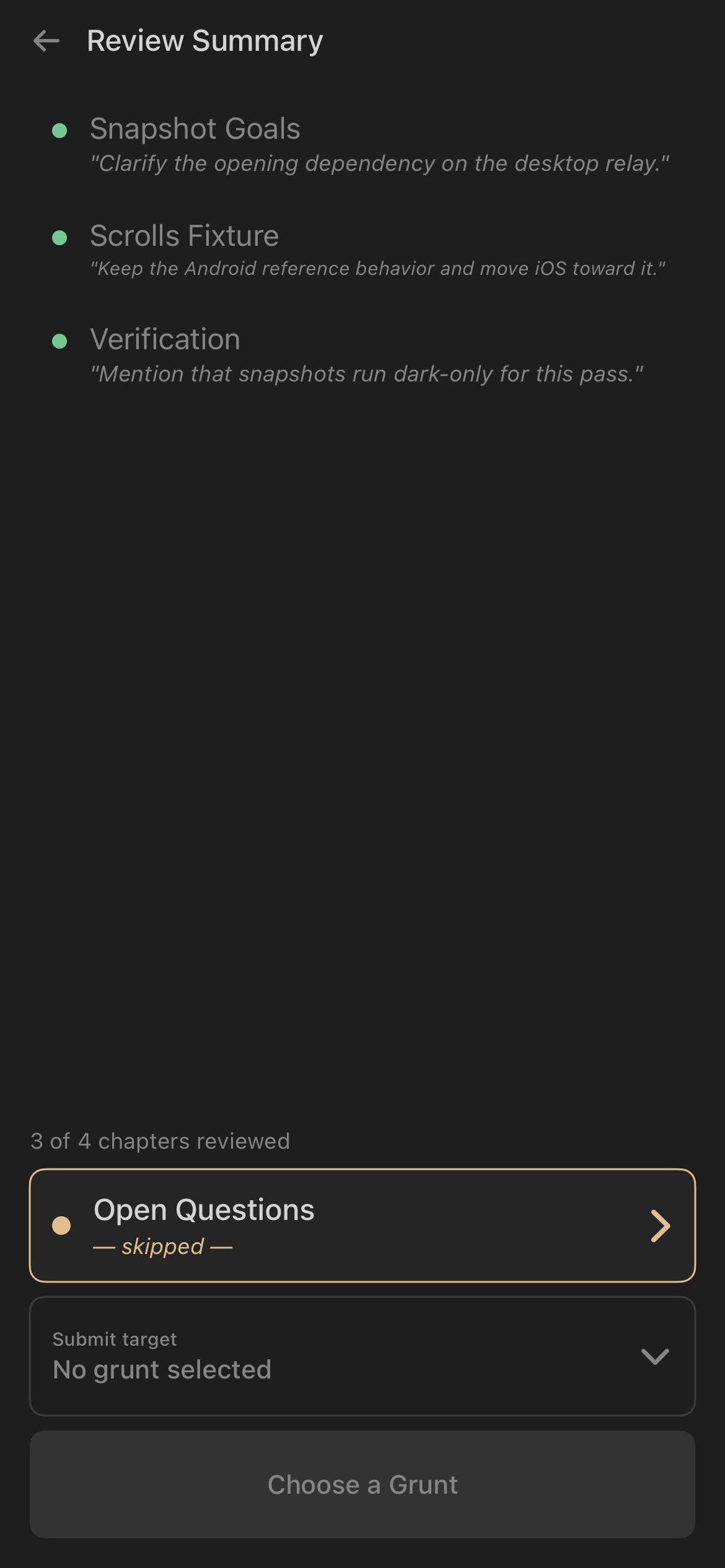
To submit feedback back to an agent, choose a compatible target from Submit target. If no target is configured, the app keeps the summary visible so you can decide what to do next.
Export PDF
Markdown Scrolls can be exported to PDF when the export service is reachable and your session is signed in. Open the viewer menu and choose Export PDF.
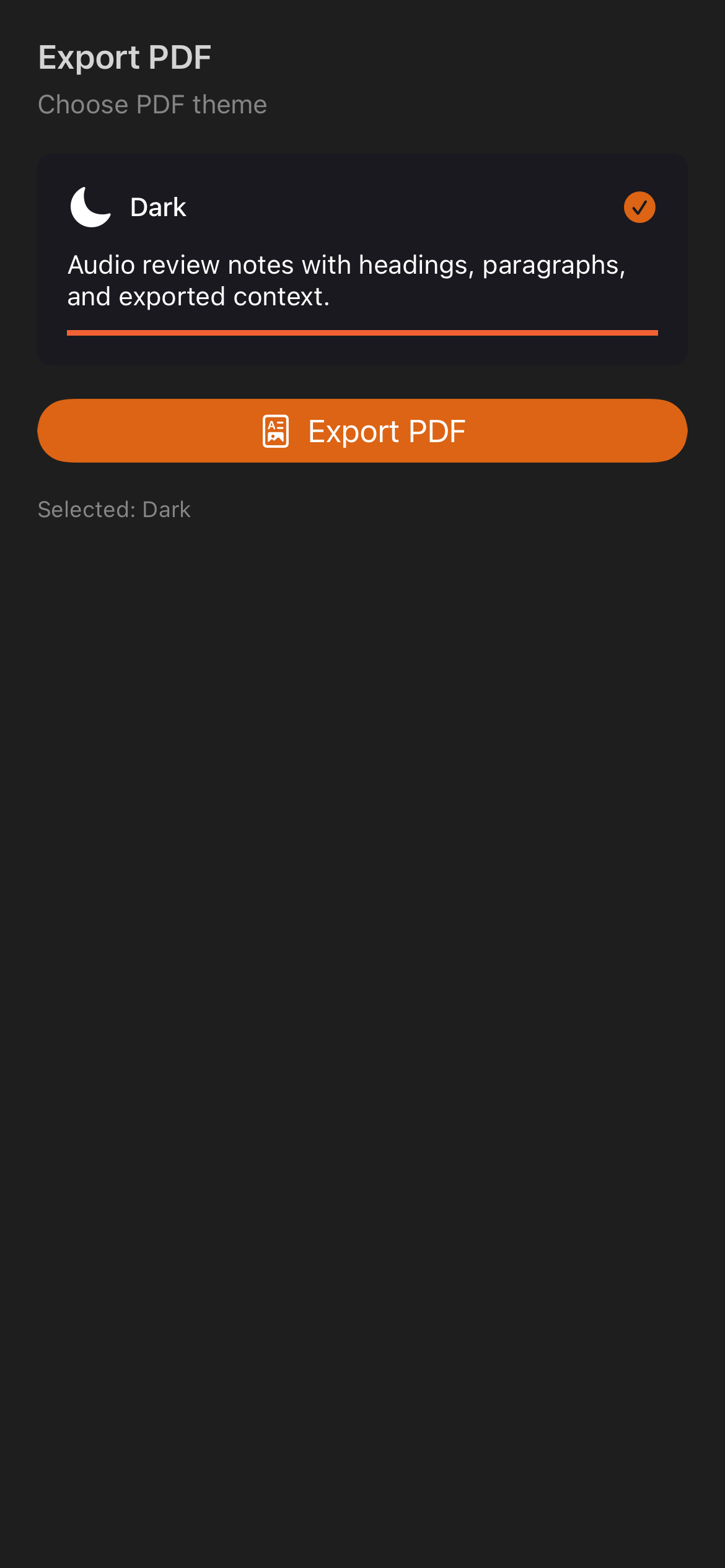
The iOS export flow lets you choose a PDF theme:
- Dark for a dark document.
- Warm for a softer reading theme.
- Light for a bright document.
After choosing the theme, tap Export PDF. If the file is not ready, the phone is offline, or the export service cannot be reached, iOS shows an error and you can retry later.
Troubleshooting Notes and Dictation
- Notes do not sync: check the sync chip, phone network, and desktop availability.
- Dictation mic is disabled: wait for the model readiness banner or retry the model download/copy.
- No text appears after recording: speak for at least a short phrase, stop recording, and wait for transcription.
- Audio Review fails to start: tap Replay or reopen the Markdown Scroll.
- Export PDF is unavailable: confirm the file is Markdown, content is loaded, and the phone can reach the export service.
Continue
- Scheduled Tasks, Omens, and Settings on iOS — Rituals, notifications, and the Armoury.
- Back to Agent Sessions on iOS or Getting Started on iOS.
- See also the Mobile Apps Overview for how iOS and Android compare.