Scheduled Tasks, Omens, and Settings on iOS
On this page
Part of the Mobile Apps guide · Back to Getting Started on iOS.
Use Rituals to monitor and manage scheduled tasks that run on the desktop. Use Omens for notifications, and Armoury for account, privacy, version, feedback, and status-related settings.
Rituals Overview
A Ritual is a scheduled desktop task. The iOS app can list tasks, create or edit them, dispatch a run now, halt a running task when supported, and open retained terminal output. The desktop still performs the actual work through the relay.
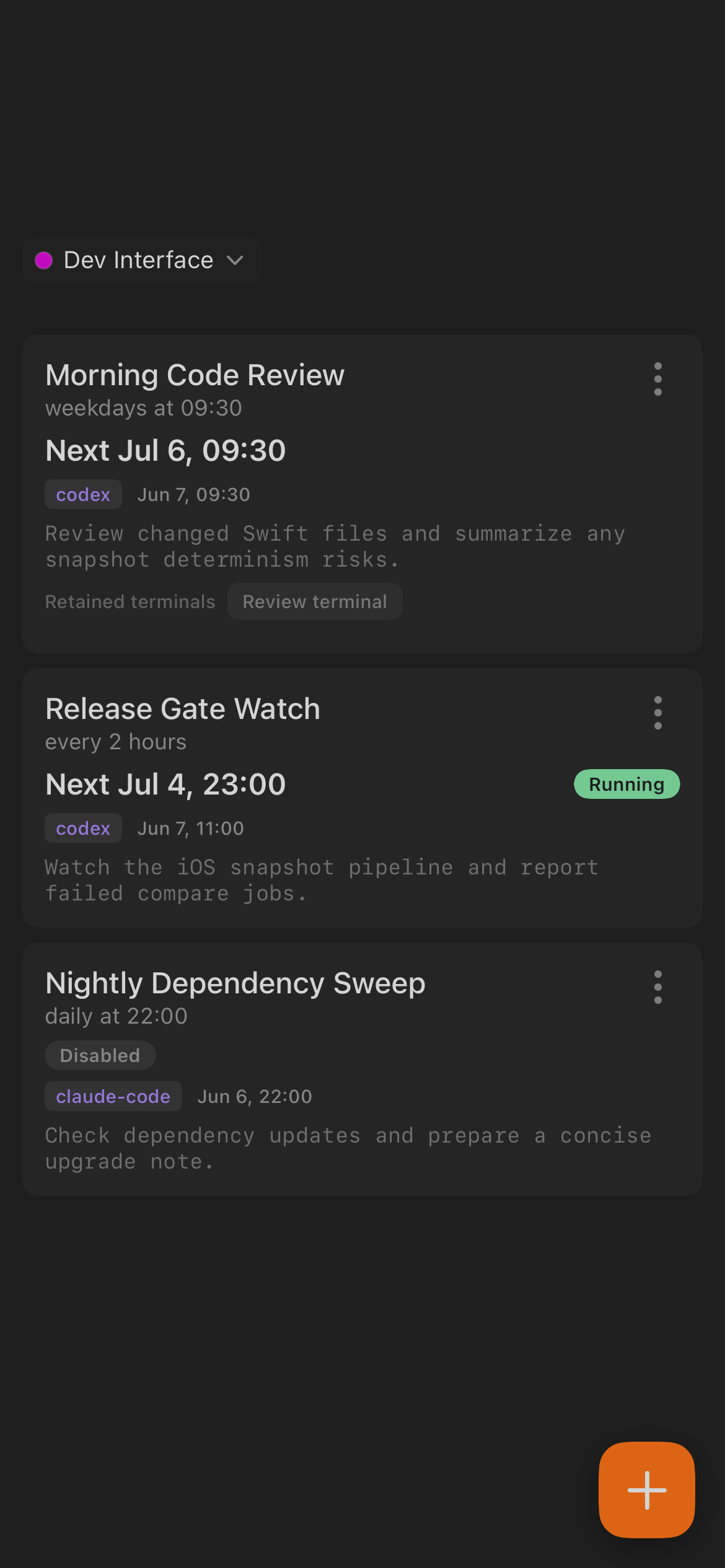
Each Ritual card can show:
- Task name.
- Schedule, such as weekdays, daily, hourly, or every few minutes.
- Next run time.
- Agent or controller badge.
- Last run time.
- Prompt preview.
- Status such as Running, Disabled, or Enabled.
- Retained terminal links when output is available.
The row menu can include Dispatch Now, Halt, Disable, Enable, Edit, and Delete, depending on task state.
Create or Edit a Ritual
Tap + in Rituals to open Inscribe New Ritual. Editing an existing Ritual opens Amend Ritual.
Fill in:
- Name: a clear task label.
- Cadence: the schedule pattern.
- Schedule fields such as minute, hour, or interval.
- Prompt: the instruction the agent should run.
The editor shows a schedule preview before saving. If the desktop is offline or the selected workspace is inactive, iOS keeps the task unchanged and shows a desktop-availability message.
Tip: The desktop runs the schedule, so a Ritual only fires while the desktop app is online at the scheduled time. Use Dispatch Now from the Ritual detail screen when you want a run immediately rather than waiting for the next cadence.
Ritual Detail
Tap a Ritual to open its detail screen. The screen replaces the three previous stacked bars with one compact header. In a single row it shows the back arrow, Ritual name with a one-line next-run subtitle, agent badge, details chevron, and enabled toggle.
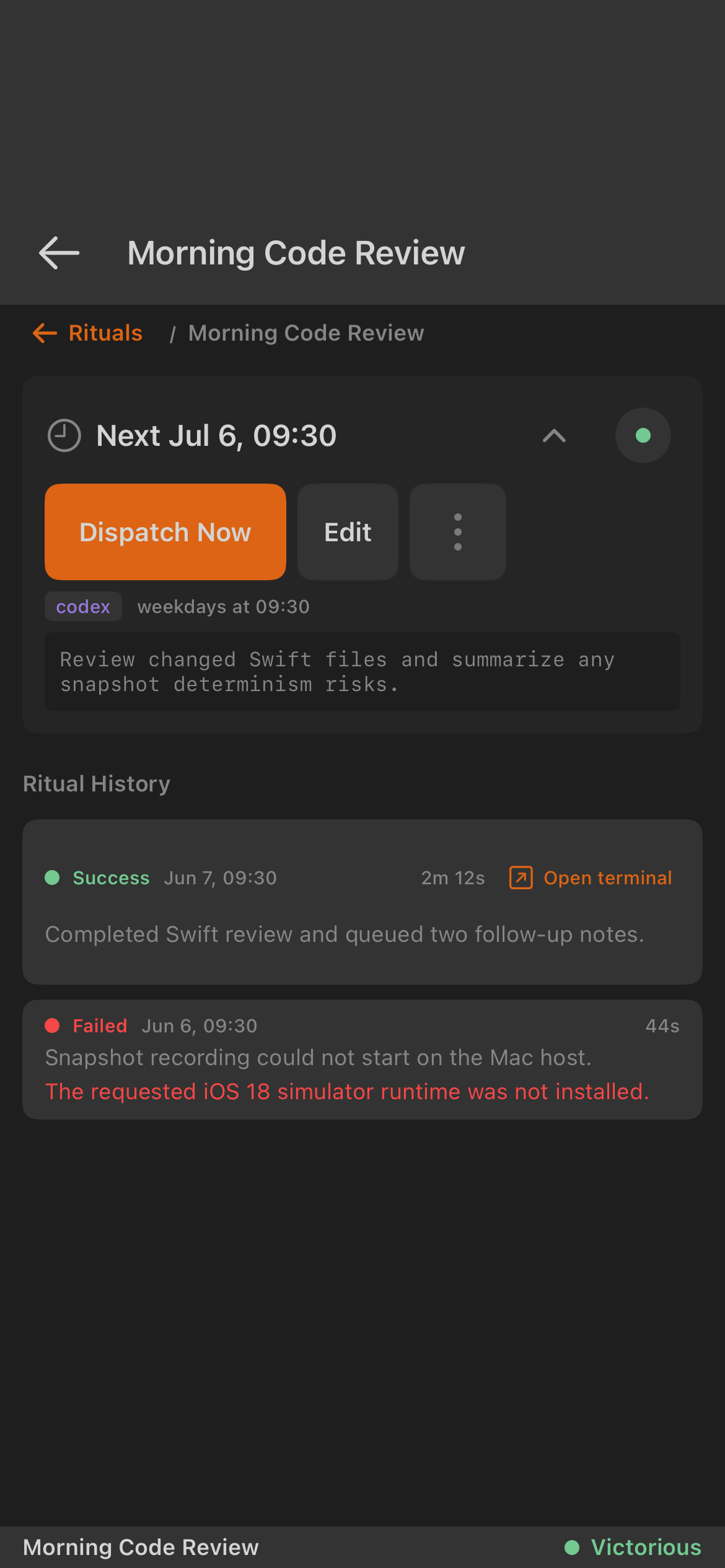
Tap the header or chevron to unfold the full configuration: schedule/cron text, a prompt preview, and Dispatch Now, Edit, and Banish. The header remembers your idle collapsed/expanded choice and automatically collapses while the Ritual's agent is running so output and history remain prominent.
Use the detail screen to:
- Tap Dispatch Now to run the task immediately.
- Tap Edit to change name, schedule, or prompt.
- Enable or disable the task.
- Tap Banish to delete the Ritual.
- Open terminal output from a past run.
- Review success, failure, duration, and error messages in history.
When a Ritual is actively running, the detail screen can show the live agent output inline. Ritual-created sessions remain on Rituals; the Minions tab is reserved for manual sessions. The bottom status indicator labels the run state, such as Working, Idle, Victorious, or Fallen.
Notifications and Omens
Omens collect important mobile events for the selected workspace. Open Omens from the bottom navigation.
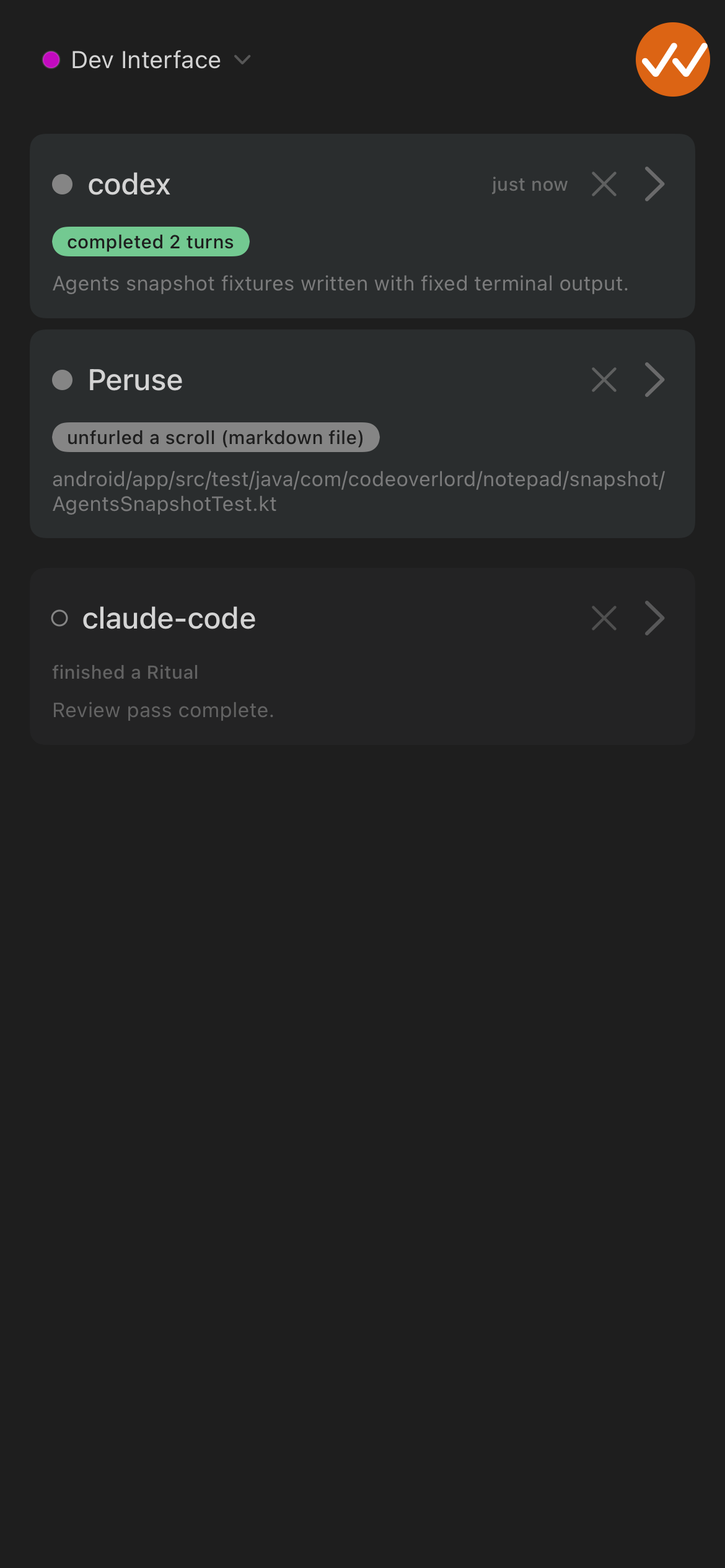
Omens can include:
- Agent turn completions.
- Ritual completions.
- Ritual failures.
- Desktop-opened Markdown files.
- Other agent events.
Tap an Omen row to navigate to the related session, Scroll, or Ritual when the event includes enough context. Use the row close action to dismiss an event, or the handled-events control to clear handled items.
If you allowed notifications when iOS first prompted (or later enabled them in iOS Settings), iOS can surface Omens outside the app. If notifications are disabled, the Omens tab still shows in-app events while the app can sync with the relay.
Armoury Settings
Open Armoury (settings) from the gear on Thy Quill.
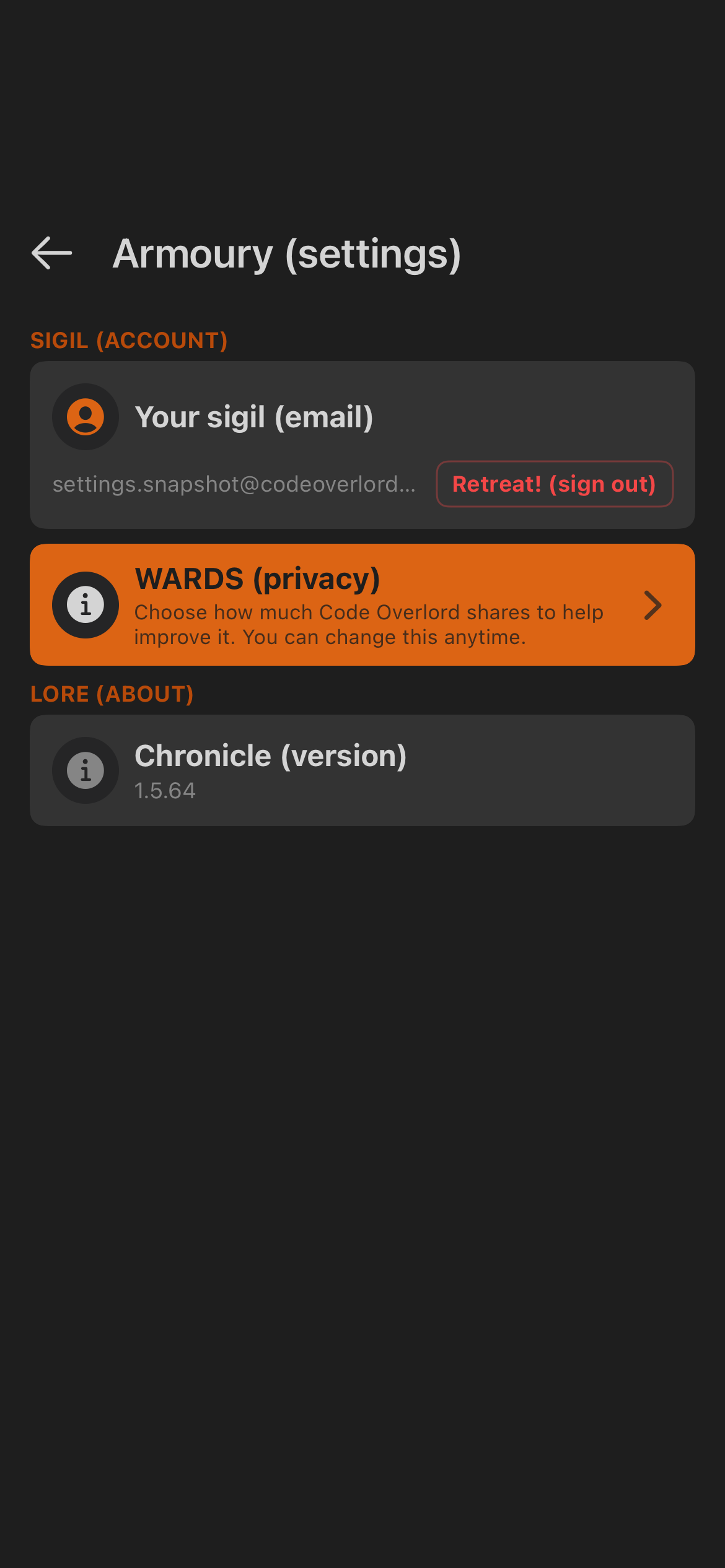
Settings include:
- SIGIL (account): the signed-in email and Retreat! (sign out) action.
- WARDS (privacy): privacy profile choices and advanced privacy controls when available.
- LORE (about): the app version.
- REALM (environment): shown only in builds that expose environment switching.
Signing out keeps local scrolls and notes safe on the device, but live relay features require signing in again.
Themes and Visual Status
The iOS app uses a dark interface with strong status colors for workspace dots, task states, errors, warnings, and success. Workspace colors help you confirm that you are viewing the intended workspace.
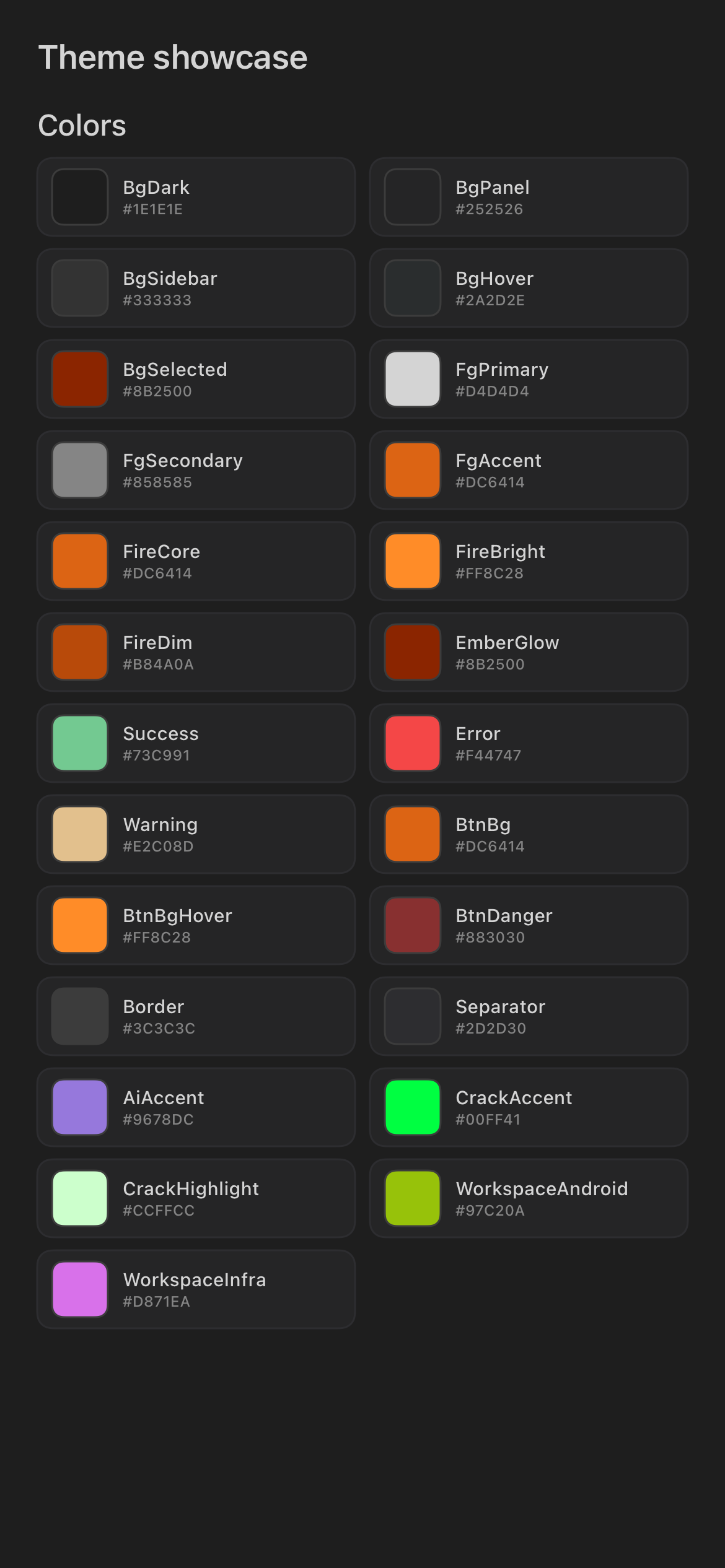
The main app theme is fixed by the build. Markdown PDF export has its own theme picker, covered in Notepad and Dictation on iOS.
Loading and status states can use branded visual treatment while the app waits for relay, model, or desktop readiness.
Repeated taps on the Omens area can also reveal a hidden diagnostic-style overlay. It is visual only for normal users; leave the screen or reopen the app if you accidentally trigger it and want to return to the ordinary interface.

Feedback Composer
Some builds show a feedback launcher on the edge of the screen. Open it to send product feedback with app context attached automatically.
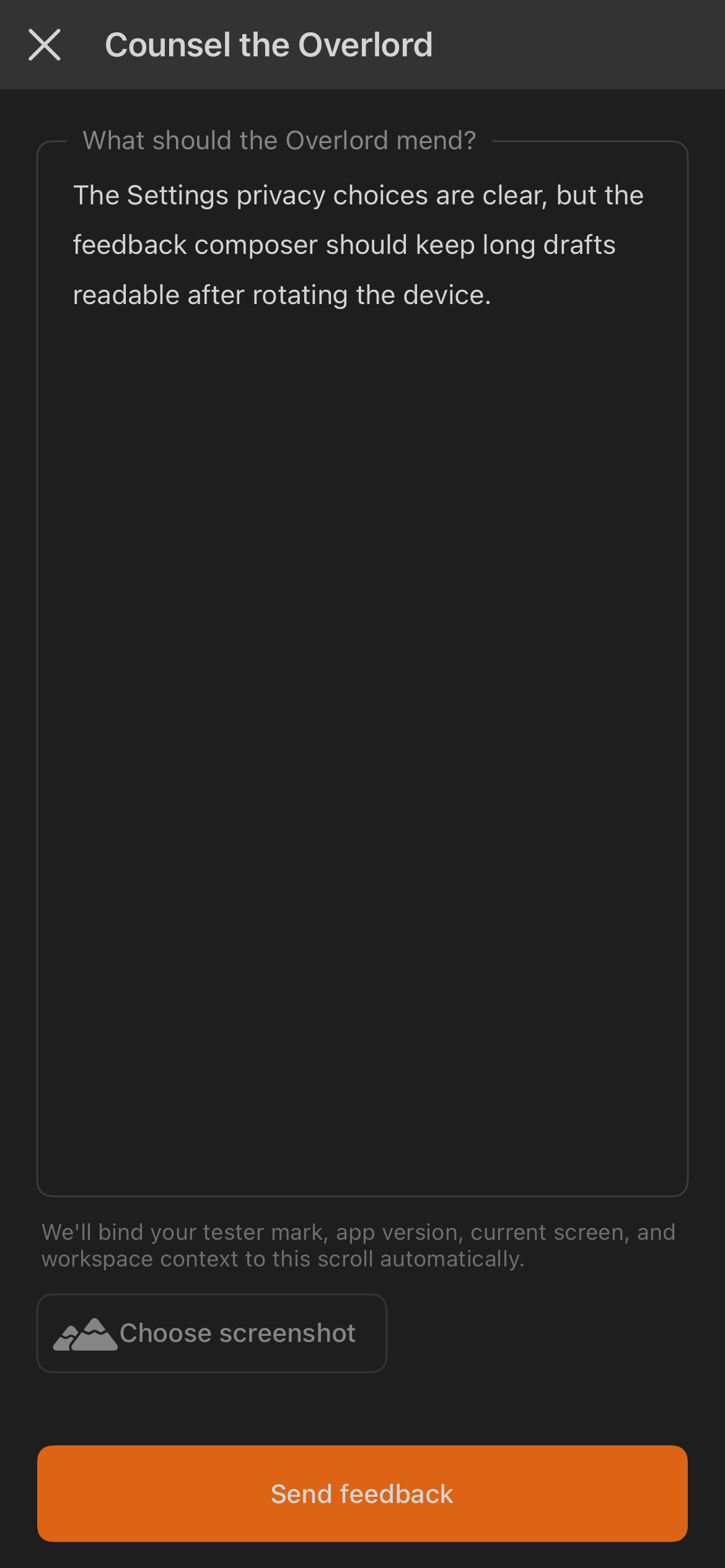
The composer can include:
- Your written feedback.
- App version.
- Current screen.
- Workspace context.
- Tester mark when configured.
- An optional screenshot chosen from the device.
Tap Send feedback when the report is ready. If sending fails, keep the text in place, check connectivity, and retry.
Troubleshooting Rituals, Omens, and Settings
- Ritual unchanged: the desktop may be offline or the selected workspace inactive.
- Dispatch Now fails: reconnect the desktop and retry from the Ritual detail screen.
- Run history is empty: the task may not have run yet, or history may still be syncing.
- Omen will not open: the related session, task, or file may no longer be available.
- No iOS notification banners: allow notifications for Code Overlord in iOS Settings.
- Privacy controls are missing: they may be hidden by the current build or environment.
Continue
- Back to Getting Started on iOS, Agent Sessions on iOS, or Notepad and Dictation on iOS.
- See also the Mobile Apps Overview to compare the iOS and Android apps.