Getting Started on iOS
On this page
Last updated: July 5, 2026
Part of the Mobile Apps guide, which compares the iOS and Android apps side by side.
Code Overlord on iOS is the mobile companion to the Code Overlord desktop app. It lets you monitor and steer the desktop workflow from your phone: notes, agent sessions, open desktop files, scheduled tasks, notifications, settings, dictation, and review flows.
The iOS app does not replace the desktop app and does not run desktop agents by itself. It connects to your signed-in account and talks to the desktop through the cloud relay. Keep the desktop app running, online, and signed in whenever you want live agents, Scrolls, Rituals, or Omens on mobile.
What You Need
- A Code Overlord iOS install from the TestFlight invitation or App Store distribution link your team provides.
- Internet access on both the iOS device and the desktop.
- Code Overlord desktop running and signed in to the same account.
- Camera permission if you want to pair by QR code.
- Notification permission if you want Omens to appear outside the app.
iOS Screen Names
The iOS app uses themed names in the bottom navigation and settings:
- Thy Quill: the Home notepad.
- Minions: desktop agent sessions.
- Scrolls: files currently open on the desktop.
- Rituals: scheduled tasks.
- Omens: notifications and events.
- Armoury: settings, opened from the gear button.
Install the App
- Open the TestFlight or App Store link from your team.
- Install Code Overlord.
- Open the desktop app and sign in.
- Open the iOS app.
- Use Scan QR to connect for the fastest pairing path, or use Log in to sign in with Google, Apple, or email.
If you install from TestFlight, keep TestFlight installed so you can receive new builds when your team publishes them.
First Open
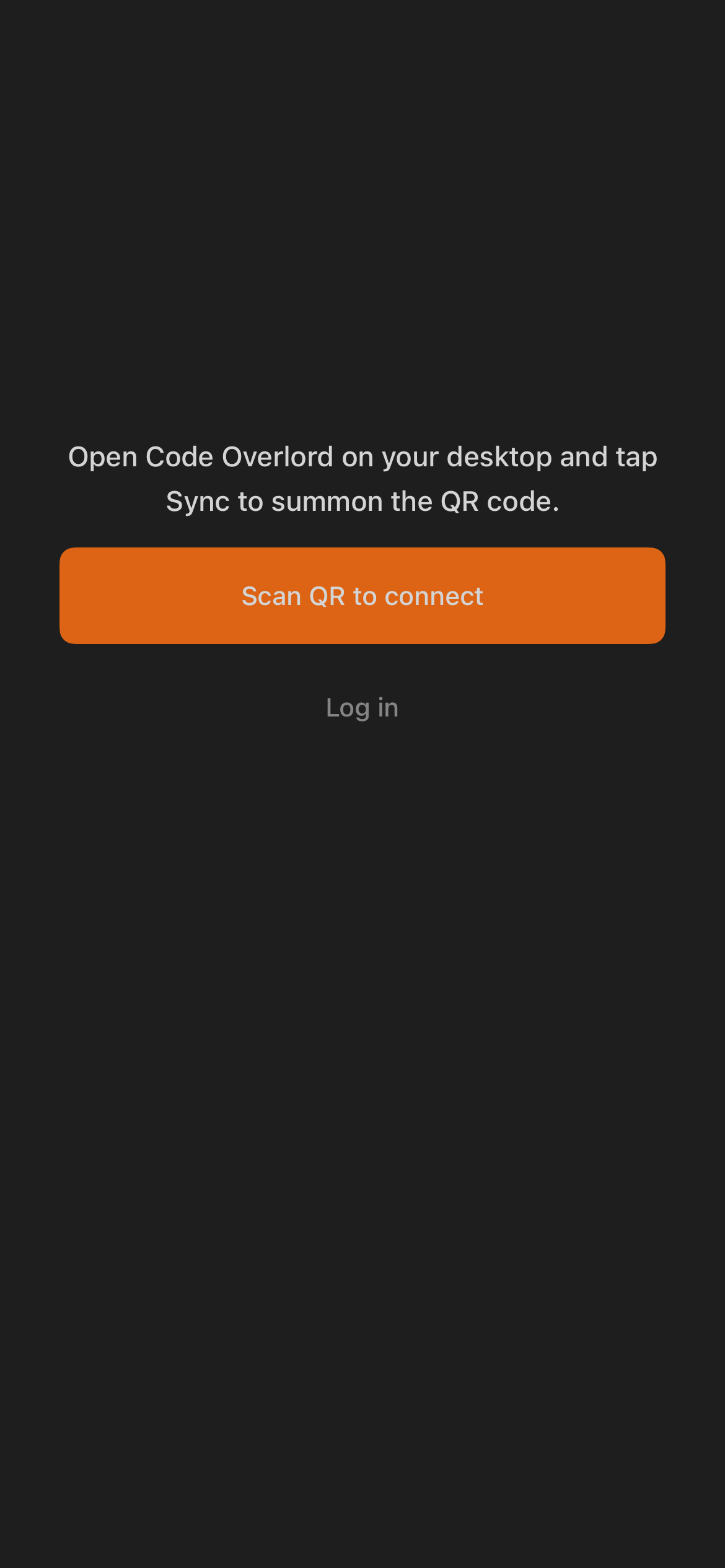
The first screen is QR-first because the phone is meant to bind to the desktop relay session quickly. Open Code Overlord on desktop, open the desktop Sync window, then tap Scan QR to connect on iOS.
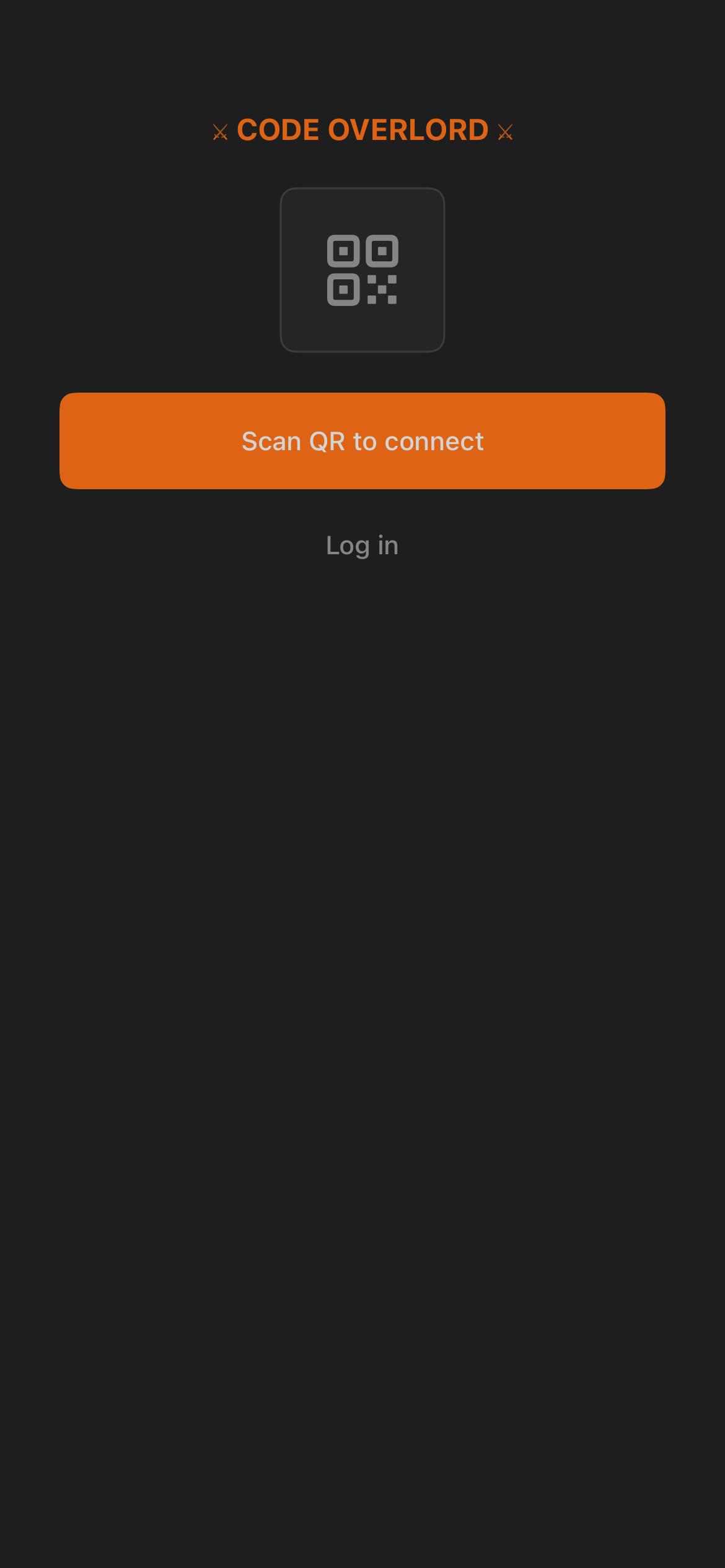
If you prefer account sign-in first, tap Log in. The login screen supports QR pairing, Google, Apple, and email sign-in. Email users can sign in, create an account, or confirm a verification code.
Pair to the Desktop
Pairing binds the phone to the signed-in desktop through the cloud relay.
- On desktop, open Sync and show the pairing QR code.
- On iOS, tap Scan QR to connect.
- Allow camera access when iOS asks.
- Center the desktop QR code inside the scanner frame.
- Wait for the app to finish signing in and syncing workspace state.
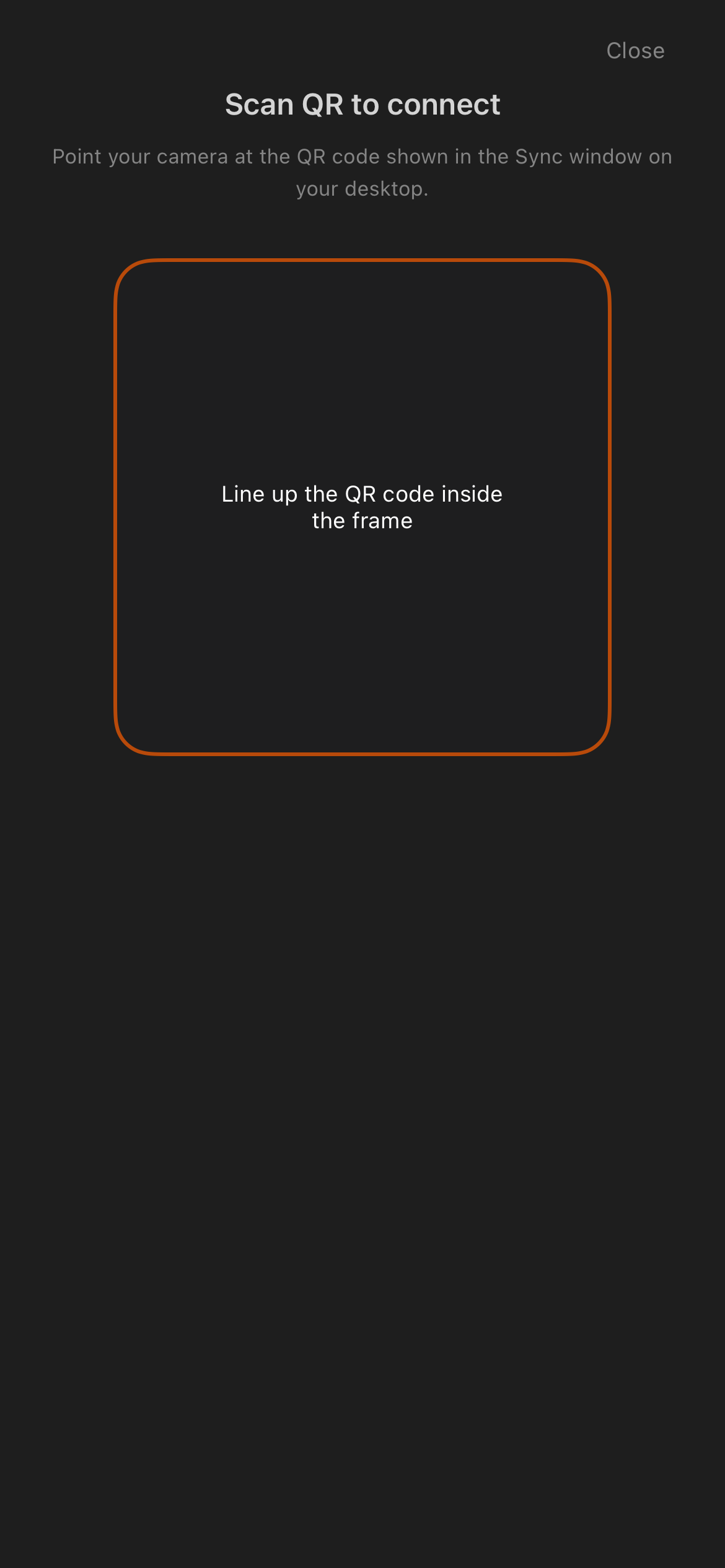
Tip: The desktop pairing QR code is short-lived. If the scanner stalls or reports an error, refresh the code on desktop and scan the newly shown one rather than retrying the stale code.
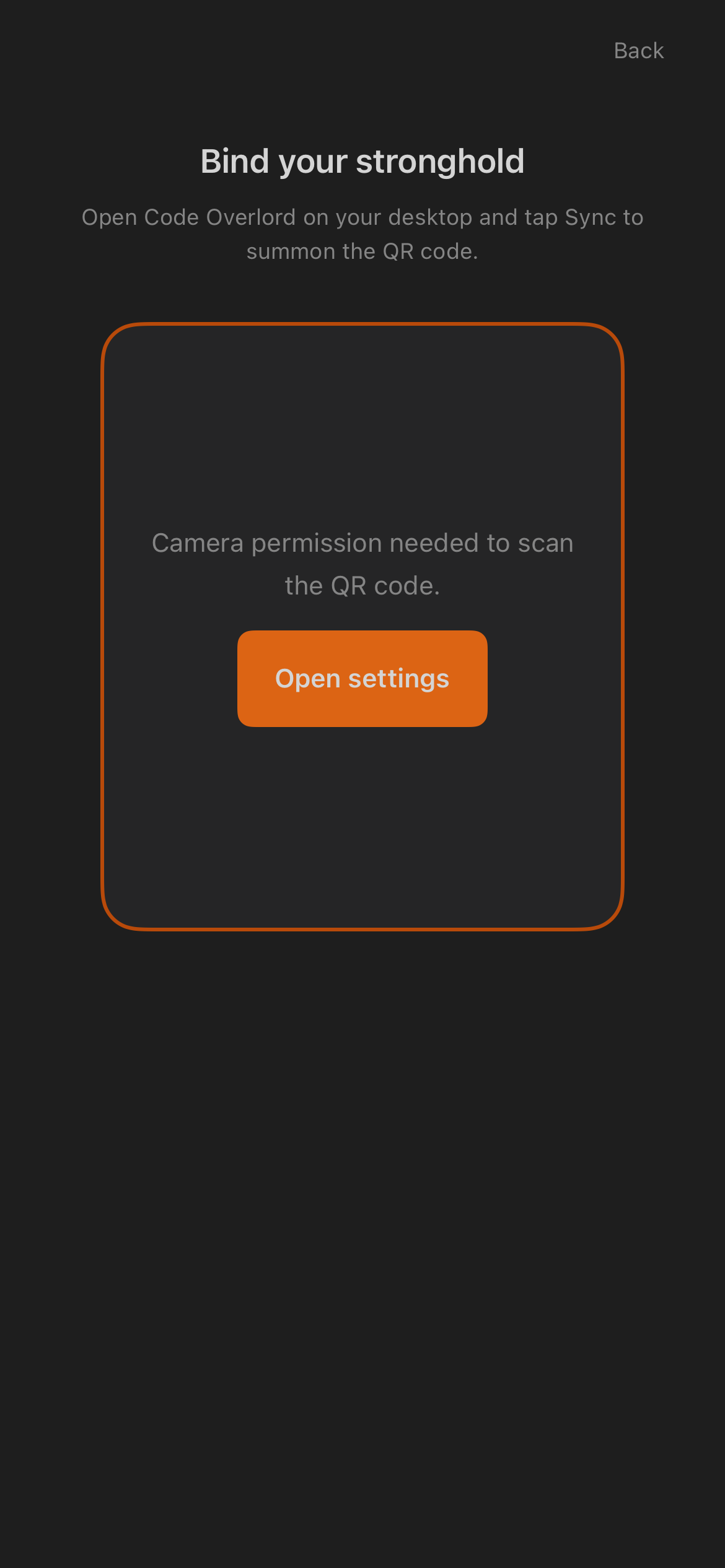
If camera permission is denied, iOS shows a camera-permission state. Tap Open settings, allow Camera for Code Overlord, then return to the app and scan again.
If the QR code expires or fails, refresh the QR code on desktop and scan the new one. Pairing errors usually mean the code is stale, the desktop is offline, or the phone cannot reach the relay.
The Quick Tour Screen
The iOS build includes a quick-tour screen (pictured) that introduces Minions, voice/dictation, Omens, and the desktop connection check. It is not wired into the shipping onboarding, though — the live route goes welcome → pairing/login → the app — so most users will not see it. Treat the capture below as a design artifact.
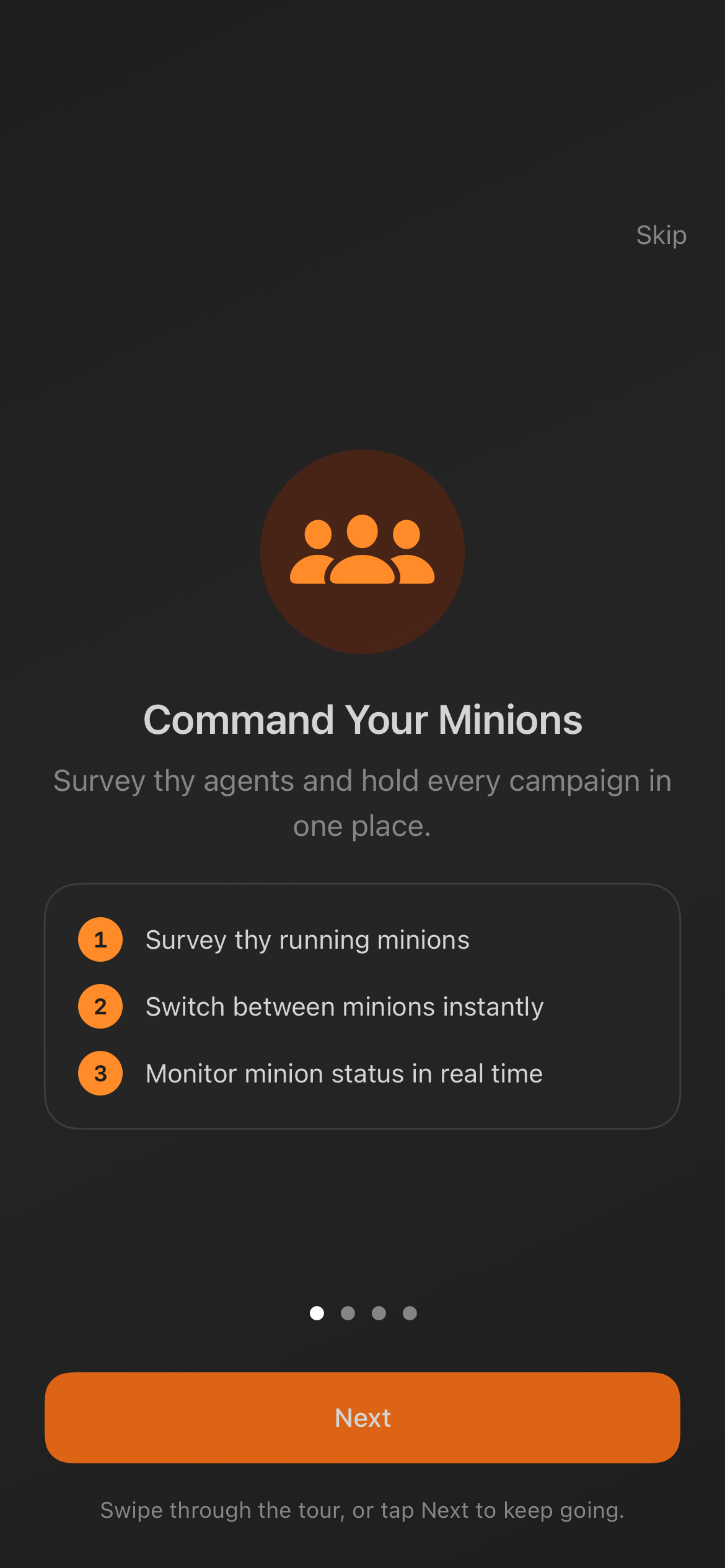 A quick-tour page that exists in the iOS code and snapshot set but is not part of the normal onboarding flow.
To receive iOS notifications for Omens (agents finishing turns, Rituals completing or failing, files opened on desktop), allow notifications when iOS first prompts, or enable them later in iOS Settings → Code Overlord → Notifications.
Choose a Workspace
Most iOS screens are scoped to a workspace. Use the workspace selector at the top of Thy Quill, Minions, Scrolls, Rituals, and Omens.
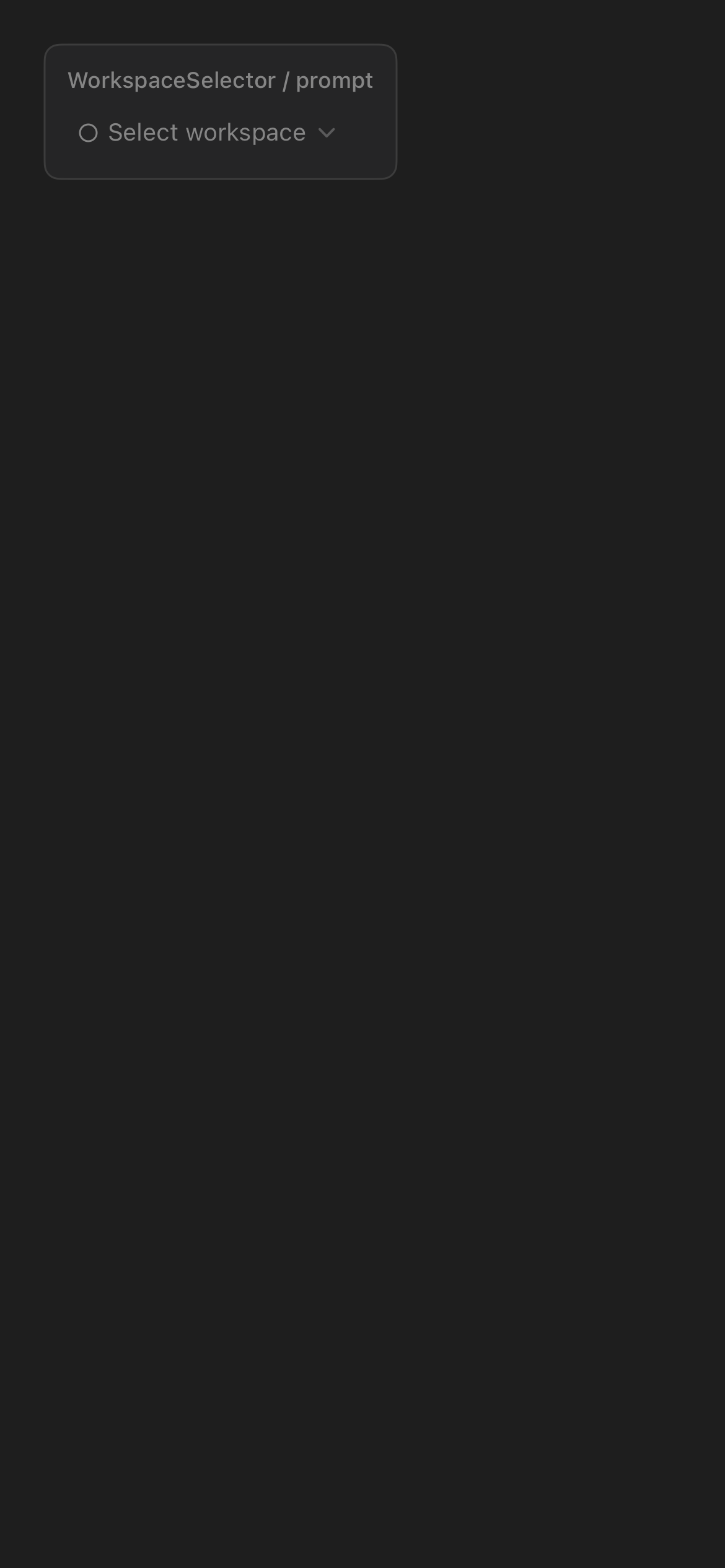
The selector shows each workspace name, color, item count, and whether the desktop is active. Choosing a workspace filters notes, agents, open files, and scheduled tasks to that workspace. You can also hide old workspaces and restore hidden ones later.
If a workspace shows as inactive, the selected workspace is not currently open on desktop. Open it on desktop or switch to an active workspace.
Home: Thy Quill
Thy Quill is the home screen and notepad. It shows the selected workspace, sync status, settings gear, active notes, completed notes, and the + button for adding a new item.
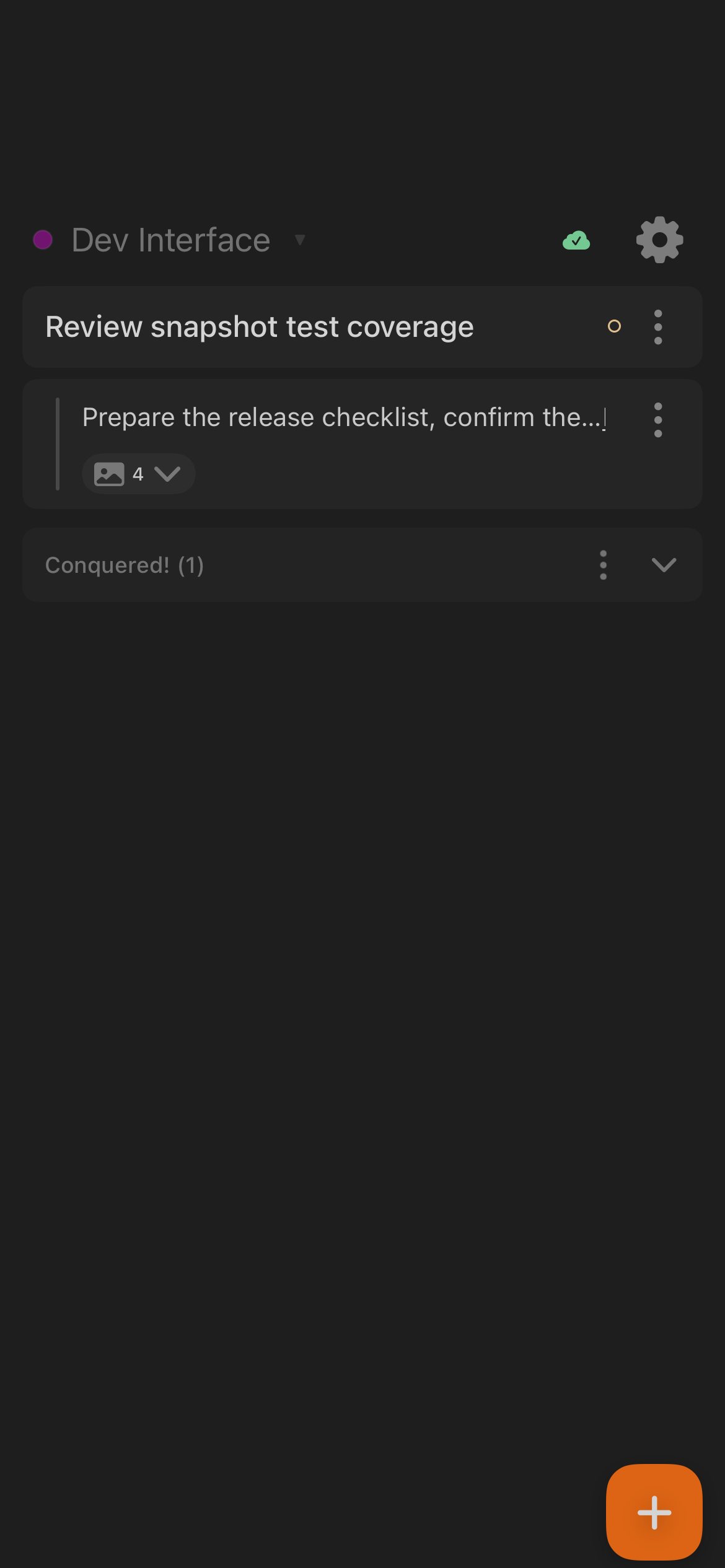
Use Thy Quill for quick notes that stay connected to the desktop workspace:
- Tap + to add a note.
- Tap note text to edit it.
- Use row actions to mark done, add a child item, indent, outdent, attach a scroll, or delete.
- Drag notes to reorder them.
- Pull to refresh when you want to force a sync.
- Use the gear to open Armoury (settings).
Completed items appear under Conquered!. From that section, you can copy completed items or clear them.
Cloud Relay and Status
The iOS app depends on the cloud relay for live desktop data:
- Minions, Scrolls, Rituals, and Omens need a reachable desktop.
- Notes can be edited locally, then sync when the app and relay are available.
- If the phone is offline, iOS shows a lost-signal state.
- If the desktop is offline, iOS shows a desktop-unreachable state.
- If a workspace is not open on desktop, some views may show stale or inactive data.
The sync chip and banners are the fastest way to tell whether the phone is connected, syncing, stale, or blocked by desktop availability.
Quick Troubleshooting
- No desktops online: open Code Overlord on desktop, sign in to the same account, and make sure the desktop can reach the internet.
- QR scan fails: refresh the desktop QR code and scan again.
- Camera permission blocked: open iOS Settings for Code Overlord and enable Camera.
- Workspace inactive: open that workspace on desktop or switch to a workspace that is active.
- No Minions, Scrolls, or Rituals: confirm the desktop app is online and the current workspace matches the one you expect.
- Omens are missing outside the app: allow notifications when iOS first prompts, or enable them in iOS Settings → Code Overlord → Notifications.
Continue
- Agent Sessions on iOS — watch and drive Minions, use Voice Mode, and inspect Scrolls.
- Notepad and Dictation on iOS — Thy Quill notes, dictation, Audio Review, and PDF export.
- Scheduled Tasks, Omens, and Settings on iOS — Rituals, notifications, and the Armoury.
See also the Mobile Apps Overview for how the iOS and Android apps compare.