Mobile Concepts
Shared mobile ideas, the design language, and the full feature matrix.
More about Mobile Concepts
The Code Overlord mobile apps are companion command posts for the desktop app. They let you check workspaces, capture notes, review desktop files, monitor and steer agent sessions, manage scheduled runs, and receive Omens - notifications about agent activity - while you are away from your computer.
The mobile apps do not replace the desktop app. Desktop still owns the local codebase, terminal sessions, open files, and scheduled automation engine. Mobile connects through your signed-in account and the relay service so it can see and control the parts of desktop that are safe to expose remotely.
What Mobile Is For
Use mobile when you want to:
- Capture or reorganize notes in Thy Quill, the mobile notepad.
- Check Minions, which are desktop agent sessions, and send follow-up input.
- Browse Scrolls, which are files currently open on desktop.
- Manage Rituals, which are scheduled tasks that run agents automatically.
- Read Omens, which are notifications about completed work, file activity, or agent state.
- Open Armoury (settings) to manage account, privacy, version, and sign-out.
| Android | iOS |
|---|---|
 |
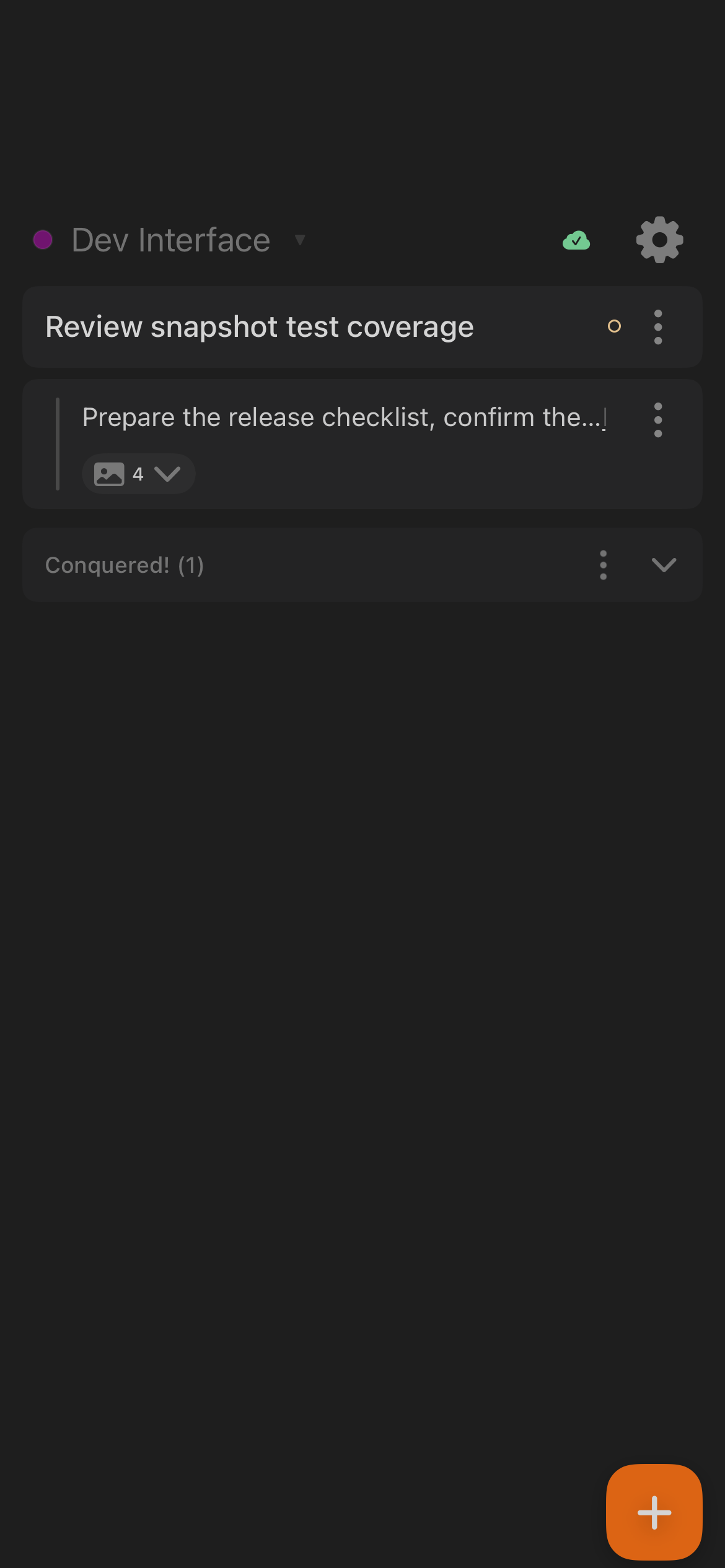 |
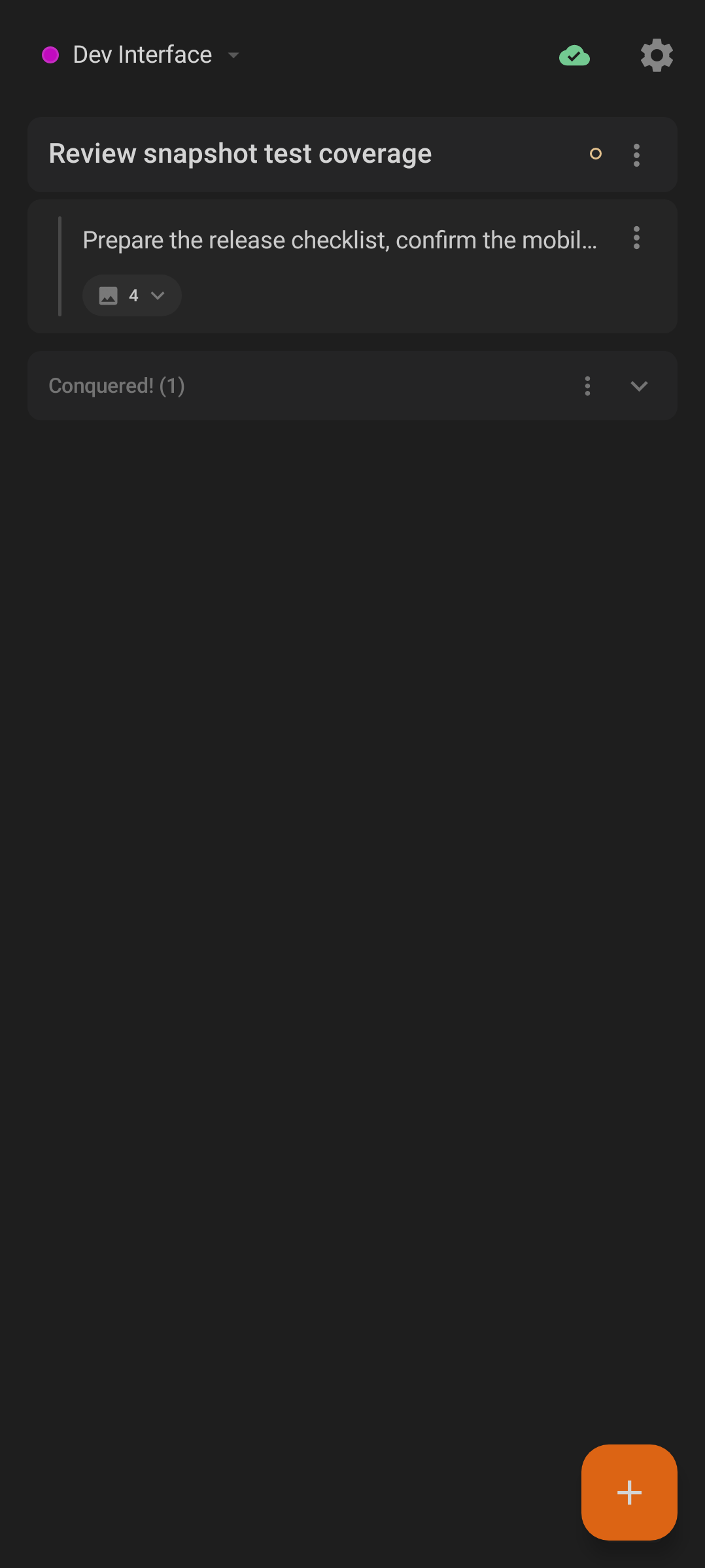
| Thy Quill on Android. The workspace chip, sync state, settings gear, note list, and add action are all reachable from the first screen. | Thy Quill on iOS. The same model is rendered with native iOS spacing and controls. |
How Mobile Relates To Desktop
The desktop app is the source of truth for code execution. Mobile is the remote control and review surface.
- Sign in on mobile with the same Code Overlord account you use on desktop, or scan the QR code shown from desktop Sync when your build offers QR pairing.
- Mobile receives relay configuration and authenticates relay requests with your account session.
- Desktop publishes session, workspace, open-file, notification, and scheduled-task state through the relay.
- Mobile shows live state when desktop is online and may show cached or local state when desktop or the network is unavailable.
Tip: If a live relay-backed view looks empty, open Code Overlord on your desktop, confirm you are signed in to the same account, and refresh the mobile screen.
| Android | iOS |
|---|---|
 |
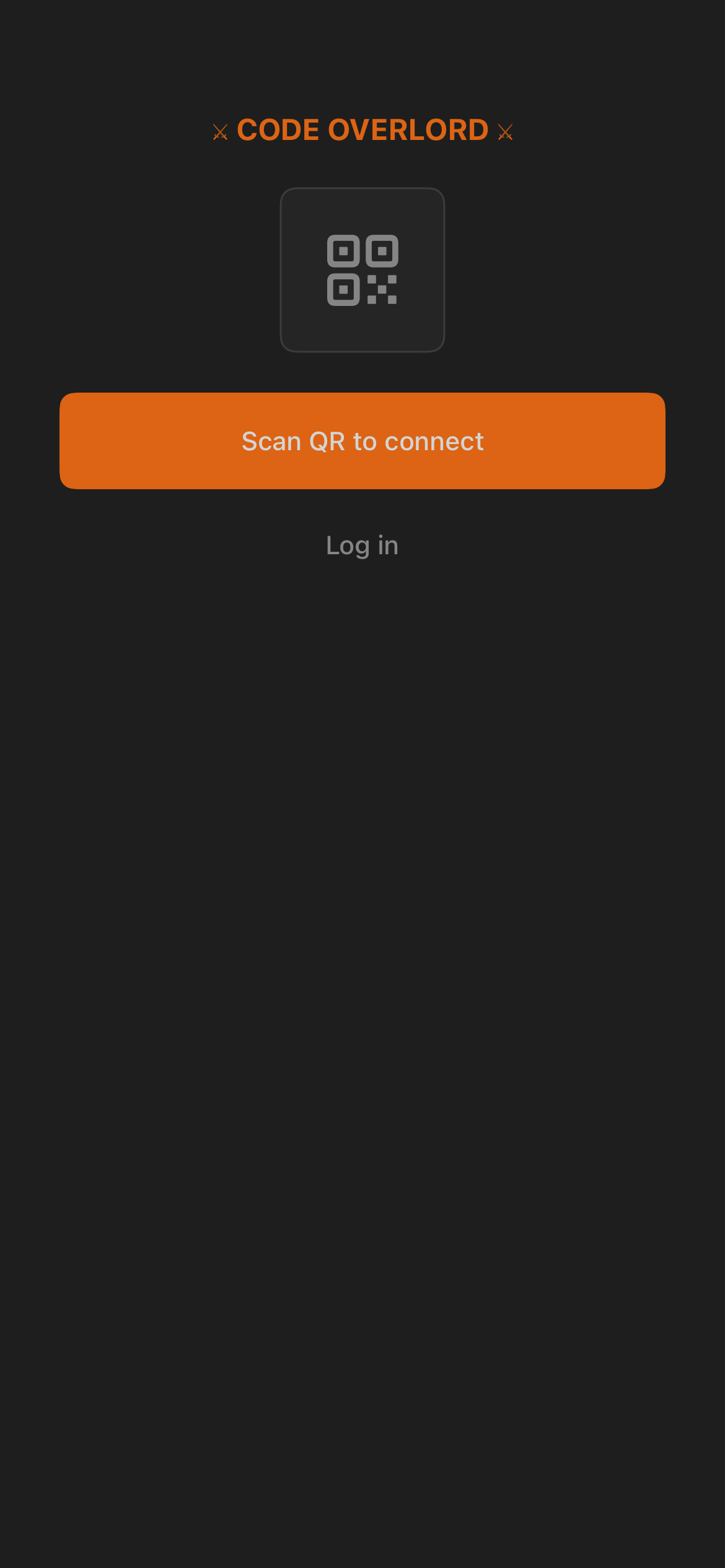 |
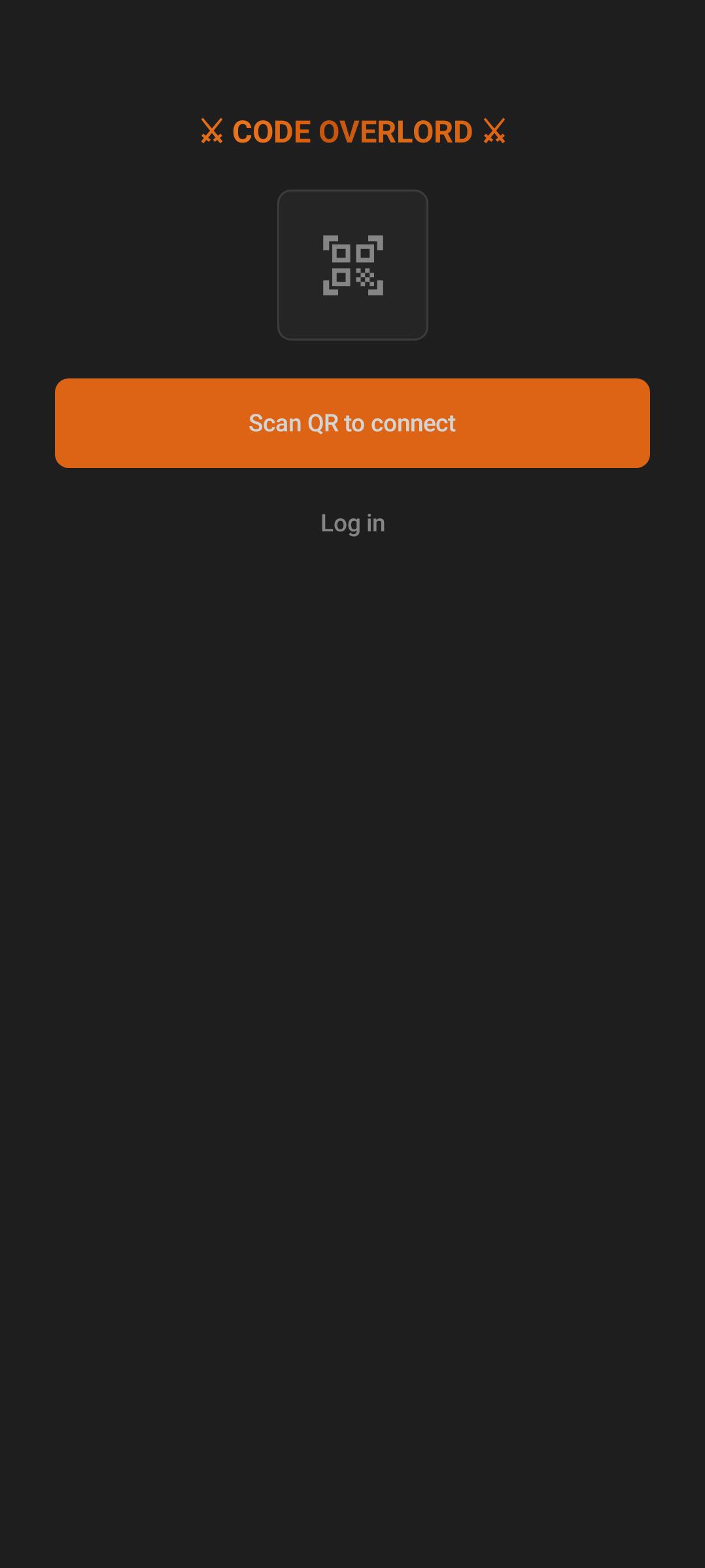
| The login choice screen prefers QR connection, with account login as a fallback. | iOS uses the same first decision: scan the desktop QR code or open login options. |
| Android | iOS |
|---|---|
 |
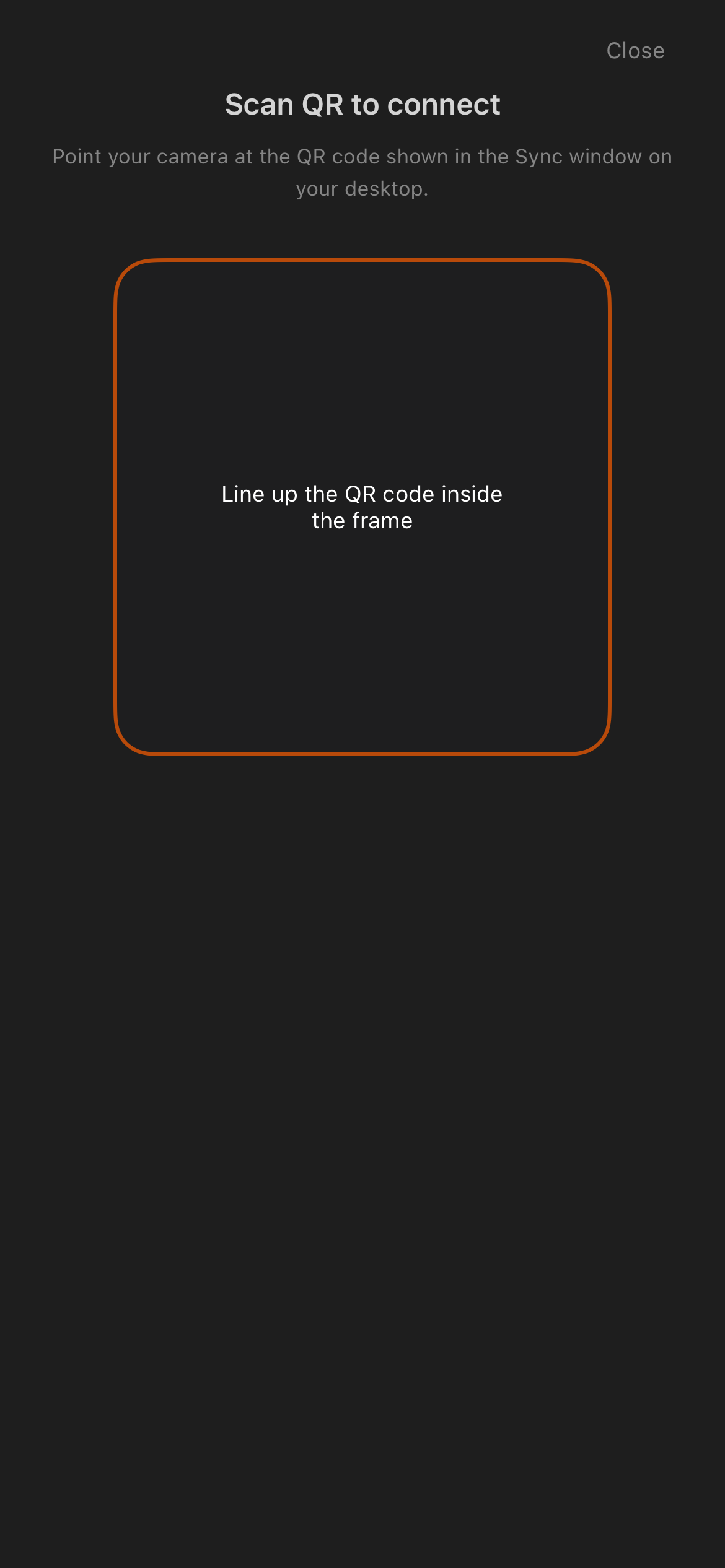 |
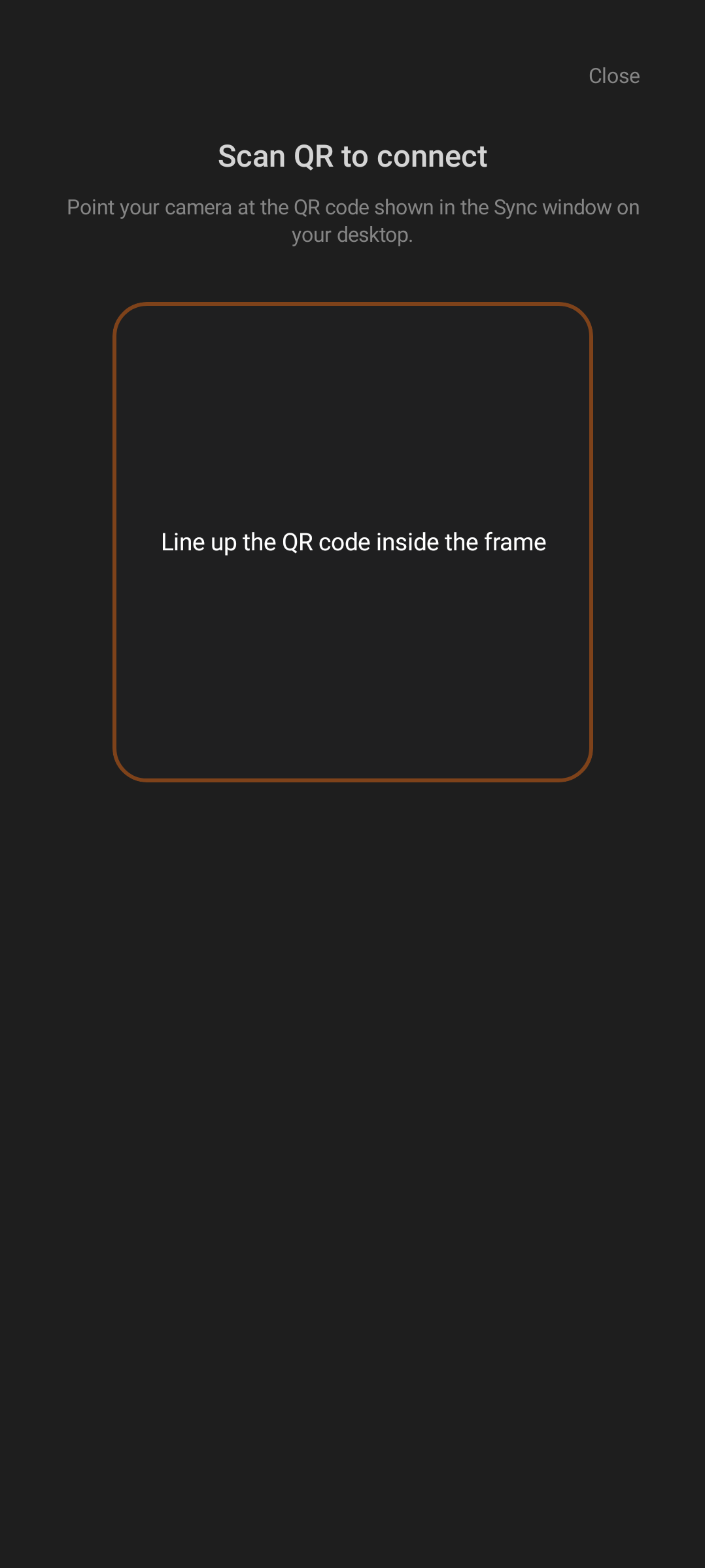
| Android asks you to line up the desktop QR code inside the frame. | iOS uses the same scanner language and frame. |
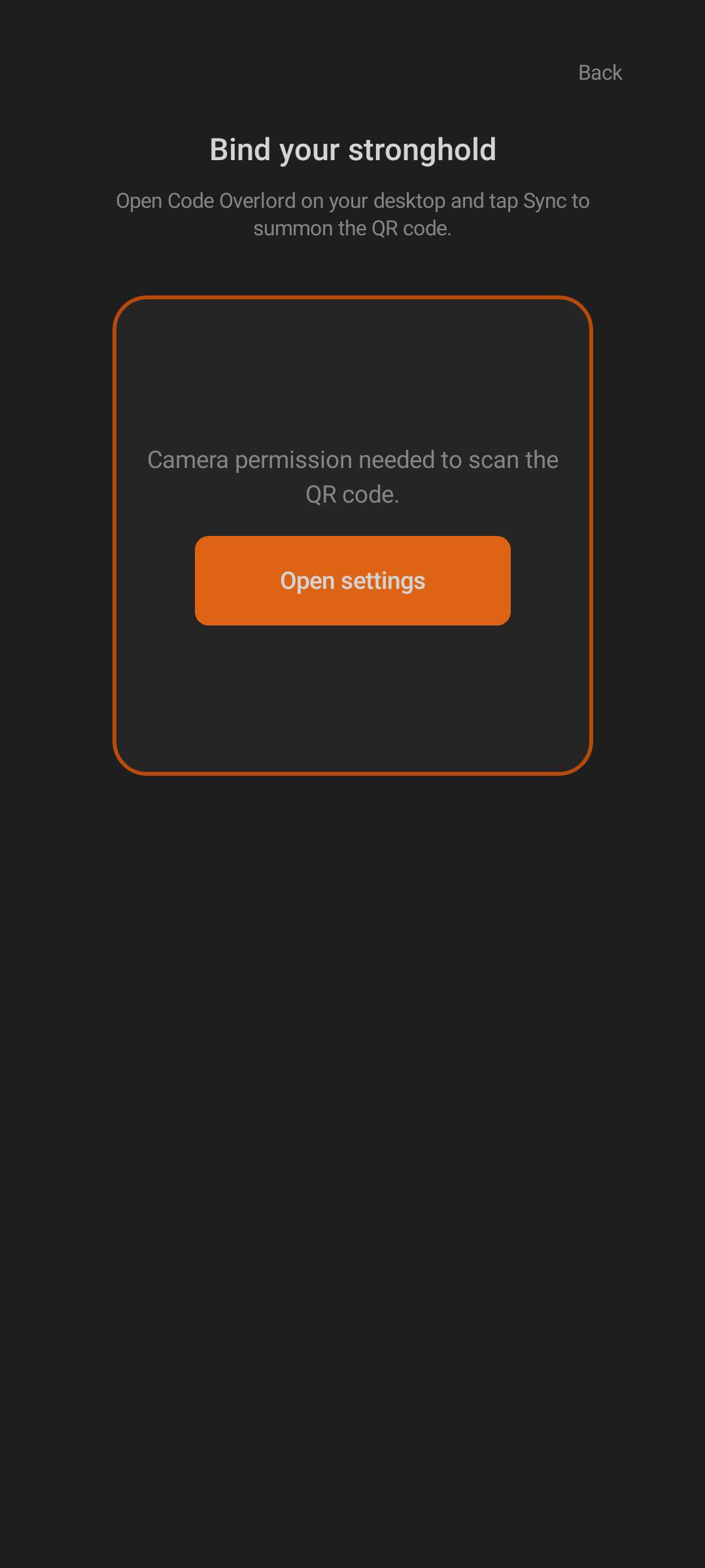
The pairing screen is titled Bind your stronghold ("stronghold" is a workspace). If the camera is blocked, it swaps the scanner for a recovery card with a direct Open settings button so you can grant access without hunting through system settings.
| Android | iOS |
|---|---|
 |
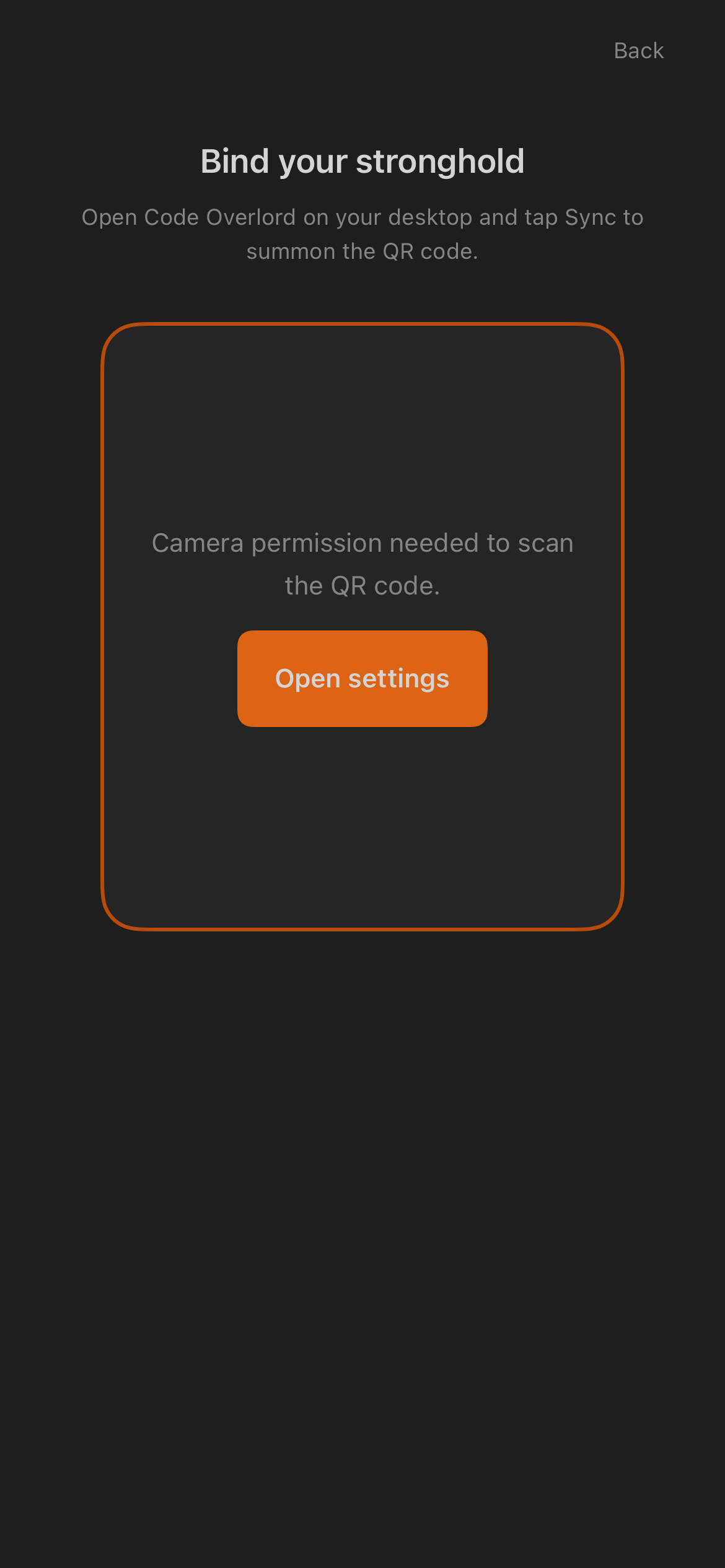 |
| Android camera-permission recovery on the pairing screen. | iOS shows the same recovery card and Open settings action. |
Tip: The instruction is always the same — open Code Overlord on desktop and tap Sync to summon the QR code, then scan it here.
Choosing Android Or iOS
Choose the mobile app for the device you actually carry. The main product shape is shared: both platforms have Thy Quill, Minions, Scrolls, Rituals, Omens, QR pairing, login fallback, workspace selection, dictation, PDF export, feedback, and settings.
The differences are mostly platform presentation:
- Android uses Jetpack Compose Material controls: dropdown menus, alert dialogs, floating action buttons, toasts, and Android file/photo/camera pickers.
- iOS uses SwiftUI controls: sheets, confirmation dialogs, native share sheets, PhotosPicker, camera capture, and iOS tab badges.
- Both platforms have exactly five bottom tabs — Thy Quill, Minions, Scrolls, Rituals, Omens. Armoury (settings) is not a bottom tab: on Android you open it from the gear in the Thy Quill top bar; on iOS it slides up as a sheet.
- Some screenshot coverage is platform-only. For example, the standalone Voice Mode and export-PDF theme picker screenshots are iOS captures, but source verification shows both features are implemented on Android and iOS.
- The iOS codebase (and this screenshot set) includes a quick-tour screen, but it is not part of the shipping onboarding on either platform — both go straight from the welcome screen to pairing or login. You will not normally see the tour.
Main Mobile Areas
| Area | Plain meaning | Where to start |
|---|---|---|
| Thy Quill | Mobile notepad and workspace task list | Add notes, attach files, mark items conquered, and recover conflicts. |
| Minions | Desktop agent sessions | Watch terminal output, switch sessions, send prompts, dictate input, and attach images. |
| Scrolls | Desktop open files | Search open files, preview content, close files, export Markdown to PDF, and start Audio Review. |
| Rituals | Scheduled agent tasks | Create, edit, enable, disable, dispatch, halt, and review scheduled runs. |
| Omens | Notifications | Open agent or file notifications and jump to the related Minion, Scroll, or Ritual. |
| Armoury | Settings | Sign out, view version, choose privacy settings, inspect telemetry, and switch realm in bridge builds. |
| Android | iOS |
|---|---|
 |
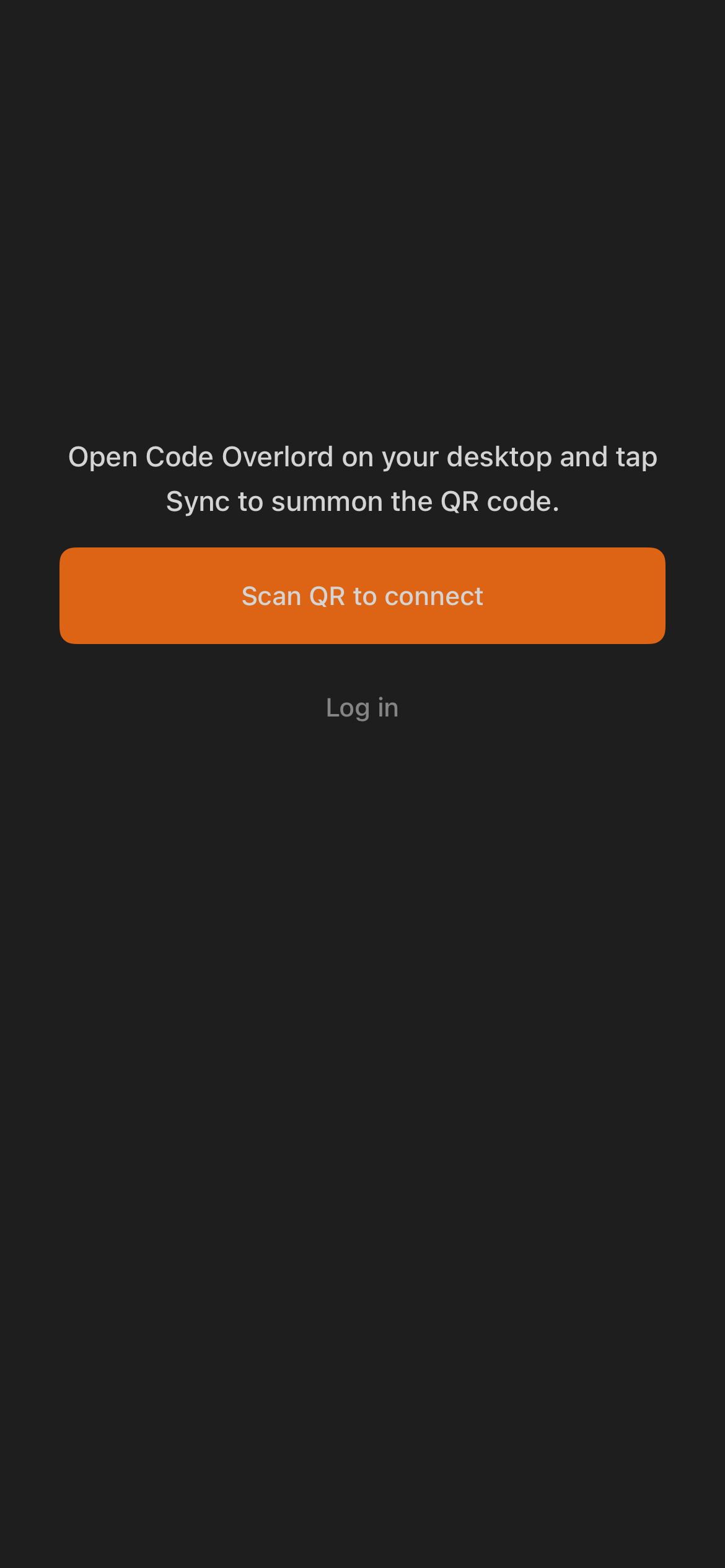 |
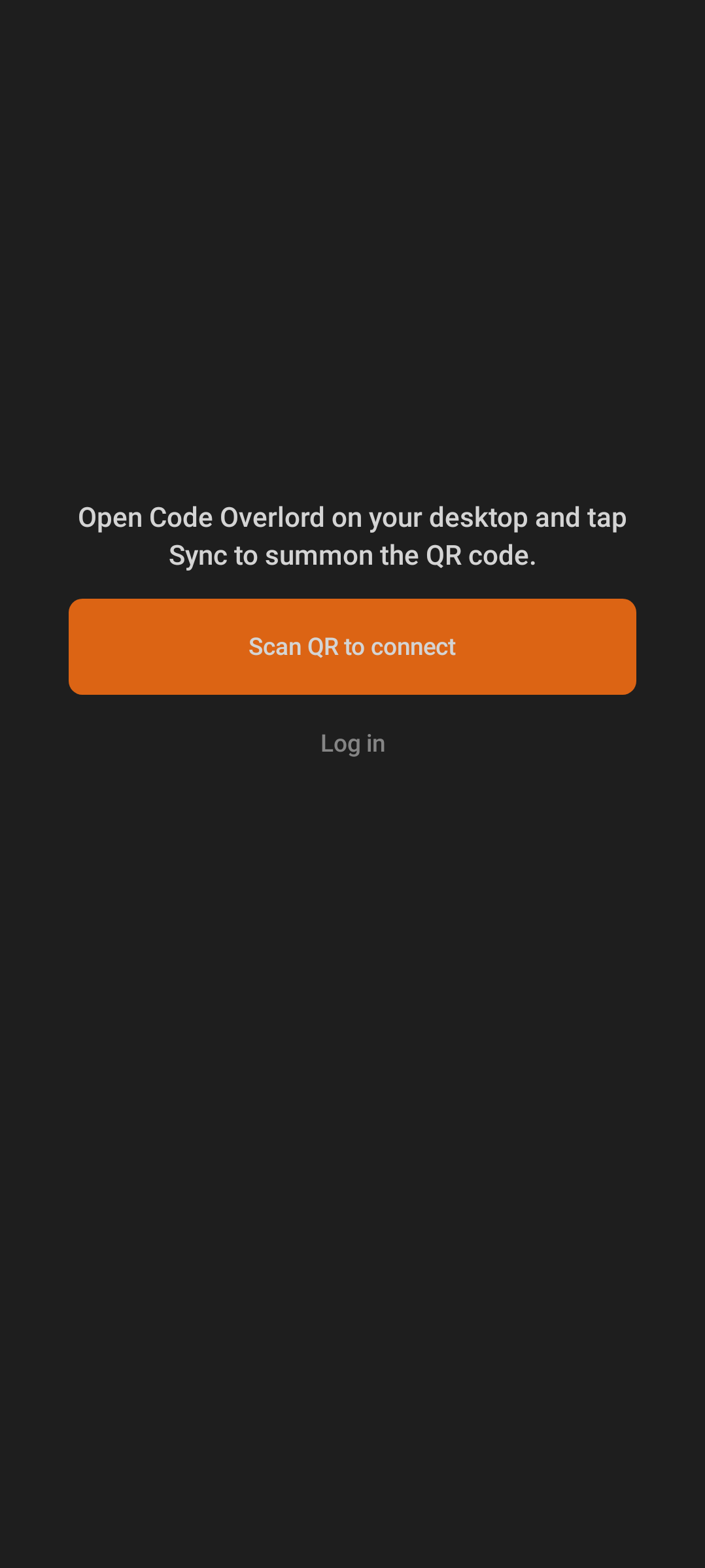
| First-run setup starts by pointing you to the desktop Sync QR code. | The iOS welcome screen uses the same instruction and action model. |
Guide Index
Use this overview with the detailed platform guides:
- Android getting started
- Android agent sessions
- Android notepad and dictation
- Android scheduled tasks
- Android settings, feedback, and overlays
- iOS overview
- iOS agent sessions
- iOS notepad and dictation
- iOS scheduled tasks
- Cross-platform feature matrix
- Mobile design language
Note: The Android and iOS walkthroughs cover platform-specific gestures and system permissions. This section stays at the shared product layer so you can compare both mobile apps without repeating every per-platform step.