Agent Sessions on Android
On this page
Use Minions to watch and drive desktop agent sessions from your phone. The phone does not run the desktop terminal locally; it shows relayed session state, terminal output, and input controls for sessions that the desktop exposes to mobile.
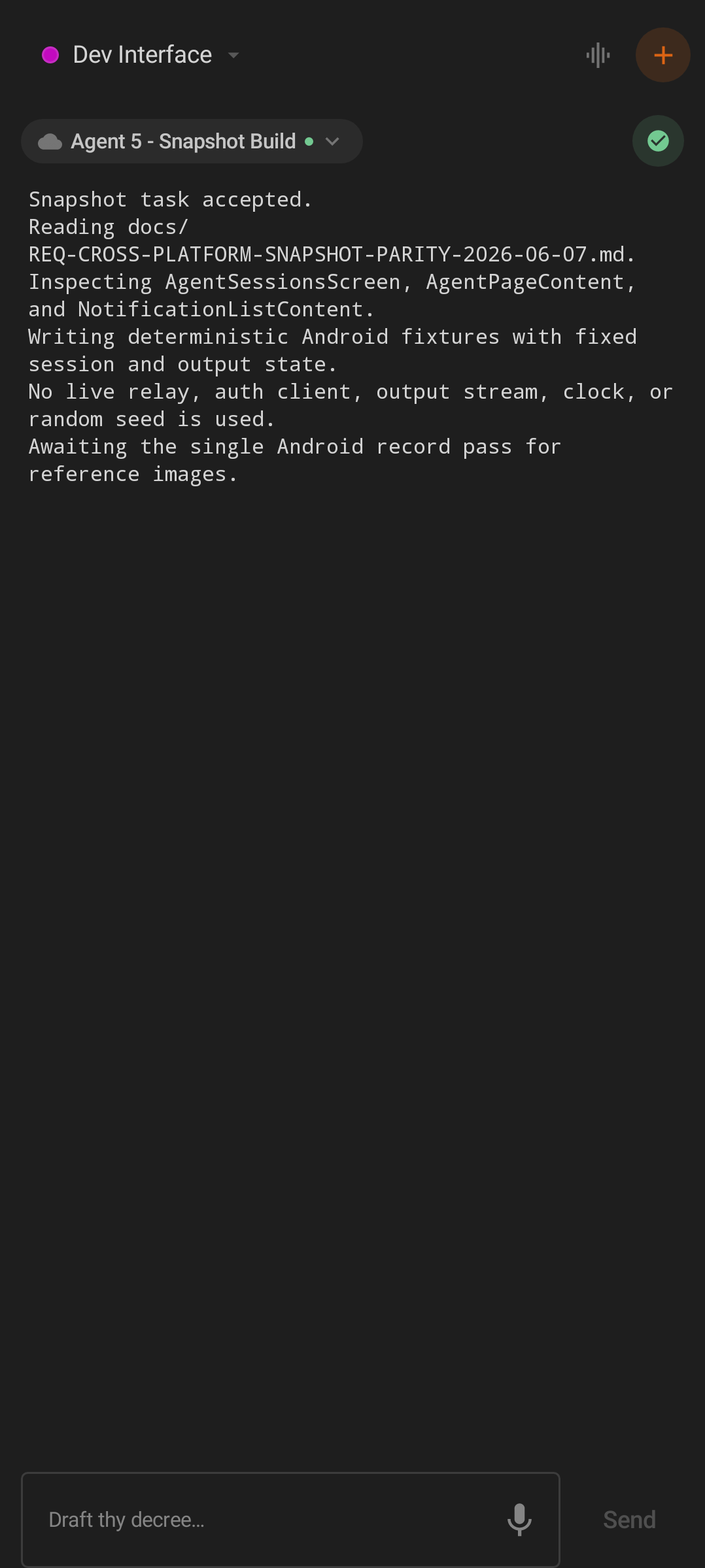
Minions shows the selected workspace, agent selector, sync freshness, terminal output, dictation, and send controls.
Open Minions
- Pair or sign in as described in Getting Started.
- Tap Minions in the bottom navigation.
- Use the workspace selector in the toolbar to choose the workspace you want.
- Pick an agent from the Switch agent selector or swipe between pages.
The toolbar includes:
| Control | What it does |
|---|---|
| Workspace selector | Filters sessions to the selected workspace. |
| Voice mode icon | Opens the voice-oriented agent input mode when available. |
+ / Summon |
Starts a new mobile-visible session through the desktop. |
| Agent selector | Opens Switch agent to move between sessions. |
| Sync chip | Shows freshness and lets you inspect or retry sync state. |
Session States
Agent headers use the same basic lifecycle throughout the Android app:
- Working: the session is actively producing output.
- Idle: the session is available but waiting.
- Victorious: the session completed successfully.
- Fallen: the session failed.
The header also distinguishes remote and local execution with labels such as Running remotely and Running locally.
If Minions has nothing to show, the empty state explains why. Possible messages include Looking for sessions..., Rallying the ranks..., Desktop unreachable, Lost in the wilderness, No active sessions, and No manual sessions when only scheduled Ritual sessions are running.
Switch Between Agents
Minions uses a horizontal pager. Swipe left or right to move between visible sessions. The app remembers the last viewed agent and restores it when you return.
For a direct jump:
- Tap the agent selector in the toolbar.
- Use Switch agent to choose a session.
- Return to the pager at that agent.
Session deep links from Omens and Rituals can also open a specific Minion or retained task terminal.
Read Terminal Output
Each agent page shows a mobile-optimized terminal transcript. Output is rendered with ANSI colors and text styles where possible, including standard colors, bright colors, 256-color values, true color, bold, italic, underline, and strikethrough.
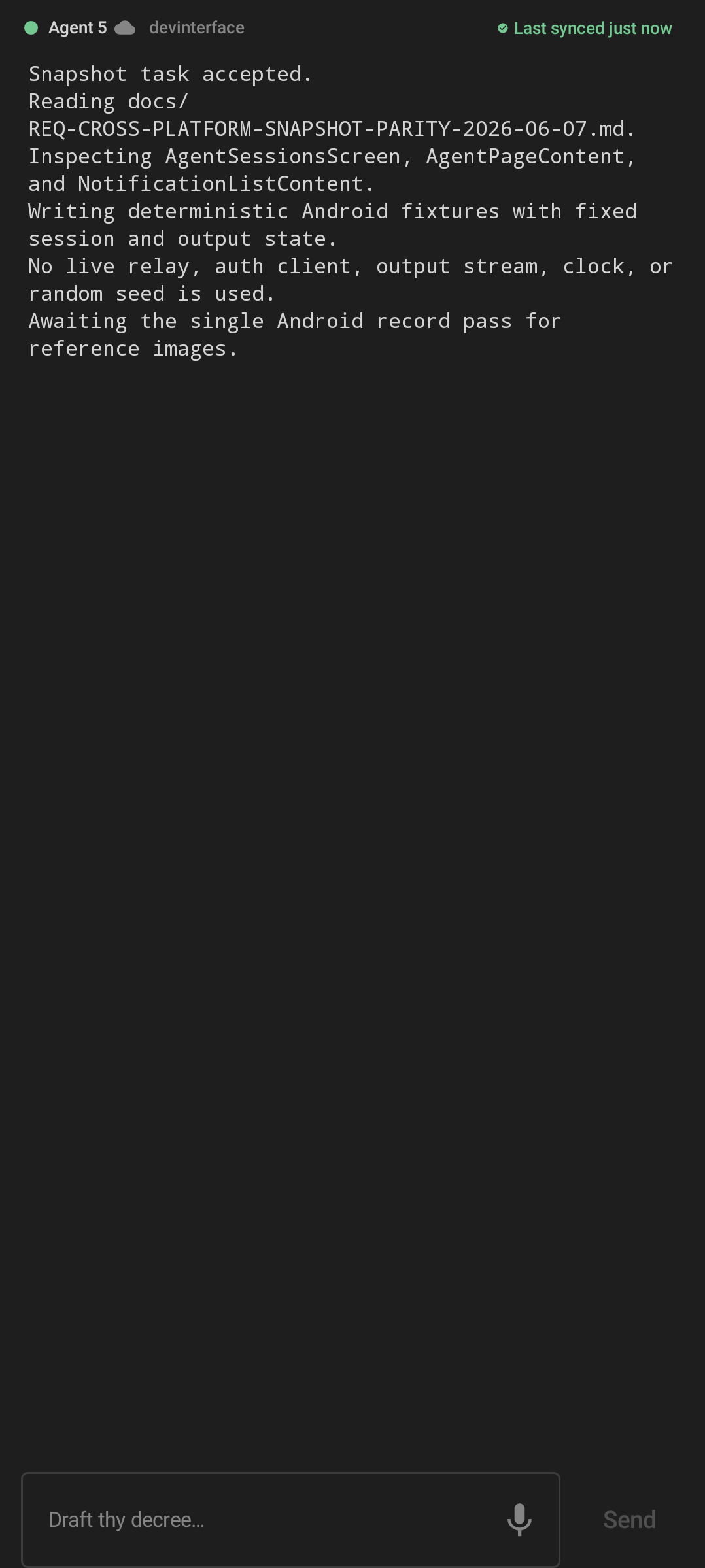
The terminal page keeps the latest relayed output readable above the input bar.
For performance, Android keeps the recent terminal transcript rather than acting as a full terminal emulator. Cursor movement and other non-text terminal control sequences are stripped or simplified. If an agent has just been summoned and output has not arrived yet, the page can show Summoning... with a note that waking the desktop may take up to a minute. If an established session still has no output, it shows No terminal output yet and a Retry action.
Send Input Back to Desktop
The input bar at the bottom of the agent page is labelled with the placeholder Draft thy decree....
- Tap the input.
- Type your message or command.
- Optionally attach images or dictate text.
- Tap Send.
When the input gains focus, Android shows extra tools:
- 👑 Royal Decrees for saved prompt shortcuts (the mobile name for desktop workflows/prompts).
- Special, shown with a keyboard icon, opens arrows, Enter, Escape, and control keys for terminal-style input.
- Recent input history, to resend something you typed earlier.
- Attach image, whose menu offers Choose from the gallery, Capture a vision (Camera), and Paste from the scroll (Clipboard). An attached image is called a vision.
- The dictation mic, described in Notepad and Voice Dictation.
If delivery fails, the app shows an error and can offer Retry. Retry sends the same input to the same desktop session.
Tip: Images ride along with whatever text is in the box, so you can dictate or type a note and attach a screenshot in the same send. A staged Royal Decree/workflow, however, cannot carry image attachments on Android — the app warns "Workflows can't carry attachments yet."
Workflow dispatch is not available from mobile yet. If you choose a workflow shortcut that cannot be sent from Android, the app tells you to dispatch it from the desktop stronghold.
Summon a New Session
Tap the + button in Minions to open Summon.
The launcher guides you through:
- Choose an agent: select Grunt or Minion.
- Working directory: use the default desktop directory or choose another folder when desktop exposes choices.
- First prompt: write or dictate the first instruction.
- Launch target: choose cloud or local execution when both are available.
Some fields stay locked until earlier choices are made. For example, working directory and prompt controls can show a hint to choose a Grunt or Minion first.
Agent Actions
Open the overflow (⋮, labelled Session actions) in the agent header for per-session controls:
- Rally Again: relaunch the session. It is enabled once the session is no longer actively working — that is, when it is Idle, Victorious, or Fallen. On Android, Rally Again relaunches without the original first prompt, because mobile does not receive that prompt from the relay yet.
- Resume Session: continue a stopped session. It is enabled only for Victorious or Fallen sessions. This one is not fully wired on Android yet — selecting it may report that resume is unavailable from mobile, so resume from the desktop if it does not take.
- Dismiss: remove the session from the current mobile view. It does not stop the desktop session.
Tip: "No original prompt on Rally Again" only matters for the very first instruction. Once the session is live again, everything you type or dictate is delivered normally.
Scheduled task terminals use the same agent page content inside the task detail screen. See Scheduled Tasks for retained Ritual terminals.
Scrolls: Open Files From Desktop
The Scrolls tab is the Android view of files currently open on the desktop. It is separate from Thy Quill notes.
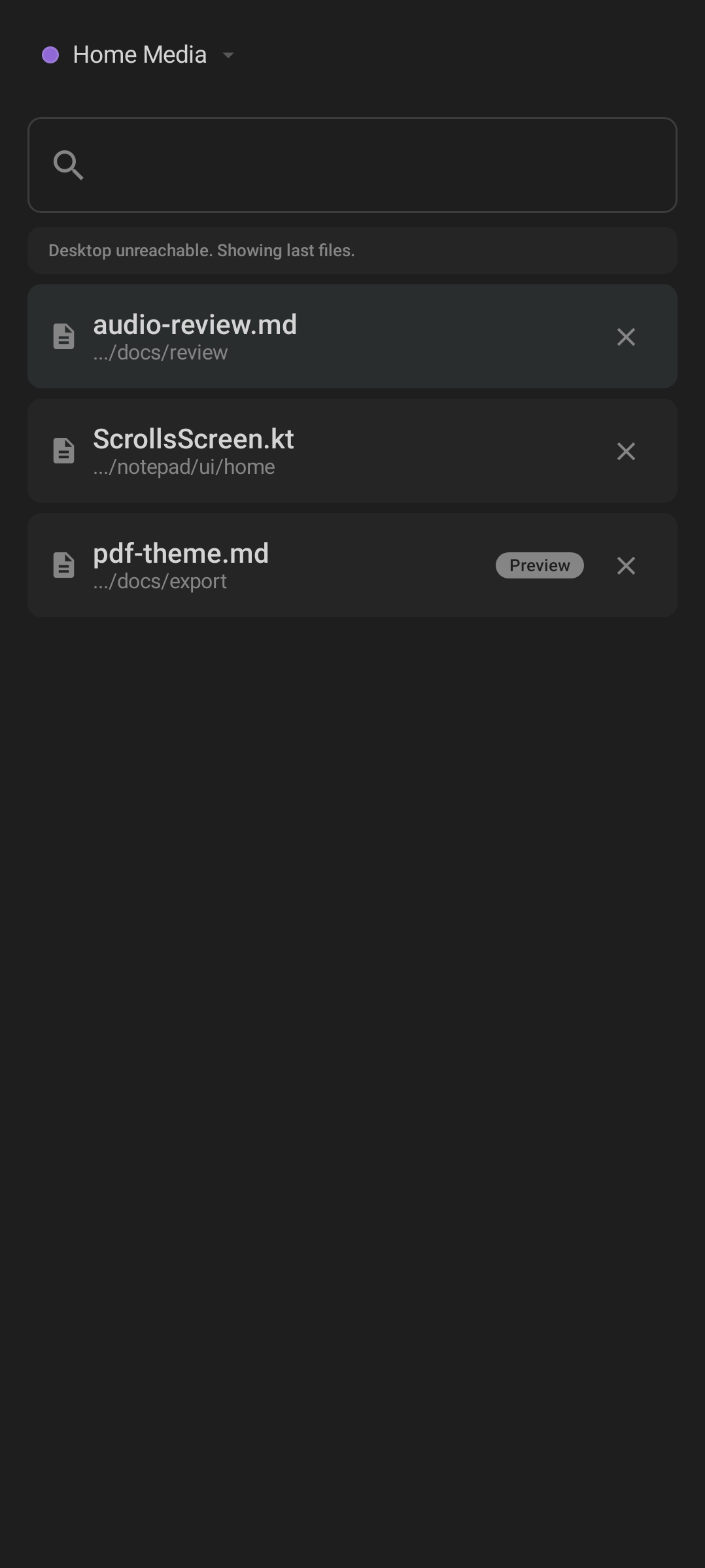
Scrolls lists desktop open files, preview state, paths, and close actions for the selected workspace.
In Scrolls you can:
- Switch workspace from the top bar.
- Search/filter the open file list by filename.
- See status when nothing is listed: No Scrolls open (with "Scrolls you open on the desktop will appear here"), Desktop inactive, or Scrolls may be stale when the desktop is not currently confirming the list.
- Tap a row to open the file viewer.
- Close selected open files from mobile.
File rows show the filename, path, focus or preview state, and a close icon. If a close request succeeds, the app reports how many Scrolls were closed (for example, Closed 2 Scrolls.). If some could not close it says Could not close N Scrolls., and it warns you when unsaved files were left open.
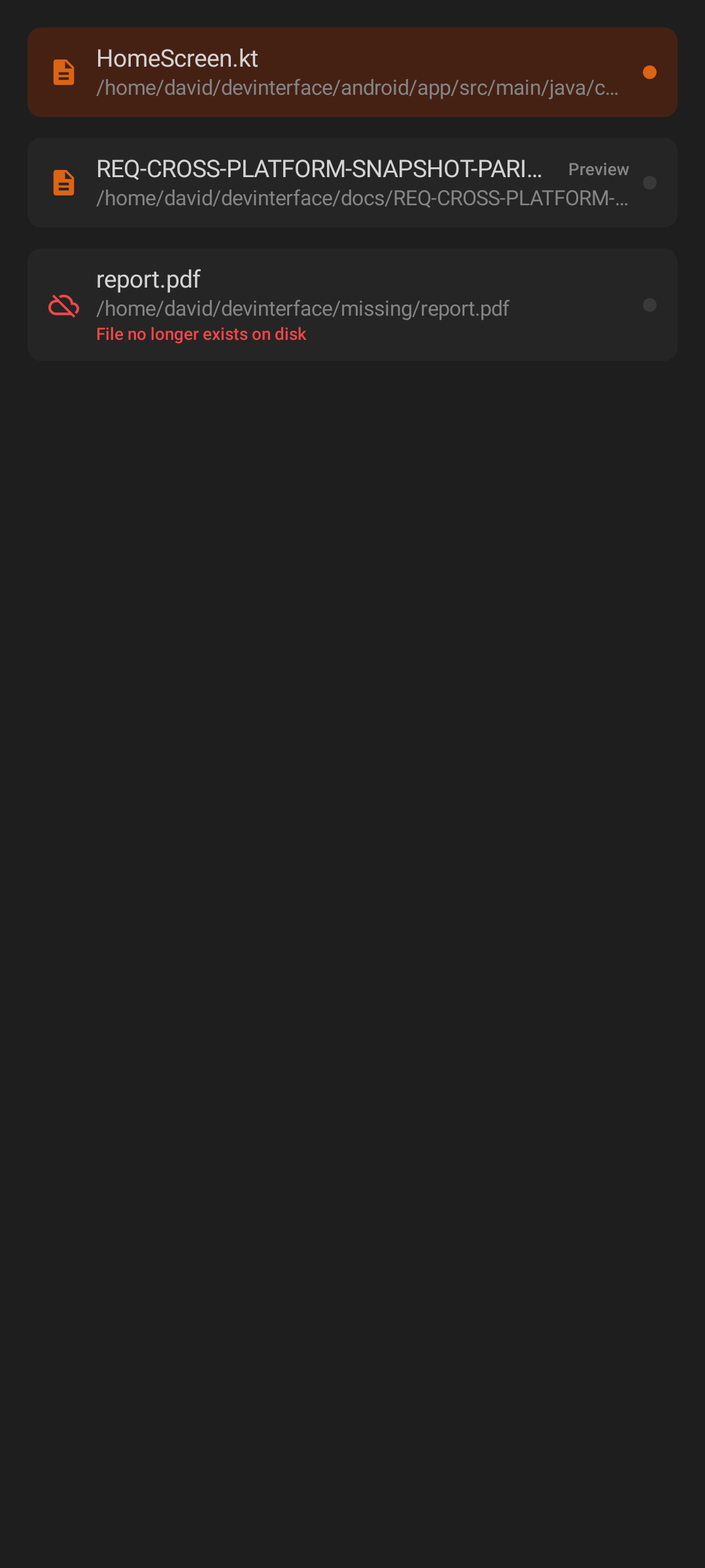
Rows identify the desktop file and keep the close action separate from opening the viewer.
Open File Viewer
Tap a Scroll to inspect it on the phone.
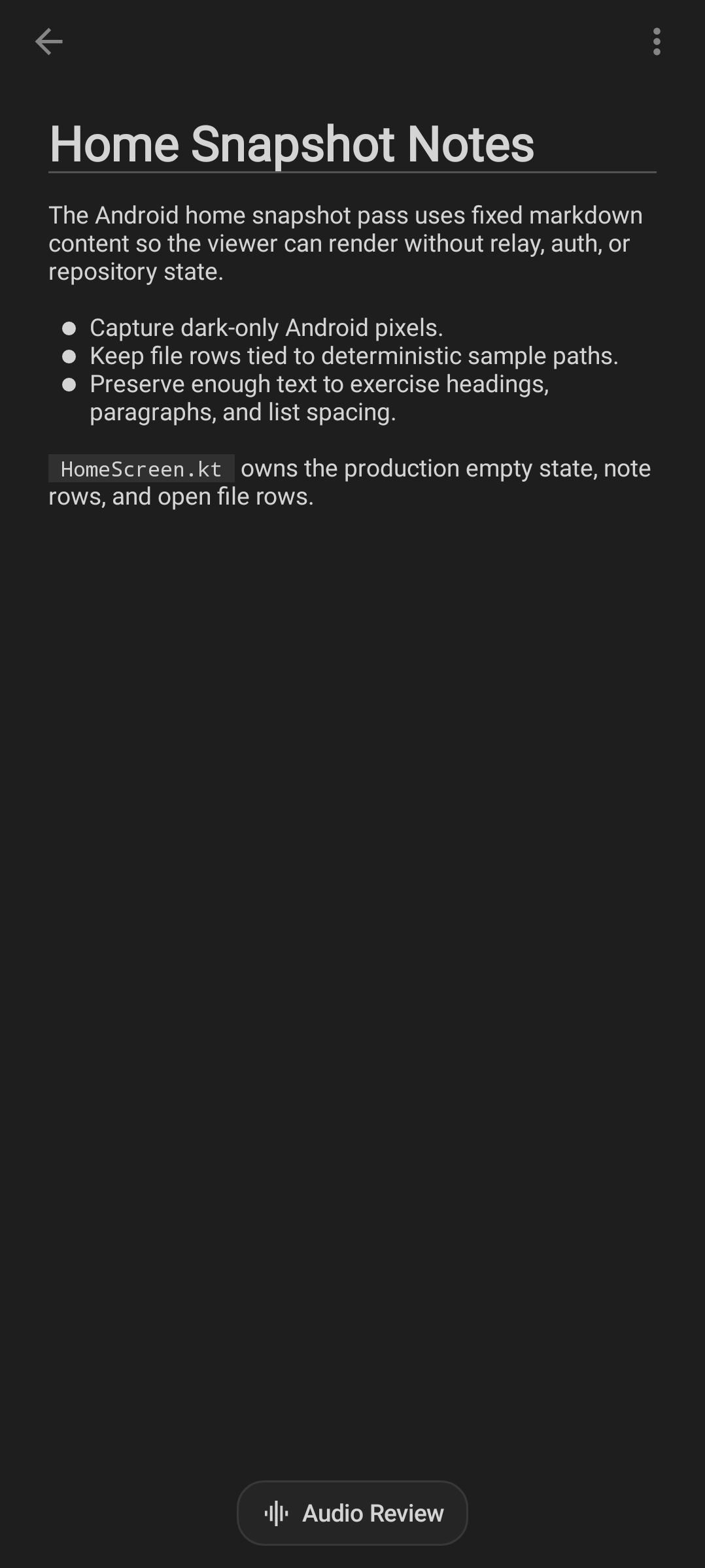
The viewer renders Markdown, HTML, or plain text depending on the file content returned by desktop.
Viewer behavior:
- Loading shows a spinner.
- Empty files show This Scroll is empty.
- Files that cannot be opened show This Scroll would not open with the error.
- Markdown files render in a document view.
- Plain text uses a selectable monospace view.
- Long content can show a Content truncated warning.
- Markdown files can expose Export PDF and Audio Review actions.
Audio Review is covered in Notepad and Voice Dictation.
Practical Remote Workflow
- Start or expose sessions on desktop.
- Open Minions on Android and select the right workspace.
- Use Switch agent or swipe to the session you need.
- Read output until the agent reaches the point where it needs input.
- Send text, dictate, attach an image, or use a recent input.
- Check Scrolls when an agent references an open file.
- Use Omens for completion and failure notifications.
Troubleshooting
- No active sessions: make sure desktop Code Overlord is running, online, paired, and exposing sessions for that workspace.
- Only Ritual sessions are running: open Rituals to inspect scheduled task terminals.
- Terminal output looks stale: tap the sync chip and use Refresh now or Retry now if shown.
- Input send fails: wait for relay connectivity, then use the snackbar retry.
- A file will not open: confirm it is still open on desktop and that the desktop app can read it.