Settings, Feedback, Themes, and Status Overlays on Android
On this page
Use this chapter for the parts of the Android companion app that sit around the main work screens: Armoury settings, privacy controls, feedback, theme language, Omens, and status overlays.
Armoury Settings
Open Armoury from the gear button on Thy Quill.
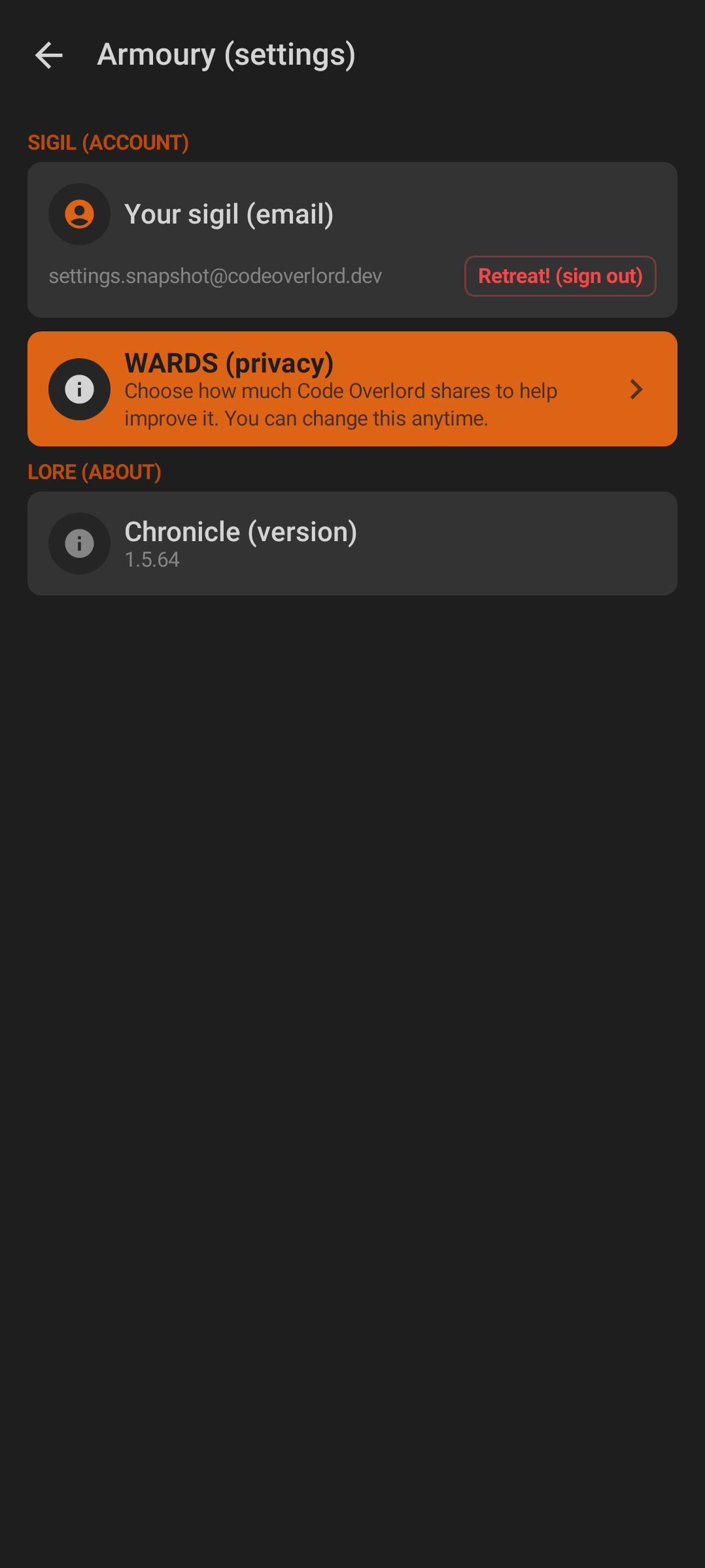
Armoury contains account, privacy, version, and environment controls.
The settings title is Armoury (settings). Main sections include:
| Section | What it contains |
|---|---|
| SIGIL (account) | Signed-in email when available, plus Retreat! (sign out). |
| WARDS (privacy) | Privacy profile and advanced telemetry controls. |
| LORE (about) | App version. |
| REALM (environment) | Environment switcher in bridge builds. |
Signing out opens a confirmation dialog titled Retreat! (sign out). It explains that local scrolls are kept safe and offers Retreat! or Cancel.
Privacy Wards
The main privacy screen is titled WARDS (privacy) and explains that you can choose how much Code Overlord shares to improve the app.
Privacy profiles (the tiers are cumulative — each one also shares everything the tier above it does):
- Private: "Nothing leaves this device."
- Help improve: "Send anonymous crash reports and diagnostics so we can fix bugs faster." This is the recommended profile.
- Share usage: "Also send anonymous feature-usage data to help guide what we build next."
Open Deeper wards (advanced) for stricter controls:
- Iron veil (strict privacy).
- Installation and session identifiers.
- Surface, category, sharing, and time filters.
- Verbose logging toggle.
- Local telemetry export as redacted JSON plus local crash bundles.
- Telemetry reset, with confirmation.
Verbose logging and export options depend on the selected privacy consent level.
Realm Switching
In bridge builds, REALM (environment) can appear. Switching realms restarts the app and signs you out. Android asks for confirmation with Switch realm? before changing environment.
Use this only when your release or testing instructions tell you to move between environments.
Theme and Visual Language
The Android app uses a fixed dark Code Overlord theme. There is no user-facing light/dark theme switch in current source. Workspace accent colors are derived from workspace identity so different workspaces can be visually distinguished.
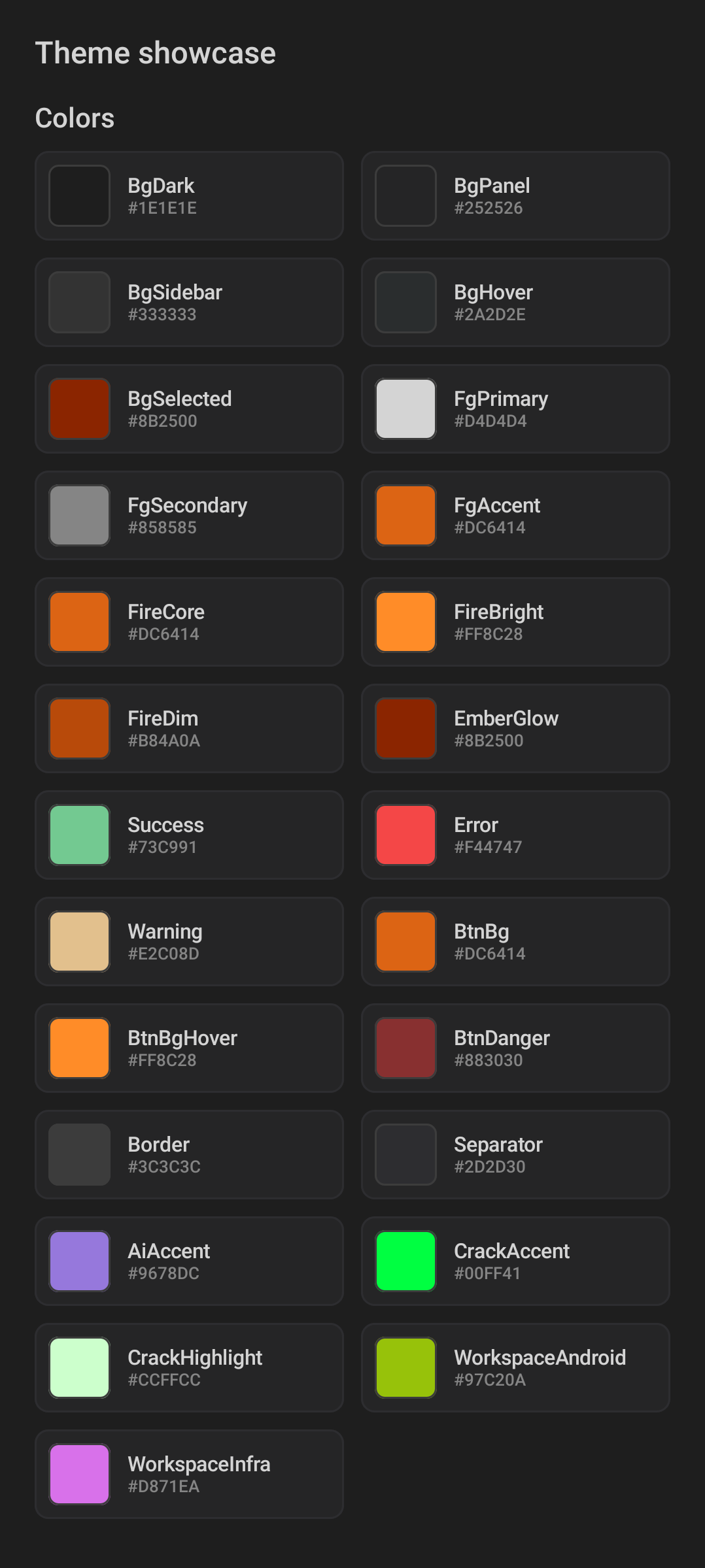
The theme showcase captures the app's dark surfaces, fire accents, success, warning, error, and AI accent colors.
Common visual meanings:
- Fire orange is used for brand emphasis and primary action energy.
- Green indicates success or completed work.
- Red indicates failure or destructive state.
- Gold/yellow indicates warnings.
- Purple is used for AI accents.
- Muted grey text indicates secondary metadata.
The animated brand treatment uses FireText.
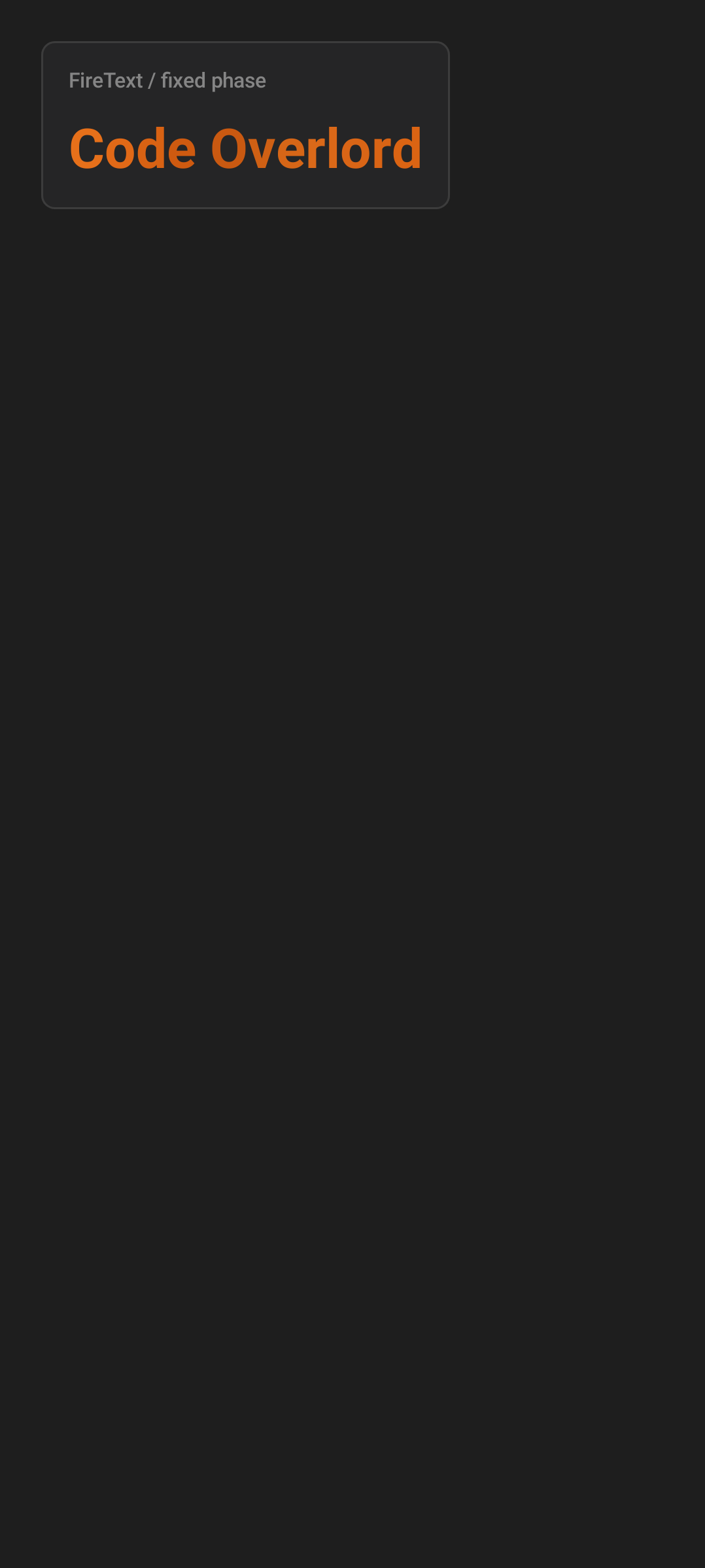
FireText is the animated fire-colored brand text used in onboarding and login.
Feedback
When feedback is available in your environment, a small left-edge launcher appears. Its label is Feedback, or an environment-specific feedback label in testing builds.
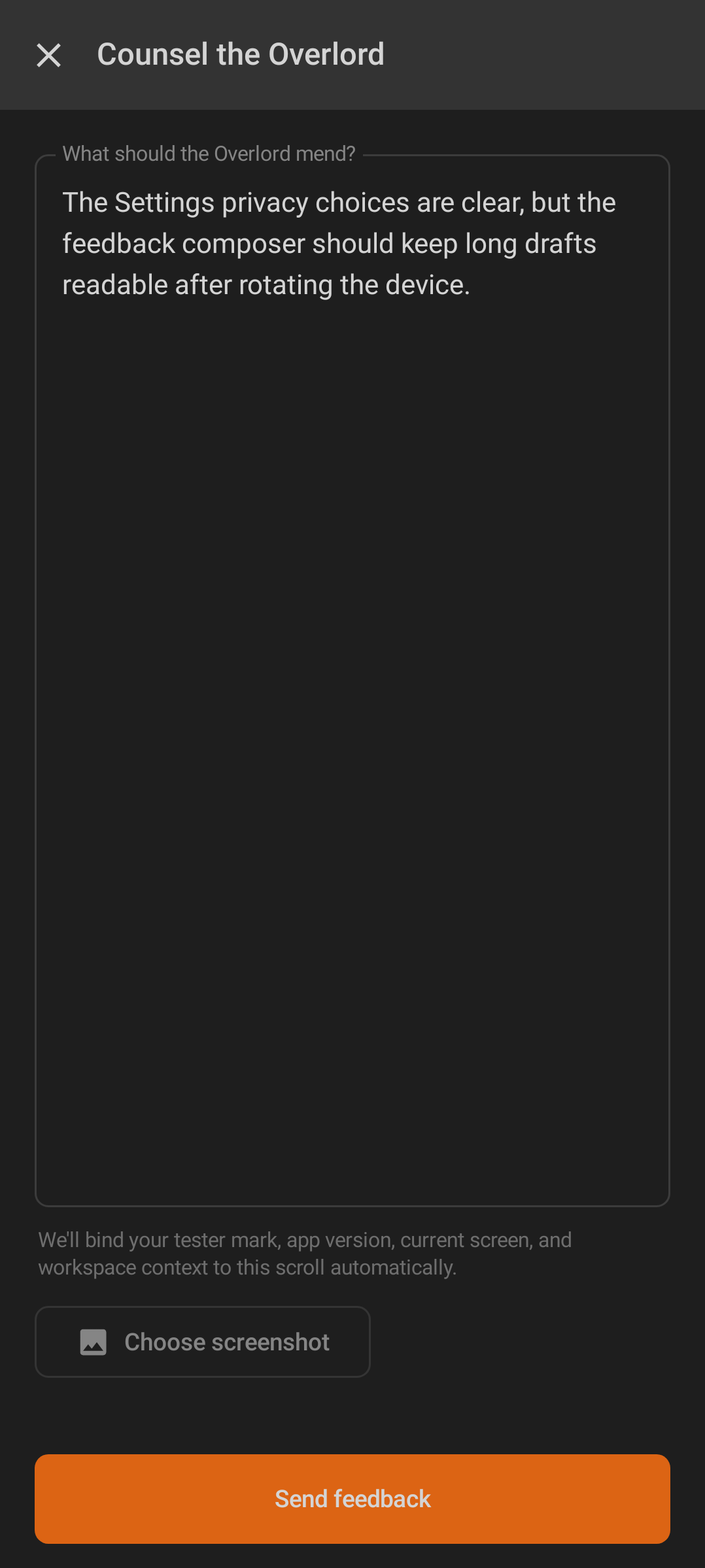
The feedback composer sends your message with app, screen, workspace, and tester context.
The composer is titled Counsel the Overlord. The message field is labelled What should the Overlord mend? and its placeholder asks what happened, what you expected, and what would make it better.
You can:
- Write feedback.
- Attach or replace a screenshot with Choose screenshot or Replace screenshot.
- Remove the screenshot with Remove screenshot.
- Send with Send feedback.
The app automatically includes tester mark, app version, current screen, and workspace context. Images must be under 10 MiB and must be image files.
Feedback messages you may see:
- Your word reached the Overlord. Our thanks.
- Your word never reached the Overlord - your scroll is still here. Try again.
- Speak your word before you send it.
- That image is too large. Please keep it under 10 MiB.
- Only images may be attached - choose an image file.
Omens
Omens is the notification tab. It is covered in the scheduled-task workflow because many notifications come from Rituals, but it also reports regular agent activity and file-open events.
Omens behavior:
- Opening Omens marks currently visible notifications read locally.
- Clear handled dismisses visible read notifications locally.
- Rows can navigate to Minions, Ritual detail, or a Scroll viewer when they include enough context.
- Empty state text is Silence across the realm with Agent turn completions will appear here.
See Scheduled Tasks for the Omens list screenshot and notification navigation flow.
Status Banners and Overlays
Android uses compact banners and overlays instead of forcing you to inspect logs.
Connection banners can include:
- Scouting the fortress...
- Rallying the messenger ravens...
- The fortress gates are sealed
- Lost in the wilderness - no signal
Dictation banners can include:
- Attuning thy voice
- Voice dictation ready
- Voice dictation paused
- Voice dictation failed
Sync chips and icons appear on work screens. Tap the sync chip where available to see details or use Refresh now / Retry now.
Screen Crack Overlay (Easter Egg)
The Android app hides a deliberately dramatic screen-crack easter egg. It is triggered by tapping the Omens bottom tab repeatedly: the counter climbs only while you keep tapping Omens, and navigating anywhere else resets it. It is visual only and does not mean the phone or app data is damaged.

The crack overlay is an in-app visual effect, not an Android system error.
The effect escalates in stages as the tap count rises — first hairline cracks, then a dim-and-shake, then heavier cracks, and finally a near-black shatter. Along the way it flashes mock-diagnostic taunts such as WARNING: Memory leak detected..., ERROR: Buffer overflow in the Armoury, FATAL: Have you tried turning it off and on again?!, and KERNEL PANIC: Armoury module corrupted! (the screenshot above catches a SYSTEM BREACH frame). Treat these as part of the themed overlay, not real diagnostics.
Keep tapping past the final stage and the shatter gives way to a hidden mini-game (a terminal-styled "Dragon Gauntlet" / SESSION CRASHED screen). To leave, back out of the game and stop tapping Omens; the overlay clears on its own.
Practical Checks
- To sign out, use Armoury -> Retreat! (sign out).
- To change telemetry consent, open WARDS (privacy).
- To send product feedback, use the left-edge Feedback launcher.
- To inspect agent events, open Omens.
- To recover from stale data, check the connection banner and use refresh or retry controls on the active screen.
Back to Getting Started.