Getting Started on Android
On this page
Code Overlord on Android is the mobile companion for the desktop app. It connects through the cloud relay so you can check your workspace, watch desktop agents, send input, review open files, monitor scheduled tasks, and receive notifications while you are away from the machine running Code Overlord.
The app uses a few in-world labels. Thy Quill is the mobile notepad, Minions are agent sessions, Scrolls are files open on desktop, Rituals are scheduled tasks, Omens are notifications, and Armoury is settings.
Requirements
- Android 8.0 or newer. The Android app declares
minSdk 26. - Internet access on the phone.
- Code Overlord desktop running, online, and able to show the mobile pairing QR code.
- Camera permission if you pair by scanning the desktop QR code.
- Notification permission on newer Android versions if you want Omens alerts.
The app package is com.codeoverlord.notepad for release builds. Debug or staging builds may install separately because they use different package suffixes.
Install the App
Install the Android app from the release channel your team provides. If you receive an APK directly, open it on the phone and allow installs from that browser or file manager when Android asks.
After installation, open Code Overlord. First launch takes you to the QR-first onboarding flow unless the app already has a saved session.
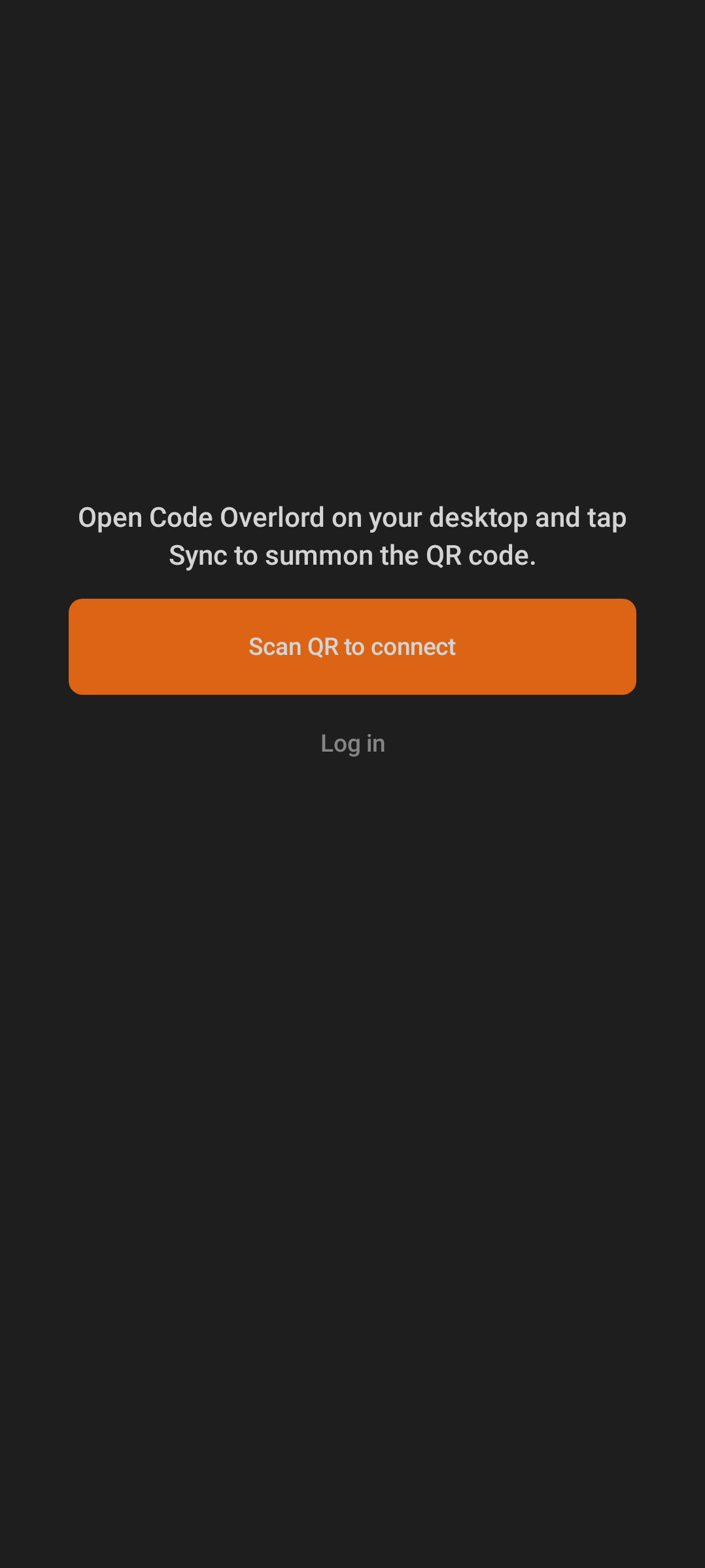
The first-run flow points you to the desktop Sync action and makes QR pairing the primary path.
Pair With the Desktop
QR pairing is the normal connection path. It binds the phone to the desktop session through the cloud relay; it is not a local-network IP pairing flow.
- On desktop Code Overlord, open the Sync or mobile pairing action and show the QR code.
- On Android, tap Scan QR to connect on the welcome screen. (Log in sits just beneath it as the account fallback.)
- Grant camera permission if Android asks.
- Aim the camera at the desktop QR code.
- Wait for the app to exchange the pairing challenge and finish setup.
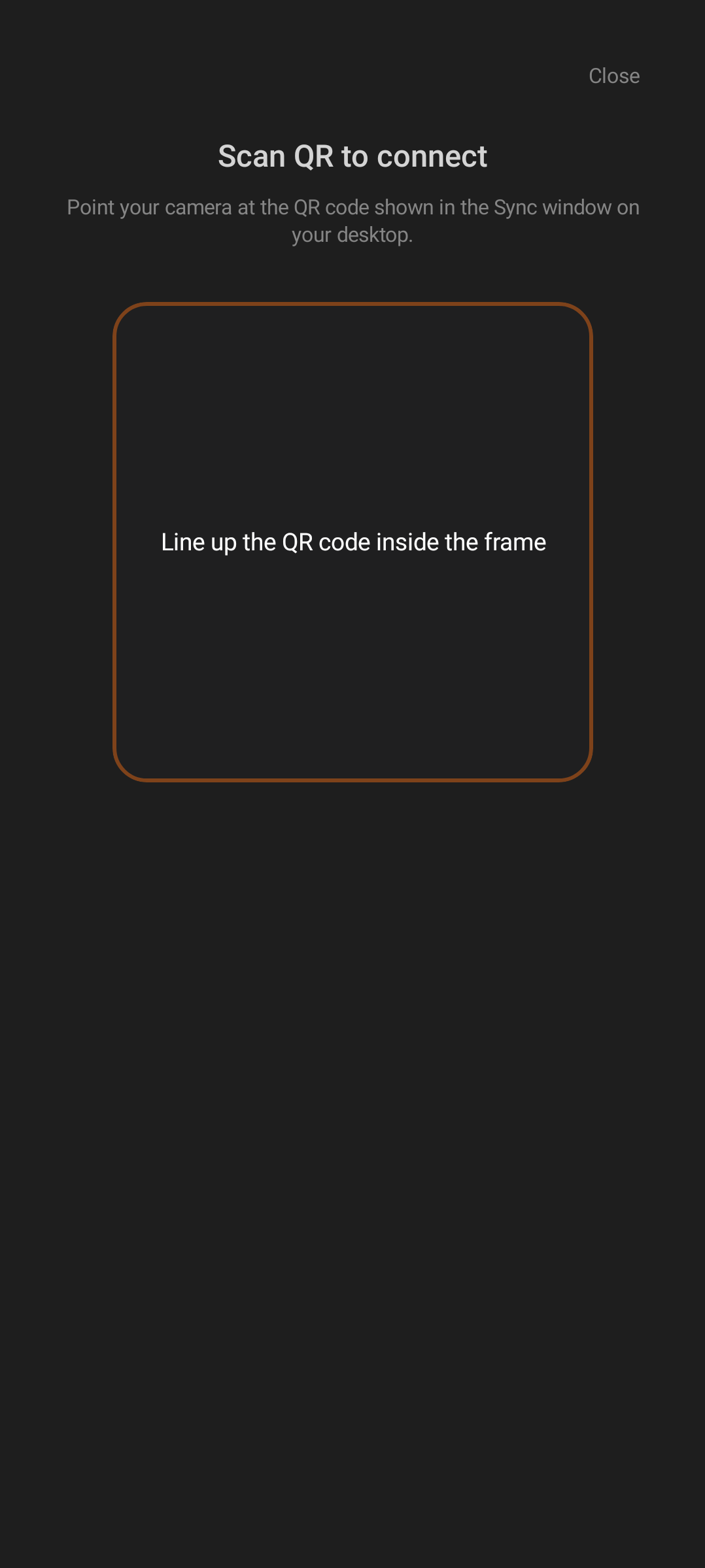
The scanner reads the desktop pairing code and sends the challenge through the relay.
The pairing screen is titled Bind your stronghold and reminds you to open Code Overlord on desktop and tap Sync to summon the QR code. If the camera is not yet permitted, the screen shows Camera permission needed to scan the QR code with an Open settings button (and a Back action) so you can grant access without leaving the flow.
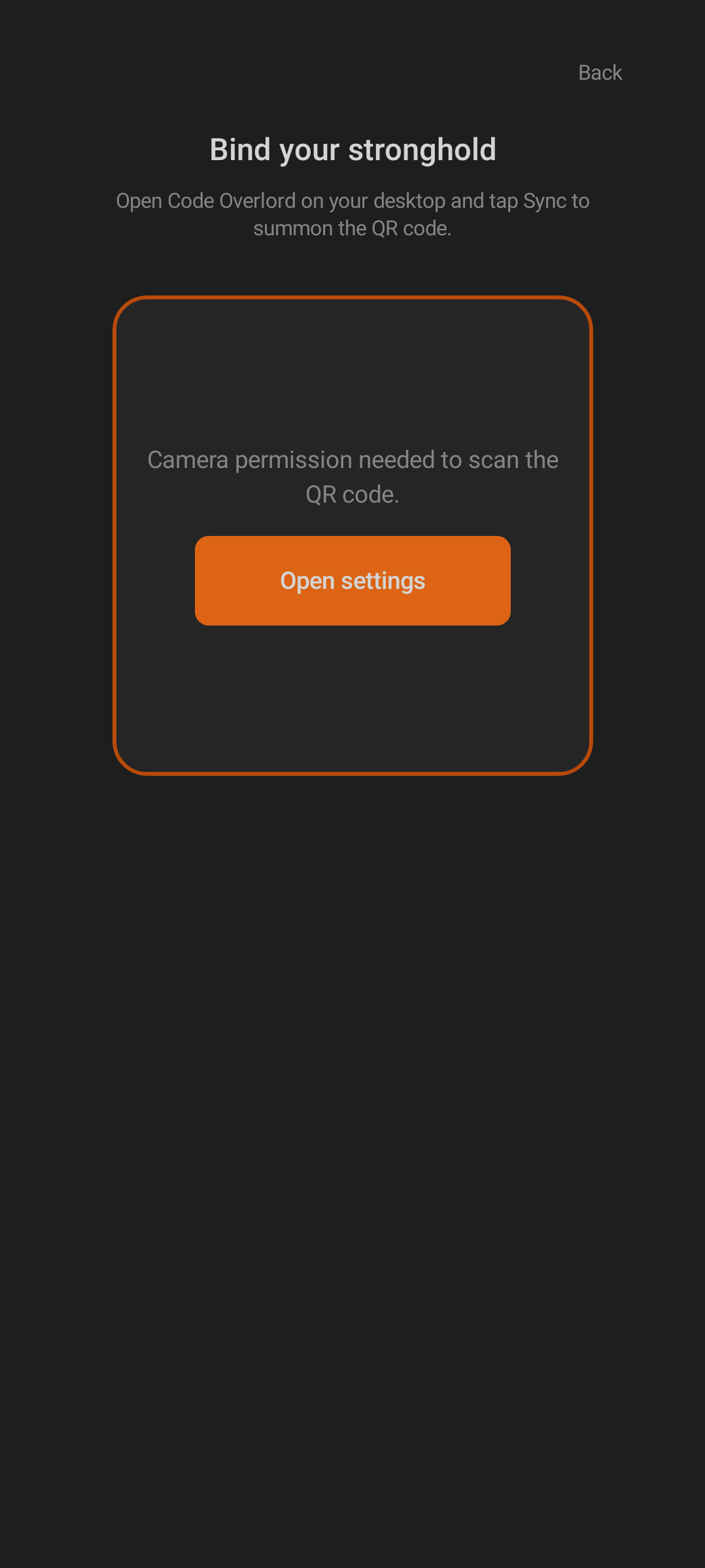
The "Bind your stronghold" screen, here asking for camera permission with an Open settings shortcut.
The scanner validates that the QR code is a Code Overlord pairing code. If the code is wrong, expired, or unreachable, the app explains the problem and lets you scan another QR code. Current source text includes messages such as That doesn’t look like a Code Overlord code, That code has faded. Ask your desktop for a fresh one, and The ravens couldn’t reach your desktop. Check your connection and try again.
Tip: These messages are recoverable, not dead ends. A faded code just means the desktop QR expired — ask the desktop for a fresh one and scan again. A "ravens couldn't reach" message points at connectivity: confirm the desktop app is online, then retry.
Sign In Without QR Pairing
If you need the account login path instead, tap Log in on the welcome screen.
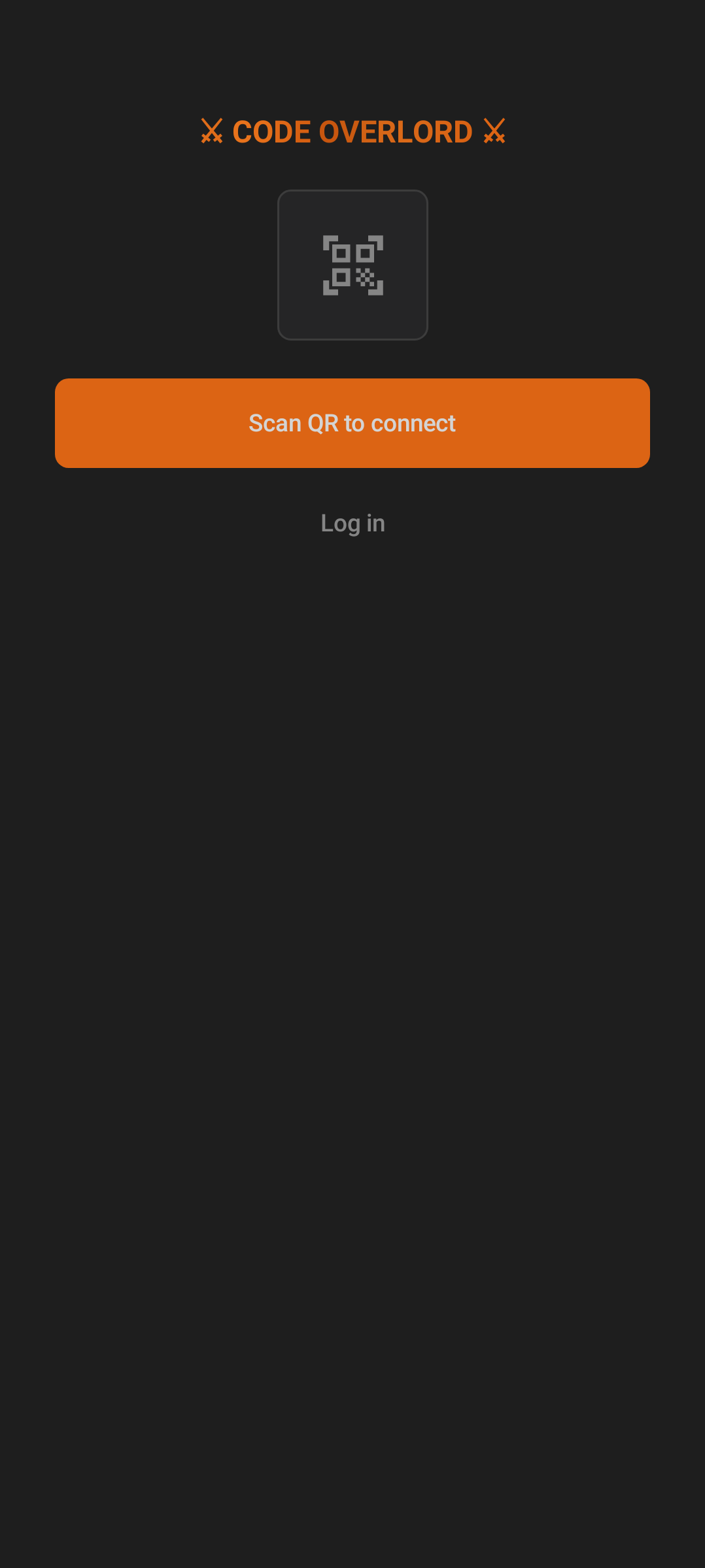
The login screen keeps QR pairing first, with account login as the fallback.
Login options can include:
- Continue with Google
- Continue with Apple
- Sign in with email
Email sign-in uses the labels Email (your sigil) and Password (your passphrase). New accounts go through an email verification code step; after signup, the app shows a confirmation message that a verification email was dispatched.
Use this path when QR pairing is not available or when you are restoring an account session directly. For the smoothest desktop companion setup, pair from the desktop QR code when you can.
Choose a Workspace
After pairing or sign-in, the app opens into the main shell. Most screens have a workspace selector in the top bar. The selected workspace controls which notes, agents, open files, rituals, and omens you see.
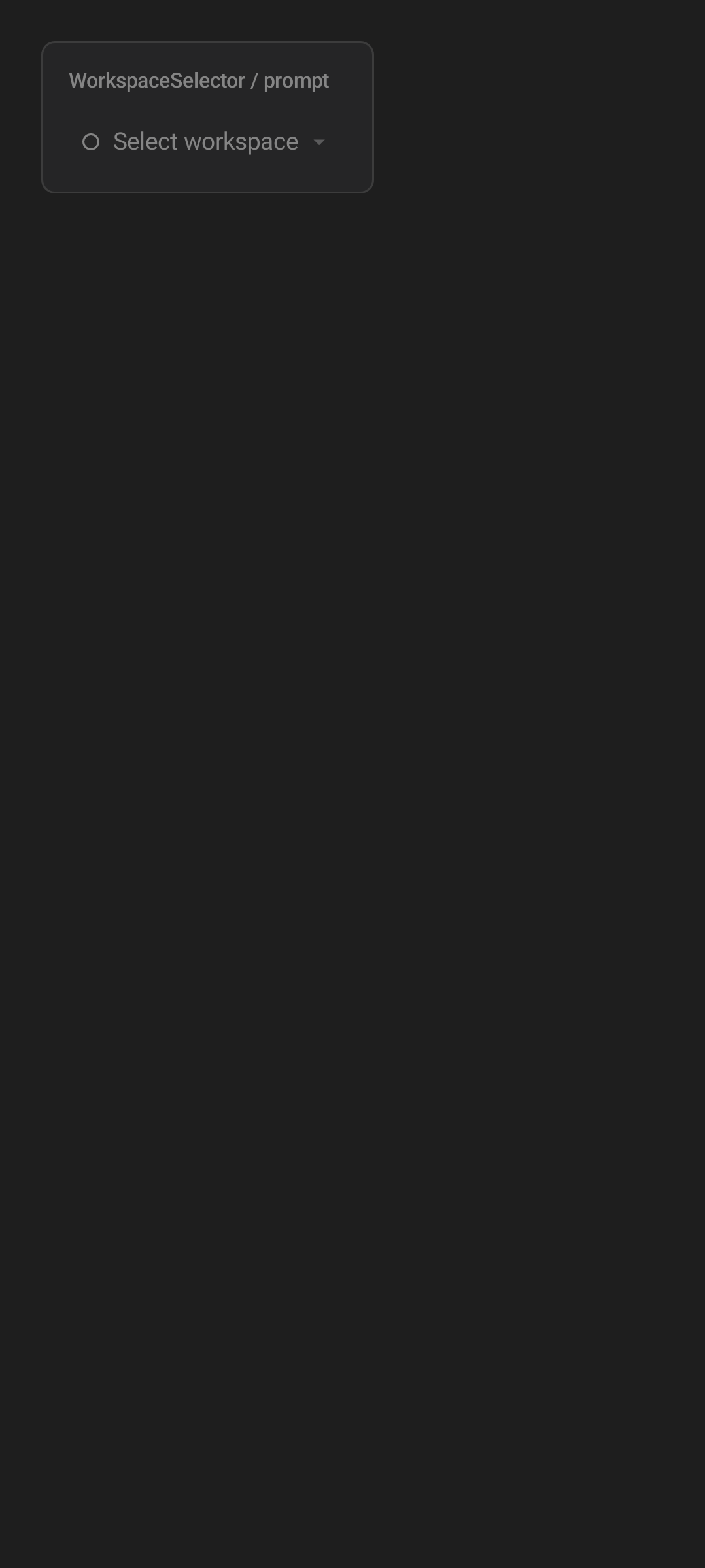
The "Select workspace" control that lives in the top bar of most screens; it keeps the phone focused on the same work area as the desktop.
If no desktop is online, Home can show No desktops online and offer a Scan QR code action. If you are signed in but have not paired a desktop yet, the same top-bar button reads Scan QR code instead of Select workspace. If no workspace exists, Home shows No workspaces yet and points you back to the selector.
Home: Thy Quill
The first bottom tab is Thy Quill, the mobile notepad. It is the app's Home screen.
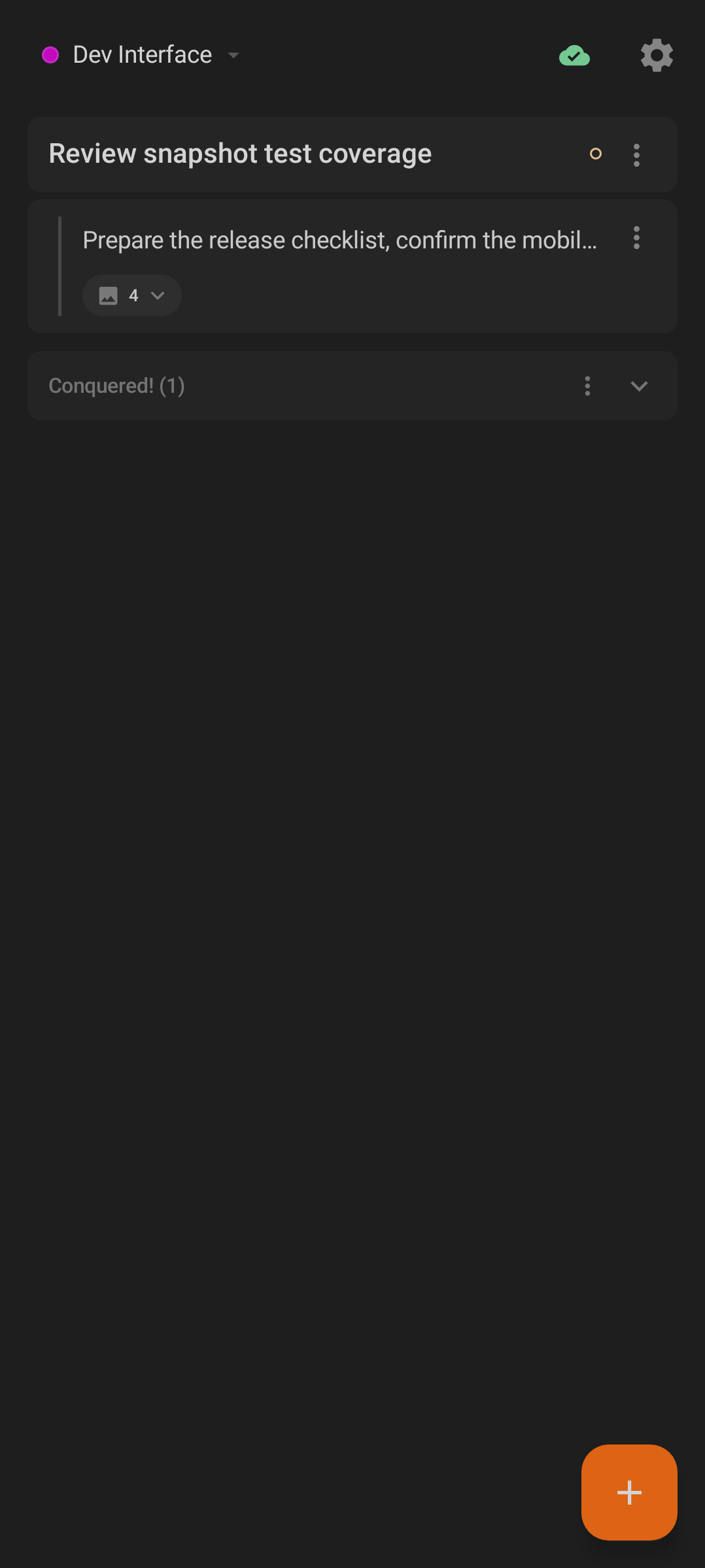
Home shows the selected workspace, sync state, active notes, conquered items, settings, and the add button.
Top bar controls:
- Workspace selector switches the active workspace.
- The sync icon reports state with accessibility labels such as Synced, Syncing, Sync warning, or Sync error.
- The gear opens Armoury, the settings screen.
Main Home areas:
- Active note rows for the selected workspace.
- The
+floating button, labelled Add item, which opens the new item sheet. - The Conquered! section, which holds completed notes.
- Pull-to-refresh for a manual sync.
The new item sheet uses the placeholder New item... and has Cancel and Add actions. It also includes the dictation mic covered in Notepad and Voice Dictation.
Bottom Navigation
| Tab | What it opens |
|---|---|
| Thy Quill | Mobile notes for the selected workspace. |
| Minions | Desktop agent sessions you can view and drive remotely. |
| Scrolls | Files currently open on the desktop, with an in-app viewer. |
| Rituals | Scheduled tasks and retained task terminals. |
| Omens | Notifications from agents, files, and rituals. |
Armoury is not a bottom tab. Open it from the gear on Home. For settings, feedback, themes, and overlays, see Settings, Feedback, Themes, and Status Overlays.
Connection and Sync States
The Android app depends on the relay and the desktop app for remote desktop state. Common banners include:
- Scouting the fortress... while discovering state.
- Rallying the messenger ravens... while reconnecting.
- The fortress gates are sealed when the desktop is unreachable.
- Lost in the wilderness - no signal when the phone is offline.
Local Quill notes can still be visible from local storage while network state recovers. Minions, Scrolls, Rituals, and Omens depend more directly on the relay and desktop availability.
First Five Minutes
- Pair with the desktop QR code.
- Choose the workspace you want to work from.
- Check Thy Quill for mobile notes.
- Open Minions to confirm desktop sessions are visible.
- Open Scrolls if you want to inspect a file from the desktop.
- Open Rituals and Omens to monitor scheduled runs and notifications.
Troubleshooting
- The scanner cannot read the QR code: increase brightness on the desktop display, center the QR code in the frame, and ask desktop for a fresh code if it expired.
- The phone says the desktop is unreachable: keep desktop Code Overlord running and online, then retry from the phone.
- The app asks for camera permission: allow it for QR pairing, or use the Android Settings link shown by the scanner.
- No workspace appears: confirm you paired or signed in to the same environment as the desktop, then use the selector again.
- Notification alerts do not appear: enable Android notification permission for Code Overlord and check Omens in-app.
Next: Agent Sessions on Android.