Notepad and Voice Dictation on Android
On this page
Use Thy Quill to capture workspace notes on your phone, and use dictation wherever Android exposes the mic button. Use Scrolls when you want to inspect files that are open on desktop.
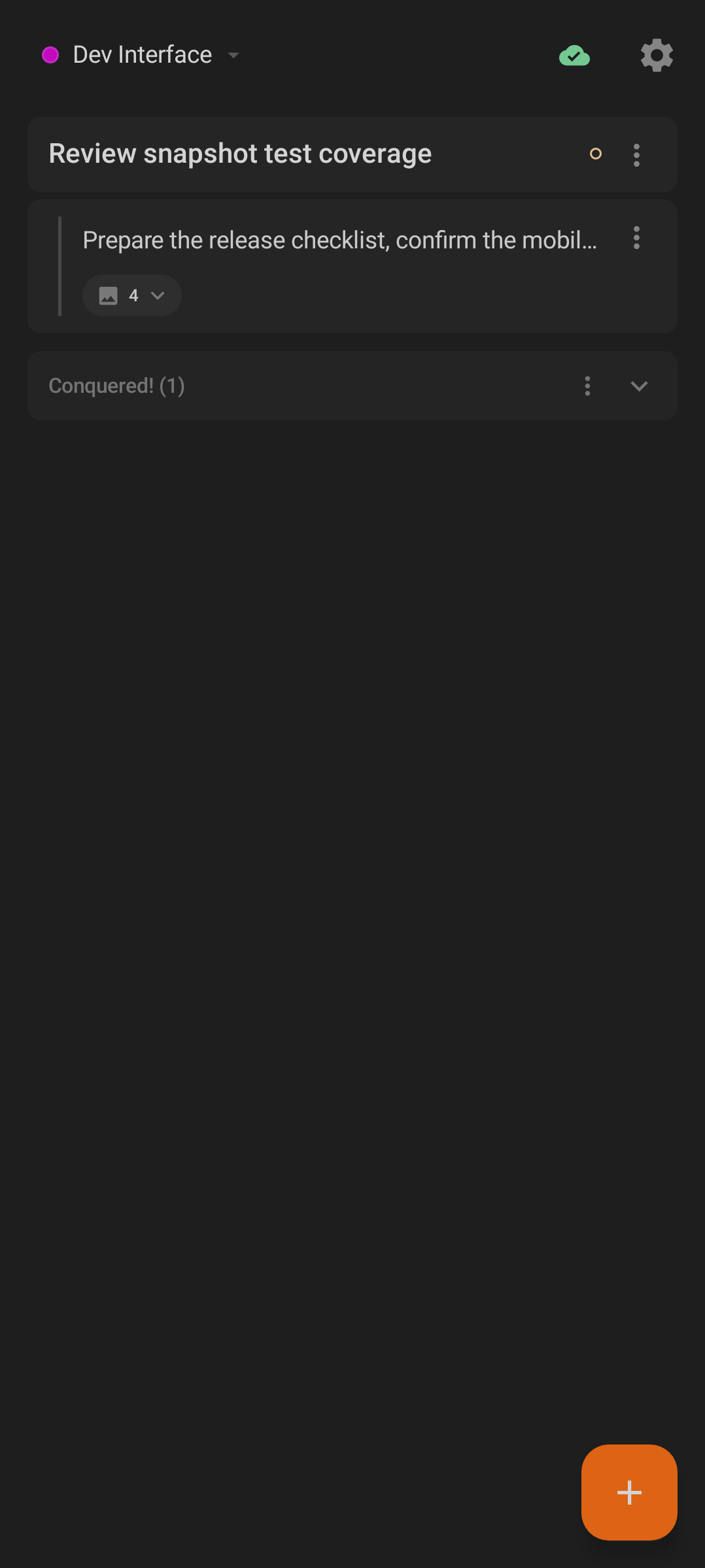
Thy Quill is the Home screen: notes, completed items, workspace selector, sync state, and the add button.
Notes, Scrolls, and Workspaces
The Android app separates two concepts that are easy to confuse:
- Thy Quill: mobile notes and task-like items for the selected workspace.
- Scrolls: files currently open on the desktop, with a mobile viewer.
Both use the workspace selector. If you change workspace on one screen, you should expect the rest of the app to follow that workspace context.
Create a Note
- Open Thy Quill.
- Select the workspace at the top of the screen.
- Tap the
+floating button, labelled Add item. - Enter text in New item....
- Tap Add, or tap Cancel to close the sheet without saving.
New notes appear immediately in the active list and sync when the app can reach the relay.
Edit and Organize Notes
Tap a note row to edit its text inline. Use the row menu (⋮) for common actions:
- Done moves the item into Conquered!.
- Add creates a child item (hidden once a row reaches the maximum nesting depth).
- Indent → and Outdent ← adjust hierarchy. Indent hides at maximum depth; Outdent hides on a top-level row.
- Affix a scroll attaches supporting material (hidden once a note has reached its attachment limit).
- Delete removes the item.
Tip: The menu only shows the actions that apply to that row, so a deeply nested item or a fully-attached note will show a shorter menu than a fresh top-level one.
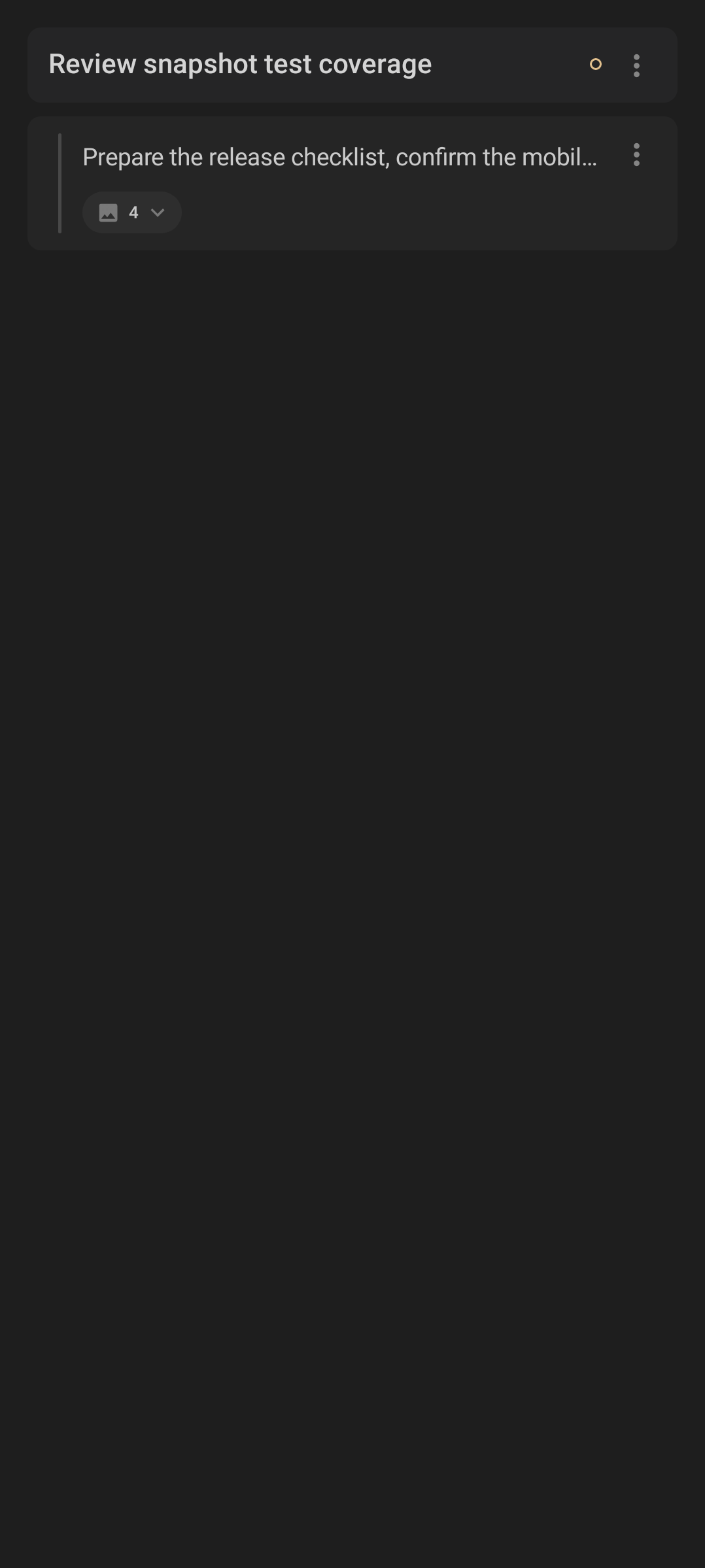
Note rows can show hierarchy, materials, sync state, and per-item actions.
The completed section is labelled Conquered!. It includes actions to copy conquered items and clear them. When an action can be undone, Android shows an undo snackbar.
Attach Materials
Use Affix a scroll from a note menu to attach material. Attached material can include documents and images; image material is described in the app as a vision.
Material behavior:
- A note can show material chips or previews directly on the row.
- Remove actions use labels such as Detach the vision for images.
- Document links can open in the Android file viewer or in Peruse when the desktop path is available.
- A small warning mark on a note can indicate pending sync.
Sync Behavior
Thy Quill is local-first. You can read and edit local notes even while the phone is temporarily offline. Remote desktop-facing views such as Minions, Scrolls, Rituals, and Omens need the relay and desktop to be reachable.
Use the top-bar sync icon and pull-to-refresh when you want an immediate check. Accessibility labels for the icon include Synced, Syncing, Sync warning, and Sync error.
Voice Dictation
Dictation uses the mic button and runs speech-to-text on the device after downloading the speech model. The model download happens once, then the app can reuse it.
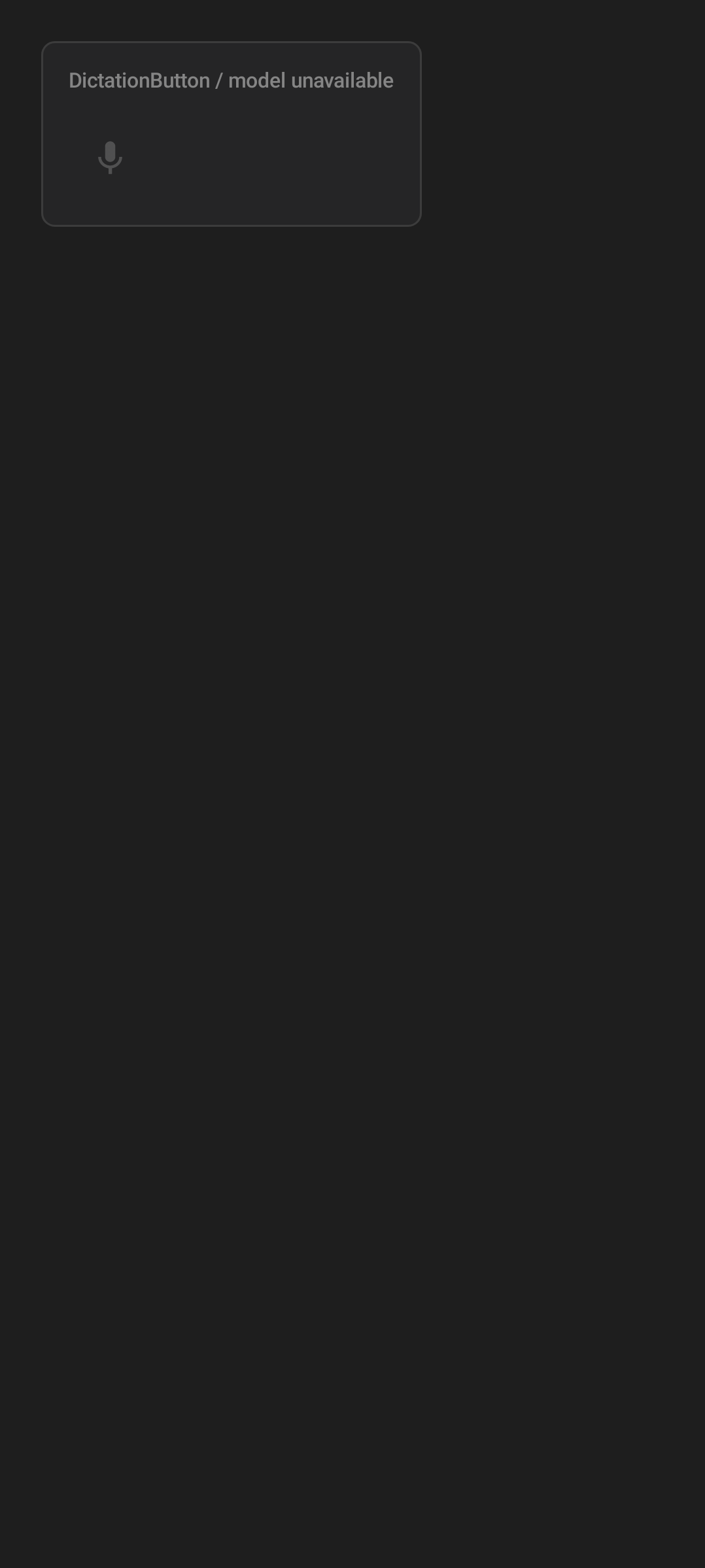
The dictation mic button; it appears inside every text field that supports dictation (shown here in its unavailable state before the speech model is ready).
Dictation appears in several places:
- Thy Quill new item sheet.
- Minions agent input.
- Summon first prompt.
- Audio Review feedback.
How to dictate:
- Tap the mic.
- Grant microphone permission if Android asks.
- Speak for at least a short phrase.
- Tap the stop control.
- Wait while Android transcribes the audio into the active text field.
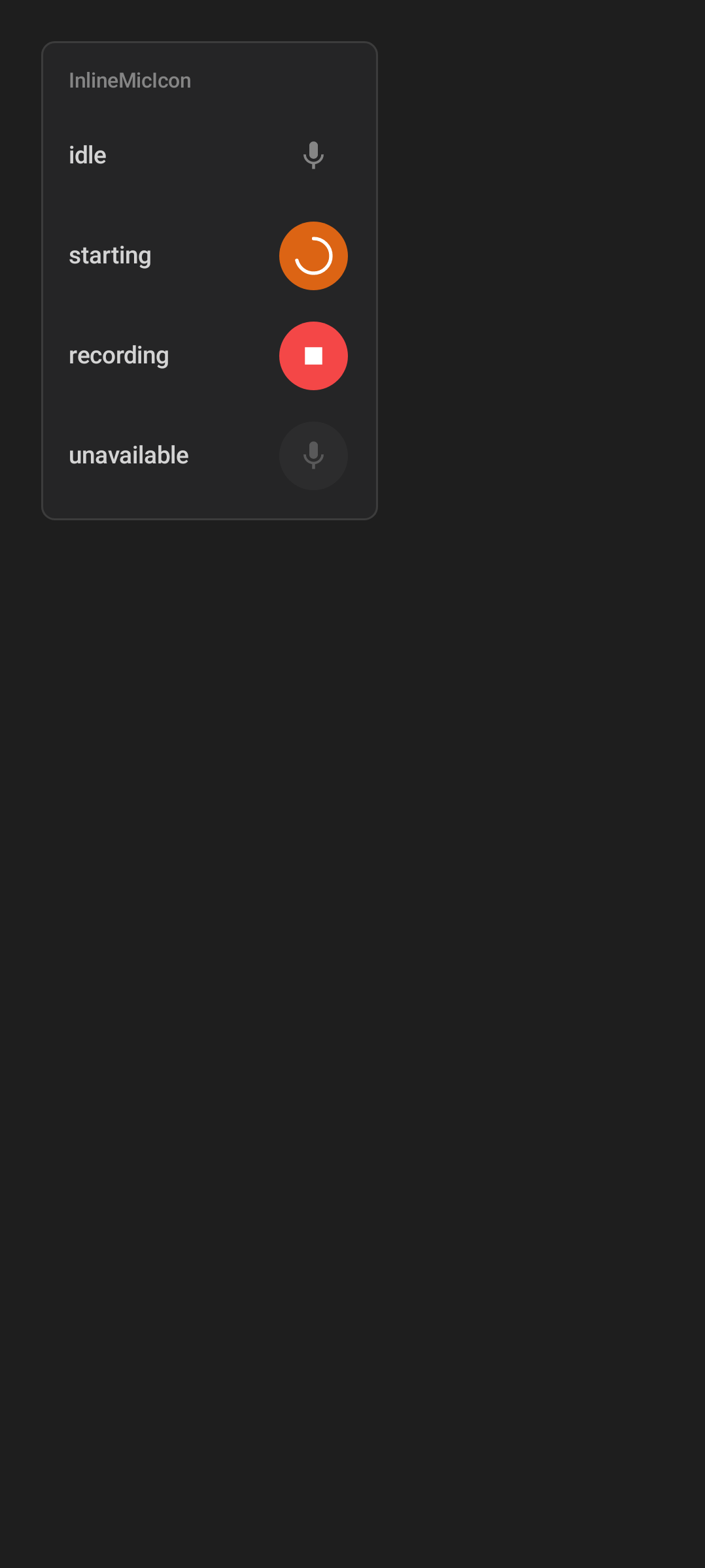
The mic control cycles through visible states: a plain mic when idle, an orange spinner while starting, a red stop square while recording, and a dimmed mic when dictation is unavailable.
Dictation states are visible through the button and top banners:
- Downloading speech model while the model is being fetched.
- Starting dictation while audio capture starts.
- Stop recording while recording is active.
- A transcribing spinner while audio is being processed.
- Voice dictation ready, Voice dictation paused, or Voice dictation failed in the app banner area.
Android 12 and newer may request Bluetooth audio permission when you use Bluetooth devices. Very short recordings are rejected. Longer recordings are chunked internally, with audio flushed for processing about every 30 seconds.
Once recording starts, you can switch Code Overlord tabs, open another app, go Home, or lock the phone without changing the transcript destination. Android shows an ongoing recording notification with elapsed time and Stop recording; opening it returns to the starting draft. If notification permission is off, recording still continues and the in-app stop control remains available.
Audio Review for Markdown Scrolls
Open a Markdown file from Scrolls and tap Audio Review to listen through the document and capture spoken review feedback.
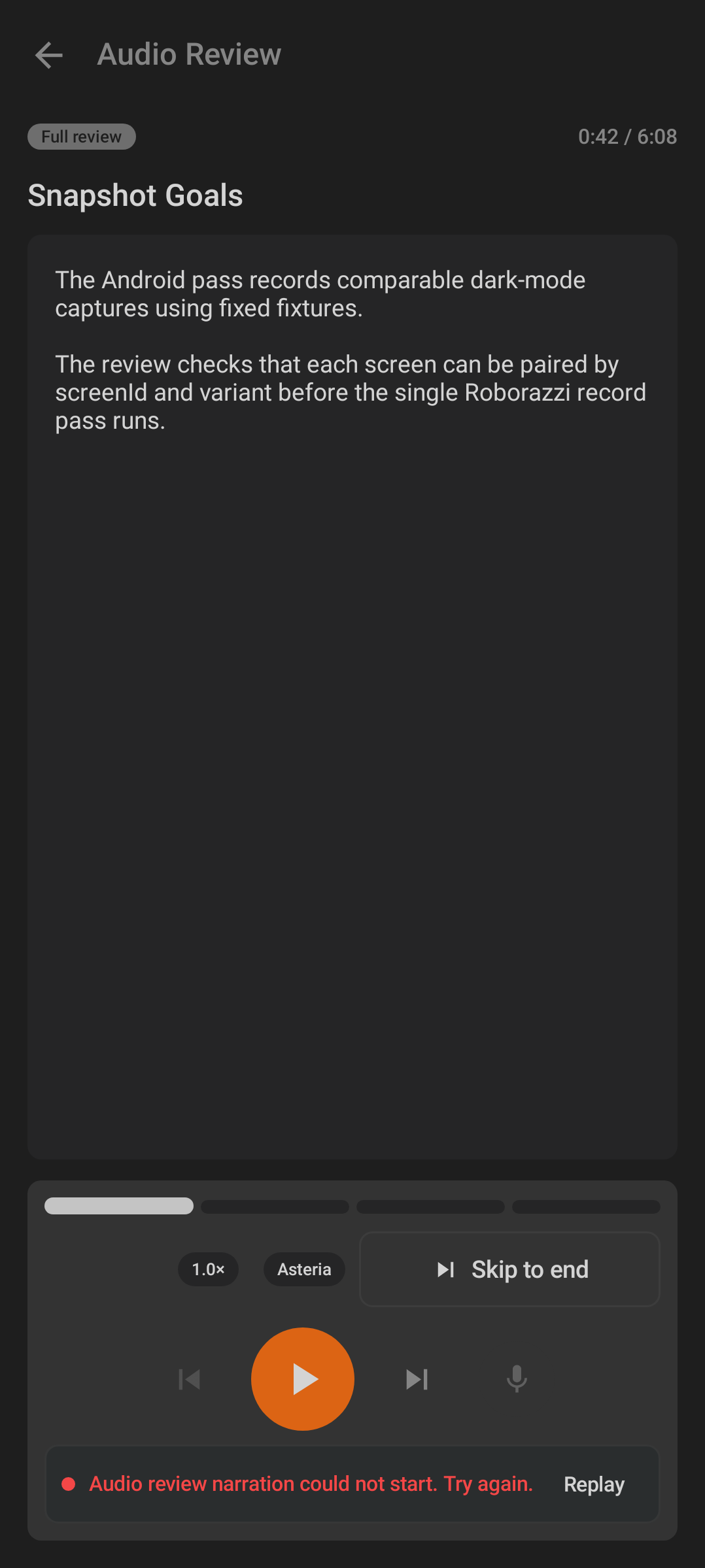
Audio Review plays a Markdown Scroll, tracks progress, and lets you add spoken feedback.
Audio Review starts playback when it opens. The screen includes:
- A timeline with elapsed and total time.
- Chapter or section navigation.
- Play, pause, replay, back, forward, and Skip to end controls.
- A speech-rate chip such as
1.0x. - Voice selection, such as Asteria.
- A mic button for feedback during review.
If narration fails to start, Android shows a recovery message and a Replay action. Leaving the screen asks for confirmation with Discard Review and Resume because progress would be lost.
Review Summary
After an Audio Review, Android shows Review Summary.
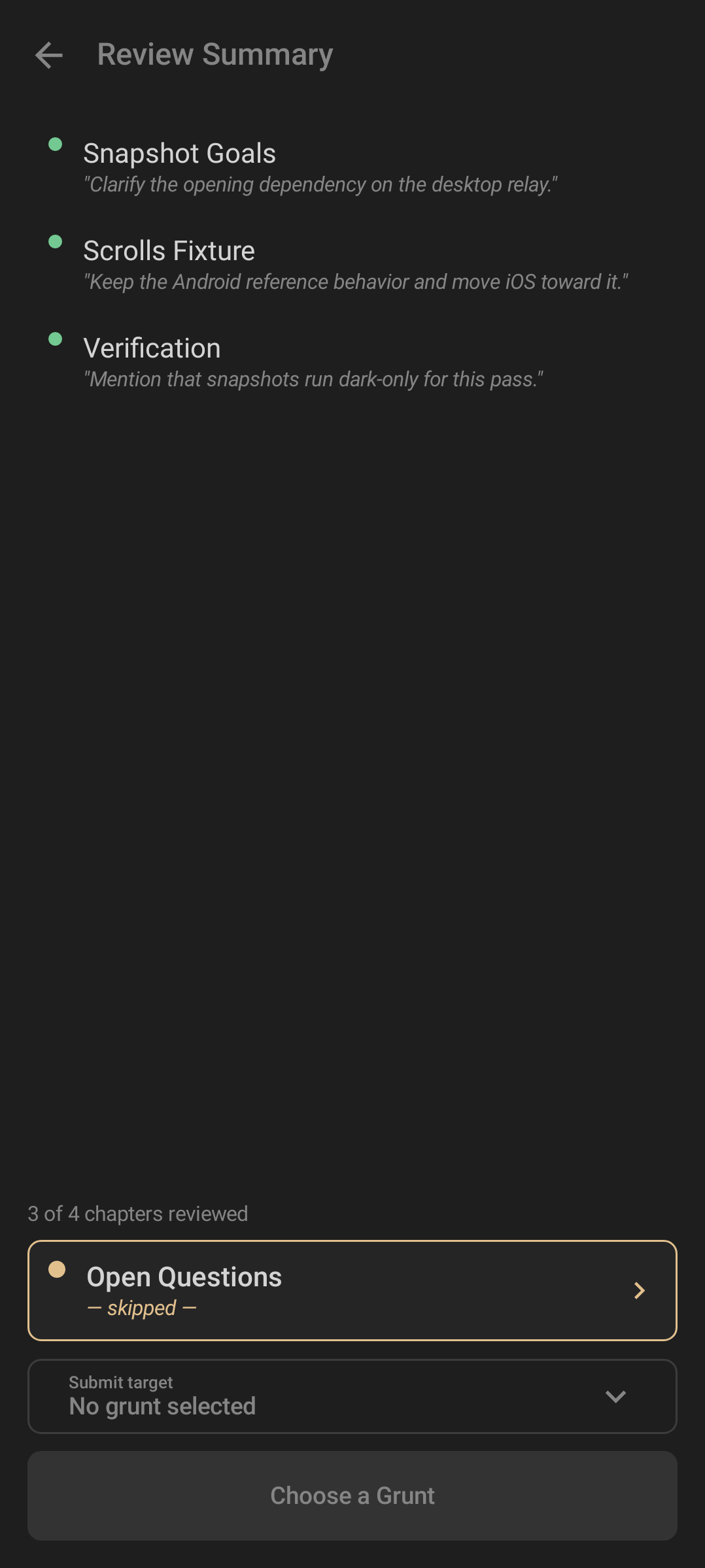
The summary lets you inspect reviewed chapters and send the review to a desktop Grunt.
The summary includes:
- How many chapters were reviewed.
- Chapter-level feedback rows.
- A target picker for the Grunt that should receive the review.
- Send to
, Choose a Grunt, or Sending to... depending on state. - Review Full Document when you want to return to the document.
If submission fails, use Retry after checking connectivity and desktop availability.
Daily Workflow
- Capture quick notes in Thy Quill.
- Dictate when typing on the phone would slow you down.
- Attach materials to keep context with a note.
- Mark completed work into Conquered!.
- Use Scrolls to inspect desktop files.
- Use Audio Review for long Markdown documents that need spoken review notes.
Troubleshooting
- Mic does not start: grant microphone permission and check whether Android is routing audio through a Bluetooth device.
- Model download is stuck: keep the app open on a stable network until the speech model finishes downloading.
- Transcription returns nothing: speak for longer than a very short clip and avoid background noise.
- Notes are stale on another device: pull to refresh and confirm both desktop and Android are in the same workspace.
- Audio Review cannot start: reopen the Markdown Scroll and use Replay if the recovery action appears.