Scheduled Tasks on Android
On this page
Use Rituals to monitor and manage scheduled desktop tasks from Android. A Ritual is a scheduled task that the desktop runs with an agent. Android lets you inspect schedules, dispatch runs, edit simple cadence settings, open retained terminals, and follow completion or failure notifications through Omens.
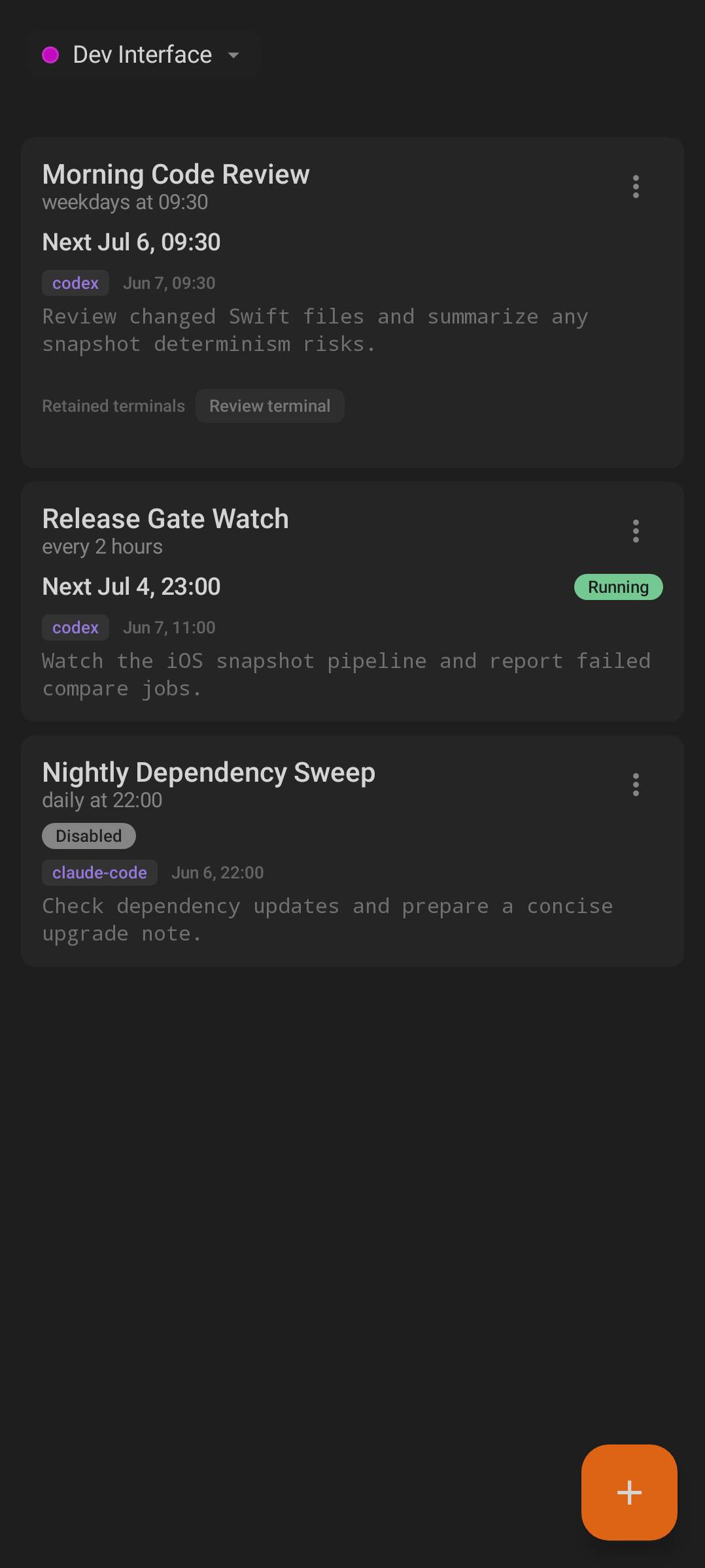
Rituals shows scheduled tasks, state, next run timing, prompt previews, and retained terminals.
What You Can Do
From Android you can:
- View scheduled tasks for the selected workspace.
- Create a new Ritual from the
+button. - Dispatch a task immediately.
- Halt a running task when that action is available.
- Enable or disable a task.
- Edit supported cadence schedules.
- Delete a task after confirmation.
- Open retained terminals and live task output.
- Track completions and failures in Omens.
The desktop remains the source of truth. Android sends changes through the relay and refreshes after operations complete.
Open Rituals
- Pair with the desktop and select a workspace.
- Tap Rituals in the bottom navigation.
- Use the workspace selector in the top bar if you need a different workspace.
If no tasks exist, the screen shows No Rituals with the hint Tap + to create a Ritual on your desktop. The + also opens the mobile Ritual editor, so you can inscribe a time-based Ritual straight from the phone. If the desktop is unavailable, the empty state can show Workspace inactive on desktop or a Ritual error with retry behavior.
Read a Ritual Card
Each task card can show:
- Task name.
- Schedule text.
- Next run, such as
Next Jul 6, 09:30. - Status pill: Running, Disabled, or Enabled.
- Agent badge, such as
codexorclaude-code. - Last run timestamp.
- Prompt preview.
- Retained terminals for completed or running task sessions.
Tap a card to open task detail. Tap a retained terminal pill to jump to that terminal when available.
Task Actions
Open the card action menu to use:
- Dispatch Now to start a run immediately.
- Halt for a running task when the desktop can stop it.
- Disable or Enable.
- Edit.
- Delete.
Deleting asks for confirmation with Delete Ritual and explains that the action cannot be undone.
Create or Edit a Ritual
Tap the + button, labelled Inscribe New Ritual, or choose Edit on an existing task. The editor opens as a dialog on the phone — you can create and edit time-based Rituals directly from Android.
The editor includes:
- Name
- Prompt
- Cadence — a row of chips (Minutes, Hours, Daily, Weekdays, Weekly)
- Schedule-specific fields for the chosen cadence
- A Preview: line showing the resulting schedule text
- Save (shown as Saving while it submits) and Cancel
Save stays disabled until the fields validate. If a value is out of range, the editor shows the reason inline, such as Minutes must be 1-120., Hours must be 1-24., or Time must be 00:00-23:59.
Supported cadence controls:
| Cadence | Fields |
|---|---|
| Minutes | Every N minutes, from 1 to 120. |
| Hours | Every N hours, from 1 to 24. |
| Daily | Hour and Minute. |
| Weekdays | Hour and Minute, Monday through Friday. |
| Weekly | Day of week plus Hour and Minute. |
Time fields are validated as 00:00 through 23:59. The preview updates to text such as Every 30 min, Every 2 hr, Daily at 09:30, Weekdays at 17:00, or Weekly on Mon 09:00.
Event-driven schedules, such as workspace-open, git-commit, branch-change, or file-change triggers, can be displayed but not retuned from Android. The editor tells you: Event-driven Rituals can’t be re-tuned here - adjust this one on your desktop.
Ritual Detail
Open a task to inspect its current state and history.
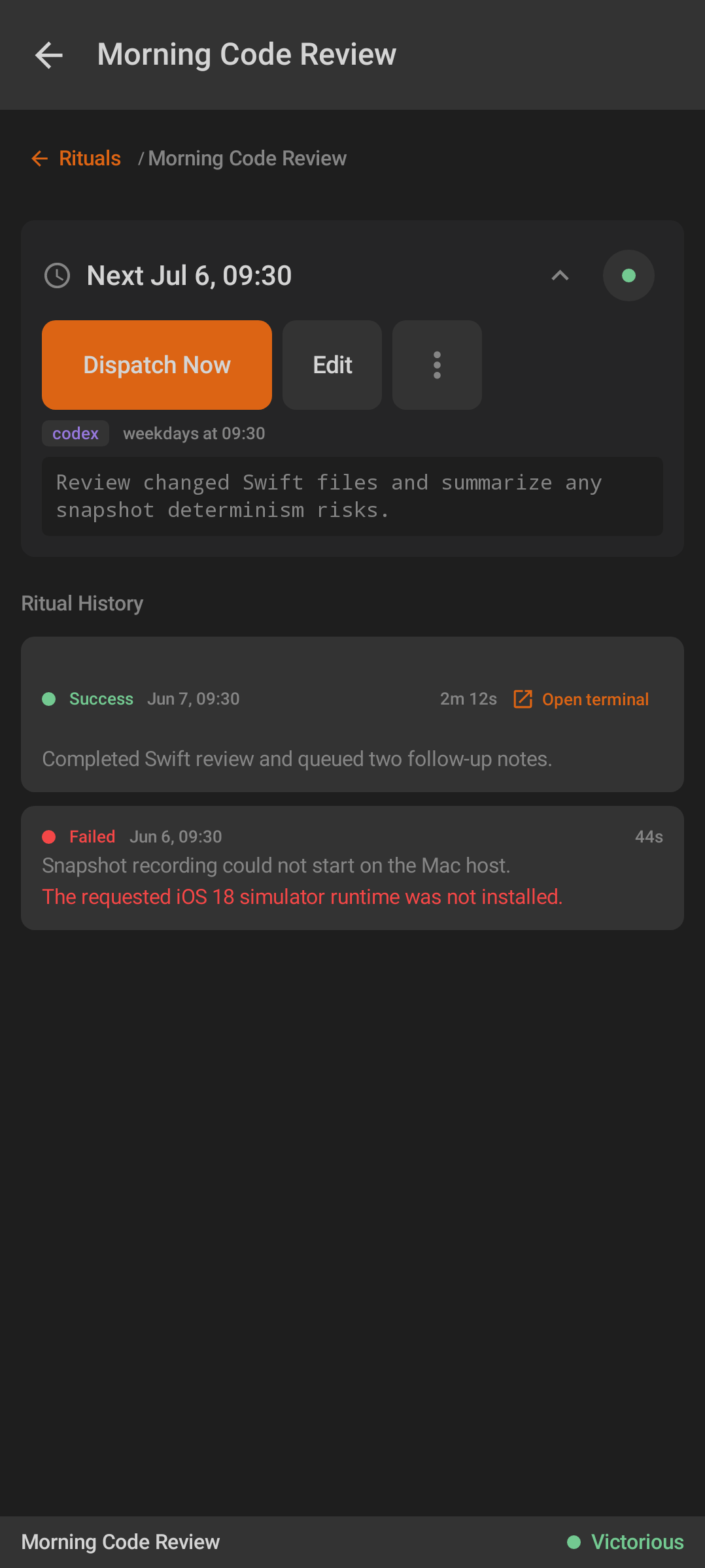
Ritual detail combines compact task controls, prompt context, run history, and retained terminals.
Ritual detail replaces the three previous stacked bars with one compact header. In one row it shows:
- Back arrow.
- Ritual name, with the next-run summary as a one-line subtitle.
- Agent badge.
- Details chevron.
- Enabled toggle.
Tap the header or chevron to unfold the full configuration below it. The expanded area shows the schedule/cron text, a prompt preview, and Dispatch Now, Edit, and Banish actions. It remembers your collapsed/expanded choice when idle and automatically collapses while the Ritual's agent is running so the live terminal and history stay in view.
When a task has a running agent, detail embeds the same live agent terminal used by Minions. You can read output, send input, use dictation, and retry failed sends from that embedded terminal.
Run History
The Ritual History section lists recent runs. Rows can show:
- Running, Success, or Failed.
- Run timestamp.
- Duration.
- Summary.
- Failure reason.
- Open terminal when the run has a retained or active terminal.
If there is no history yet, the screen shows No rituals performed. If run history cannot be loaded, it shows Run history error with retry behavior.
Monitoring Ritual Runs
Ritual-created sessions stay on the Rituals tab; the Minions tab lists manual sessions only. A scheduled task can create or retain a terminal, and Android exposes it from the Ritual card, detail screen, and run history without duplicating it in Minions.
Use this flow when you are away from desktop:
- Open Rituals to check which tasks are enabled, running, or disabled.
- Open a task detail page for schedule, prompt, and run history.
- Use Open terminal or a retained terminal pill for live output.
- Send input from the embedded terminal if the task agent needs direction.
- Return to the Ritual card or history to move among its retained runs; use Minions separately for manually launched sessions.
Omens: Notifications
Omens shows agent and Ritual activity notifications.
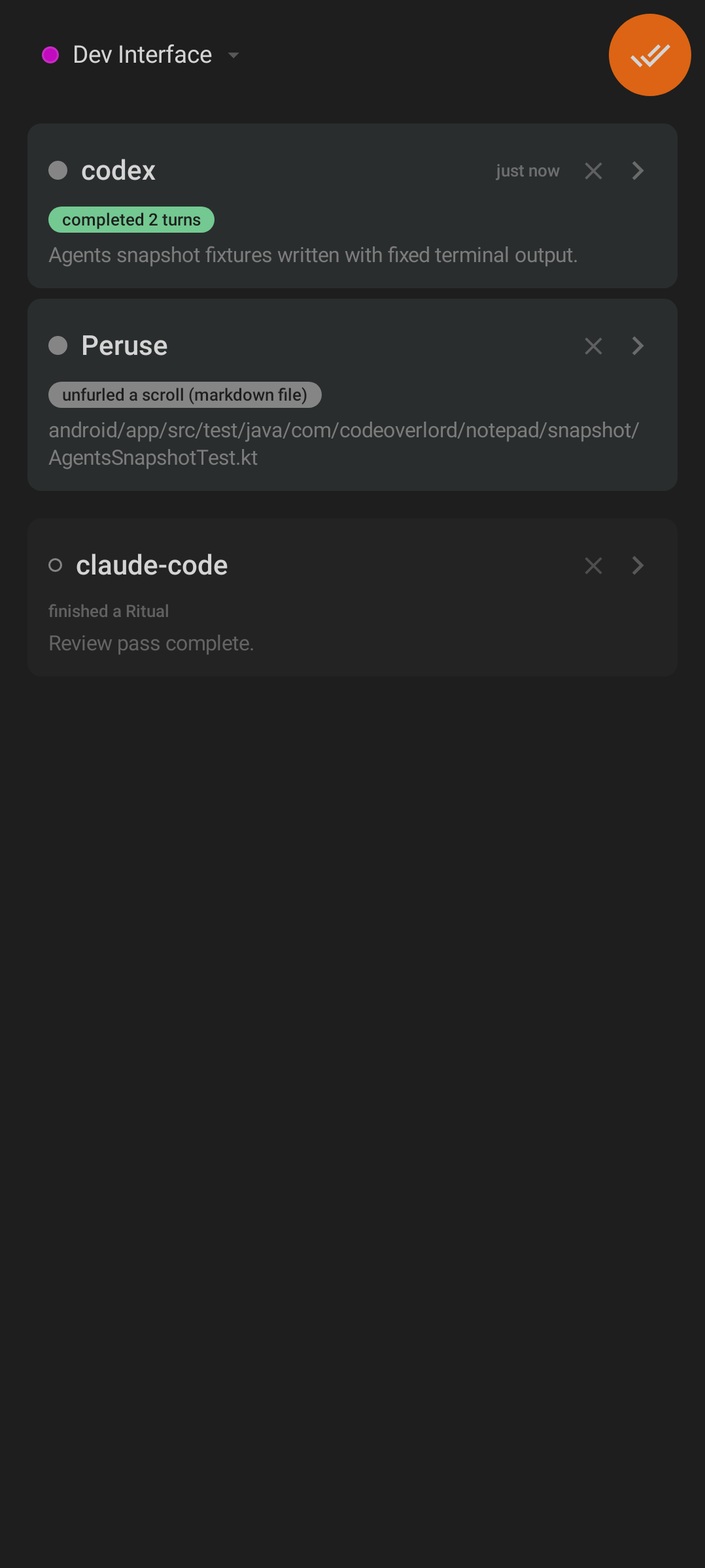
Omens groups recent agent events, file events, and Ritual completions or failures.
Notification rows can show:
- The agent or event name.
- Event text such as completed a turn, completed 2 turns, finished a Ritual, Ritual failed, or unfurled a scroll.
- Message details.
- Relative time.
- Unread or failure emphasis.
- Dismiss action.
- A chevron when the row can navigate somewhere useful.
Rows with a session ID can open the related Minion or Ritual terminal. File-opened rows can open the related Scroll viewer. Opening Omens marks the current notifications read locally on the phone; it does not need to change desktop read state.
The top action Clear handled dismisses visible read notifications locally.
Sync Expectations
Rituals are desktop-driven. Android can send create, edit, enable, disable, dispatch, halt, and delete requests, but the task list reflects what the desktop confirms through the relay.
If the phone loses network or the desktop becomes unreachable:
- Existing cached task data may remain visible.
- New actions can fail with a snackbar or inline error.
- Detail and history screens keep polling when they are open.
- Omens may stop receiving new events until the relay recovers.
Troubleshooting
- Rituals are missing: confirm the desktop app is open, online, paired, and on the same workspace.
- Edit is blocked: the schedule may be event-driven; change that Ritual from desktop.
- Dispatch Now fails: wait for relay connectivity and retry from the task menu.
- Open terminal does nothing useful: the retained session may no longer be available; refresh and check Minions.
- No notifications arrive: check Omens in-app, then confirm Android notification permission in system settings.