Voice Dictation
On this page
Desktop voice dictation is the Scribe input path for spoken text. Scribe is Code Overlord's in-app AI helper; in this guide, it means the floating microphone that records your voice, transcribes it locally, and inserts text into the field you were using.
It works with:
- agent terminals.
- the Inscriber composer.
- Notepad add field.
- Notepad inline note editing.
If no editable field is focused, the transcript is saved to recent dictations instead of being sent to a random place.
The Floating Mic
The Scribe mic sits centered along the bottom edge of the desktop window.
Start or stop dictation with either:
| Platform | Shortcut |
|---|---|
| Windows/Linux | Ctrl+Alt+M |
| macOS | Cmd+Option+M |
You can also click the mic. The tooltip shows the shortcut, current status, and guidance for the current state.
Dictate Text
- Focus the exact field where the transcript should land.
- Click the floating mic or press the shortcut.
- Speak.
- Click the mic again or press the shortcut again to stop.
- Wait for transcription. The transcript is inserted at the captured cursor position.
Dictation does not submit commands automatically. In an agent terminal, it types the transcript and leaves you in control of pressing Enter.
Mic States
Idle
The green mic means Scribe can start a recording.
 Idle means no recording is active and the model is ready.
Recording
While recording, the button turns red and shows the speaking Overlord mic.
 Recording state. Click or use the shortcut again to stop and transcribe.
The status text says which target is being recorded for, such as notepad add field, notepad edit field, Inscriber, an agent label, or recent dictations.
Transcribing
After you stop, recording is finished and the button changes to the green book state while Moonshine transcribes the captured audio.
 Transcribing state. Recording has stopped; the transcript is being prepared.
The button is not clickable while transcribing.
Disabled Or Waiting
A gray slashed mic means voice input is unavailable or waiting, most commonly because the voice model is not ready yet.
 Disabled state. Typed input still works while voice input is unavailable.
If the model is downloading, the mic uses the transcribing/book glyph with a progress rail instead of the gray disabled glyph.
Error And Retry
A red mic with an exclamation badge means Scribe hit a recoverable problem. Press the mic again after fixing the cause.
 Error state. The mic is rearmed so you can retry.
Common causes include no microphone, OS microphone permission denial, a capture error, a missing recognizer, a failed model download, or insufficient disk space.
Notification Clearance
Notifications stay bottom-right while the mic stays centered, so toasts do not cover the voice control.
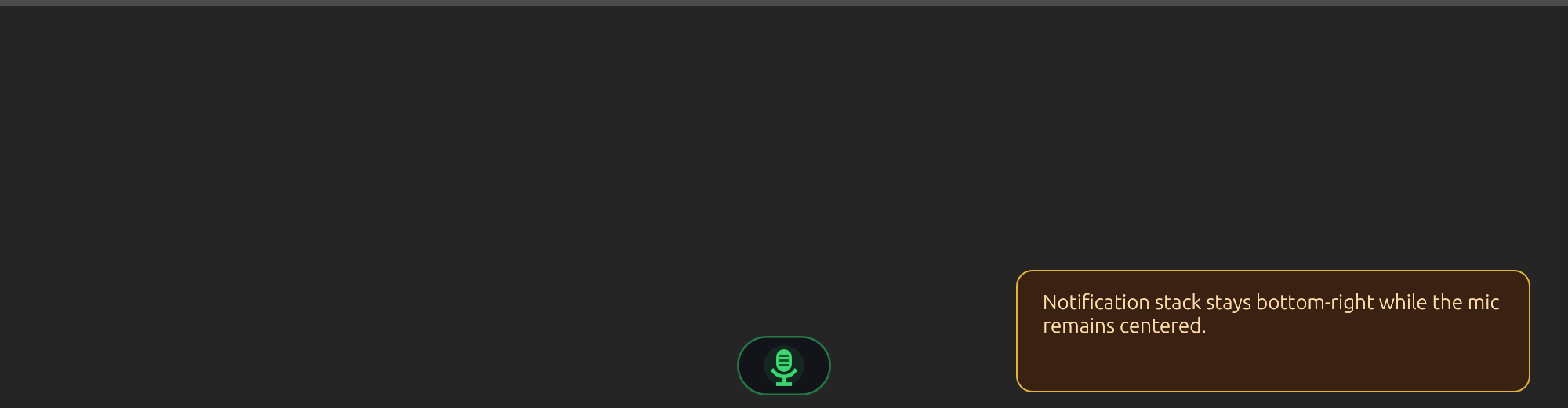 Notifications avoid the mic area so the recording control remains reachable.
One-Time Moonshine Model Download
Desktop dictation uses the on-device Moonshine speech model through Sherpa ONNX. Code Overlord provisions the model automatically.
What to expect:
- The download is about
287 MB. - It starts in the background on first launch if model files are missing.
- It verifies file sizes and repairs incomplete files.
- It stores the model under the app's local data model cache.
- It does not upload recordings or transcripts.
Model states you may see:
| State | Meaning |
|---|---|
Preparing the voice model… |
Model files are not present yet. |
Summoning the voice model… N% (X/Y) |
Files are downloading; percent complete and megabytes are shown. |
Waiting for a connection… |
The network is unavailable; the download can resume later. |
Couldn't reach the voice model. |
Connection failed; check the network and retry. |
The voice model is unavailable right now. |
Server-side download problem; try again later. |
Couldn't save the voice model. |
Free up disk space (~300 MB) or check file permissions, then retry. |
The voice model arrived damaged. |
Press the mic to fetch it again. |
You do not need to install the model manually.
Focus Routing
Scribe routes text to the field that owns focus when recording starts. If clicking the floating mic briefly steals focus, Code Overlord remembers the field that was focused immediately before the click.
When more than one editable surface is technically active, the routing priority is:
- Notepad inline edit.
- Notepad add field.
- Inscriber composer.
- Agent terminal input.
Supported targets:
| Target | What happens |
|---|---|
| Agent terminal | Transcript is typed into the terminal. If the Inscriber is closed, it goes straight to the terminal backend and is not submitted. |
| Inscriber composer | Transcript is inserted into the composer at the cursor. |
| Notepad add field | Transcript is inserted into the new-note input. Press Enter yourself to save the note. |
| Notepad inline edit | Transcript is inserted into the note being edited. The edit stays armed while recording/transcribing. |
| No focused field | Transcript is saved to recent dictations. |
If the target is closed or no longer editable before transcription finishes, Code Overlord does not insert the transcript somewhere else. For live dictation it shows an error; for recent-dictation insertion it copies the text to the clipboard with a notice.
How Text Is Inserted
Scribe trims empty space from the transcript and inserts it at the captured cursor.
Spacing is handled for you:
- In the middle of text, Code Overlord adds spaces around the transcript when needed.
- At the end of a paragraph, it inserts blank-line spacing suitable for a new dictated paragraph.
- At an empty field, it inserts only the transcript.
After insertion, focus returns to the target when it still exists.
Recent Dictations
Every non-empty transcript is stored in local recent-dictations history.
- Right-click the floating mic.
- Open
Recent dictations. - Click an entry to insert it into the field that was focused when the popup opened.
The popup target is frozen when it opens. If you want a different destination, close the popup, focus the other field, and right-click the mic again.
Recent dictation behavior:
| Behavior | Detail |
|---|---|
| History size | Up to 20 entries. |
| Ordering | Newest first. |
| Preview | Long text is shortened in the popup. |
| Time label | Shows relative age such as now, 3m ago, or 2h ago. |
Clear |
Deletes local dictation history. |
| No target | Selecting an entry copies it to the clipboard. |
| Invalid target | Selecting an entry copies it to the clipboard instead of misrouting it. |
History is stored locally in:
<config_dir>/desktop_voice_dictation_history.json
Privacy
Desktop dictation is local after the model is downloaded.
- Audio is captured from your desktop microphone.
- Transcription runs on this machine with Moonshine.
- Recent dictations are stored locally.
- The model download fetches model files, not your audio or transcripts.
Dictated text only leaves your machine if you put it into another feature that sends it somewhere, such as submitting an agent prompt, syncing a Notepad note, or pasting it into a third-party service.
Permissions
On macOS, the first recording may prompt for microphone permission. Allow Code Overlord to use the microphone.
If you denied permission or the mic stays unavailable, open your operating system privacy settings and re-enable microphone access for Code Overlord.
Troubleshooting
| Problem | What to try |
|---|---|
| Mic shows a gray disabled state | Wait for the model download, reconnect to the network, or check OS microphone availability. |
| Mic shows a red error state | Hover for guidance, fix the cause, then press the mic again to retry. |
| Transcript went to recent dictations | No editable field was focused when recording started. Focus the field and dictate again, or right-click the mic and insert from history. |
| Transcript did not insert | The target may have closed or changed before transcription finished. Check recent dictations or clipboard notice. |
| Notepad edit closed too soon | Start dictation while the inline editor itself is focused; Code Overlord keeps that edit armed during voice capture. |
| Download keeps failing | Check network, disk space of roughly 300 MB, and app data directory permissions. |