Workspaces in Code Overlord
On this page
- What a workspace does
- Create, open, and switch workspaces
- Create from a folder
- Open an existing workspace file
- Switch workspaces
- New window vs current window behavior
- Workspace file format (.code-workspace)
- Configuring workspace folders
- Path resolution
- Multi-folder naming best practice
- Workspace-level settings
- Repo scan exclude patterns
- File search ignore patterns
- Scheduled tasks storage
- Workspace display name and identity
- Adding tasks to a workspace
- Task variables
- Important cwd behavior
- Multi-folder workspace support
- Per-workspace environment configuration
- Complete example
- Practical tips
- Troubleshooting
- Code Overlord created a workspace file I did not expect
- Opening a folder shows a picker
- A task runs in the wrong directory
- A repo is missing from Code Overlord
- Environment variables are not available in a new agent
Workspaces are how Code Overlord understands your project context. In the desktop UI, a workspace is often called a Stronghold. They are the same thing: the .code-workspace file and the folders it names.
A workspace is a .code-workspace file (JSONC) that defines:
- Which folders belong to this workspace
- Workspace-level settings (exclude patterns, file search ignore rules, scheduled task config)
- Task definitions you can run from Code Overlord
- A stable Code Overlord workspace identity used for recents, cloud metadata, scheduling, and Skyforge authority
If you use VS Code workspaces already, this is the same file type.
Tip: Treat the
.code-workspacefile as the project manifest for Code Overlord. Put it near the repo root for a one-repo project, or in a small parent folder for a multi-repo project.
What a workspace does
When you open a workspace, Code Overlord:
- Loads folders from
folders - Resolves task context for those folders
- Loads workspace tasks from
tasks - Applies workspace settings from
settings - Scans workspace folders for Git repositories (including nested repos)
- Loads the workspace notepad, open files, task history, scheduled tasks, and per-workspace UI state
- Publishes workspace metadata for mobile and cloud features when you are signed in
In short: your workspace file is the source of truth for folder scope, task behavior, and workspace-specific settings.
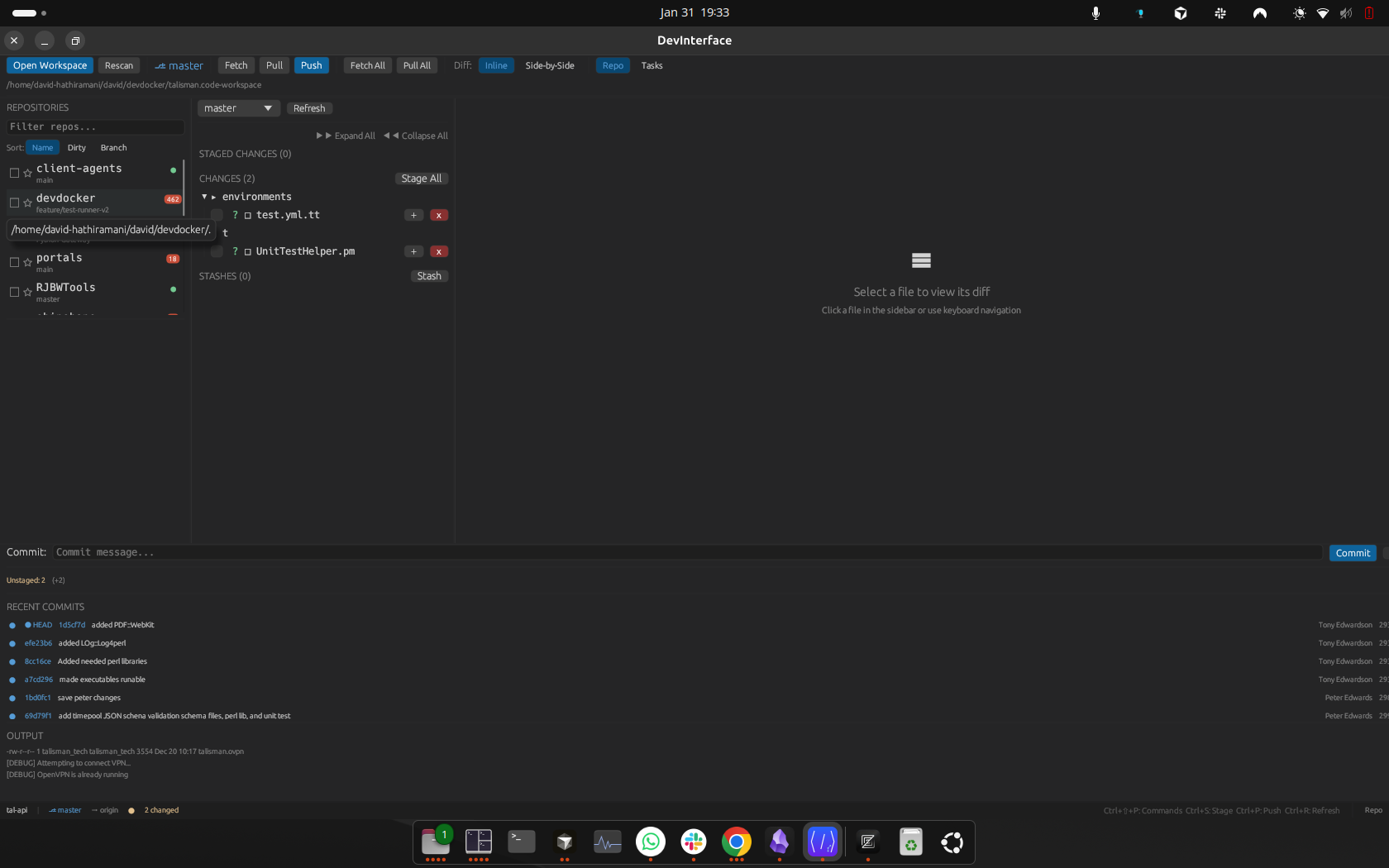 A loaded workspace. The toolbar shows Open Workspace and Rescan, the active
 .code-workspace path sits just below, and the REPOSITORIES panel lists every Git repo discovered inside the workspace folders.
Workspaces are deliberately folder-first. Code Overlord does not require every folder to be a Git repository, but Git repositories inside the workspace folders become the repos shown in review, history, search, task, and Skyforge workflows.
Create, open, and switch workspaces
Create from a folder
When you open a folder, Code Overlord checks for .code-workspace files in that folder.
- No files: Code Overlord auto-creates one and opens it.
- File name:
<folder-name>.code-workspace(fallback:workspace.code-workspace) - Initial content includes one folder (
"."), a generatedcode-overlord.workspaceId,code-overlord.workspaceName, emptycode-overlord.scheduledTasks, and an empty task list - Creation is non-destructive. If the file appears before Code Overlord writes it, Code Overlord opens the existing file instead of overwriting it.
- File name:
- One file: Code Overlord opens it.
- Multiple files: Code Overlord shows a workspace picker so you can choose which file to open. Nothing opens until you pick one.
The same resolution applies when Code Overlord starts from a folder path: a unique workspace file opens directly, while ambiguous folders go through the picker.
When you open a folder, the folder browser's side panel is titled Stronghold Intel. Highlight a directory (the panel prompts "Select a directory to scout." until you do) and it previews exactly what the ⚔ CONQUER button will do for that folder. Every preview also states its destination — opens in this window or opens in a new window — so you know where the workspace will land before you commit.
The preview has four outcomes:
- No stronghold here. The folder has no
.code-workspacefile. CONQUER forges a new one, and the panel shows the exact path it will create ("A new one will be forged:"). The callout reads CONQUER forges a stronghold. - Stronghold found: exactly one workspace file exists. The panel shows its path plus a quick summary — how many territories (folders), battle plans (tasks), and rituals it contains — and the callout reads CONQUER loads this stronghold. If the file exists but can't be parsed, it downgrades to a Workspace file found warning instead of promising a clean load.
- N strongholds found: several workspace files exist (for example "3 strongholds found:"). CONQUER opens a picker so you choose which one, and the callout reads CONQUER lets you choose.
- Can't read this folder. Code Overlord cannot inspect the directory (it may be gone or unreadable), so it refuses to promise a create or open. The callout reads CONQUER can't open this; check the folder still exists and you have permission.
Open an existing workspace file
When no workspace is open, Code Overlord shows the welcome screen. It reads CLAIM A STRONGHOLD! with a single OPEN STRONGHOLD button, and lists your recent workspaces below under PAST CONQUESTS (empty on a fresh install, where it reads NO PAST CONQUESTS).
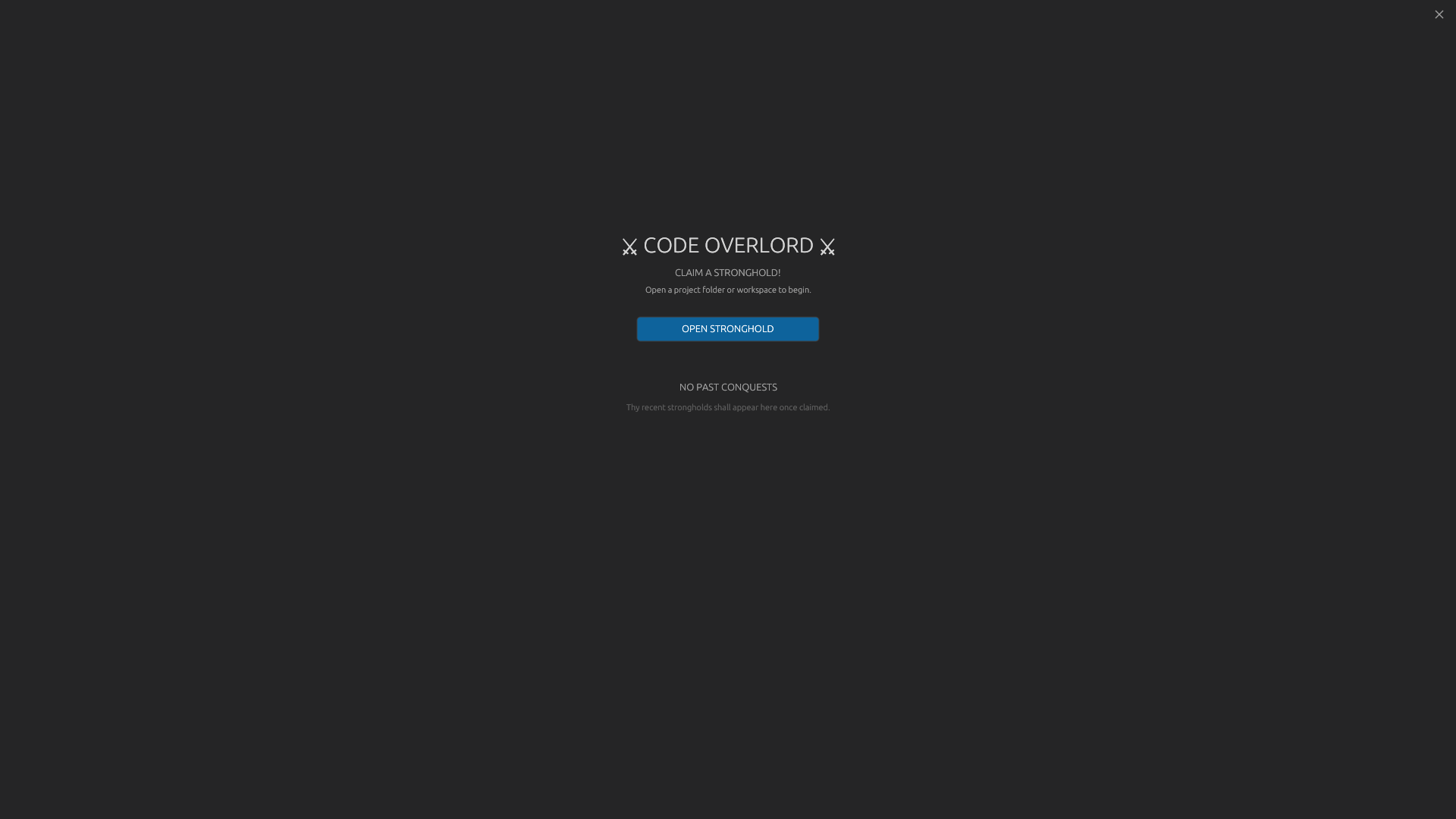 The welcome screen. OPEN STRONGHOLD opens a folder or
 .code-workspace file; claimed workspaces then appear under PAST CONQUESTS for quick reopening.
You can open a workspace file through:
- Welcome screen: open a project folder or workspace to begin
- Summon palette / action picker: Open Stronghold...
- Recent Strongholds dialog
- Drag and drop a
.code-workspacefile into the app
You can also drag a folder into the app. A dropped folder follows the same folder rules above: open the only workspace, create one if none exists, or show the picker if several exist.
Switch workspaces
You can switch using:
- Welcome screen recent list
- Summon palette / action picker: Recent Strongholds
- Drag and drop another workspace file or folder
- The workspace picker when a folder contains more than one
.code-workspacefile
New window vs current window behavior
Code Overlord supports multi-window workspace workflows:
- From the welcome screen, opening a workspace uses the current window.
- From an already-open workspace, Open Stronghold... opens the chosen workspace in a new app window.
- Recent Strongholds rows open in the current window by default. Shift/Ctrl-click (or Command-click on macOS) opens the selected workspace in a new window.
- Drag-and-drop operates in the current window.
- If a folder contains multiple workspace files, the workspace picker preserves the original target: current window or new window.
Recent workspaces are stored as an MRU list (deduped, most-recent-first, up to 10 entries).
Tip: Use a new window when you need two workspaces active at the same time. Use current-window switching when you are moving between unrelated projects and want the previous workspace to close cleanly.
Workspace file format (.code-workspace)
Code Overlord parses workspace files as JSONC (via JSON5), so comments and trailing commas are accepted.
Core structure:
{
  "folders": [
    { "path": ".", "name": "App" }
  ],
  "settings": {
    "code-overlord.workspaceId": "01J...",
    "code-overlord.workspaceName": "App",
    "code-overlord.scheduledTasks": [],
    "files.exclude": { "**/node_modules": true }
  },
  "tasks": {
    "version": "2.0.0",
    "tasks": []
  }
}
Notes:
foldersis requiredsettingsis optionaltasksis optional (if omitted, no workspace tasks are loaded)code-overlord.workspaceIdis Code Overlord's stable identity for the workspace. Let Code Overlord generate and maintain it unless support asks you to change it.code-overlord.workspaceNameis the display name shown in desktop, cloud, and mobile surfaces. If it is missing, Code Overlord falls back to the workspace file or folder name.
Configuring workspace folders
Each folder entry supports:
path(required): absolute path or path relative to the workspace file locationname(optional): display name for UI and named folder variables
If name is omitted, Code Overlord uses the folder basename as the display name.
Path resolution
Relative paths are resolved relative to the .code-workspace file directory.
Code Overlord canonicalizes paths when possible.
Multi-folder naming best practice
Use explicit unique name values for multi-folder workspaces.
This makes task variables like ${workspaceFolder:api} predictable.
For a product split across several repos, keep the workspace file in a neutral folder and point each entry at a sibling repo:
{
  "folders": [
    { "name": "app", "path": "../app" },
    { "name": "api", "path": "../api" },
    { "name": "infra", "path": "../infra" }
  ]
}
Code Overlord scans every folder for Git repositories, including nested repos, then deduplicates duplicate repo paths. Folder order matters: ${workspaceFolder} always resolves to the first folder.
Workspace-level settings
Code Overlord reads several keys from settings.
Repo scan exclude patterns
These keys are merged for repo discovery excludes (only entries with value true are used):
files.watcherExcludefiles.excludesearch.exclude
File search ignore patterns
fileSearchIgnore adds extra ignore patterns for file indexing/search.
Supported formats:
"fileSearchIgnore": ["**/*.log", "**/dist/**"]
or
"fileSearchIgnore": {
  "**/*.log": true,
  "**/dist/**": true
}
Scheduled tasks storage
Workspace scheduled tasks are stored under:
"code-overlord.scheduledTasks": []
inside settings.
Code Overlord writes scheduled task data back to this setting. Keep it as a valid JSON array; malformed values can prevent the workspace from loading cleanly.
Workspace display name and identity
Code Overlord stores two identity settings:
"code-overlord.workspaceId": "01JABC...",
"code-overlord.workspaceName": "Customer Portal"
workspaceIdis the stable technical identity used for cloud sync, mobile routing, scheduled task authority, and Skyforge local/remote ownership. It is minted once and should not change; the cloud relay, your phone, and any Skyforge VM all key off it to route sessions and decide which controller owns the workspace's shared writes.workspaceNameis the readable label used in Recent Strongholds, mobile workspace lists, and remote compute surfaces.
If you rename the .code-workspace file but leave code-overlord.workspaceName set, Code Overlord keeps showing the stored name.
Tip: Because
workspaceIdis what the cloud and your phone route by, keep it stable and commit it with the workspace file when you want the same identity recognized across your machines. See Cloud Sync for how workspace identity drives mobile session routing and Skyforge (Remote Compute) ownership.
Adding tasks to a workspace
Workspace tasks live under the top-level tasks object.
"tasks": {
  "version": "2.0.0",
  "inputs": [
    {
      "id": "env",
      "description": "Target environment",
      "default": "dev",
      "options": ["dev", "staging", "prod"]
    }
  ],
  "tasks": [
    {
      "label": "Run API",
      "command": "cargo run",
      "options": { "cwd": "${workspaceFolder:api}" },
      "runOptions": {
        "runOn": "folderOpen",
        "instanceLimit": 1
      }
    }
  ]
}
Supported task features include:
labelcommand- OS-specific command overrides:
windows.command,linux.command,osx.command options.cwdrunOptions.runOn(supportsfolderOpen)runOptions.instanceLimit(defaults to10if omitted)group(string or object form)
Task variables
Code Overlord resolves these variables in task command and options.cwd:
${workspaceFolder}: first folder in the workspace${workspaceFolder:<name>}: named folder fromfolders${input:<id>}: value fromtasks.inputs
Important cwd behavior
If options.cwd is not set, tasks run from the directory that contains the workspace file.
For multi-folder workspaces, set options.cwd explicitly when needed.
Multi-folder workspace support
Code Overlord natively supports multiple folders per workspace.
Behavior highlights:
- All workspace folders are scanned for Git repos (including nested repos)
- Duplicate repo paths are deduplicated
- Folder order matters for
${workspaceFolder}(first folder wins) - Named folder references (
${workspaceFolder:name}) let tasks target specific roots cleanly
Multi-folder workspaces are useful when one feature spans several repos: for example a desktop app, cloud API, infrastructure repo, and docs repo. The file browser, search, code review, task picker, and Environment Variables page all use the workspace folder list as their starting scope.
Per-workspace environment configuration
Open Armoury (Settings), then choose Environment Variables under Workspace. The page subtitle is Environment Scrolls. In plain language, an environment scroll is a detected .env-style file that Code Overlord can inject into agent sessions and terminals launched from this workspace.
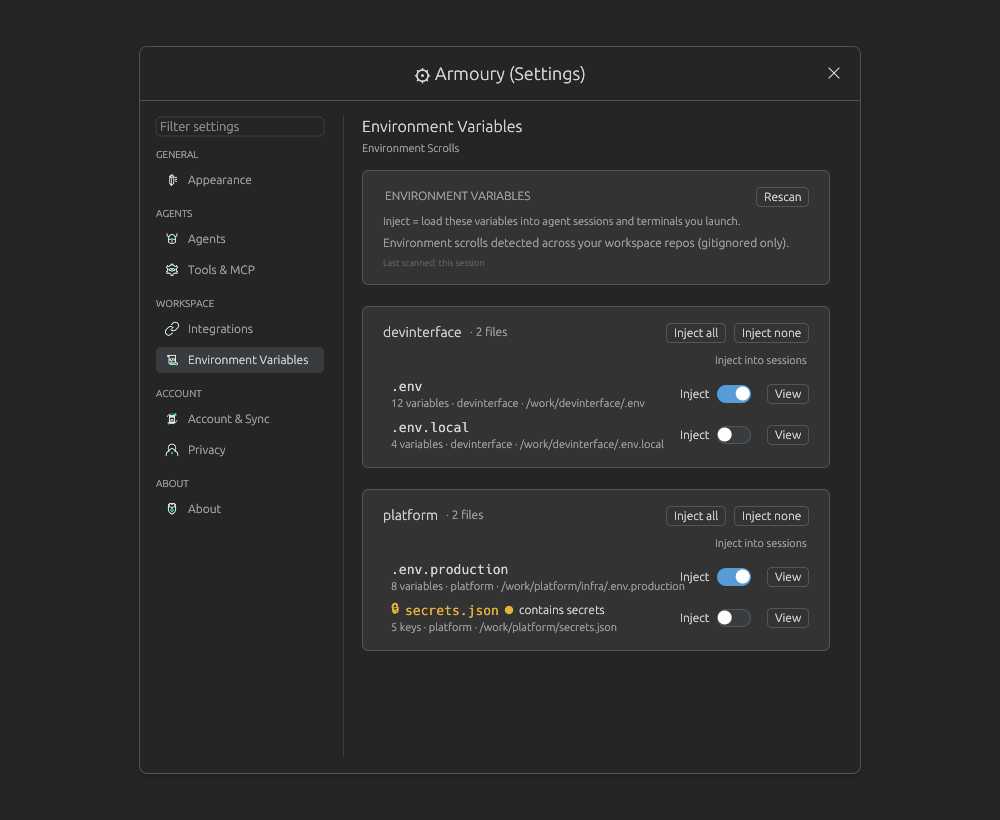 The Environment Variables page groups detected env files by repo and lets you inject them into future sessions.
What the controls do:
| Control | What it does |
|---|---|
| Rescan | Re-runs detection across the workspace repos. |
| Inject all | Enables injection for every detected file in that repo group. |
| Inject none | Disables injection for every detected file in that repo group. |
| Inject toggle | Enables or disables one file. Enabled variables are loaded into agent sessions and terminals you launch after that point. |
| View | Opens a viewer for that file's detected variables. |
| contains secrets | Marks likely secret-bearing files such as secrets.json or credential-named files. Turning one on requires confirmation. |
Code Overlord only shows gitignored environment files here. That keeps common secret files available to your local agents without encouraging you to commit them. The screenshot shows a multi-repo workspace with devinterface and platform repo groups; each repo has independent injection controls.
Warning: Injected variables go into future agent sessions and terminals. Do not enable a secret-bearing file unless you intend agents launched in this workspace to receive those values.
Complete example
{
  "folders": [
    { "name": "app", "path": "." },
    { "name": "api", "path": "../api" }
  ],
  "settings": {
    "files.exclude": {
      "**/node_modules": true,
      "**/target": true
    },
    "files.watcherExclude": {
      "**/.git": true
    },
    "search.exclude": {
      "**/dist": true
    },
    "fileSearchIgnore": ["**/*.log", "**/.cache/**"],
    "code-overlord.scheduledTasks": []
  },
  "tasks": {
    "version": "2.0.0",
    "inputs": [
      {
        "id": "env",
        "description": "Deploy environment",
        "default": "staging",
        "options": [
          { "label": "Staging", "value": "staging" },
          { "label": "Production", "value": "prod" }
        ]
      }
    ],
    "tasks": [
      {
        "label": "Build API",
        "command": "cargo build --manifest-path ${workspaceFolder:api}/Cargo.toml",
        "options": { "cwd": "${workspaceFolder:api}" }
      },
      {
        "label": "Install app deps",
        "command": "npm ci",
        "options": { "cwd": "${workspaceFolder:app}" },
        "runOptions": { "runOn": "folderOpen", "instanceLimit": 1 }
      }
    ]
  }
}
Practical tips
- Keep folder names unique in multi-folder workspaces
- Use dotted setting keys exactly (
"files.exclude", not nested objects) - Use
options.cwdfor task commands that should run in a specific folder - Keep
code-overlord.scheduledTasksas a valid JSON array; malformed values can stop the workspace from loading cleanly - Keep the workspace file under version control when you want the same folders, tasks, and search rules shared by a team
- Leave machine-local secrets in gitignored
.envor secret files and manage injection from Environment Variables - Use a parent folder workspace when the product spans several repos
- Use Recent Strongholds for fast switching; use Shift/Ctrl-click when you want a second window
Troubleshooting
Code Overlord created a workspace file I did not expect
You opened a folder that had no .code-workspace file at its top level. Code Overlord creates <folder-name>.code-workspace in that folder so future opens are explicit.
If you wanted to use a workspace file elsewhere, open that .code-workspace file directly.
Opening a folder shows a picker
The folder contains more than one .code-workspace file. Choose the one that matches the folder set or task list you want. If this happens often, rename the files clearly, for example frontend.code-workspace and full-stack.code-workspace.
A task runs in the wrong directory
Set options.cwd on the task. In a multi-folder workspace, use ${workspaceFolder:name} so the command follows the named folder even if the workspace file moves.
A repo is missing from Code Overlord
Check the workspace folders list first. Then check files.exclude, files.watcherExclude, and search.exclude; true-valued patterns from those settings are used as repo discovery excludes.
Environment variables are not available in a new agent
Open Armoury > Environment Variables, click Rescan, and confirm the file's Inject toggle is on. Only sessions launched after enabling injection receive those variables.