Search
On this page
- Search Surfaces
- File-Name Search In SCROLLS
- In-File Find
- Markdown And Document Search Tips
- Terminal Find
- Review Change Search
- Filters
- SCROLLS Filters
- Review Filters
- In-File And Terminal Filters
- Regex Mode
- Find And Replace
- Result Navigation
- Common Workflows
- Find And Open A File By Name
- Search Inside A File
- Search Changed Lines Before Review
- Replace Text In A File
- Troubleshooting
- Keyboard Shortcuts
Desktop search has several focused tools rather than one universal search panel. The main workflows are:
- File-name search in SCROLLS (the file browser).
- Literal find inside an open Peruse file viewer.
- Literal find inside terminal output (see Agents and Tasks).
- Search inside changed Git diff lines in the Review view.
Code Overlord does not currently provide a dedicated desktop full-text search across every workspace file, regex toggle, or built-in find-and-replace panel. Use the available search surfaces below, then open the file in Peruse or your external editor when you need broader content search or replacement.
Search Surfaces
| Surface | Opens from | Searches | Regex | Replace |
|---|---|---|---|---|
| SCROLLS file search | Files sidebar, All view, Search the archives... |
File names only | No regex; * and ? filename wildcards supported |
No |
| Peruse file find | Focus an open file, press Ctrl/Cmd + F |
Current file text | No | No |
| Terminal find | Focus a terminal, press Ctrl/Cmd + F |
Current terminal buffer | No | No |
| Review change search | Review search control, Search in diff... |
Staged and unstaged diff additions/deletions | No user regex; query is escaped as literal text | No |
File-Name Search In SCROLLS
Use this when you know the file's name or extension and want to open it quickly.
- Open the file sidebar.
- Expand SCROLLS.
- Choose All.
- Type into
Search the archives....
Results update after a short debounce and are capped at 50 matches.
SCROLLS search behavior:
- Matches file names only, not directory names and not file contents.
- Matching is case-insensitive.
- Plain text is a substring search, for example
readme. *and?wildcards work against file names, for example*.RSorfoo?.md.Markdown onlylimits the tree and search results to.mdfiles.- The inline
✕clears the query. - No results show
No scrolls found in this realm.
Search results use a two-line layout:
- Line 1: file name.
- Line 2: parent directory, truncated from the left when needed.
This is why a result can show a directory path below it even though the query matched the file name.
Tip: If you need to find every file under
src/, browse the tree or use your external editor. Typingsrconly matches files whose names containsrc.
In-File Find
Open a file in Peruse, then press Ctrl/Cmd + F. The compact search bar appears at the top of the file content area.
The search bar includes:
- Search icon.
- Query field with
Search the realm.... - Match count:
N of MorNothing unearthed. ↑previous match.↓next match.✕close.
Behavior:
- Search is literal text search.
- Matching is case-insensitive.
- Results update after a short debounce.
- The field is focused when opened.
- Pressing
Ctrl/Cmd + Fagain while it is open focuses the field and selects the current query. - Closing search clears the query and match state for that pane.
For source/plain text files, matches are highlighted in the viewer and the current match uses a stronger highlight.
For rendered Markdown preview, search still indexes the raw Markdown source. If you type a query while previewing rendered Markdown, Code Overlord shows a small prompt with Reveal the Raw Scroll so you can switch to the source view and inspect the raw match.
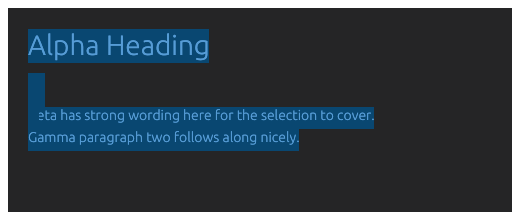 Rendered Markdown supports normal text selection and copy; search in rendered Markdown can reveal the raw source view for exact matches.
Markdown And Document Search Tips
Markdown can be viewed as rendered Preview or raw Raw source.
Use Preview when you are reading:
- Headings.
- Paragraphs.
- Lists.
- Tables.
- Blockquotes.
- Rendered links.
- Fenced code blocks.
Use Raw when you are searching for:
- Markdown syntax such as
##,[](), or table pipes. - Front matter.
- Link destinations.
- Hidden comments or source-only markers.
- Exact line context for agent prompts.
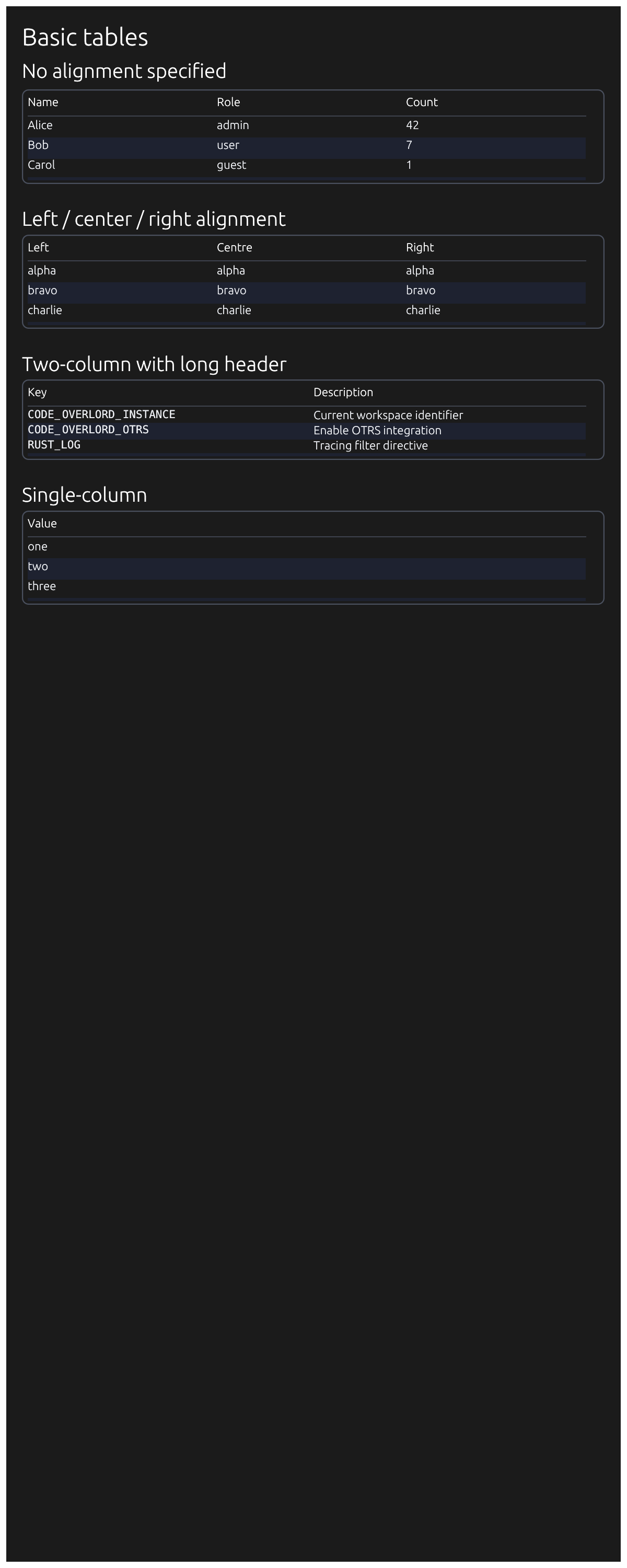 Rendered tables are easy to scan visually, while raw view is better for exact syntax searches.
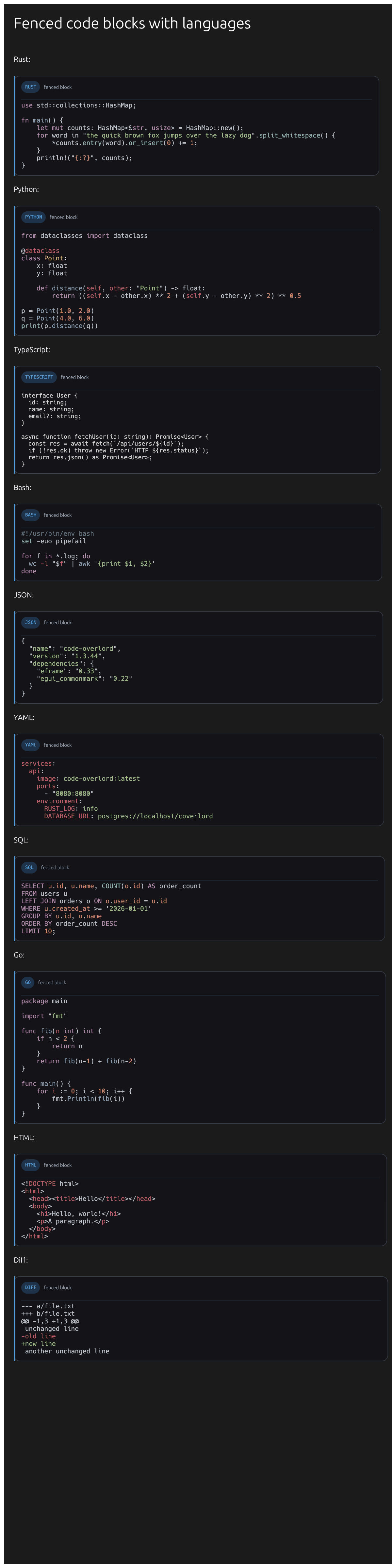 Code fences render with language labels and highlighting; search still operates on the file text.
Terminal Find
When a terminal pane is focused, press Ctrl/Cmd + F to search the terminal buffer. The same compact search bar appears.
Terminal find is useful for:
- Jumping to an error message in long command output.
- Finding a filename in logs.
- Returning to a previous command.
- Searching build/test output without leaving Code Overlord.
Navigation wraps at the top and bottom of the result list. Esc closes the search bar.
Review Change Search
Review change search is scoped to Git diffs, not the whole workspace. It searches changed lines in unstaged and staged diffs across the available repositories.
When the review search panel is open, it shows:
- Label
Search:. - Query field with
Search in diff.... - Close button
X. - Result count such as
4 results. - Result rows in the form
path:line +/- snippet.
Clicking a result switches to that repository and selects the matching changed file in Review.
Implementation details that affect behavior:
- The query is treated as literal text.
- Code Overlord escapes the query before using Git diff search.
- The displayed match check is case-insensitive.
- Only addition and deletion lines are returned.
- Context lines are not returned as search results.
- Staged results are de-duplicated against unstaged results where possible.
Use Review change search when you want to answer questions like:
- "Which changed lines mention this function?"
- "Where did I add this config key?"
- "Which staged/unstaged changes include this error string?"
Use SCROLLS or external editor search instead when the text may be in unchanged files. For the full staging, diff, and commit workflow this search belongs to, see Code Review.
Filters
Different search surfaces have different filters.
SCROLLS Filters
| Filter | Applies to | Notes |
|---|---|---|
Markdown only |
File tree, changed list, and file-name results | Limits visible files to .md. |
| Workspace excludes | File index | Normal workspace exclude patterns are respected. |
fileSearchIgnore |
File index | Configured in workspace settings. |
.overlordignore |
File index | Gitignore-style patterns next to the workspace file. |
Review Filters
Review mode can filter changed files by repository, branch, and file type. These filters affect the review file list and therefore what you visually inspect in Review. Review change search itself searches the diff data gathered for repositories and returns changed-line matches.
In-File And Terminal Filters
In-file and terminal find do not have file-type, case, whole-word, or regex toggles. They search the current pane only.
Regex Mode
There is no desktop regex mode in the current file-browser, Peruse, terminal, or Review search UI.
Practical alternatives:
- Use SCROLLS wildcards for file-name patterns such as
*.md. - Use your external editor for regex across file contents.
- Use terminal tools such as
rgwhen you need regex search in the workspace. - Use Review change search for literal text in changed diff lines.
Find And Replace
Desktop currently supports find, but not built-in find-and-replace for file contents.
Recommended workflow:
- Use SCROLLS search or Review change search to locate the file.
- Open it in Peruse to inspect the context.
- Use the file action menu and choose Open in Editor.
- Run replace in your editor.
- Return to Code Overlord and refresh SCROLLS or Review if needed.
Warning: Peruse is a viewer, not a full source editor. It is designed for reading, copying, previewing Markdown, and sending context to agents.
Result Navigation
| Search surface | Next | Previous | Close |
|---|---|---|---|
| In-file find | Enter, F3, or ↓ |
Shift + Enter, Shift + F3, or ↑ |
Esc or ✕ |
| Terminal find | Enter, F3, or ↓ |
Shift + Enter, Shift + F3, or ↑ |
Esc or ✕ |
| macOS in-pane find | Cmd + G |
Cmd + Shift + G |
Esc or ✕ |
| SCROLLS file results | Click result to preview; double-click to open | Use tree/search again | Clear ✕ |
| Review change results | Click result row | Scroll result list | X |
Common Workflows
Find And Open A File By Name
- Open SCROLLS.
- Select All.
- Type part of the file name, such as
settingsor*.toml. - Check the directory line beneath each result.
- Single-click to preview or double-click to keep it open in PERUSE.
Search Inside A File
- Open the file in Peruse.
- Press
Ctrl/Cmd + F. - Type the text.
- Use
Enter/Shift + Enteror the arrow buttons to move between matches. - Press
Escto close search.
Search Changed Lines Before Review
- Go to Review.
- Open the change search panel.
- Type a literal phrase into
Search in diff.... - Click a result to select its repository and file.
- Inspect the diff in Review.
Replace Text In A File
- Use SCROLLS or Review change search to locate the file.
- Open the file in Peruse to confirm it is the right file.
- Open the file action menu (
…). - Choose Open in Editor.
- Perform replace in the external editor.
Troubleshooting
| Problem | Explanation or fix |
|---|---|
| Searching for a folder name returns nothing | SCROLLS search matches file names only. Browse the tree for folders. |
| A file result is missing | Turn off Markdown only, refresh SCROLLS, and check workspace ignore patterns. |
| A Markdown preview search feels indirect | Search is based on raw Markdown. Click Reveal the Raw Scroll. |
| Regex syntax is not working | Regex mode is not available in desktop search surfaces. Use external editor or terminal rg. |
| Replace controls are missing | Built-in find-and-replace is not implemented. Use your external editor. |
| Terminal search does not find old output | The terminal buffer may no longer contain that text. Re-run or increase terminal retention if available in settings. |
Keyboard Shortcuts
Use Ctrl on Windows/Linux and Cmd on macOS.
| Shortcut | Result |
|---|---|
Ctrl/Cmd + F |
Open search in the focused file viewer or terminal. |
Ctrl/Cmd + F again |
Focus the open search field and select its query. |
Enter |
Next match while search field is focused. |
Shift + Enter |
Previous match while search field is focused. |
F3 |
Next match. |
Shift + F3 |
Previous match. |
Cmd + G |
Next match on macOS. |
Cmd + Shift + G |
Previous match on macOS. |
Esc |
Close the search bar. |