Notepad
On this page
- What It Is
- Layout
- Create Notes
- Paste An Image
- Edit Notes
- Organize Notes
- Complete A Note
- Add A Child Note
- Indent And Outdent
- Reorder Notes
- Delete Active Notes
- Completed Notes
- Search And Copy
- Materials: Scrolls And Documents
- Add Scrolls
- Scroll Actions
- Bind Documents
- Document Actions
- Voice Dictation
- Cloud Sync
- Storage
- Keyboard Shortcuts
- Troubleshooting
What It Is
Code Overlord's Notepad is the desktop side panel for quick workspace notes. The app calls the active panel THY QUILL: a quill is just your scratchpad for tasks, reminders, links, and review context.
Notepad is workspace-aware. Each workspace has its own active notes, completed notes, attachments, document bindings, and cloud-sync state.
Use it for:
- A checklist you want visible while an agent runs.
- Small facts you do not want to lose while reviewing diffs.
- File or screenshot references that should travel with the note.
- Shared context that mobile devices or MCP-powered minions can read when sync is enabled.
Layout
The panel is compact and always meant to stay usable beside your main work.
THY QUILL: active notes.- Count badge: number of active notes.
- Search icon: filters visible active and completed notes.
Copy: copies active notes to the clipboard.- Input field: says
Inscribe a note... (Enter to save). CONQUERED: completed notes. This is the app's themed word for done notes.
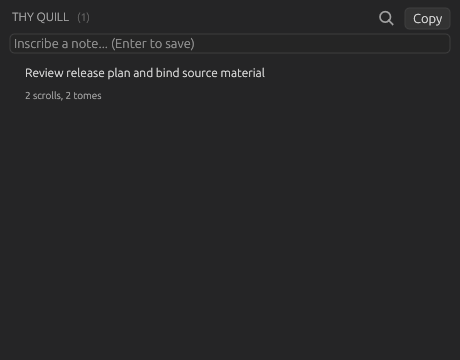 A note row with attached materials collapsed into a count chip.
Tip: The current source labels markdown bindings as documents. Some older screenshots use the themed word "tomes" for the same idea.
Create Notes
- Click the
Inscribe a note...field. - Type your note.
- Press
Enterto save it.
Use Shift+Enter to add a newline inside the note instead of saving.
Blank notes are ignored. Code Overlord trims leading and trailing whitespace before saving a note.
Paste An Image
When the Notepad input or an inline note editor has focus, press:
| Platform | Shortcut |
|---|---|
| Windows/Linux | Ctrl+Alt+V |
| macOS | Cmd+Option+V |
If the clipboard contains an image, Code Overlord creates or updates a note with that image as an attached scroll. If the input is empty, the placeholder note text is Pasted image.
Normal text paste still works through the regular text field behavior.
Edit Notes
- Double-click a note row.
- Edit the text inline.
- Press
Enterto save.
Use Shift+Enter for a newline while editing. Clicking away also finishes the edit, except while Scribe voice dictation is recording or transcribing into that note. In that case, the editor stays armed so the transcript has a valid destination.
If you clear an existing note and leave it blank, the old text stays unchanged. Blank placeholder notes created by the child-note flow are removed when saved blank.
Organize Notes
Complete A Note
Hover a row to reveal its row menu, then click the check icon. The note moves from THY QUILL to CONQUERED.
Add A Child Note
Hover a note and click the add icon in the row menu. Code Overlord inserts a blank child below the note and opens it for editing. Child notes are indented under their parent.
Indent And Outdent
You can indent up to three levels.
| Action | How |
|---|---|
| Indent hovered row | Tab |
| Outdent hovered row | Shift+Tab |
| Indent while editing | right-arrow inline control or Tab |
| Outdent while editing | left-arrow inline control or Shift+Tab |
Reorder Notes
Drag a note row to move it. The default drag behavior moves only the grabbed row, not its indented children.
Keyboard reorder is available while a row is hovered:
| Action | Shortcut |
|---|---|
| Move up | Alt+Up |
| Move down | Alt+Down |
Order changes are included in cloud sync. Code Overlord guards reorder syncs so a local reorder is not accidentally overwritten by an older remote order.
Delete Active Notes
Hover a note and click the delete icon. If the note has indented child rows beneath it, Code Overlord asks for confirmation before deleting the whole attached block.
Deleted active notes are archived locally and queued as cloud tombstones when sync is enabled.
Completed Notes
Completed notes appear under CONQUERED.
Hover a completed note to reveal:
| Control | What it does |
|---|---|
| Restore | Moves the note back to active notes as a top-level item. |
| Delete | Removes and archives that completed note. |
The CONQUERED header also has:
Copy: copies completed notes.Archive: starts the clear-all flow.Purge?: the second click within the confirmation window that archives all completed notes.
After clearing, a short Cleared! status appears.
Search And Copy
Click the search icon to show Filter inscriptions.... Search filters both active and completed notes by note text. Press Escape while the search field is focused to close it and clear the filter.
Copy exports notes as an indented Markdown-friendly bullet list:
- Top-level note
  - Child note
The copy action copies note text only. Attached scrolls and bound documents remain attached in Notepad but are not embedded into the copied text.
Materials: Scrolls And Documents
Notepad materials are things attached to a note.
- Scrolls are attached files, such as screenshots, PDFs, logs, or text files.
- Documents are workspace-relative Markdown files (
.md) bound to the note.
Rows with materials show a right-side count such as 2 scrolls, 2 documents. Hover or focus that chip to open the materials disclosure.
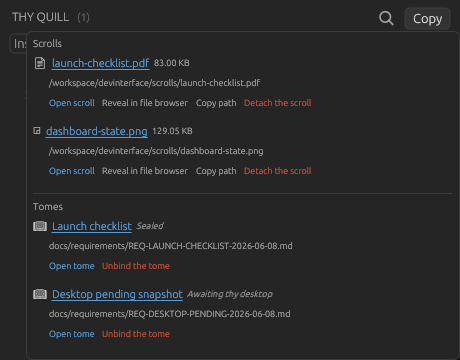 The materials disclosure shows attached scrolls and bound markdown documents with per-item actions.
Add Scrolls
You can attach a scroll in two places:
- Hover a note row and click the paperclip action.
- Double-click a note, then click
Affix a scroll.
The desktop file picker opens with the title Select file to attach. Code Overlord copies the selected file into the workspace attachment folder and stores note metadata pointing to that copy.
A note can hold any number of scrolls.
Scroll Actions
In the materials disclosure, each scroll has these actions:
| Action | What it does |
|---|---|
| Open scroll | Opens the file in your operating system's default app. |
| Reveal in file browser | Opens the containing folder and selects or shows the file where the OS supports it. |
| Copy path | Copies the resolved local path. |
| Detach the scroll | Removes that scroll from the note. |
Right-clicking the scroll name exposes the same actions.
Bind Documents
Double-click a note, then click Bind a document. The picker accepts Markdown files only.
Document bindings are workspace-relative. The file must live inside one of the workspace roots. A bound document is not copied into attachments; the repo file remains the source of truth.
A note can hold any number of documents.
Document Actions
In the materials disclosure, each document has:
| Action | What it does |
|---|---|
| Open document | Opens the live repo file in Peruse, Code Overlord's file viewer. |
| Pen it | Creates a missing Markdown file with a heading, then opens it. |
| Unbind the document | Removes the binding without deleting the repo file. |
Document state labels tell you whether the desktop has reconciled the binding: linked, pending_desktop, missing, synced, stale, too_large, snapshot_error, or empty.
Voice Dictation
The floating Scribe mic can insert dictated text into Notepad.
Supported Notepad targets:
- New-note input: focus the input, dictate, then press
Enterwhen the note is ready. - Inline edit: double-click a note, place the cursor, then dictate.
Dictation inserts at the cursor. If no Notepad field is focused, the transcript is saved to recent dictations instead of being inserted into a random note.
See Voice Dictation for the mic states, shortcut, focus routing, and recent-dictations popup.
Cloud Sync
Notepad sync is controlled from Settings and Configuration -> Account & Sync.
When you sign in and turn on Sync notepad across devices, Code Overlord syncs:
- Active notes.
- Completed notes.
- Note order and indentation.
- Attached scroll metadata and uploaded scroll files.
- Bound document metadata and document snapshots.
- Delete tombstones for notes you archive or remove.
Desktop also downloads remote scrolls it does not already have into the local attachment cache.
If two devices edit the same cloud note, Code Overlord uses item timestamps and keeps superseded local versions available as restore affordances when it can.
Storage
Local note data is stored per workspace as JSON in Code Overlord's cache directory:
<cache_dir>/<workspace_id>_notepad.json
Deleted or cleared completed notes are archived in a local SQLite database:
<cache_dir>/<workspace_id>_notepad.db
Desktop scroll files are copied into the workspace:
<workspace_root>/.code-overlord/attachments/
Remote scrolls downloaded by cloud sync can be cached under:
<config_dir>/attachments/<workspace_id>/
Keyboard Shortcuts
A quick reference for the Notepad shortcuts described above.
| Action | Shortcut | When |
|---|---|---|
| Save the new note | Enter |
New-note input focused |
| Newline instead of save | Shift+Enter |
New-note input or inline editor |
| Finish an edit | Enter |
Editing a note inline |
| Paste clipboard image as a scroll | Ctrl+Alt+V (Win/Linux), Cmd+Option+V (macOS) |
Notepad input or inline editor focused |
| Indent hovered row | Tab |
Row hovered, no field focused |
| Outdent hovered row | Shift+Tab |
Row hovered, no field focused |
| Indent / outdent while editing | Tab / Shift+Tab |
Editing a note inline |
| Move row up | Alt+Up |
Row hovered |
| Move row down | Alt+Down |
Row hovered |
| Close and clear search | Escape |
Search field focused |
Troubleshooting
| Problem | What to check |
|---|---|
| Dictation did not appear in a note | Make sure the Notepad input or inline editor had focus when recording started. Check recent dictations from the mic right-click menu. |
| A scroll opens from the wrong location | Use Copy path in the materials disclosure to see the resolved path. Desktop scrolls normally live under .code-overlord/attachments/. |
| A document will not bind | The selected file must be a workspace-relative .md file. Files outside the workspace are rejected. |
| A secret or screenshot should sync to mobile | Confirm you are signed in and Sync notepad across devices is on in Account & Sync; then use Sync now. |
| Search seems to hide notes | Press Escape in the search field or clear Filter inscriptions.... |