Cloud Sync
On this page
- What Cloud Sync Does
- 1. Notepad sync
- 2. Agent session relay
- 3. Scheduled task sync
- 4. Account, devices, and workspace metadata
- Before You Start
- Set Up Account & Sync On Desktop
- Pair A Phone
- How The Cloud Relay Works
- Architecture Diagram
- Thread / Runtime Summary
- Step by Step
- Keeping Desktop And Mobile Sessions In Sync
- LIVE, REACHABLE, and OFFLINE
- Instance Routing (Multi-Window Behavior)
- Sync Status In Desktop UI
- Remote Forge / Skyforge
- Local vs remote execution lanes
- Skyforge controls
- Auto-rest and auto-demolish (idle timeout)
- First Forge: what happens
- If the forge goes cold
- Remote sessions from mobile
- Troubleshooting
- "Cloud sync disabled: cloud config not available"
- "No saved tokens" or sign-in state keeps resetting
- Mobile can see app but cannot control a specific session (SESSION_NOT_FOUND)
- Input from your phone is delayed or intermittent
- Notepad updates are not appearing quickly
- Multi-window routing feels wrong
- Sign Out Behavior
Cloud Sync connects your Code Overlord desktop and mobile experiences through Code Overlord cloud services. Both the iOS and Android apps are first-class clients; they connect through the same relay, read the same workspace/session snapshots, and can send input back to the same running agents.
In the desktop app, open Armoury (Settings), then choose Account & Sync. This page is the control center for sign-in, plan access, notepad sync, paired phones, and account-level Remote Compute availability.
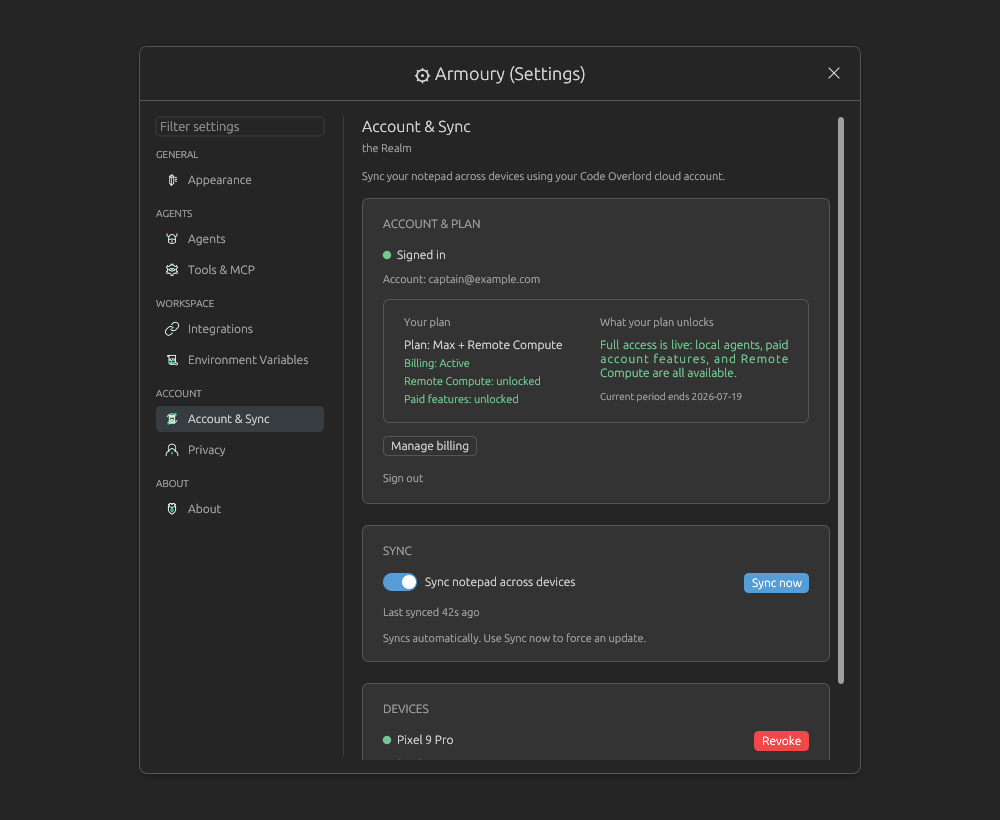 The Account & Sync page shows cloud sign-in, plan and billing state, the notepad sync toggle, and paired mobile devices.
Cloud Sync has four user-facing jobs:
- Notepad sync keeps your workspace notepad items, ordering, done state, and attachment metadata aligned across signed-in devices.
- Agent session relay lets mobile watch desktop or Skyforge agents and send input back through the cloud relay.
- Scheduled task sync publishes scheduled task definitions and run history so mobile can show and operate scheduled work for the workspace.
- Account and device sync keeps paired phone records, workspace metadata, recent/open workspace activity, and Remote Compute entitlement state available to the right clients.
Two tongues: Code Overlord uses themed terms in the UI. Armoury means Settings. Stronghold means workspace. Skyforge or Forge means Remote Compute: a cloud VM that can run Code Overlord agents away from your local desktop.
For engineers: the deep, code-verified reference for the desktop-cloud-mobile session-sync system is
../../architecture/SESSION-SYNC-CURRENT-STATE-2026-06-14.md. The broad relay architecture is../../architecture/CLOUD-RELAY-ARCHITECTURE.md. This guide keeps the details user-facing.
What Cloud Sync Does
1. Notepad sync
When enabled, Code Overlord syncs notepad items (including done state, ordering, and attachment metadata) to cloud storage.
- Notes are merged with last-write-wins conflict handling.
- Local deletes are propagated as tombstones.
- Attachments are uploaded/downloaded through S3-backed storage.
- Workspace metadata is also synced so mobile can discover workspaces.
The Sync notepad across devices toggle controls notepad sync. Sync now forces an immediate sync.
2. Agent session relay
Cloud Sync also powers remote control of live agent sessions from your phone.
- Desktop publishes agent/session state for mobile to read.
- Skyforge VMs publish their own remote agent/session state when a remote lane is active.
- The phone can send input, read output, list sessions, and refresh session state through the cloud relay.
- The cloud routes the request to the correct local desktop or Skyforge controller.
Sessions survive a desktop restart. Each session has a durable session handle that stays the same even when the desktop app restarts and re-numbers its sessions internally. The phone tracks sessions by this stable handle, and the cloud quietly re-points it to the desktop's new internal id, so you no longer hit the old "invalid session id" failure after restarting the desktop.
3. Scheduled task sync
Scheduled tasks are workspace-scoped. The current authority for the workspace publishes the scheduled task list and run history so mobile can show scheduled work accurately.
The important user rule is simple: keep the workspace open and signed in on the machine or Skyforge lane that should own the schedule. When a Skyforge VM is active for a workspace, shared scheduled-task ownership is authority-gated so local and remote controllers do not both fire the same occurrence.
4. Account, devices, and workspace metadata
The Account & Sync page also manages:
- Account & Plan: signed-in email, plan, billing status, and Remote Compute availability.
- Devices: paired phones, last-seen details, Refresh devices, and Revoke for unpairing a phone.
- Workspace metadata: display names, accent-color keys, recent/open workspace activity, and liveness state used by desktop and mobile workspace selectors.
Before You Start
- Use a Code Overlord desktop build with Cloud Sync support.
- Make sure the desktop has internet access.
- Sign in on desktop and mobile with the same Code Overlord account.
- Keep at least one desktop window open and signed in while using mobile session controls.
- If you use Skyforge, confirm Account & Plan shows Remote Compute access and that your billing/budget state is not blocked.
Cloud Sync is not a general source-code sync service between different local computers. Your project files stay wherever your workspace folders are. Notepad data, session snapshots, scheduled task state, workspace metadata, and Skyforge relay state are the cloud-backed pieces.
Set Up Account & Sync On Desktop
- Open Armoury (Settings).
- Select Account & Sync under Account.
- Choose Sign In if you already have an account, or Sign Up to create one.
- If signing up, enter the email verification code you receive.
- Turn on Sync notepad across devices if you want notepad data to sync.
- Click Sync now after your first sign-in if you want an immediate notepad sync.
- Use Refresh devices if the paired phone list looks stale.
After sign-in, desktop stores your auth tokens locally and automatically refreshes them when possible. If the session expires, Code Overlord asks you to sign in again instead of retrying forever in the background.
Pair A Phone
Pairing lets a phone appear in the Account & Sync Devices list and use the relay against your signed-in desktop or Skyforge lane.
- On desktop, open the Summon palette and choose Connect a phone.
- Code Overlord generates a QR code.
- On your phone, open Code Overlord and tap Scan QR to connect.
- After pairing completes, desktop shows the phone under Devices.
Device controls:
| Control | What it does |
|---|---|
| Refresh devices | Reloads the paired device list from the relay. |
| Revoke | Unpairs that phone. Use it for lost phones, retired devices, or stale test installs. |
If no phone is paired, the Devices panel tells you to open the Summon palette and choose Connect a phone.
How The Cloud Relay Works
Architecture Diagram
WRITE PATH (mobile → desktop):

  Phone App (iOS / Android)
    │  POST /agents/{id}/input  (+ durable session handle)
    ▼
  API Gateway (Cognito JWT authorizer)
    │
    ▼
  relay Lambda (Node.js)
    │  mapRouteToToolCall()
    │  Re-points the durable session handle to the desktop's
    │  CURRENT internal session id (self-heals restart churn)
    ├──► SQS FIFO Queue ─────────────────────────────────────┐
    │    (per-user, deduped by request id)                    │
    │                                                         ▼
    │                                     Desktop: "mcp-cloud-relay" thread
    │                                     (dedicated tokio runtime, own OS thread)
    │                                         │
    │                                         │ process_relay_request()
    │                                         │ validates user + workspace/session scope
    │                                         │
    │                                         ▼
    │                                     Session tools are handled directly by the
    │                                     desktop SessionManager — NOT via the UI thread:
    │                                       send_input, read_output, get_session,
    │                                       list_sessions, list_running_agents
    │                                     (these keep working with the desktop locked)
    │                                         │  SessionManager::send_input_ordered(...)
    │                                         ▼
    │                                     Writes bytes to the live agent session (PTY)
    │                                         │
    │                                         │ JSON response
    │                                         ▼
    │                                     Desktop POST /relay/response
    │                                     → DynamoDB row
    │                                       PK = RELAY_USER#{identityId}
    │                                       SK = RELAY_RESPONSE#{correlationId}  (TTL 120s)
    │                                         │
    ▼                                         │
  relay Lambda polls DynamoDB for the response (up to ~25s)
    │  ◄─────────────────────────────────────┘
    │  Finds response, enriches with routing, returns
    ▼
  API Gateway → Phone App

  Notes:
  - list_instances (the FIRST call the phone makes to discover the desktop)
    is answered inline in the relay loop, with no UI round-trip.
  - UI-dependent tools (create_session, schedule_task, open_file,
    integrations) are dispatched to worker threads so they don't block
    health probes; they still need the desktop event loop running.


READ PATH (mobile reads snapshots, no SQS involved):

  Phone App (iOS / Android)
    │  GET /instances            (discover desktops)
    │  GET /agents?workspaceId=  (list sessions / agent state)
    │  GET /snapshots/agent-output/{ws}/{instanceId}  (scrollback)
    ▼
  API Gateway → Lambda
    │  Reads directly from DynamoDB (most rows keyed PK = USER#{identityId})
    │    AGENT_STATE#{ws}#{controllerId}   (session list)
    │    AGENT_OUTPUT#{ws}#{instanceId}    (terminal scrollback)
    │  Presence rows: PK = CONTROLLER#{ws}, PK = AUTHORITY#{ws}
    ▼
  Returns snapshot JSON (~5-200ms)

  Desktop pushes snapshots on an engagement-tiered cadence (see below):
    Relay worker loops (in the MCP-server process)
      ├─► DynamoDB: AGENT_OUTPUT#{ws}#{instanceId}  (terminal output)
      ├─► DynamoDB: AGENT_STATE#{ws}#{controllerId} (agent/session state)
      └─► DynamoDB: CONTROLLER#{ws} + heartbeats    (presence / liveness)
Thread / Runtime Summary
| Thread | Runtime | UI dependent? | Purpose |
|---|---|---|---|
mcp-cloud-relay |
Own current_thread tokio |
No | Polls SQS, runs session tools against SessionManager, writes DynamoDB responses |
| Relay snapshot workers | Relay tokio runtime | No | Push agent output + agent state, heartbeats, presence |
| Cloud sync | Shared CLOUD_RUNTIME (1 worker) |
No | Notepad sync |
| UI / eframe | Main thread | Yes | Runs update(), drains MCP channel for UI-dependent tools |
| PTY / session backend | Per-session thread | No | Writes bytes to the agent session (PTY) |
Step by Step
- The phone (iOS or Android) sends a relay request — user identity, the tool call, a request id, the durable session handle, and the target workspace/controller.
- The relay Lambda re-points the durable session handle to the desktop's current internal session id (so a desktop restart doesn't break the call), then writes the request to a per-user AWS SQS FIFO queue.
- The dedicated desktop relay thread (
mcp-cloud-relay, with its own tokio runtime) polls SQS. - The desktop relay validates the user and the workspace/session scope.
- Session tools (
send_input,read_output,get_session,list_sessions,list_running_agents) are handled directly by the desktop'sSessionManager— they go straight to the live agent session and do not involve the UI thread at all. - UI-dependent tools (
create_session,schedule_task,open_file, integrations) are dispatched to worker threads, and ultimately need the desktop event loop running to complete. - The desktop posts the response back to the cloud, which stores it in DynamoDB.
- The relay Lambda polls DynamoDB for up to ~25 seconds, finds the response, enriches it with routing info, and returns it to the phone.
Important runtime behavior:
- The relay thread has its own dedicated tokio runtime so it is never starved by snapshot push operations.
- Session tools (
send_input,read_output,get_session,list_sessions,list_running_agents) are owned by theSessionManagerpath and keep working even when the desktop UI is frozen (e.g. lid closed), because they never depend on the eframe UI thread. list_instances— the first call the phone makes to discover the desktop — is answered inline in the relay loop, with no UI round-trip.- UI-dependent tools can time out if the desktop event loop is not running (e.g. lid closed, or the app suspended).
- Read operations (discovery, session list, scrollback) go directly to DynamoDB — no SQS or relay round-trip.
- Special
sync_needednotifications are broadcast to all registered desktop windows, which trigger a cloud sync pull.
Keeping Desktop And Mobile Sessions In Sync
For the smoothest mobile experience:
- Start agent sessions on desktop or Skyforge first, then open them on mobile.
- Stay signed in on the desktop Account & Sync page.
- Leave the desktop app running so it can heartbeat and receive relay requests.
- If several desktop windows are open, target the exact workspace/window from mobile.
LIVE, REACHABLE, and OFFLINE
Cloud Sync uses an engagement-tiered cadence. In user terms, the cloud relay behaves differently depending on whether a phone is actively watching the workspace.
| State | What it means | What to expect |
|---|---|---|
| LIVE | A mobile reader is actively watching this workspace. | Agent output is pushed quickly — around once a second when it changes — and agent state refreshes on the fast cadence. Heartbeats run about every 60 seconds. |
| REACHABLE | The desktop or Skyforge controller is online, but no phone is actively watching. | The controller keeps heartbeating (about every 120 seconds), but output is not pushed continuously and state updates slow right down to save battery and cloud cost. |
| OFFLINE | The controller is closed, asleep, signed out, has no network, or its heartbeat expired. | Mobile cannot drive that lane until it comes back. Presence usually clears within about three minutes. |
A workspace flips to LIVE as soon as your phone opens it, and drops back to REACHABLE roughly three minutes after the phone stops reading. You don't set these tiers manually — the cloud infers them from whether a phone is reading. When you reopen a workspace on your phone, it snaps back to LIVE and the desktop sends a fresh full snapshot promptly, so you don't wait on the slow cadence to catch up.
Cost note: This tiering is why leaving a phone app open on a workspace all day costs more cloud traffic than checking in occasionally. If you only need the desktop to keep working, you can close the phone app; the desktop stays REACHABLE and your agents keep running. Set
CODE_OVERLORD_RELAY_LEGACY_CADENCE=1only as a rollback if you need the old always-fast behavior.
Notepad sync has its own automatic triggers:
- after sign-in,
- after local edits, with debounce,
- periodically,
- when mobile sends a
sync_neededsignal, - when you click Sync now.
Sync notepad across devices controls notepad sync. Agent session monitoring and mobile control depend on sign-in, relay registration, and liveness heartbeats even if the notepad toggle is off.
Instance Routing (Multi-Window Behavior)
If you run multiple desktop windows:
- Each window has an instance name (derived from workspace file name/stem).
- Session
instance_idvalues are generated with a deterministic workspace-based prefix to avoid cross-window ID collisions. - Windows register with the standalone MCP server and send heartbeats.
Relay routing behavior:
- If a request includes an
instancetarget, relay routes to that named window. - If
instanceisdefault, relay falls back to the most recently heartbeating registered window.
Best practice:
- On your phone (iOS or Android), choose the specific workspace/window target whenever possible.
- Avoid relying on
defaultwhen multiple desktop windows are active.
Sync Status In Desktop UI
Cloud status is shown in Armoury > Account & Sync and in the notepad header cloud icon.
Common notepad sync states:
- Not signed in
- Signed in
- Last synced ...
- Syncing...
- Pending writes
- Sync error
Account & Sync also shows:
- signed-in email,
- current plan and billing state,
- Remote Compute availability,
- Manage billing,
- Sign out,
- paired devices with Revoke controls.
Remote Forge / Skyforge
Skyforge is Code Overlord Remote Compute. It runs agents on a cloud VM instead of on your local desktop. The UI may call this the Forge, Skyforge, Remote Compute, or a remote VM.
Use Skyforge when you want agents to keep working away from your laptop, when a task needs cloud resources, or when you want mobile to drive a remote lane while the desktop supervises the workspace connection. Use local execution when you need local-only files, local tools, or the simplest no-cloud runtime.
Local vs remote execution lanes
Code Overlord keeps local and remote work separate by lane.
| Lane | Where the agent runs | What owns the session | What mobile sees |
|---|---|---|---|
| Local Desktop | Your desktop's local --mcp-server process. |
The desktop SessionManager and local PTY. |
A local controller/lane, usually shown as local or desktop. |
| Skyforge VM | A second copy of the same Code Overlord binary running on the cloud VM with remote mode enabled. | The VM's own SessionManager and PTY. The desktop supervises VM lifecycle, transport, config, and workspace sync. |
A remote controller/lane, shown as Skyforge or remote. |
The desktop does not scrape a remote terminal and republish it as local output. Each lane publishes its own agent state and output to the same cloud snapshot system. That is why mobile can show local and remote sessions side by side without confusing two sessions that happen to share the same numeric id.
Session-scoped actions, such as reading output or sending input, target the owning lane regardless of which controller holds authority — a remote read drives the Skyforge lane and a local read drives the desktop lane. Shared workspace writes, such as scheduled-task authority and notepad reconciliation, are guarded so only the current authority writes the shared state.
Choosing a lane. On the desktop launcher, a Home/Cloud toggle decides where a new session runs: local (Home) or Skyforge (Cloud). Existing sessions keep running in the lane they started in. On your phone, each session carries a small badge — a house glyph for Running locally and a cloud glyph for Running remotely — and a Local/Cloud launcher toggle appears only when the workspace has both a local and a remote controller online at the same time.
Skyforge controls
Open the Remote Compute popover, titled The Skyforge — Remote Compute, from the toolbar. It uses themed action labels:
| Control | Meaning |
|---|---|
| Ignite | Fire up the Skyforge: start a stopped or new VM. |
| Rekindle | Reconnect or resume an existing forge when Code Overlord already knows about one. |
| Reforge | Re-establish the remote connection, repair setup, or recreate as needed after a failure path. |
| Send to Forge | Push local workspace state to the remote VM. |
| Recall to Local | Pull remote workspace state back to the local machine. |
| Rest | Stop the shared forge so it can be resumed later. |
| Demolish | Tear down the shared forge entirely (shown in red). |
| Sever | Detach this desktop from the forge. |
Destructive actions (Demolish, Rest, Sever, and a destructive Reforge) show a confirmation dialog when remote changes are unsynced or cannot be verified. Because destroying a VM deletes the only copy of any unsynced remote work, the dialog makes you tick "I understand unsynced Skyforge work may be permanently lost." before it proceeds. Sync first when the prompt offers that option. Skyforge no longer creates user-VM snapshots; Rest performs a final sync and stops the exact VM so a later start can reuse it in place when its promoted-image pin still matches.
Tip: A destructive Reforge only appears when the retry could clean up or replace a VM. A plain reconnect that re-attaches your existing VM does not raise the destructive prompt.
Auto-rest and auto-demolish (idle timeout)
To stop a forge from billing while it sits idle, set an idle timeout in the popover. The presets are:
| Preset | What happens after idle time |
|---|---|
| Keep the fires burning | No auto-stop. The forge keeps running until you stop it. |
| Rest after 30 min / Rest after 1 hour | Stops (rests) the VM so you can resume it later. |
| Demolish after 30 min / Demolish after 1 hour | Tears the VM down entirely after the idle window. |
Tip: "Rest" is reversible (resume with Ignite/Rekindle), "Demolish" is not. Prefer Rest after… unless you are sure you will not need the same VM again.
If a single Skyforge machine is shared by more than one workspace, the popover notes it: sessions stay separate by workspace, and opening a second workspace in another window leaves the first window's sessions running.
First Forge: what happens
A fresh forge takes a few minutes. While it runs, the overlay is headed Kindling the Skyforge and tells you "You can close this window — forging continues in the background." Forging keeps going even if you close the window, and Code Overlord can play a short chime when the forge becomes ready — toggle Play a short chime when a fresh forge becomes ready in the Remote Compute popover.
The boot experience starts with a dark forge image and then plays an ignition animation.
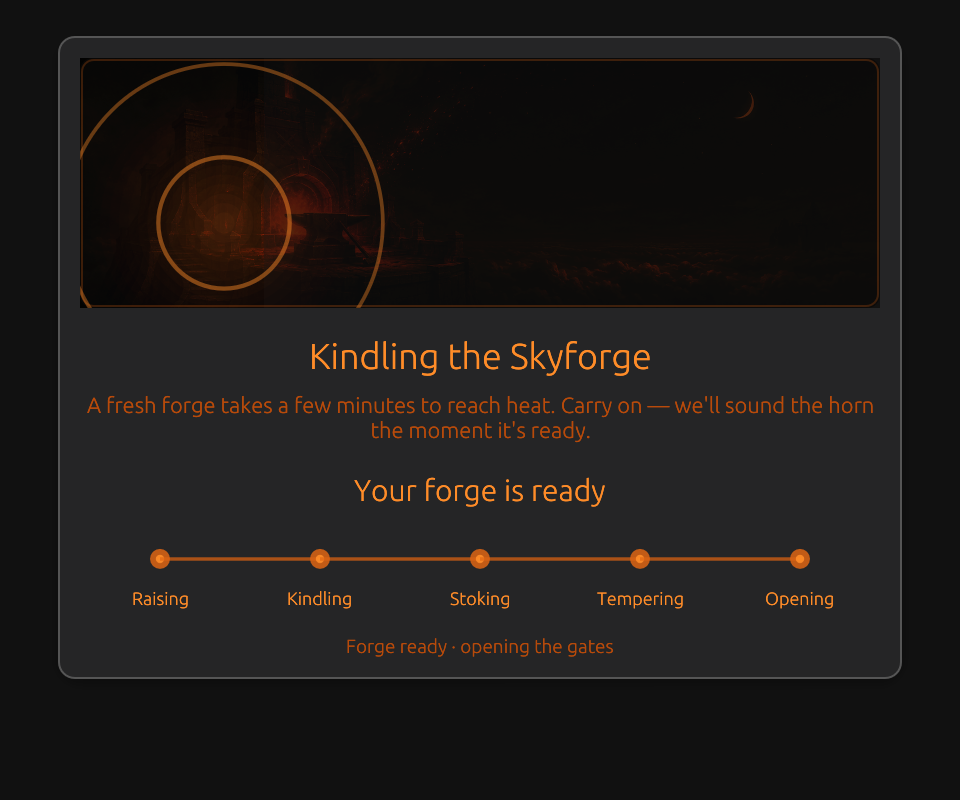 Early ignition. The forge is beginning to warm up and the progress rail is visible.
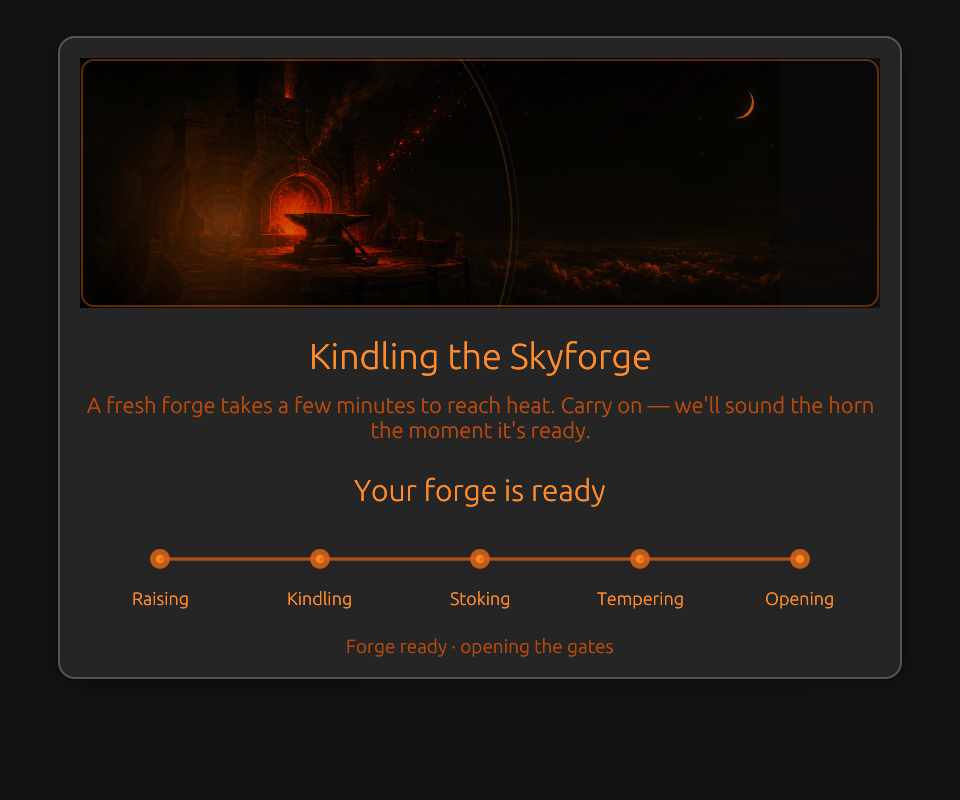 Mid ignition. The forge artwork brightens as the boot ceremony progresses.
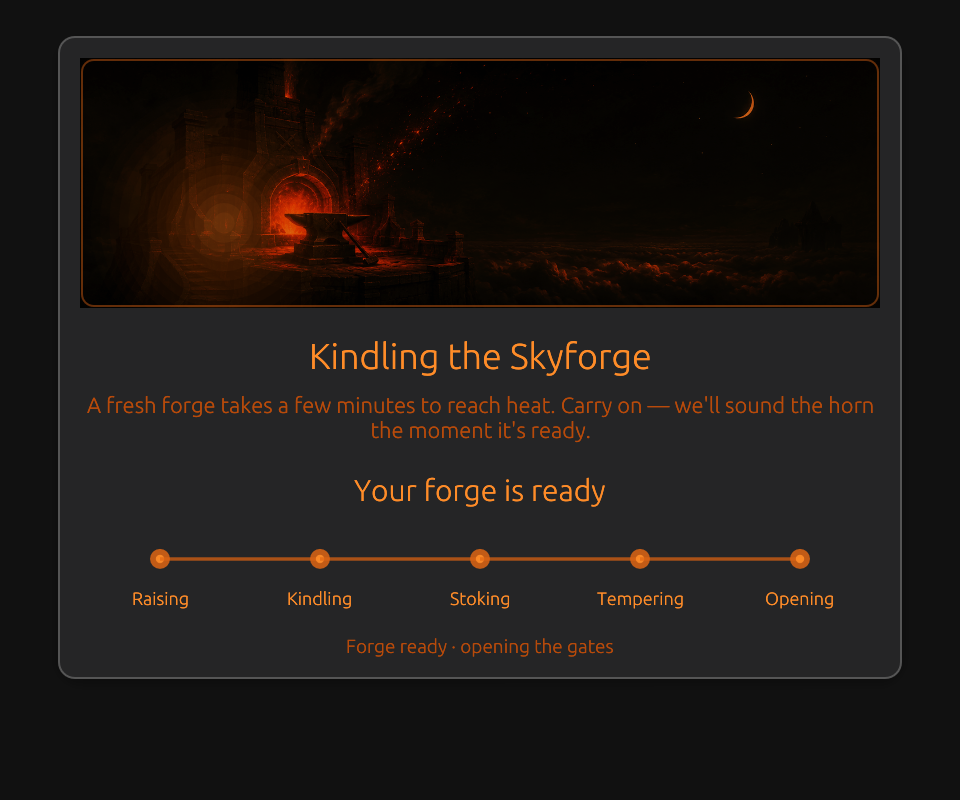 Settled ignition. The ceremony has finished and the Forge is ready to open.
After the ceremony, the waiting overlay shows five stages. The stage names are themed, but each maps to concrete remote setup work.
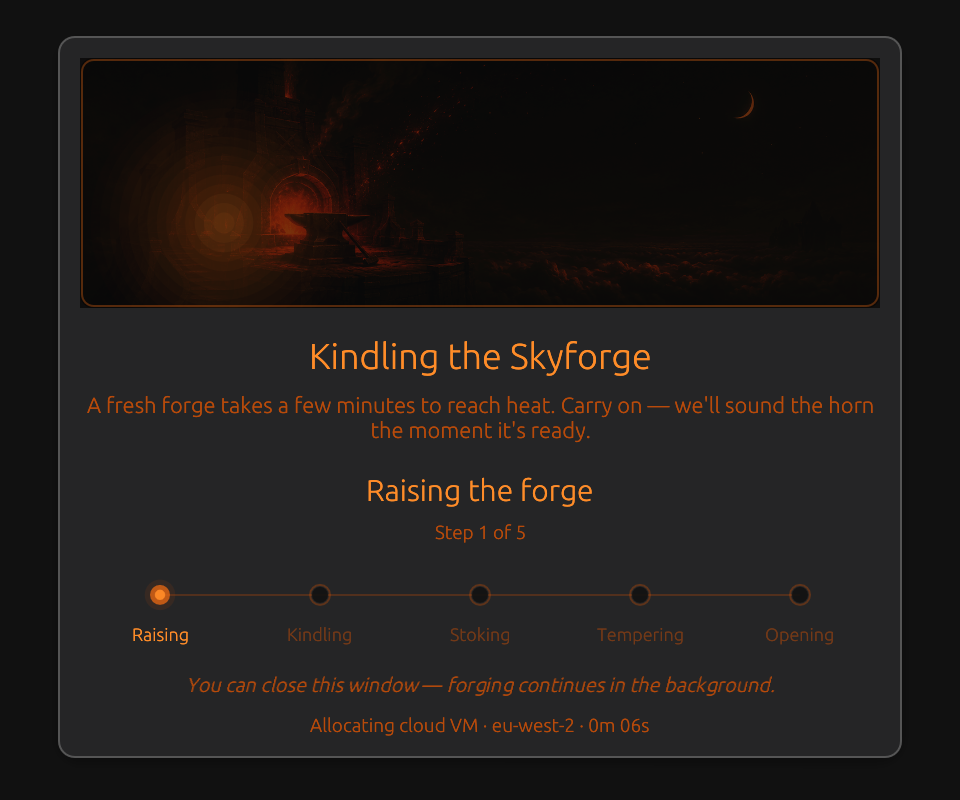 Raising the forge allocates the cloud VM in the selected region.
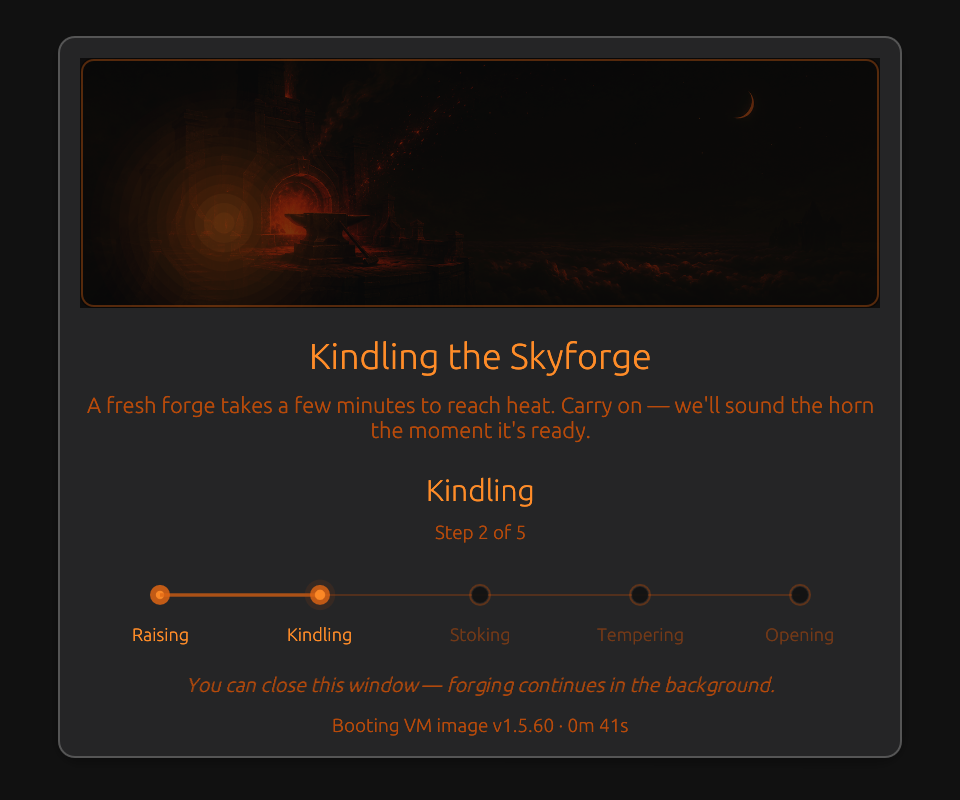 Kindling boots the VM image and waits for the remote machine to come up.
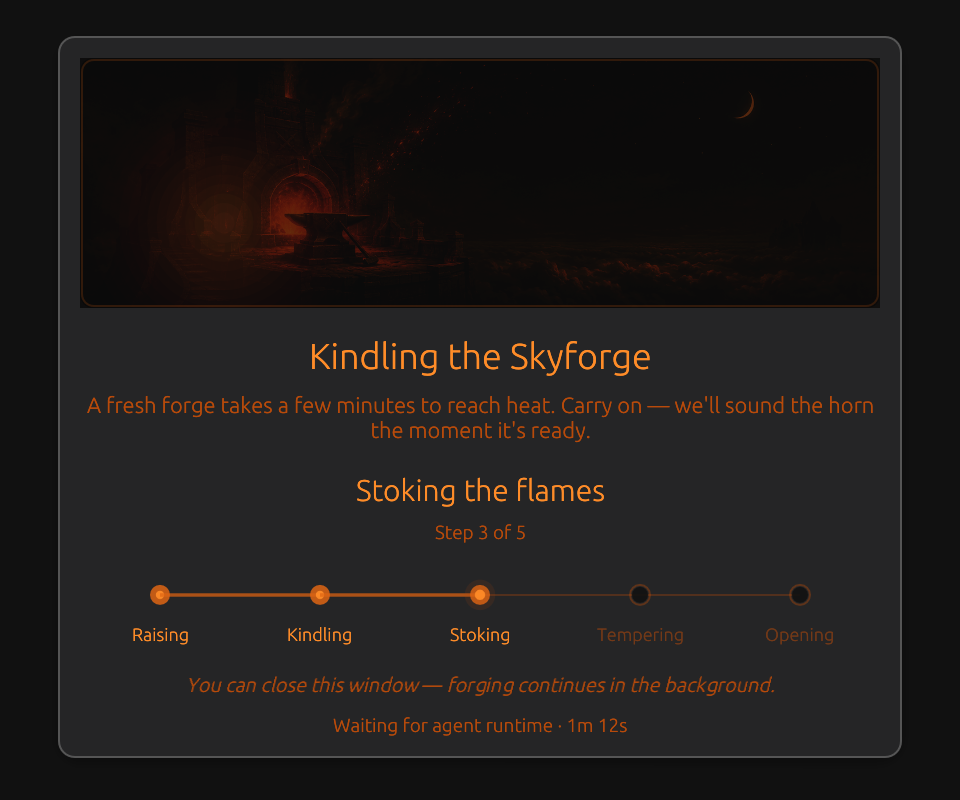
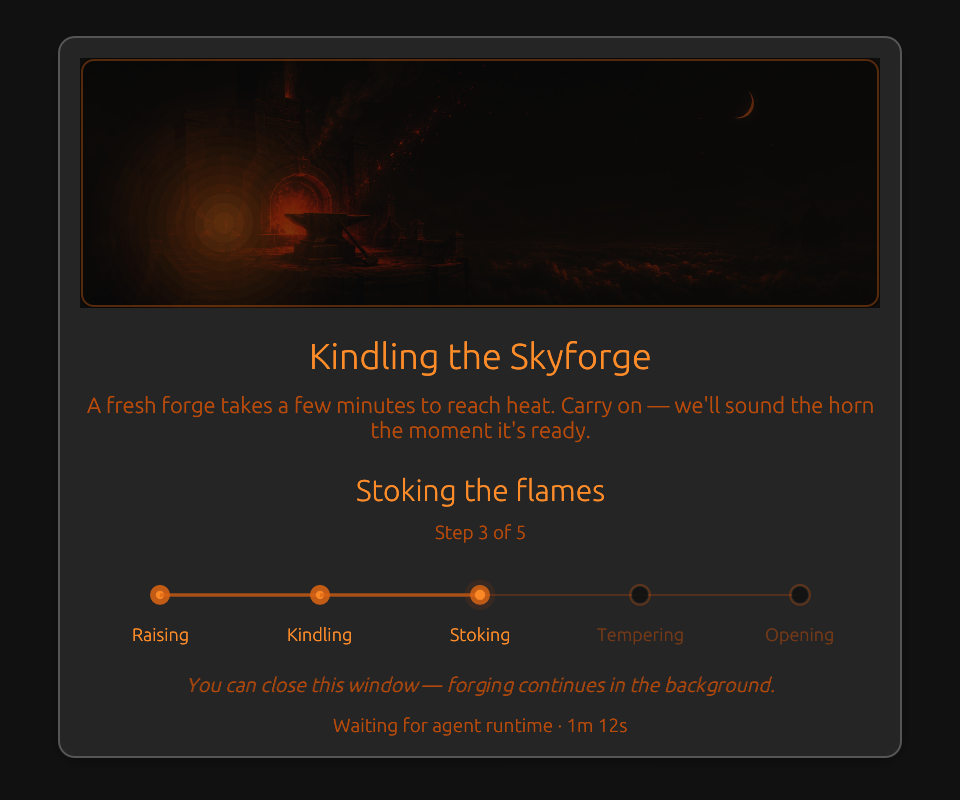 Stoking the flames waits for the agent runtime and remote service readiness.
During the waiting stages, the forge glow pulses. The following two frames show the same stage at the bright and dim points of that pulse.
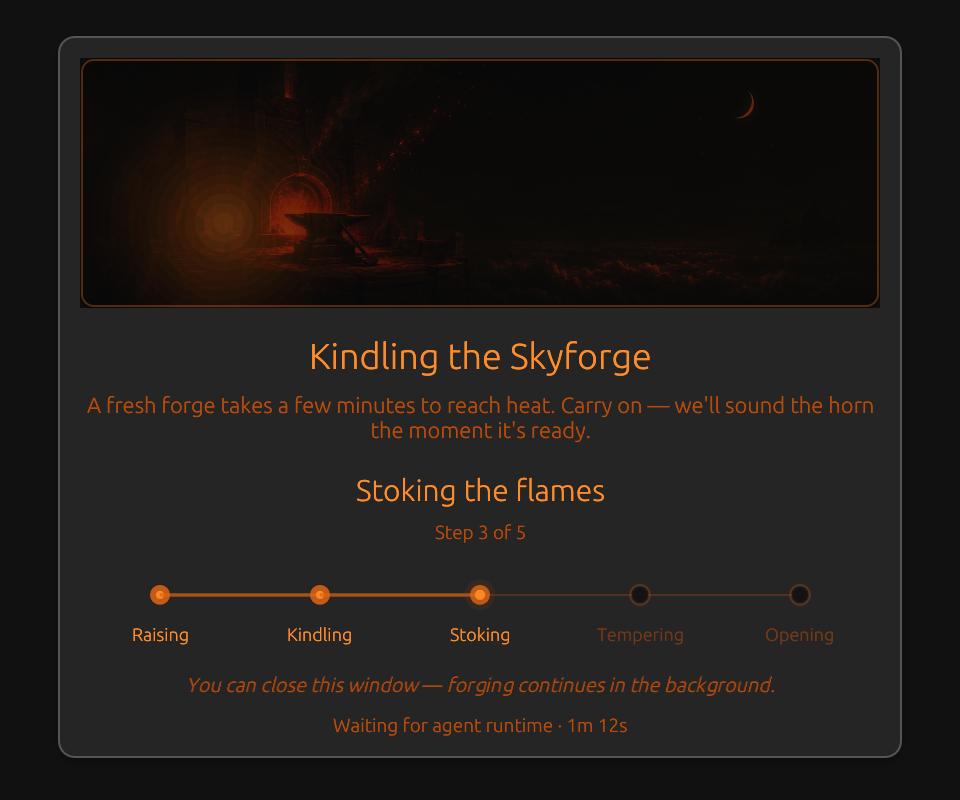 The glow peak shows the active waiting animation while the runtime is not ready yet.
 The glow trough is the same stage during the animation's dimmer beat.
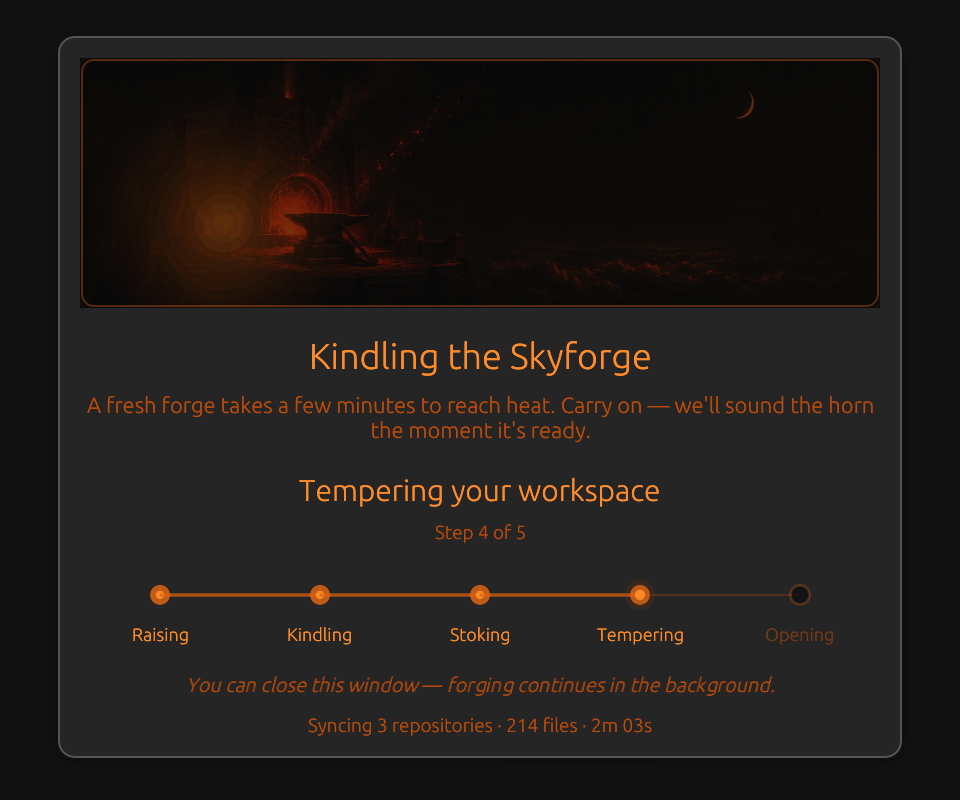 Tempering your workspace syncs repositories, workspace config, credentials, and remote-ready metadata.
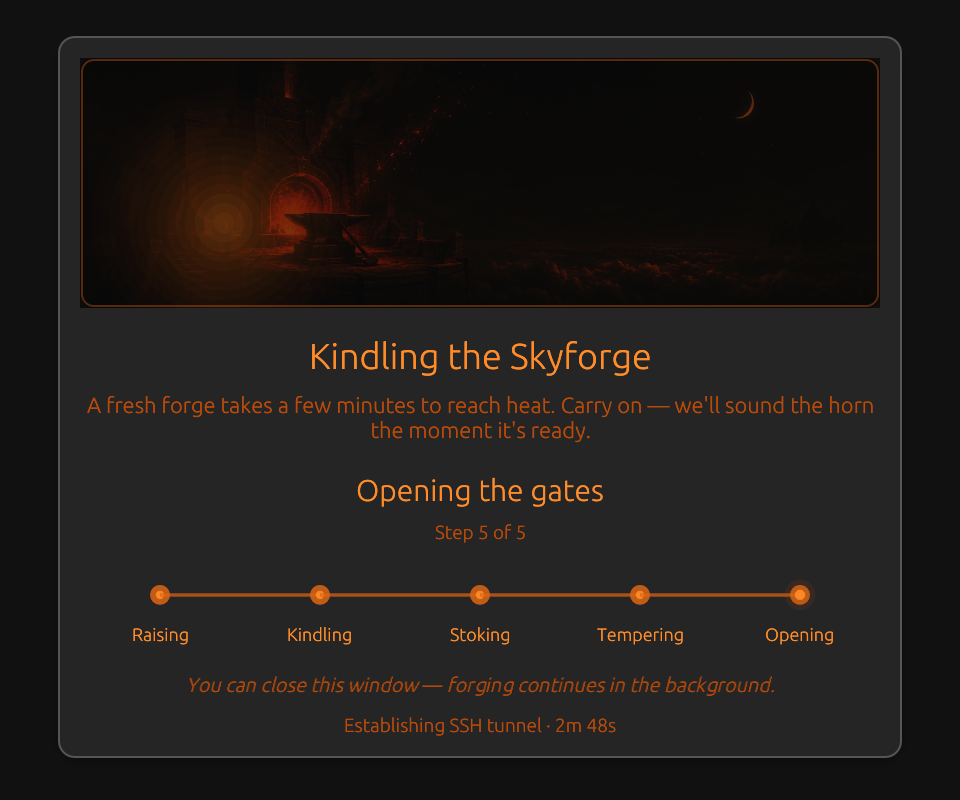 Opening the gates establishes the tunnel and final access path into the VM.
The screenshots show a sample path reaching Opening the secure tunnel at about three minutes. Treat that as a guide, not a guarantee. Large repos, first-time image pulls, provider capacity, credential sync, or network issues can make the first forge take longer.
If the forge goes cold
When provisioning or connection recovery fails, the overlay changes to This machine is not connected and shows the failure detail.
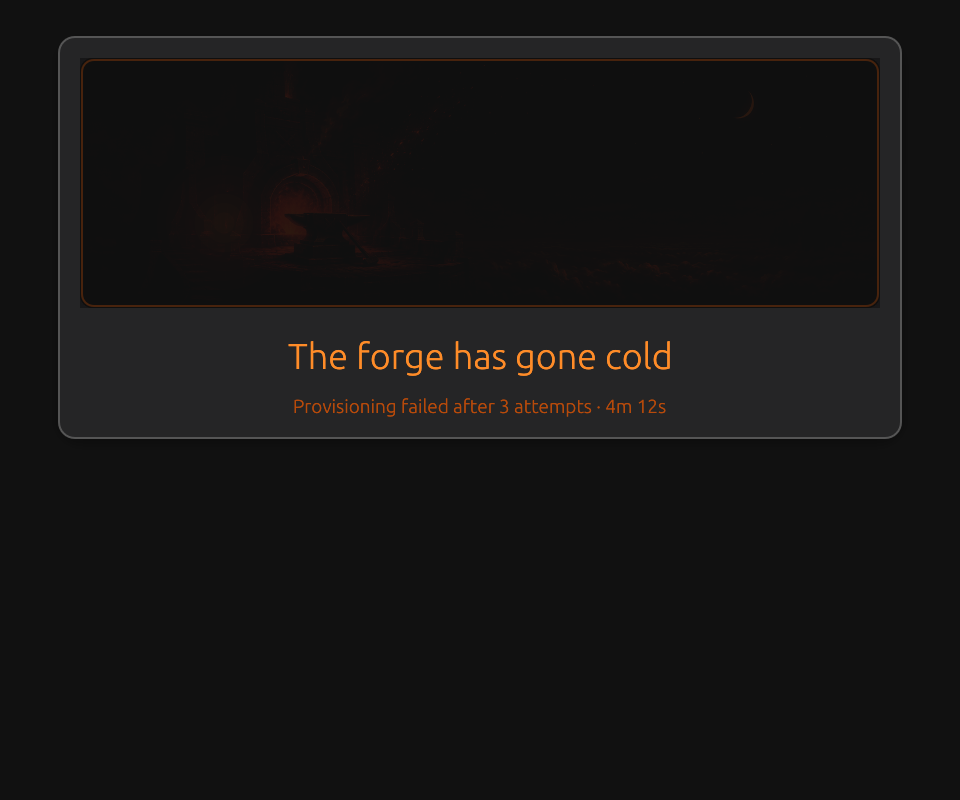 The cold forge state means Code Overlord could not complete provisioning or recovery and needs user action.
What to do:
- Check that Account & Sync still shows you signed in and that Remote Compute is unlocked.
- Check network connectivity.
- Use Reforge to retry connection or repair.
- Use Work locally instead if the transition overlay offers it and you need to continue immediately.
- If billing, budget, or entitlement is blocked, use Manage billing or the Skyforge billing action shown in the popover.
Remote sessions from mobile
Mobile uses the same cloud relay for both local and Skyforge sessions. The difference is the target controller:
- Local sessions route to the local desktop controller.
- Remote sessions route to the Skyforge VM controller.
- Mobile keeps the session identity stable with the durable session handle, even if the numeric session id changes after a restart or reconnect.
If mobile says the Skyforge VM is still starting, the remote controller is visible but not ready to drive. Wait for the Forge to finish opening the gates, then refresh the session.
Troubleshooting
"Cloud sync disabled: cloud config not available"
Cause:
- Desktop could not fetch cloud config and has no usable cached config.
What to do:
- Verify internet access.
- Retry after network recovery.
- Restart Code Overlord to retry config bootstrap.
"No saved tokens" or sign-in state keeps resetting
Cause:
- Missing/invalid local auth token file, or expired tokens with no refresh token.
What to do:
- Sign out and sign back in.
- If needed, complete sign-up verification again, then sign in.
Mobile can see app but cannot control a specific session (SESSION_NOT_FOUND)
Cause:
- The session genuinely ended, the target workspace/controller is wrong, or the request routed to a different window.
- Note: a simple desktop restart no longer causes this. Durable session handles let the cloud re-point a session to the desktop's new internal id automatically, so you should not see "invalid session id" just from restarting the desktop.
What to do:
- Refresh the session list on your phone (iOS or Android).
- Confirm the session still exists on desktop.
- Target the correct instance/workspace explicitly.
Input from your phone is delayed or intermittent
Cause:
- Sleeping/minimized desktop, or transient queue/network issues.
What to do:
- Keep desktop app running and signed in.
- Bring the target window to foreground briefly.
- Retry from your phone (the relay is designed to retry when the target is temporarily unavailable).
Notepad updates are not appearing quickly
Cause:
- Auto-sync cadence and debounce window.
What to do:
- Use Sync now in Armoury > Account & Sync.
- Wait for the periodic sync cycle.
- Verify Sync notepad across devices is still on.
Multi-window routing feels wrong
Cause:
- Requests using
defaulttarget when multiple windows are open.
What to do:
- Route to a specific instance/workspace from your phone (iOS or Android).
- Close unused windows if you want default routing to be unambiguous.
Sign Out Behavior
When you click Sign out:
- Desktop attempts server-side global sign-out.
- Local cloud auth tokens are removed.
- Account & Sync returns to the default signed-out state.
To resume syncing, sign in again and re-enable sync if needed.