File Browser and File Viewer
On this page
The desktop file workflow is split across two closely related surfaces:
- SCROLLS: the file browser in the left sidebar. A scroll is a file.
- PERUSE: the open-file list and built-in viewer. Peruse is where you read, preview, and inspect files without leaving Code Overlord.
The same workspace can also show the review/repo workspace, a Git-oriented view for staging changes, reading diffs, and committing. That view is about repositories and diffs; SCROLLS is about browsing actual files. This guide covers SCROLLS and PERUSE; for the review workflow see Code Review.
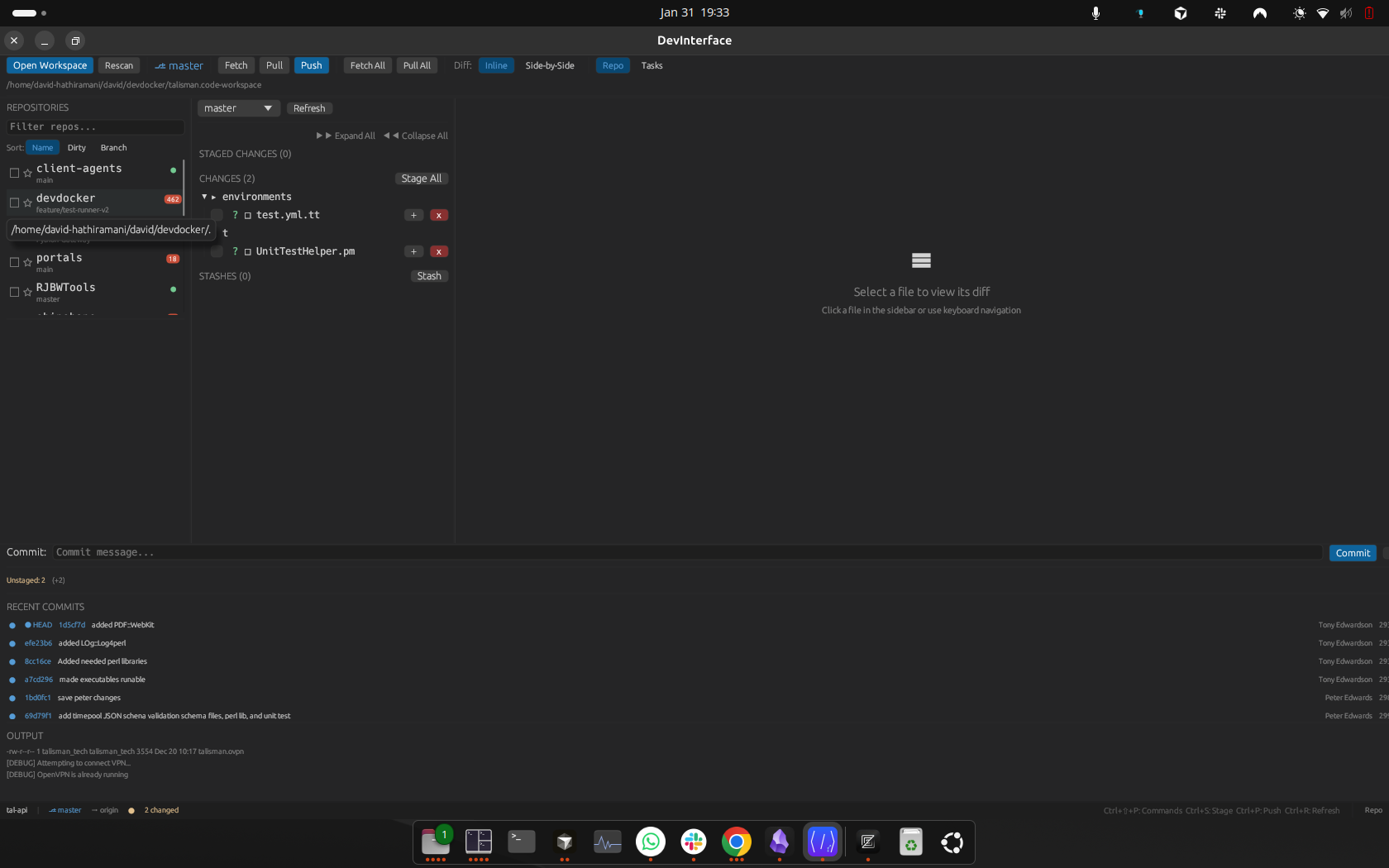 The review/repo workspace lists your Git repositories, their changed files, and diffs. It is separate from the SCROLLS file browser.
Repositories vs SCROLLS
When your workspace contains one or more Git repositories, the review/repo view lets you choose which repository's changes you are looking at. In the current desktop build, repository selection lives in a few places rather than a standalone sort/pin sidebar:
- Review FILTERS — a
Repo/Branch/Typefilter row at the top of the Review sidebar. TheRepofilter can cover one or many repositories in a multi-repo workspace. See Code Review. - Repo-grouped changed files — changed files are grouped by repository in the Review file list; clicking a file selects that repository and shows its diff.
- Toolbar repo/branch controls — the top toolbar exposes the active repository and branch, and switching there re-scopes the review view. See Toolbar and Navigation.
Note: The screenshot above shows an earlier layout of the review workspace; the repository controls have since moved into the Review FILTERS row. The overall idea is unchanged — a repository list, changed files, and a diff pane.
Tip: The review/repo view is not SCROLLS. Choosing a repository there does not search file names or file contents; it only scopes which repository's changes you review. Use SCROLLS (below) to browse and open files.
SCROLLS: The File Browser
Open the left sidebar's file section to use SCROLLS. If no workspace is open, the section prompts Claim a stronghold to survey its scrolls with the sub-line Open a workspace to browse its files. — a stronghold is Code Overlord's word for a workspace. Open one (see Workspaces) and SCROLLS lists its files.
At the top of SCROLLS you will normally see:
| Control | What it means |
|---|---|
Chevron next to SCROLLS |
Collapse or expand the file browser section. |
| Refresh icon | Re-scan the workspace file index. Idle tooltip: Scout the realm (re-scan files); while a re-scan is running the icon spins and reads Scouting the realm…. |
Markdown only |
Limit SCROLLS to .md files in both Changed and All views. |
Changed (N) |
Show files with Git changes. Disabled when there are no changed files. |
All |
Show the indexed workspace tree and file-name search. |
| Organize icon (wand) | Shown next to All. Hover reads Marshal your markdown into a clean docs/ structure; clicking opens the Organize Scrolls picker to choose which repository's Markdown files to reorganize. |
The file browser keeps an index of workspace files. The index respects normal workspace excludes and the workspace's file-search ignore patterns, including fileSearchIgnore and .overlordignore.
If the tree looks stale, press the refresh icon. Code Overlord also refreshes file status from Git signals, but the manual refresh is the fastest way to force a re-scan after large file moves or branch changes.
PERUSE: Open Files
When files are open, a PERUSE (N) subsection appears above SCROLLS. It is the open-file list for the built-in viewer.
PERUSE gives you:
- One row per open file instance.
- A highlighted row for the currently focused file.
- A row
✕to close one file. - A header
✕to close all open documents, with confirmation. - A gear button for Auto-open ignore patterns, used to prevent selected files from being auto-opened into Peruse.
- A small status dot while a file is refreshing or immediately after it auto-refreshes.
Click a PERUSE row to focus that file in the main pane. Closing the focused file moves focus to the next open file when one exists, otherwise to the previous open file.
Changed View
Choose Changed (N) to focus only on files changed since the last commit. The list appears as CHANGED SCROLLS (N) and is built from the same Git status data used by the Review view. When there are no changes, the button is disabled and hovering it reads The realm is at peace — nothing changed.
Changed rows show:
- A Git status marker such as
M,A,D,R, or?. - The file name.
- A tooltip with the full relative path and repository name when useful.
- Context menu actions for opening and copying the path.
- The external-open icon for non-text files that cannot be viewed directly in Peruse.
Single-click a changed row to preview it. Double-click a text row to open it as a persistent Peruse file instance. Binary files are forced into preview unless Code Overlord supports an image preview for that file type.
Markdown only filters this list down to .md files. If the changed list becomes empty while you are in Changed view, Code Overlord automatically returns you to All.
All View Tree
Choose All with an empty search field to browse the workspace tree. Folders are sorted before files, and names sort alphabetically within each level.
Common actions:
| Gesture | Result |
|---|---|
| Click a folder | Expand or collapse it. |
| Single-click a file | Preview the file in Peruse. |
| Double-click a file | Open or promote it to a persistent Peruse file instance. |
| Right-click a file | Open the file action menu. |
| Drag a file row | Publishes its path for drop targets such as terminals. |
| Drop OS files/folders on the tree | Imports them into the workspace or hovered folder. |
The file action menu includes:
- Open in Peruse: open the file in the built-in viewer.
- Open in Editor: open the local file in your external editor.
- Reveal in file manager: open the file's containing folder in your OS file browser.
- Copy Path: copy the file path. In remote mode, Code Overlord translates workspace paths to the remote path when it can.
Hovering a file row also exposes quick buttons:
↗: open local copy in editor.>: hurl/insert the path into the focused terminal.⎘: copy the path to the clipboard.
Broken symlinks and symlinks that resolve outside the workspace are refused before Code Overlord creates a drag payload.
Tree Keyboard Navigation
Click inside the SCROLLS tree to give it keyboard focus, then use the keys below to navigate.
| Key | Result |
|---|---|
Up / Down |
Move the focused tree row. |
Right |
Expand the focused folder; if already expanded, move to its first child. On a file, open it. |
Left |
Collapse the focused folder; otherwise move to the parent folder. |
Enter |
Toggle a folder or open a file. |
Home / End |
Jump to the first or last visible row. |
PageUp / PageDown |
Move by the visible panel height. |
| Type letters | Typeahead-jump to a visible file or folder name. |
Esc |
Leave tree keyboard focus. |
File Browser Search
In All view, use the search field labelled Search the archives....
Important behavior:
- It searches file names, not full paths and not file contents.
- Matching is case-insensitive.
- Plain text searches by substring, for example
readme. - Wildcards are supported in file names, for example
*.rsorfoo?.md. - Results are capped at 50.
Markdown onlyfilters the results to.mdfiles.- The inline
✕clears the search field.
Search results intentionally use a two-line name-match layout: the file name is on the first line, and the parent directory is shown below it in smaller, dimmer text (truncated from the left when long). This keeps narrow sidebar results readable, and is why a result can show a directory path underneath even though the query only matched the file name. A file with no parent directory shows just the one line. When nothing matches, SCROLLS shows No scrolls found in this realm.
Tip: Searching
srcwill not find every file inside asrc/folder unless the file name itself containssrc. Use the tree for folder browsing, or use your external editor for workspace-wide content/path search.
For a side-by-side comparison of every desktop search surface (file names, in-file, terminal, and diff), see Search.
Opening And Previewing Files
From Changed, All tree, or file-name search:
| Action | Result |
|---|---|
| Single-click | Opens a preview file instance and focuses it in the main pane. |
| Double-click | Opens a persistent file instance, or promotes an existing preview. |
Open in Peruse |
Opens a persistent file instance from the context/menu action. |
| Open a file already listed in PERUSE | Focuses the existing instance instead of creating a duplicate. |
Previews and persistent file instances both appear in PERUSE while open. Persistent file instances are saved with workspace state; previews are treated as temporary.
File Viewer Header
When a file is focused, the main pane shows the Peruse file viewer. The header includes:
- File icon and file name.
- Full path on hover.
Refreshing/Updatedstatus when auto-refresh is active or recently completed.Previewbadge if only a truncated prefix of the file content is loaded.- File action menu (
…). ✕to dismiss this scroll.
Markdown files add:
Raw/Preview: switch between raw Markdown source and rendered document view.Review: open a side-by-side review notes panel for sending feedback to an agent.Export PDF: export the themed rendered Markdown to PDF.
Non-Markdown text files add:
Word Wrap: enable wrapping.Disable Wrap: turn wrapping back off.
Changed text files can also show a Diff / Source toggle, so you can switch between the Git diff and the current file source from the same viewer.
Markdown Preview
Markdown preview renders headings, paragraphs, lists, blockquotes, tables, links, code fences, inline code, footnotes, supported inline HTML transformations, and Mermaid blocks where available. The rendered column is capped for readability on wide screens.
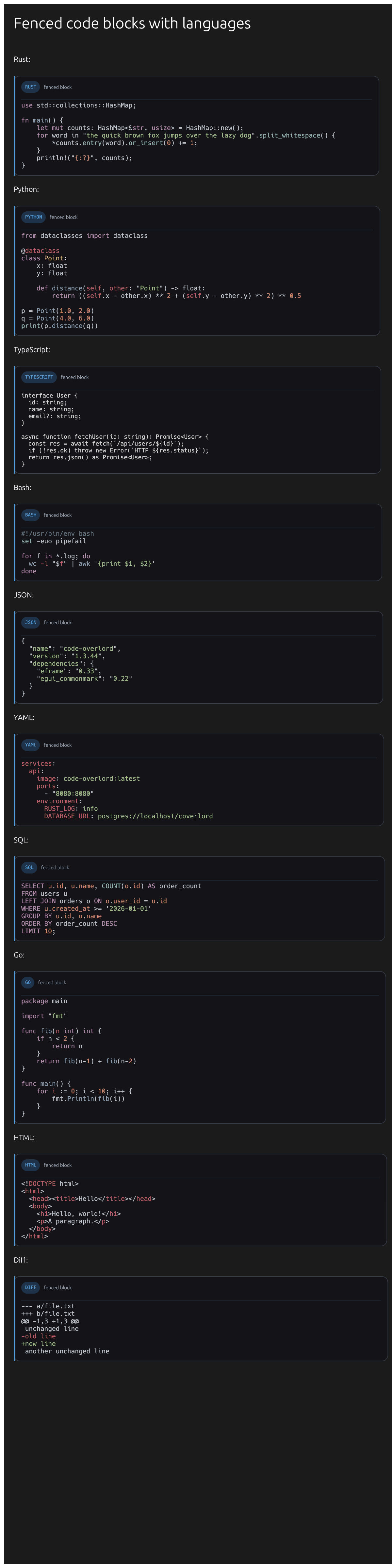 Rendered fenced code blocks show language labels, syntax highlighting, and a copy control.
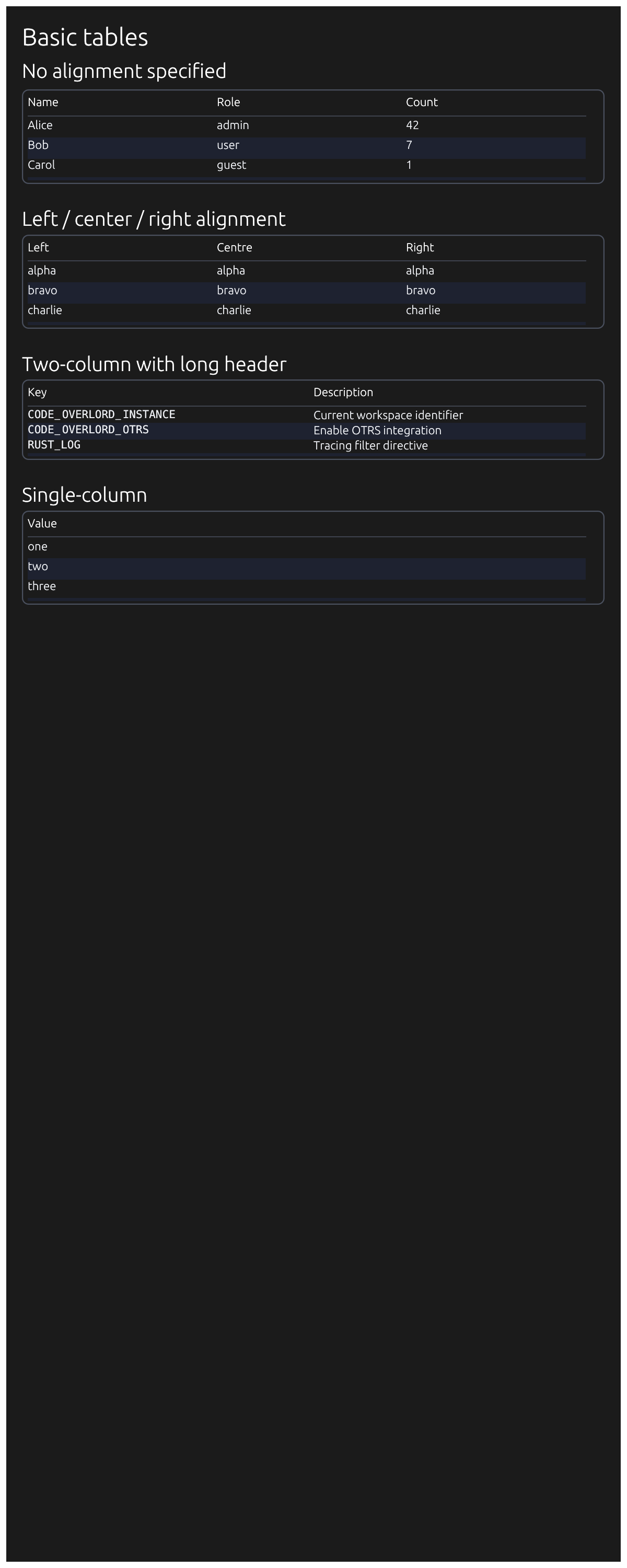 Markdown tables use a framed table style with alternating row contrast.
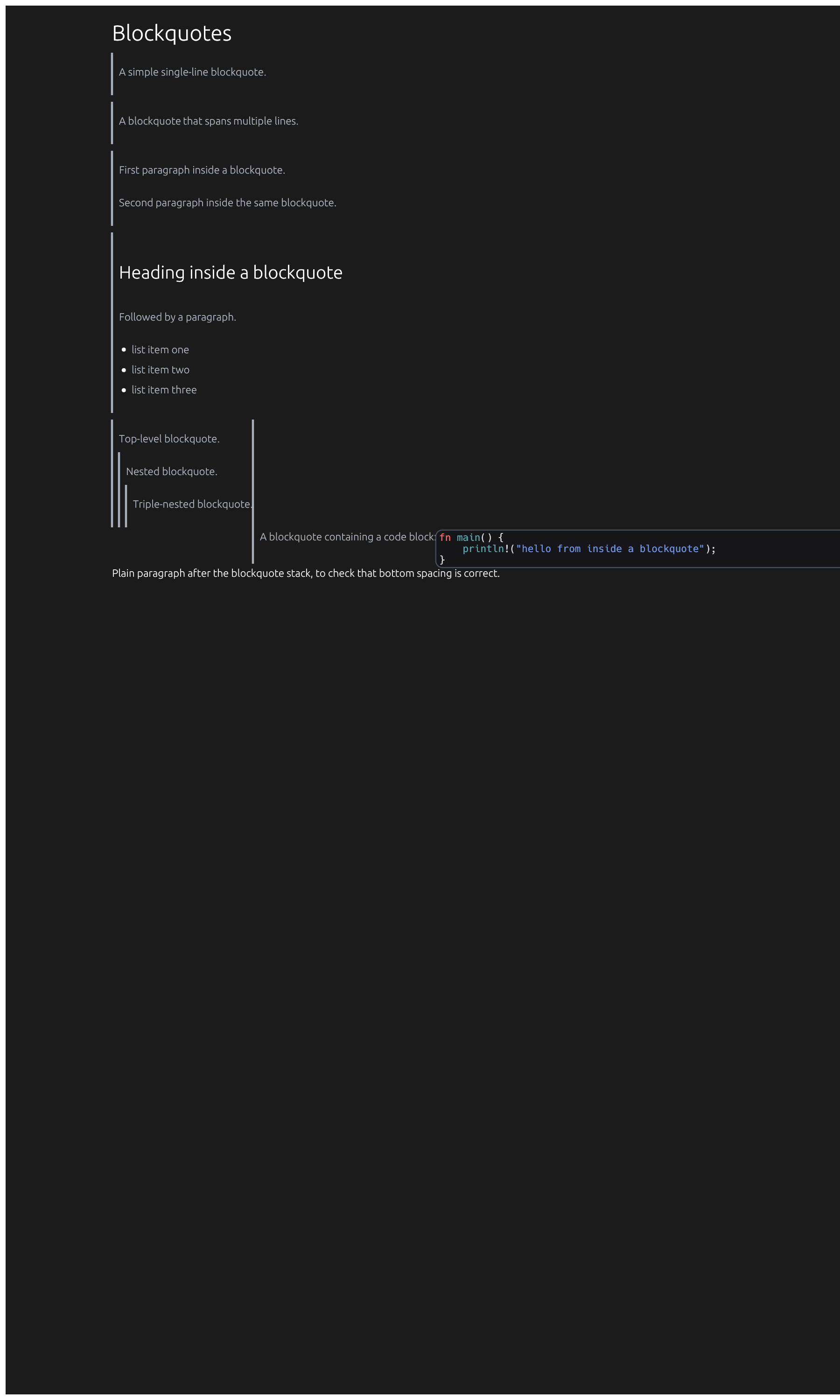 Blockquotes render with vertical quote rules and nested quote indentation.
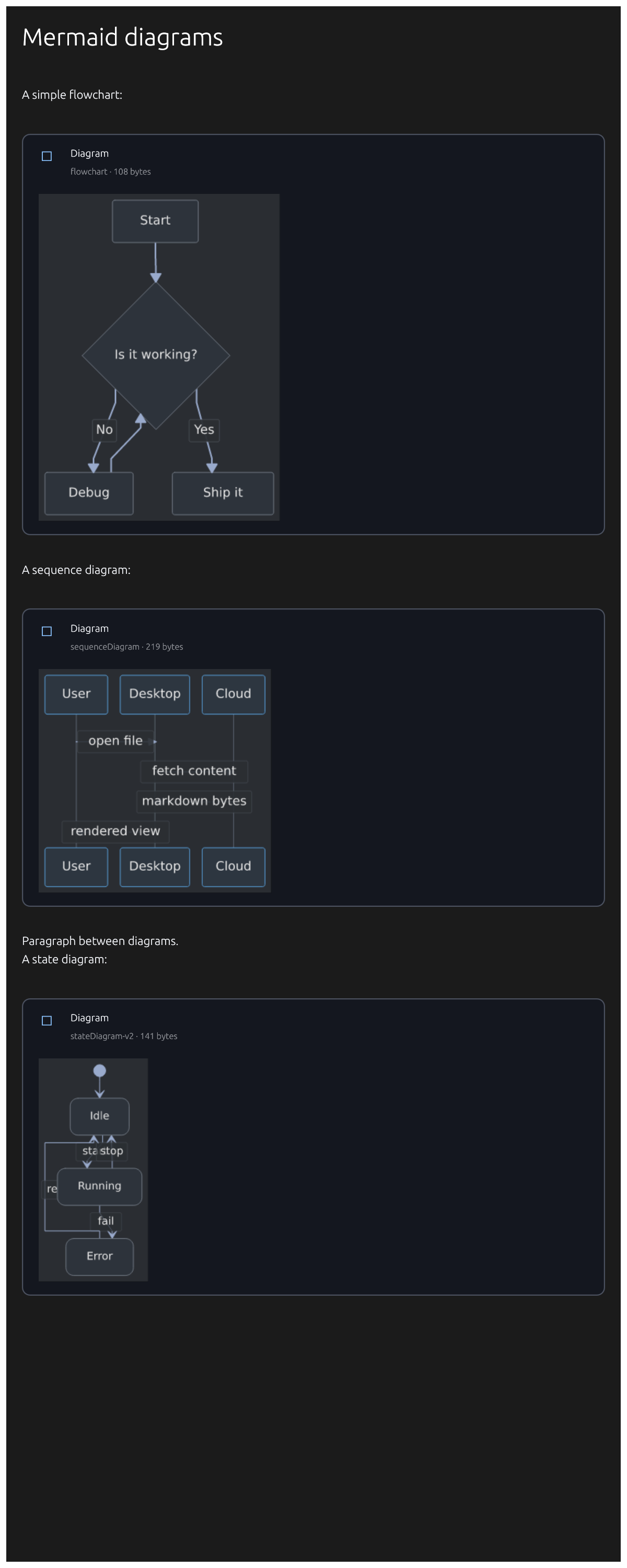 Fenced
 ```mermaid blocks render as diagrams (flowchart, sequence, state, and more) inside a framed card with a diagram-type and byte-size label.
Rendered Markdown text is selectable. Drag across rendered content, then copy normally. Copied rendered text does not include Markdown syntax markers.
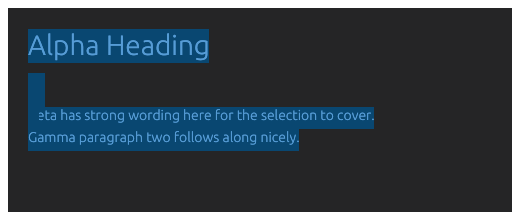 Rendered Markdown selection copies clean text rather than raw Markdown syntax.
Markdown preview details:
Ctrl/Cmd + Fopens the search bar, but matches are based on raw Markdown text.- When you search while in rendered preview, Code Overlord shows a prompt to Reveal the Raw Scroll.
- Local Markdown links can open other local
.mdfiles in Peruse. - Right-click in the rendered view for copy/open actions.
Escclears an active rendered-text selection.
Source And Plain Text View
Raw Markdown and non-Markdown text use the source viewer. It includes:
- Line gutter.
- Line selection from the gutter.
- Character-level text selection in the content area.
- Syntax highlighting by file extension where supported.
- Search highlighting.
- Detected URL and file-path links.
- Context menu actions for copy, formatted copy, copy all, copy path, open links, select all, clear selection, and search.
Selection controls:
| Action | Result |
|---|---|
| Click a gutter line | Select that line. |
Ctrl/Cmd + click a gutter line |
Toggle that line in the selection. |
Shift + click a gutter line |
Select a range. |
| Drag in the gutter | Select a line range. |
| Drag in content | Select characters. |
| Double-click content | Select a word. |
Ctrl/Cmd + A |
Select all source lines. |
Ctrl/Cmd + C |
Copy selected text. |
Esc |
Clear selection. |
If you have selected text and terminal send targets are available, Ctrl/Cmd + Shift + 1..9 sends the selected text to the matching window.
Image And Binary Files
Peruse can preview supported raster images and SVG files. The image viewer includes:
- Fit-to-pane behavior on first open.
100%reset.Fitbutton.- Zoom percentage display.
- Double-click to toggle actual size vs fit.
- Drag panning when zoomed in.
- Still preview for GIFs.
Unsupported binary files show an explanatory fallback card with:
- Open externally when a local copy is available.
- Copy path.
Closing Files
You can close files from:
- The row
✕in PERUSE. - The viewer header
✕. - The PERUSE header
✕to close all open documents.
Closing the focused file moves focus to the next open file if possible, otherwise to the previous open file. Closing all open documents requires confirmation.
Troubleshooting
| Problem | What to try |
|---|---|
| A file you just created is missing | Press the SCROLLS refresh icon. |
| A folder search finds nothing | File Browser search matches file names only. Browse the tree for folders. |
| Results are unexpectedly narrow | Turn off Markdown only. |
| A changed file disappeared from Changed view | Confirm the file is still modified in Git, then refresh status or SCROLLS. |
| A binary file will not open in Peruse | Use Open in Editor, Open externally, or Reveal in file manager. |
| Markdown search seems to target source | This is expected. Use Reveal the Raw Scroll to inspect the raw match. |
Keyboard Shortcuts
Use Ctrl on Windows/Linux and Cmd on macOS.
| Shortcut | Result |
|---|---|
Ctrl/Cmd + PageUp |
Focus previous task/file tab in navigation order. |
Ctrl/Cmd + PageDown |
Focus next task/file tab in navigation order. |
Ctrl/Cmd + F |
Open search in the focused file viewer. |
Enter |
Next search match while the search field is focused. |
Shift + Enter |
Previous search match while the search field is focused. |
F3 |
Next search match in source/file search. |
Shift + F3 |
Previous search match in source/file search. |
Ctrl/Cmd + A |
Select all source text when no search field has focus. |
Ctrl/Cmd + C |
Copy selected source/rendered text. |
Esc |
Close search or clear active selection, depending on focus. |