Settings and Configuration
On this page
- Armoury Layout
- Appearance
- The Apply Confirmation
- Agents
- Refresh Agents
- AI Suggestions
- Default Agent
- Per-Agent Autonomy
- Grunt Cards
- Tools & MCP
- MCP Servers
- Server Edit Form
- Per-Agent MCP Overrides
- Command Throttling
- Integrations
- Essential Alliances
- Forge Alliances
- Distant Alliances
- Environment Variables
- What Gets Detected
- Repo Controls
- Variable Viewer
- Account & Sync
- Signed Out
- Account & Plan
- Sync
- Android Beta And Devices
- Privacy
- Advanced Privacy
- About
- Configuration File Locations
- Main App Settings
- Agent Launcher Config
- Integrations And Tokens
- MCP Registry And Agent Configs
- Troubleshooting
The desktop settings window is called the Armoury. It is the place where you configure the app, agent launchers, MCP servers, integrations, environment files, account sync, privacy, and support diagnostics.
Open it from the Armoury button in the app header or with Ctrl/Cmd+,. The window is titled ⚙ Armoury (Settings).
Armoury Layout
The Armoury is a fixed-size, centered modal with a left navigation rail and a scrollable detail pane. The window never resizes or recentres when you switch pages, and only the right pane scrolls. The left rail is grouped like this:
| Group | Pages |
|---|---|
GENERAL |
Appearance |
AGENTS |
Agents, Tools & MCP |
WORKSPACE |
Integrations, Environment Variables |
ACCOUNT |
Account & Sync, Privacy |
ABOUT |
About |
Each page leads with a plain-language title and a one-line muted subtitle that carries the themed flavour word: Agents -> your Grunts, Tools & MCP -> Oracles & command throttle, Integrations -> your Alliances, Environment Variables -> Environment Scrolls, Account & Sync -> the Realm. Appearance, Privacy, and About carry no flavour subtitle.
Type in Filter settings at the top of the rail to narrow it to matching pages. The filter matches page labels and a set of plain-language and themed synonyms, so you can search by the word you have in mind:
| Type this | Jumps to |
|---|---|
grunts |
Agents |
oracles, mcp |
Tools & MCP |
api key, token, alliances |
Integrations |
env, scrolls |
Environment Variables |
cloud |
Account & Sync |
theme, zoom, scale |
Appearance |
privacy |
Privacy |
Clear the filter to restore the full rail.
The themed names are used in the app, but the plain meaning is simple:
- Grunts are configured agent launchers.
- Oracles are MCP servers.
- Alliances are third-party integrations.
- Environment Scrolls are
.envand secret files. - The Realm is your Code Overlord cloud account.
Appearance
The Appearance page (section heading INTERFACE SCALE) controls global interface scale: the size of the entire desktop UI. It follows a deliberate three-step flow — stage a size, Apply, then confirm — so an unreadable scale can never lock you out.
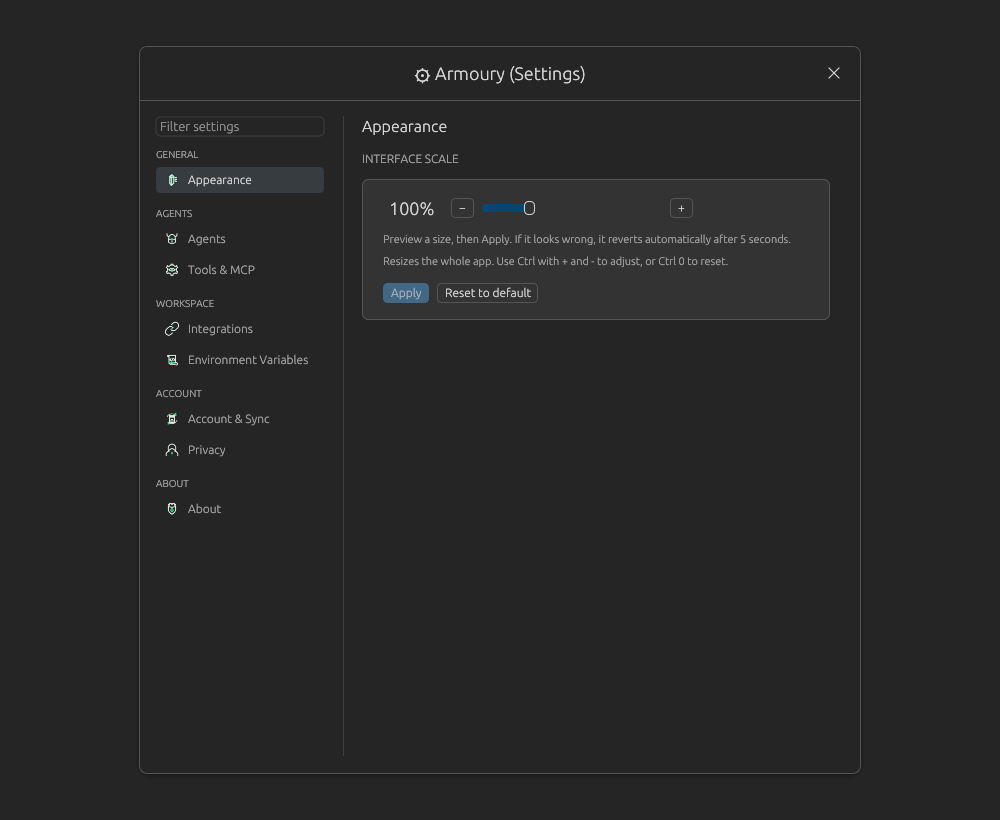 The idle Appearance page. The slider sits at the currently applied scale and Apply is disabled until you stage a change.
| Control | What it does |
|---|---|
| Percentage readout | Shows the staged scale, such as 100% or 150%. |
− |
Decreases the staged scale by one 10% step. |
| Slider | Drags between the supported scale range. Dragging previews the number only. |
+ |
Increases the staged scale by one 10% step. |
Apply |
Applies the staged scale and opens the confirmation dialog. Disabled until the staged scale differs from the applied one. |
Reset to default |
Stages the default 100% scale. Click Apply to commit it. |
The supported scale range is 50% to 250%, in 10% steps. The equivalent keyboard shortcuts work anywhere in the app: Ctrl/Cmd with + (or =) to zoom in, Ctrl/Cmd+- to zoom out, and Ctrl/Cmd+0 to reset to 100%.
Tip: Moving the slider or the
−/+steppers only stages a preview. The app does not resize until you clickApply, so you can dial in a number before committing to it.
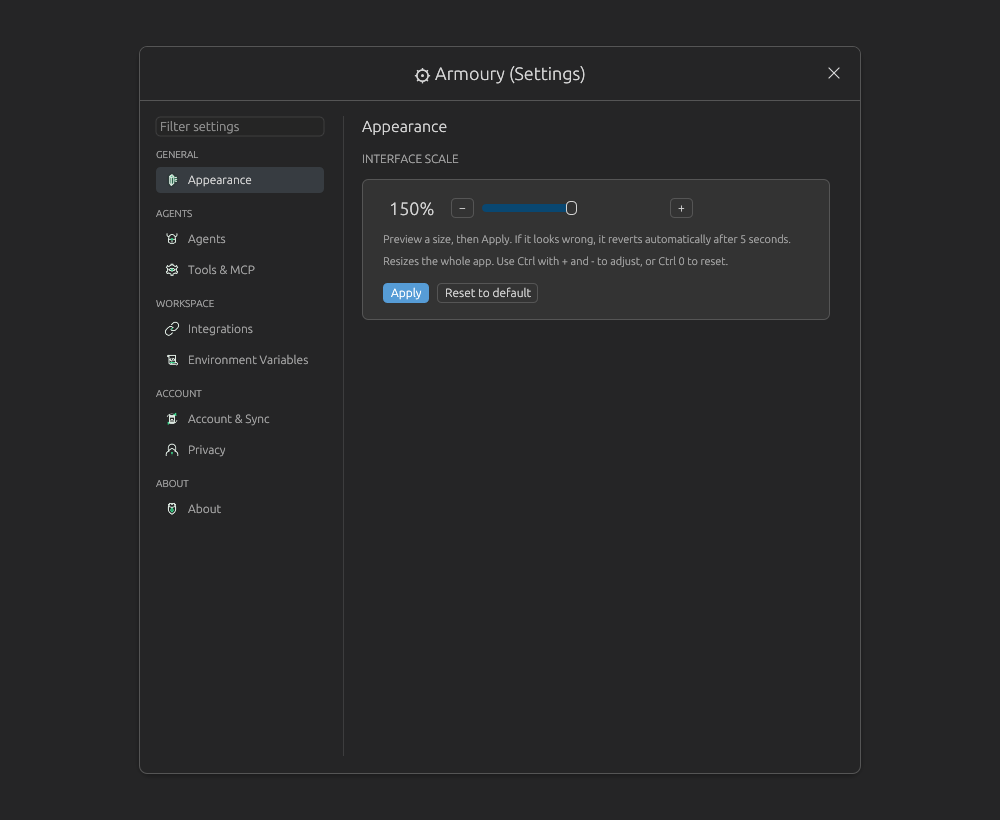 A staged (pending) change to 150 percent. Apply is now enabled, but the UI is still at its old size until you click it.
The Apply Confirmation
When you click Apply, Code Overlord immediately resizes the live UI and raises a centered Keep this interface scale? dialog over the newly scaled app, with a five-second countdown ring. Because the dialog itself renders at the new scale, it doubles as a live preview of how readable the size is.
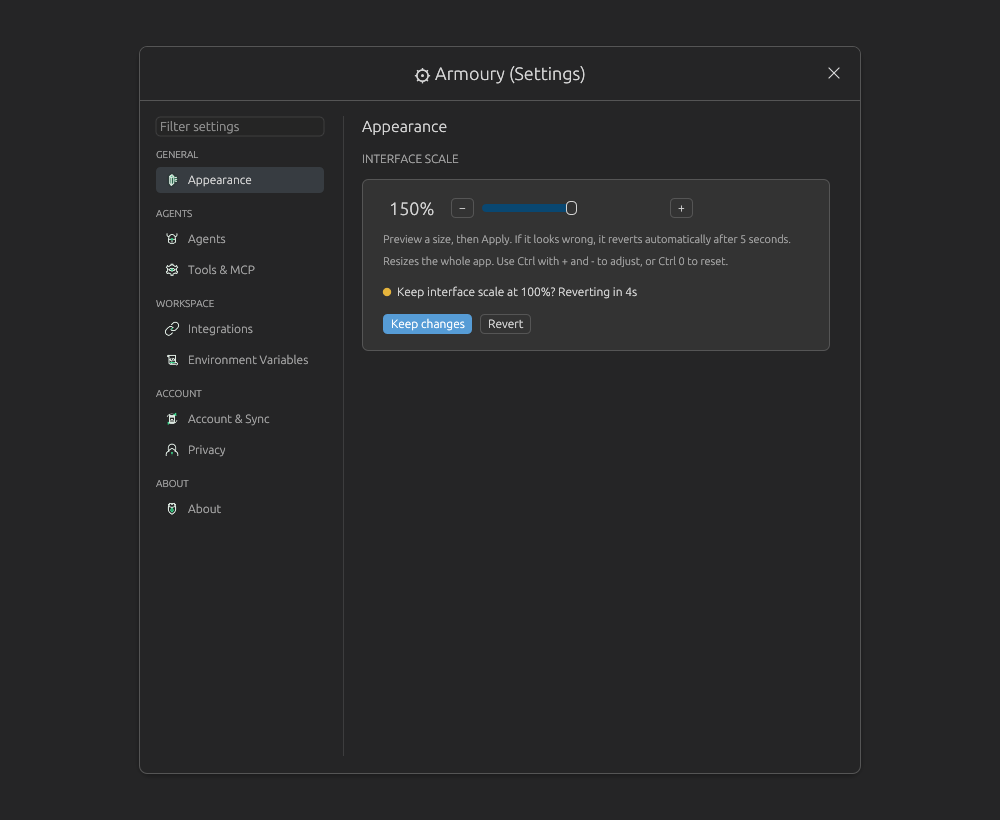 The scale confirmation. Keep changes locks in the new size; Revert restores the previous one; doing nothing auto-reverts when the countdown ends.
| Action | Result |
|---|---|
Keep changes (or press Enter) |
Confirms and keeps the new scale. |
Revert now (or press Escape) |
Restores the previous scale immediately. |
| Do nothing | Code Overlord automatically reverts when the five-second countdown reaches zero. |
Because the confirmation always reverts on its own, an accidentally huge or tiny scale is never a one-way door — you can wait out the timer even if the buttons are hard to read.
Agents
The Agents page configures grunts: the command-line agent launchers Code Overlord can run.
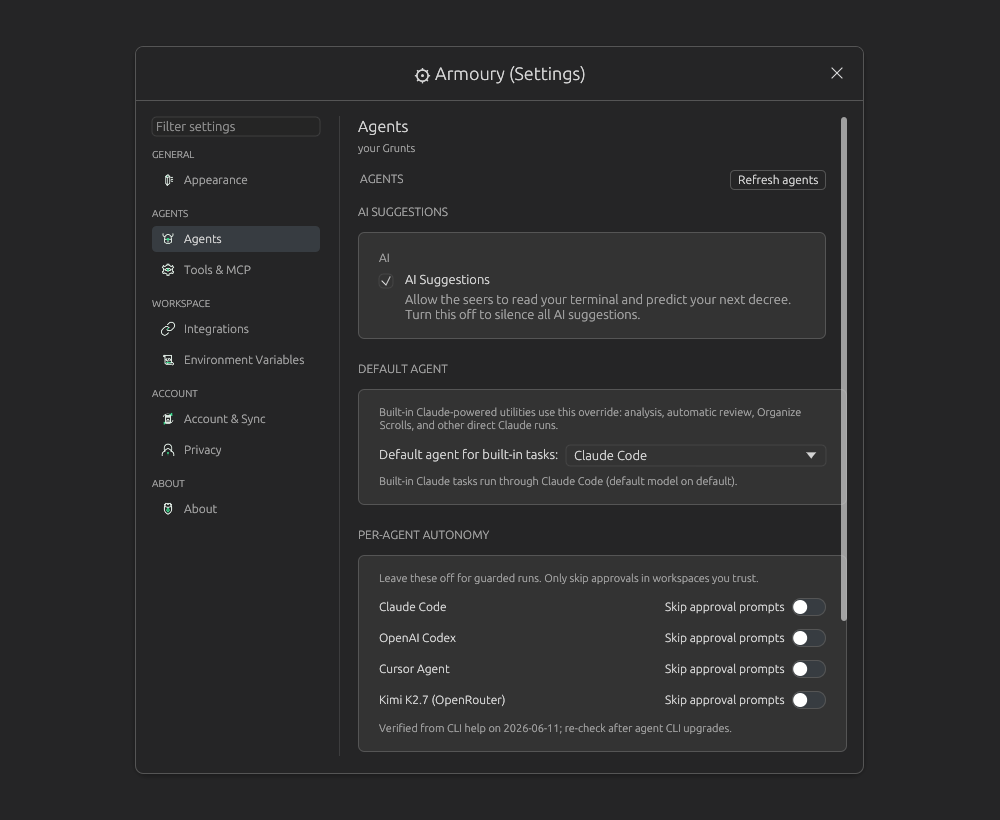 The Agents page manages AI suggestions, the built-in-task agent override, and approval-skipping toggles.
Refresh Agents
Refresh agents checks the configured launchers again. Use it after installing a CLI or changing a command.
AI Suggestions
AI Suggestions controls whether the Inscriber suggestion system can read terminal context and predict your next decree. A decree is simply an instruction or prompt you are about to send.
Turn this off if you do not want AI-generated suggestions in the composer.
Default Agent
Default agent for built-in tasks chooses which Claude-compatible grunt Code Overlord uses for built-in Claude-powered utilities, including analysis, automatic review, and Organize Scrolls.
Options include:
Default Claude behavior: do not override the built-in Claude command.- Any configured grunt marked
Claude Code based.
When a grunt is selected, the summary line shows the model/domain that built-in tasks will use.
Per-Agent Autonomy
Each configured agent that Code Overlord recognizes gets a Skip approval prompts toggle. It is off by default. Turning it on appends the CLI's known "skip approvals" flag to that grunt's launch flags; turning it off removes them again. Only agents with a known flag appear here.
| Agent family | Flag added when enabled |
|---|---|
| Claude Code | --dangerously-skip-permissions |
| Codex | --dangerously-bypass-approvals-and-sandbox |
| Antigravity CLI | --dangerously-skip-permissions |
| Cursor | --yolo --trust |
The Gemini CLI (gemini) is retired as a supported agent; Antigravity CLI (agy) replaced it.
When a toggle is on, the exact flag it added is shown as muted helper text, and an amber Safeguards disabled — only enable in workspaces you trust. warning appears under the row.
Pi has no autonomy toggle: Code Overlord does not add an approval bypass or
describe Pi as sandboxed. Pi and loaded extensions already run with the
launching operating-system user's permissions, so its project-resource trust
prompt remains the guard for project .pi executable content.
Warning: These flags disable the agent CLI's normal approval prompts and, for Codex, its sandbox. Leave them off for guarded runs and turn them on only in workspaces you fully trust.
Grunt Cards
Lower in the Agents page, each grunt has an expandable card.
Common fields and controls:
| Control | What it does |
|---|---|
Claude Code based |
Marks the grunt as compatible with Claude Code behavior. If the command is empty, turning this on fills claude. |
Template |
For Claude Code based grunts, applies starter environment variables for a provider/model profile. |
API Key |
Stores an Anthropic-compatible API key in the secret store for this grunt or selected model profile. |
Environment |
Adds, edits, or removes per-grunt environment variables. |
Name |
The display name shown in picker rows and settings. |
Command |
The executable to run for non-Claude-Code grunts. |
Flags |
Extra CLI flags appended when launching the grunt. |
| Autonomy suggestion | Shows a known risky flag and Use flag when Code Overlord recognizes the CLI. |
| Delete icon | Removes the grunt from the launcher config. |
+ Add Grunt |
Creates a new blank grunt. |
Warning: API keys and environment variables can affect every task launched through that grunt. Prefer scoped keys and keep approval-skipping flags off unless you understand the trust boundary.
Tools & MCP
Tools & MCP combines Oracle management and heavy-command throttling on one page. Oracles are MCP servers: tool providers that agents can consult. The page has two eyebrow-labelled sections you scroll through: MCP SERVERS first, then COMMAND THROTTLING.
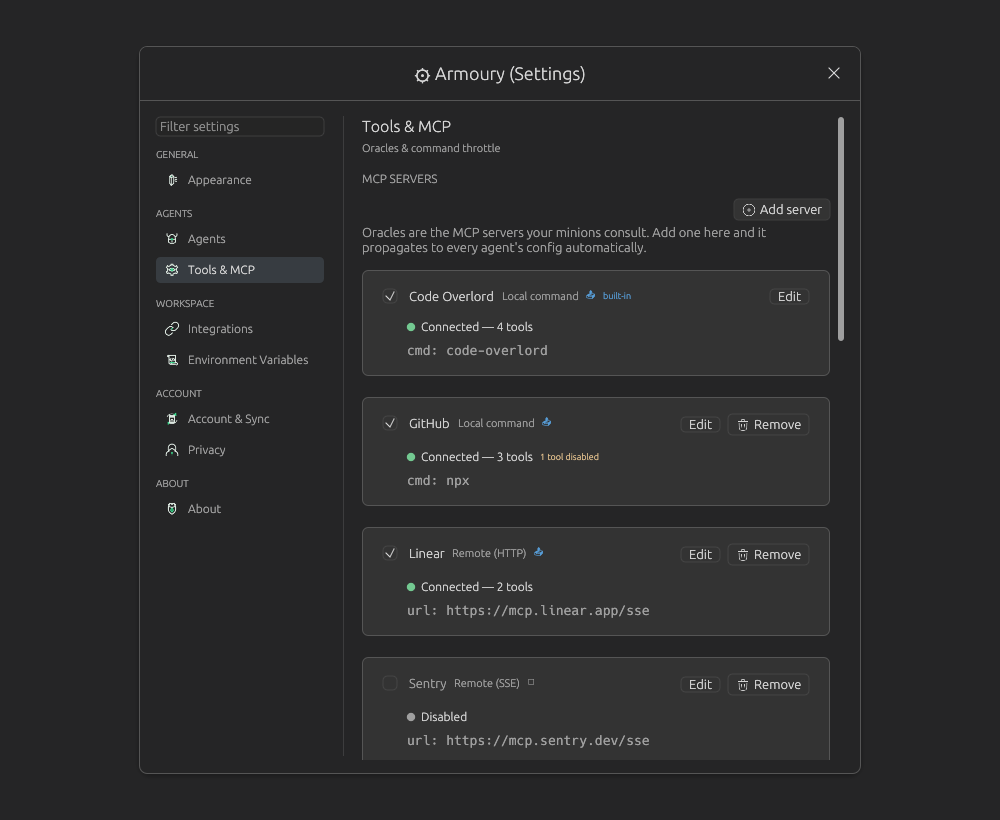 The Tools & MCP page lists MCP servers first, followed by command throttling further down the scroll area.
MCP Servers
Each server card shows:
| Element | Meaning |
|---|---|
| Checkbox | Enables or disables the server globally. |
| Name | The server name written to MCP configs. |
| Transport pill | Local command, Remote (HTTP), or Remote (SSE). |
| Propagation marker | Whether the server is propagated to agent config files. |
| Workspace marker | How many workspaces the server is scoped to, when not global. |
built-in |
A bundled server that cannot be removed. |
| Status chip | Disabled, connected, or connected with discovered tool count. |
Edit |
Opens the server edit form. |
Remove |
Removes non-built-in servers and propagates the change. |
Add server opens a blank server form.
Server Edit Form
The edit form contains these options:
| Control | What it does |
|---|---|
Name |
Required unique server name. |
Transport |
Choose Local command or Remote URL. |
Command |
Local executable for stdio MCP servers. |
Args |
Comma-separated arguments for local servers. |
Environment |
Key/value environment variables for local servers. |
URL |
Remote MCP endpoint. |
Protocol |
HTTP or SSE for remote servers. |
Headers |
HTTP header key/value pairs for remote servers. |
Advanced -> Description |
Optional description metadata. |
Advanced -> Tags |
Optional comma-separated tags. |
Propagate to agent configs |
Writes this server into agent-specific MCP configs. |
Workspace Scope |
Use in all workspaces or selected workspaces only. |
Tool Visibility |
Enables/disables discovered tools. |
Seal away tools |
Manually enters disabled tool names as a comma-separated list. |
Request timeout |
Optional timeout in seconds. Empty means default. |
Raw preview |
Shows the config Code Overlord would write for supported agent formats. |
Test connection |
Displays cached discovered-tool counts today; live probing is marked as coming soon. |
Retreat |
Cancels editing. |
Inscribe |
Saves the server and propagates configs. |
For selected workspace scope, use + Current workspace or recent-workspace checkboxes. If the selected list is empty, the server remains inactive.
Per-Agent MCP Overrides
Under PER-AGENT OVERRIDES, each grunt has a collapsible row showing how many propagated servers it can see.
| Control | What it does |
|---|---|
Inherit from global |
Uses global server enabled/disabled states. |
| Server checkbox | Overrides one server for this grunt. |
Reset |
Removes that grunt's override for the server. |
Edit config file |
Opens the agent's native MCP config file when Code Overlord knows its path. |
When Inherit from global is off, the grunt ignores global defaults and only receives servers ticked in its override list.
Command Throttling
Command throttling is the second half of Tools & MCP. It keeps heavy local commands from all running at once.
| Control | What it does |
|---|---|
Throttle heavy commands |
Master toggle. When on, heavy commands run one at a time. |
Queue depth |
Number of heavy commands allowed to wait, from 1 to 5. |
| Managed tool chips | Commands Code Overlord wraps, such as cargo, npm, pnpm, yarn, bun, bunx, npx, tsc, vite, pytest, and go. |
Chip x |
Removes a command from the managed list. |
tool name + Add |
Adds another command basename. Paths and whitespace are rejected. |
Reset to defaults |
Restores the default managed tool list. |
| Queue status | Shows running, queued, and recent managed commands. |
Integrations
Integrations configures workspace-scoped Alliances: third-party services that minions can call on. Linking changes the current workspace only.
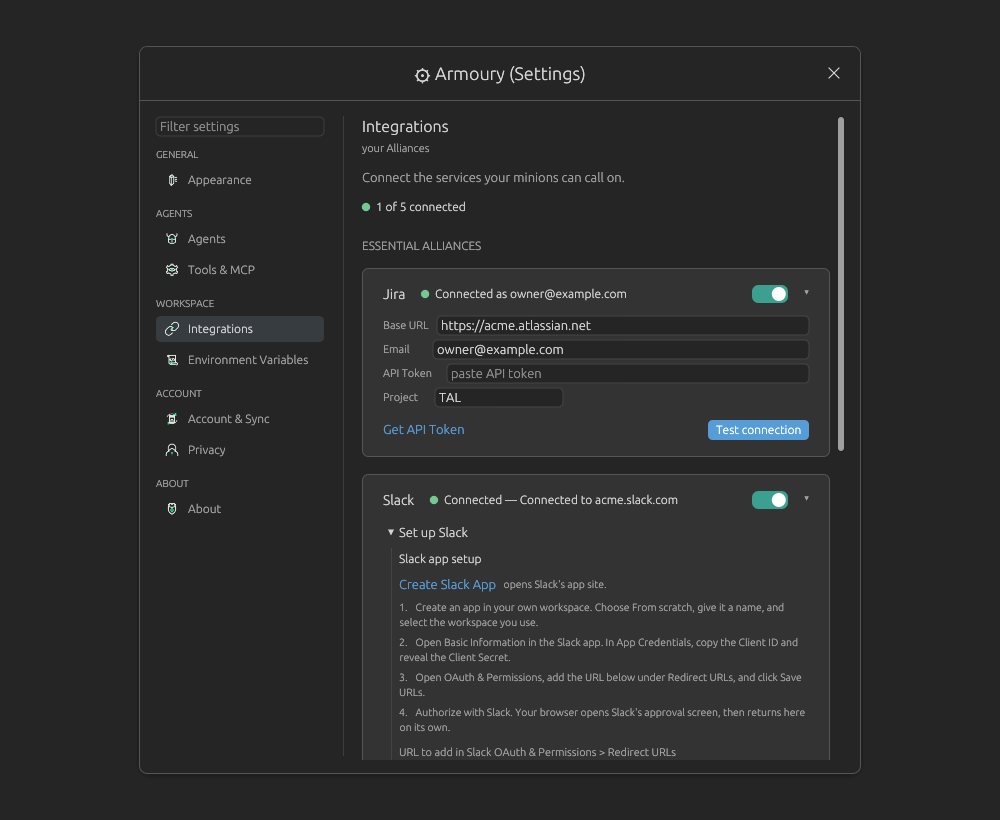 The Integrations page groups workspace Alliances and shows connection status chips on each card.
Every integration card has a status chip, an on/off toggle, and a chevron to expand or collapse the card. Saved secrets show as Saved with a Replace button rather than exposing the secret value.
Essential Alliances
| Card | Options |
|---|---|
Jira |
Base URL, Email, masked API Token, Project, Get API Token, Test connection, Disconnect. |
Slack |
Setup walkthrough, Client ID, masked Client Secret, Default Channel, Authorize with Slack, Cancel while waiting for browser, Test connection, Disconnect. |
Gmail |
Link Google guided setup, legacy relink warning when applicable, Advanced manual OAuth client with Client ID, Client Secret, and Authorize manually, Test connection, Disconnect. |
Forge Alliances
| Card | Options |
|---|---|
GitHub API |
API URL, detected Username, masked Token, Import from gh CLI, Generate Token, Test connection, Disconnect. |
Browser Automation |
Chrome Path, Headless mode, Chromium install/status control, Inscribe & Apply. |
Browser automation runs in an isolated profile. The first time an MCP browser tool logs into a site, that isolated session is remembered.
Distant Alliances
OTRS / Znuny appears only when the OTRS feature flag is enabled. Its fields are Base URL, Username, masked Password, Test connection, and Disconnect.
Environment Variables
Environment Variables manages Environment Scrolls: .env and secret files detected in workspace repos.
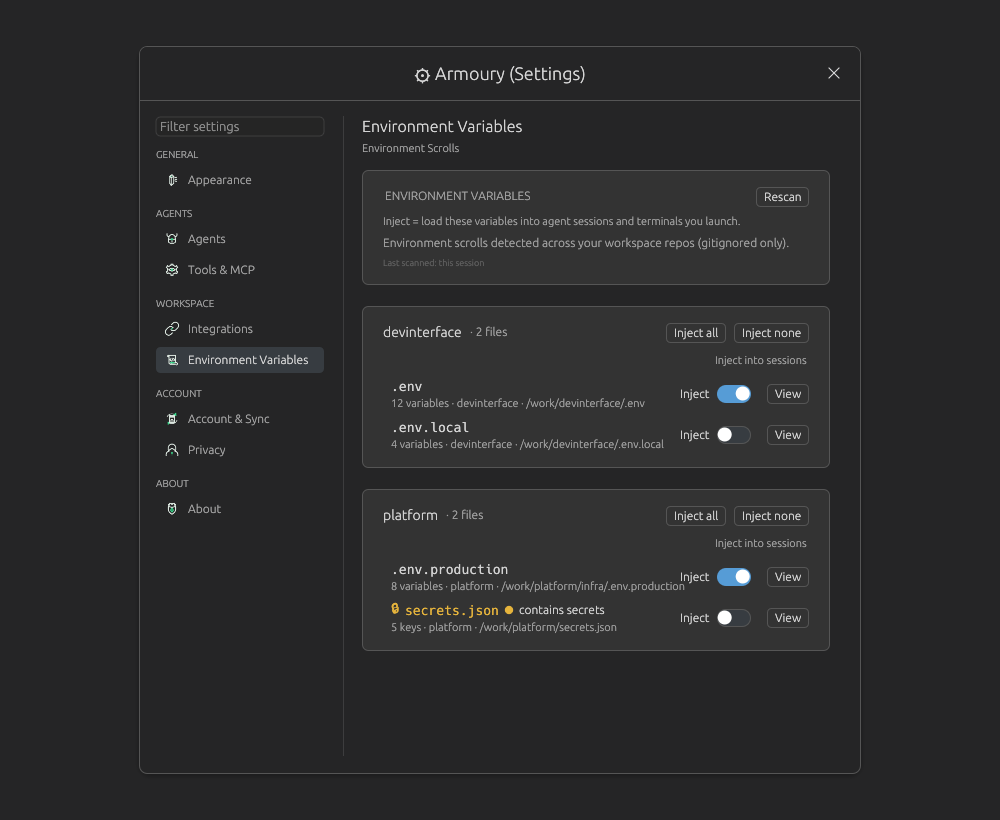 The Environment Variables page groups detected files by repo and lets you inject them into launched sessions.
Before the first scan, the page shows Scan now. After scanning, it shows Rescan, a Last scanned: this session line, and grouped repo cards.
What Gets Detected
Code Overlord scans workspace repo roots for common env and secret filenames. It includes files that are gitignored or are known secret filenames.
Examples include:
.env,.env.local,.env.development,.env.production,.env.test,.env.staging,.env.example.secretssecrets.json,secrets.yaml,secrets.ymlcredentials.json,service-account.json- top-level
.env.*and*.envfiles
Repo Controls
| Control | What it does |
|---|---|
Inject all |
Turns injection on for every detected file in that repo. |
Inject none |
Turns injection off for every detected file in that repo. |
File Inject toggle |
Loads that file's variables into agent sessions and terminals you launch. |
View |
Opens the variable viewer for that file. |
contains secrets |
Amber warning for files likely to contain credentials. |
Turning on injection for a secret-bearing file asks for confirmation with Inject secrets and Cancel. Bulk Inject all is treated as an explicit opt-in.
Variable Viewer
View opens a file-specific viewer with:
< Back: returns to the file list.Filter: narrows variables by key name.- masked values for sensitive keys.
Reveal/Hidefor sensitive values.
Sensitive keys are detected by names such as KEY, TOKEN, SECRET, and PASSWORD.
Warning: Injected variables are added to launched agent sessions and terminals. They are not automatically removed from already-running sessions.
Account & Sync
Account & Sync manages the Realm: your Code Overlord cloud account, plan, notepad sync, and paired phones.
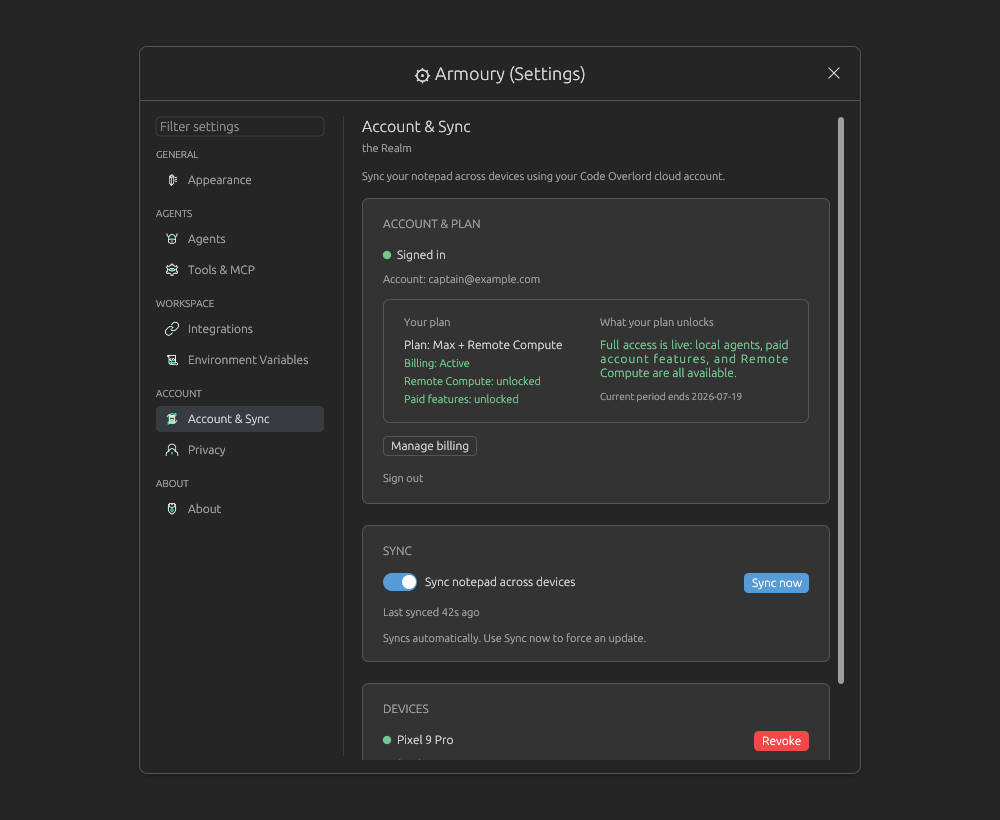 The Account & Sync page shows signed-in account state, billing, notepad sync, and paired devices.
Signed Out
When signed out, the page shows:
Sign In/Sign Upmode tabs.Emailfield.Passwordfield.Sign InorCreate Account.- Plan badge.
After sign-up, the page can show an email verification state with:
Codefield.Confirm.Retreatto go back.
Account & Plan
When signed in, the first card shows:
| Control | What it does |
|---|---|
| Signed-in chip | Confirms the account is authenticated. |
| Account email | Shows the signed-in email. |
| Plan card | Shows plan name, billing status, paid-feature availability, remote-compute availability, and current period end when available. |
Manage billing |
Opens the billing portal. |
Sign out |
Signs out of cloud services on this desktop. |
Sync
The SYNC card controls Notepad cloud sync.
| Control | What it does |
|---|---|
Sync notepad across devices |
Enables or disables notepad sync for this account. |
Sync now |
Forces an immediate sync when sync is enabled. |
| Status line | Shows Last synced, Syncing..., offline pause, or sync errors. |
| Pending writes chip | Appears when local changes are waiting to upload. |
See Notepad for what note data, scrolls, and documents sync.
Android Beta And Devices
If your profile includes Android beta enrollment, the page shows an ANDROID BETA status card.
The DEVICES card lists paired phones with:
- device name.
- platform and app version.
- last seen time.
Revoketo unpair.Refresh devicesto reload the list.
If no phone is paired, the page tells you to open the Summon palette and choose Connect a phone.
Privacy
The Privacy page chooses how much anonymous telemetry Code Overlord may send.
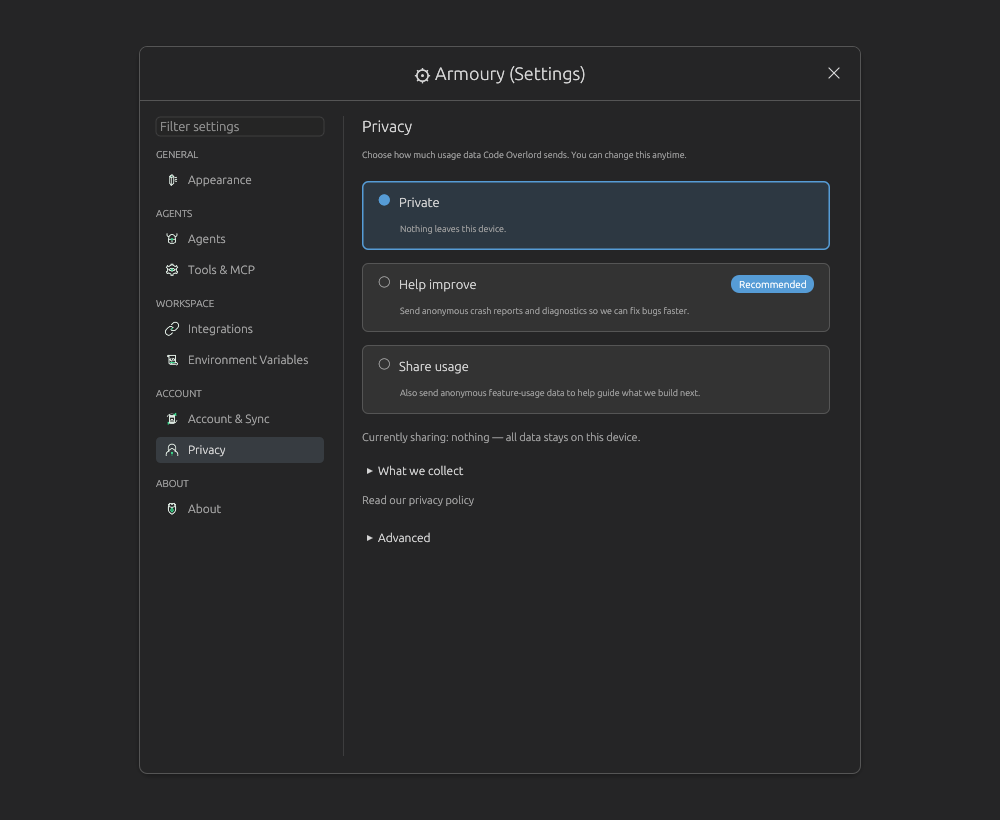 The Privacy page has three plain choices, plus collection details and advanced controls.
| Choice | What it means |
|---|---|
Private |
Nothing leaves this device. |
Help improve |
Sends anonymous crash reports and diagnostics. Marked Recommended. |
Share usage |
Also sends anonymous feature-usage data. |
After you choose a profile, the summary line says what is currently shared.
What we collect expands the exact line items for the selected profile. Read our privacy policy opens the policy page for your build environment.
Advanced Privacy
Open Advanced for technical controls:
| Control | What it does |
|---|---|
Strict privacy - never share usage data |
Prevents usage analytics even when a sharing profile would allow them. |
| Changed / identity timestamps | Shows when telemetry consent and identity last changed. |
| Installation ID / Session ID | Shows shortened local identifiers. |
Surface filter |
All, Desktop, Android, iOS. |
Category filter |
All, diagnostic, performance, product, security, audit, crash. |
Sharing filter |
All, Eligible, Local only. |
Time filter |
All, Last hour, Last day, Last week. |
Export local telemetry |
Writes local telemetry records to an export file. |
Export raw crash bundles |
Exports raw crash bundles only when you explicitly click it. |
Reset local telemetry |
Clears local telemetry history and rotates installation/session identity after confirmation. |
Reset confirmation states that local history will be cleared, telemetry identity will rotate, and your account stays unchanged.
About
The About page is for identity and support diagnostics.
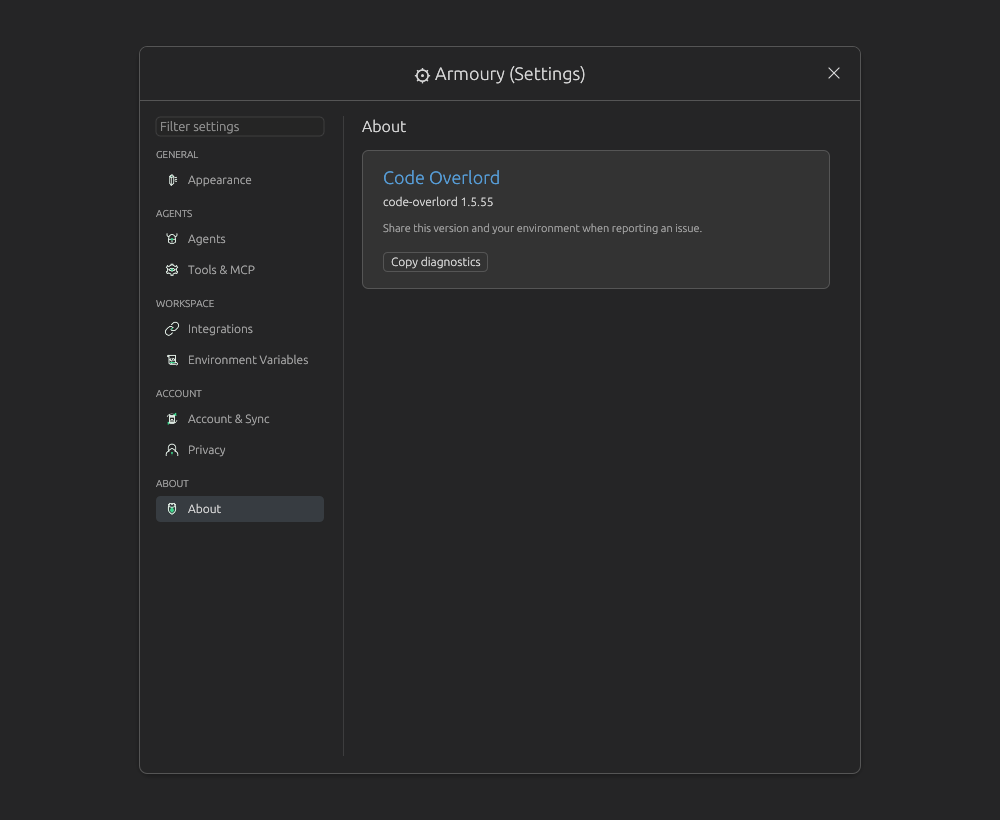 The About page keeps support information compact: app name, version, diagnostics, and onboarding replay in current builds.
| Control | What it does |
|---|---|
| App name and version | Shows the Code Overlord package and version. |
Copy diagnostics |
Copies version, OS, architecture, and build profile to the clipboard. |
Replay onboarding |
Runs the welcome slides and guided tour again. |
Use Copy diagnostics when reporting an issue.
Configuration File Locations
Most users should use the Armoury instead of editing files by hand. These locations are useful for backup and support.
Main App Settings
| OS | Path |
|---|---|
| Linux | ~/.config/code-overlord/settings.json |
| macOS | ~/Library/Application Support/code-overlord/settings.json |
| Windows | %APPDATA%\code-overlord\settings.json |
Agent Launcher Config
| OS | Path |
|---|---|
| Linux | ~/.config/code-overlord/config.json |
| macOS | ~/Library/Application Support/code-overlord/config.json |
| Windows | %APPDATA%\code-overlord\config.json |
Code Overlord keeps launcher-config backups under .../code-overlord/backups/ and retains the newest backups.
Integrations And Tokens
- Integration config:
.../mcp-orchestrator/config.toml - Slack token file:
.../mcp-orchestrator/slack_token.json - Legacy Gmail token file:
.../mcp-orchestrator/gmail_token.json - Secure secrets: OS keychain/secure store where available.
MCP Registry And Agent Configs
- MCP registry:
.../code-overlord/mcp_servers.json - Claude Code MCP config:
~/.claude.json - Codex MCP config:
~/.codex/config.toml - Antigravity CLI MCP config:
~/.gemini/antigravity-cli/mcp_config.json(Antigravity keeps its config under the~/.geminihome directory; this is not the retired Gemini CLI)
Troubleshooting
| Problem | What to try |
|---|---|
| New CLI agent is still marked missing | Install it, make sure it is on PATH, then click Refresh agents. |
| Built-in Claude tasks use the wrong provider | Check Agents -> Default agent for built-in tasks and the selected grunt's template/environment. |
| An MCP server does not appear in an agent | Check server Propagate to agent configs, workspace scope, and that agent's PER-AGENT OVERRIDES. |
| Browser MCP cannot launch | In Integrations, enable Browser Automation, install Chromium if prompted, and click Inscribe & Apply. |
| Env vars are not present in a session | Turn on Inject before launching the agent or terminal. Existing sessions keep their previous environment. |
| Notepad is not syncing | Sign in, enable Sync notepad across devices, check offline/error status, then click Sync now. |
| UI scale is wrong | Go to Appearance, choose a readable scale, click Apply, then Keep changes. If the UI becomes unusable, wait five seconds for auto-revert. |