MCP Tools in Code Overlord
On this page
- What MCP Provides
- The Local Code Overlord MCP Server
- Authentication
- Tools & MCP Page
- Canonical Built-In Tool Surface
- Hierarchical Tools
- Google Workspace
- Jira, Slack, Gmail, Browser, and OTRS
- Session Tools
- Minion and Preflight Tools
- Armoury and Action Tools
- Notepad, Files, Rituals, and VM Tools
- Public Cloud MCP Surface
- Adding an MCP Server
- Per-Agent MCP Overrides
- How Code Overlord Wires Agents
- Routing and Safety
- Connecting an External Local Client
- Troubleshooting
- Missing Instance
- No Local Instance
- Integration Unavailable
- Tool Is Missing From an Agent
- Backend Errors or Rate Limits
- Public Connector Cannot See Jira or Browser
MCP, the Model Context Protocol, is the tool layer that lets agents discover what Code Overlord can do and call those actions in a structured way. In the app, MCP servers are also called Oracles. An Oracle is simply a tool server that minions can consult.
Use this guide when you want to understand:
- What the built-in
code-overlord-mcpserver exposes. - How agents call session, notepad, integration, Armoury, and file tools.
- How to add third-party MCP servers from Tools & MCP.
- Why the public cloud MCP surface is narrower than the local desktop surface.
For provider setup such as Jira, Slack, Google, browser automation, and OTRS, see Integrations.
What MCP Provides
MCP gives agents a predictable JSON-RPC workflow:
initializenotifications/initializedtools/listtools/call
Each tool returned by tools/list has a name, description, and JSON input schema. The agent then calls tools/call with:
{
  "name": "tool_name",
  "arguments": {
    "field": "value"
  }
}
Tool results return as MCP content blocks. Most Code Overlord results are text blocks containing JSON payloads. Browser and other visual tools can also return image content blocks when an operation produces a screenshot-like result.
The Local Code Overlord MCP Server
Code Overlord runs a standalone local MCP server process:
- Default endpoint:
http://127.0.0.1:9850/mcp - Transport: Streamable HTTP
- Protocol payloads: JSON-RPC 2.0 over HTTP
- Process mode:
code-overlord --mcp-server
Non-production variants can use variant-scoped port offsets, but 9850 is the normal desktop endpoint users see.
The server is shared across Code Overlord windows. Each open desktop window registers its workspace, private IPC port, and health information with the server. That registry lets MCP calls target the correct workspace instead of guessing.
Internal registration and health routes include:
/_internal/register/_internal/deregister/_internal/heartbeat/_internal/instances
The standalone server can continue running while GUI windows come and go. If no instances remain registered for roughly a minute and no live GUI process still needs it, it can shut itself down.
Authentication
Desktop-launched agents receive the MCP configuration and bearer token they need at launch. Current local /mcp requests are authenticated with per-session bearer tokens. Internal desktop routes use a separate localhost IPC secret.
For day-to-day use, this is automatic. You normally only need to care about the token if you are manually wiring an external MCP client to the local desktop endpoint.
Tools & MCP Page
Open Armoury (Settings) > Agents > Tools & MCP to manage Oracles and command throttling.
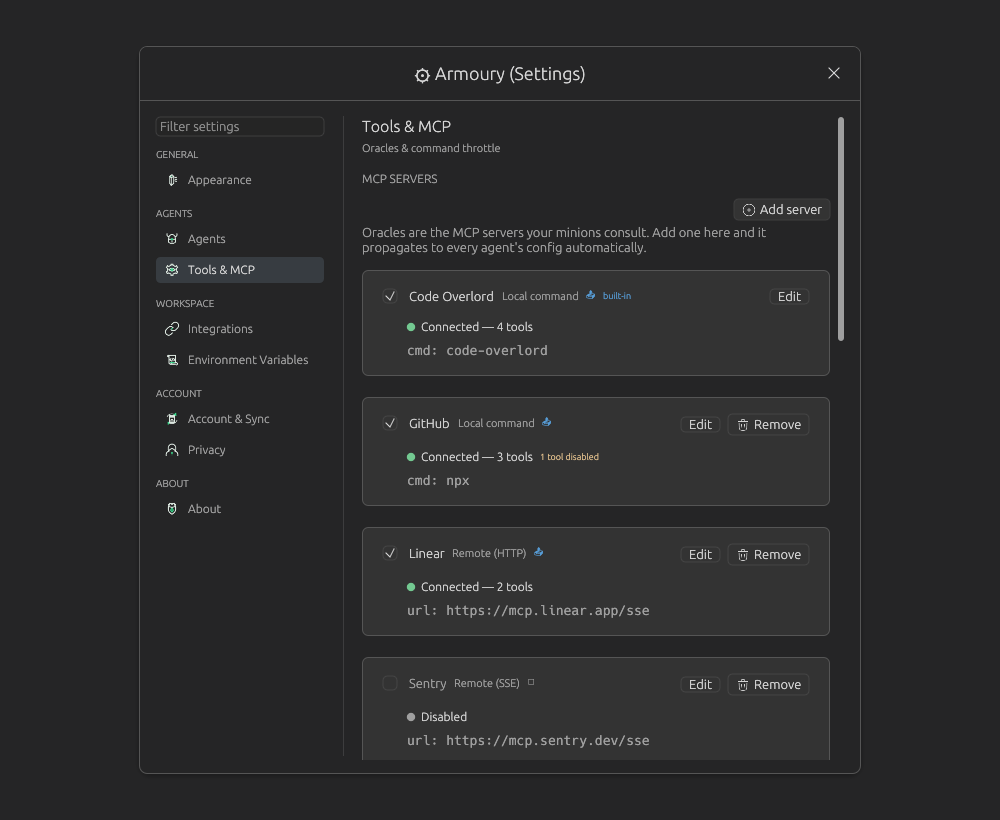 *The Tools & MCP page. Each card shows a transport badge (Local command, Remote (HTTP), Remote (SSE)), a status line, a propagation indicator, and the command or URL. The built-in Code Overlord server is marked
 built-in and has no Remove button; third-party Oracles such as GitHub, Linear, and Sentry can be edited, removed, or disabled. The per-card tool counts here are example data.*
The page has two sections:
- MCP Servers: add, edit, enable, disable, scope, and propagate MCP servers.
- Command Throttling: manage the CPU Maester queue so heavyweight commands run in a controlled way.
The built-in Code Overlord server is managed by the app and is not removable. Other server cards can be enabled, edited, removed, scoped to workspaces, and hidden from specific agents.
Canonical Built-In Tool Surface
The local code-overlord-mcp surface exposes 37 base tools, or 38 when CODE_OVERLORD_OTRS is enabled and the optional otrs tool is present.
These are base tools, not total operations. Many of them are hierarchical tools with dozens of operations behind one top-level name.
| Group | Tools |
|---|---|
| Integration and configuration tools | google_workspace, jira, slack, gmail, browser, armoury |
| Optional integration tool | otrs when CODE_OVERLORD_OTRS is enabled |
| Account, cloud, and runtime action tools | minion_account, cloud_actions, cpu_maester_tool, telemetry_privacy, mcp_registry_actions |
| Session and system tools | create_session, list_sessions, get_session, send_input, read_output, terminate_session, restart_session, resume_session, list_running_agents, list_instances, list_available_agents |
| Minion and preflight tools | list_minions, get_minion_prompt, save_minion, get_org_chart, delete_minion, get_preflight_prompt, set_preflight_prompt |
| File, desktop, scheduling, and VM tools | open_file, list_open_files, read_open_file, close_file, schedule_task, notepad, vm_provision |
Tip: If an integration tool is listed but the integration is not configured, the tool call fails with a clear availability error. Configure the provider in Integrations, then try again.
Hierarchical Tools
Code Overlord keeps the top-level tool list compact. Instead of exposing every Google, Slack, Jira, or browser action as a separate top-level MCP tool, it exposes a few hierarchical tools and routes by operation.
Google Workspace
google_workspace uses both service and operation.
{
  "name": "google_workspace",
  "arguments": {
    "service": "drive",
    "operation": "list_files",
    "params": {
      "query": "name contains 'report'",
      "max_results": 10
    }
  }
}
Services are:
drivedocssheetsslidescalendar
Jira, Slack, Gmail, Browser, and OTRS
These tools use operation and params.
{
  "name": "jira",
  "arguments": {
    "operation": "search_issues",
    "params": {
      "jql": "project = ENG AND status != Done ORDER BY priority DESC"
    }
  }
}
{
  "name": "browser",
  "arguments": {
    "operation": "navigate",
    "params": {
      "url": "https://example.com"
    }
  }
}
For browser work, agents should usually start with:
browseroperationlist_capabilitiesbrowseroperationget_tool_schemabrowseroperationdiscoverornavigate- A focused interaction such as
click,type,screenshot, orevaluate_serializable
This keeps prompts smaller and gives the agent the latest schema for the specific browser operation it intends to use.
Session Tools
Session tools control Code Overlord terminal sessions. They are how one agent can summon another agent, inspect running sessions, or send input.
Common session tools:
create_session: launch a new agent, minion, or plainbashterminal.list_sessions: list active sessions, optionally with AI-generated summaries.list_running_agents: list active agent sessions with status summaries.get_session: inspect one session.send_input: send text to a session.read_output: read recent terminal output.terminate_session,restart_session,resume_session: manage lifecycle.list_available_agents: see launchable agent IDs.
Most session and workspace-scoped tools need an instance value so the MCP server can route to the right Code Overlord window. Desktop-launched agents receive this as CODE_OVERLORD_INSTANCE.
Tools that operate on a specific terminal session often also require:
instance_id: the numeric session ID returned bycreate_sessionor listing tools.caller_session_id: the calling agent's ownCODE_OVERLORD_SESSION_ID, used for callback routing and session safety checks.
Example:
{
  "name": "create_session",
  "arguments": {
    "agent_name": "codex",
    "cwd": "/home/example/project",
    "instance": "project",
    "caller_session_id": 42,
    "execution_target": "local",
    "initial_prompt": "Review the failing tests and report only actionable findings."
  }
}
Tip: Prefer
list_sessionsorlist_running_agentsfor progress checks. Useread_outputwhen the summary says the session is waiting, stuck, or needs deeper inspection.
Minion and Preflight Tools
Minions are named specialist agent profiles. The minion tools let agents discover and manage them:
list_minions: list available minions and their IDs.get_minion_prompt: read a minion's operating instructions.save_minion: create or update a minion.delete_minion: remove a minion.get_org_chart: inspect reporting relationships.get_preflight_promptandset_preflight_prompt: inspect or update the prompt used to rewrite minion instructions before launch.
When you ask an agent to "use Security Auditor" or "summon Product Pete," the agent should call list_minions, find the right minion_id, then call create_session with that ID.
Armoury and Action Tools
The armoury tool lets agents read and update configuration that you normally edit in Armoury. It can export a redacted snapshot or operate on entities such as grunts, minions, model profiles, Oracles, Alliances, environment files, CPU Maester settings, cloud settings, telemetry, and about metadata.
Action tools cover focused settings and runtime tasks:
minion_account: list, link, copy, or unlink a minion's Jira, OTRS, Google, or Slack account.cloud_actions: sign out, sync now, list paired mobile devices, revoke a paired device, or read sync status.cpu_maester_tool: read or cancel work in the managed-command queue.telemetry_privacy: inspect, summarize, export, or reset local telemetry.mcp_registry_actions: refresh CLI status, propagate MCP configs, migrate a plaintext secret to keychain storage, or sync grunts globally.
Secret material is write-only in these tools. Agents can update a secret but should not receive the secret value back.
Notepad, Files, Rituals, and VM Tools
These tools connect agents to desktop workflows:
notepad: manage active, done, and retired notes. Operations includelist_notes,list_done_notes,list_retired_notes,add_note,edit_note,complete_note,restore_note,delete_note,reorder_note,move_up,move_down,update_indent,add_attachment,remove_attachment,add_document,remove_document,bulk_operation,get_board_rules, andset_board_rules. The last two read and replace Thy Quill's laws for that board; the laws are personal to the user and follow them across their devices.open_file,list_open_files,read_open_file,close_file: use the Peruse file viewer.schedule_task: create and manage Rituals, which are recurring or one-time scheduled agent tasks. Operations arecreate,list,update,get_runs,delete, andrun.vm_provision: run provisioning actions on the connected remote VM (Skyforge) when Remote Mode is active —install_packages,run_playbook,query_packages, andlist_installed.
Local desktop MCP exposes the full notepad surface. Public cloud MCP connectors expose a narrower notepad surface, described below.
Public Cloud MCP Surface
Remote AI connectors that reach Code Overlord through the cloud MCP proxy do not see the full local desktop tool surface. The public cloud MCP proxy intentionally advertises only:
list_instancesnotepad
This makes the public surface a postbox: a remote AI can find the right desktop workspace and write/read notepad items, while the actual Jira, Slack, browser, session, and file actions remain configured and executed through the desktop.
The cloud notepad tool is also more conservative than the local one. Remote-safe note operations are exposed, but attachment operations that require desktop-local filesystem paths are omitted.
Adding an MCP Server
Use Armoury > Tools & MCP > Add server.
- Enter a Name. This becomes the server namespace used in agent configs.
- Choose Transport:
- Local command for stdio servers.
- Remote URL for HTTP or SSE servers.
- For Local command, enter Command and optional comma-separated Args.
- For Remote URL, enter URL and choose HTTP or SSE.
- Add environment variables or headers when required.
- Choose storage mode for sensitive values:
- Literal for ordinary non-secret values.
- Keychain for secrets stored in the platform secret store.
- Env ref to read from an environment variable.
- OAuth credential appears in the dropdown but is currently disabled and marked Coming soon.
- Decide whether to Propagate to agent configs.
- Choose Workspace Scope:
- All workspaces
- Selected workspaces
- Use Tool Visibility to hide specific discovered tools from agents.
- Click Inscribe.
The server list shows:
- Transport label, such as Local command, Remote (HTTP), or Remote (SSE).
- Status, such as connected tool count or disabled.
- Whether it propagates to agents.
- Whether it is workspace-scoped.
- Disabled-tool count.
- Command or URL summary.
Tip: The current Test connection button is present in the edit form, but live probing is still being wired. When available tool counts are shown, they reflect the last successful sync.
Per-Agent MCP Overrides
Below the server list, Per-agent overrides control which Oracles each agent sees.
By default, an agent inherits global MCP servers. If you turn off Inherit from global, that agent ignores global defaults and only sees the servers you explicitly enable for it.
Use this when:
- A sensitive MCP server should be available only to a specific minion or agent.
- A noisy tool server should be hidden from most agents.
- You need to test a new MCP backend with one agent before rolling it out.
How Code Overlord Wires Agents
Code Overlord aims for parity across desktop-launched Claude Code, Codex, Antigravity, and Cursor sessions. The same effective registry is materialized differently for each CLI:
| Agent | How MCP config is supplied |
|---|---|
| Claude Code | Per-session MCP config file plus strict config launch flags |
| Codex | Launch-time -c mcp_servers... overrides; no persistent managed Codex MCP file is written |
| Antigravity | Settings-time config for safe entries, plus a launch overlay for session-only or secret-bearing entries |
| Cursor | Global/project config where available, plus project launch overlay and approval flagging for agent sessions |
In all cases, Code Overlord injects the built-in code-overlord-mcp entry and the session bearer token needed by that launched agent.
Routing and Safety
When an agent calls a tool, Code Overlord routes it in this general order:
- Proxied backend tools from configured third-party MCP servers.
- Hierarchical integration tools such as
google_workspace,jira,slack,gmail,browser, andotrs. - MCP-server-owned tools such as
armoury,minion_account,cloud_actions,cpu_maester_tool,telemetry_privacy, andmcp_registry_actions. - Direct first-party tools such as
list_instances, notepad, scheduling, file-viewer helpers, and VM provisioning. - Session/system calls routed locally or forwarded to the instance that owns the session.
Safety checks include:
- Tool name validation.
- Argument size and JSON depth limits for proxied backends.
- Per-backend rate limiting.
- Disabled-tool enforcement.
- Integration availability checks.
- Result-size caps with pagination advice for oversized integration results.
- Workspace and session routing checks for instance-scoped calls.
Connecting an External Local Client
Any MCP-compatible local client can connect to the desktop endpoint when it has the required auth.
Connection target:
http://127.0.0.1:9850/mcp
General workflow:
- Send
initialize. - Keep the returned
Mcp-Session-Idheader for the session. - Send
notifications/initialized. - Call
tools/list. - Call
tools/callwith the selected tool name and arguments.
For multi-window setups:
- Call
list_instances. - Choose the target workspace or instance.
- Pass that
instanceto tools such ascreate_session,list_sessions,list_running_agents,schedule_task,notepad, and file-viewer operations.
Troubleshooting
Missing Instance
Pass the current CODE_OVERLORD_INSTANCE value for instance-scoped tools. If you are outside a desktop-launched agent, call list_instances first and use the returned instance name.
No Local Instance
Open a Code Overlord desktop window for the workspace you want to target. The MCP server needs a registered instance for workspace-routed tools.
Integration Unavailable
Configure the provider in Armoury > Integrations, complete OAuth if needed, and click Test connection. See Integrations.
Tool Is Missing From an Agent
Check Tools & MCP:
- The server is enabled.
- Propagate to agent configs is on.
- The server is in scope for the current workspace.
- The tool is not hidden in Tool Visibility.
- The agent's per-agent override still inherits global servers or explicitly enables this server.
Backend Errors or Rate Limits
Verify the server URL, command, headers, and env values. For remote HTTP/SSE servers, check bearer/API-key headers. If Code Overlord reports a rate-limit backoff, wait and retry.
Public Connector Cannot See Jira or Browser
That is expected. Public cloud MCP connectors are intentionally limited to list_instances and notepad. Use notepad to leave work for the desktop, or launch a desktop agent that has the local MCP surface.