Code Review
On this page
- Manual Review
- Staging Files
- .gitignore and Stashes
- Search Across Changes
- Manual Commit Composer
- Diff Viewer
- Inline vs Split Diffs
- Reading Hunks
- New Files and Wide Lines
- Split Edit Mode
- Review Shortcuts
- Automatic Review
- Automatic State Machine
- When someone else commits first
- Feature Cards
- Feature Diff View
- Automatic Completion
- Commit Planning
- Conflict Resolution
- Typical Review Cycle
The Review area is where you inspect local Git changes, decide what belongs in the next commit, and then commit or push without leaving Code Overlord. Review has two modes:
- Manual gives you direct control over files, hunks, diffs, staging, stashes, and the commit message.
- Automatic asks the Scribe, Code Overlord's AI review helper, to group your changes into logical feature commits that you can keep, banish, review, and commit.
Use the Automatic / Manual toggle at the top of Review to switch modes. "Scroll" means file, "stronghold" means Git repository, and "seal" means commit when those themed words appear in the UI.
Manual Review
Manual mode is the best place to work when you want exact control over what is staged. The left sidebar shows Git status and controls; the main pane shows the selected file's diff.
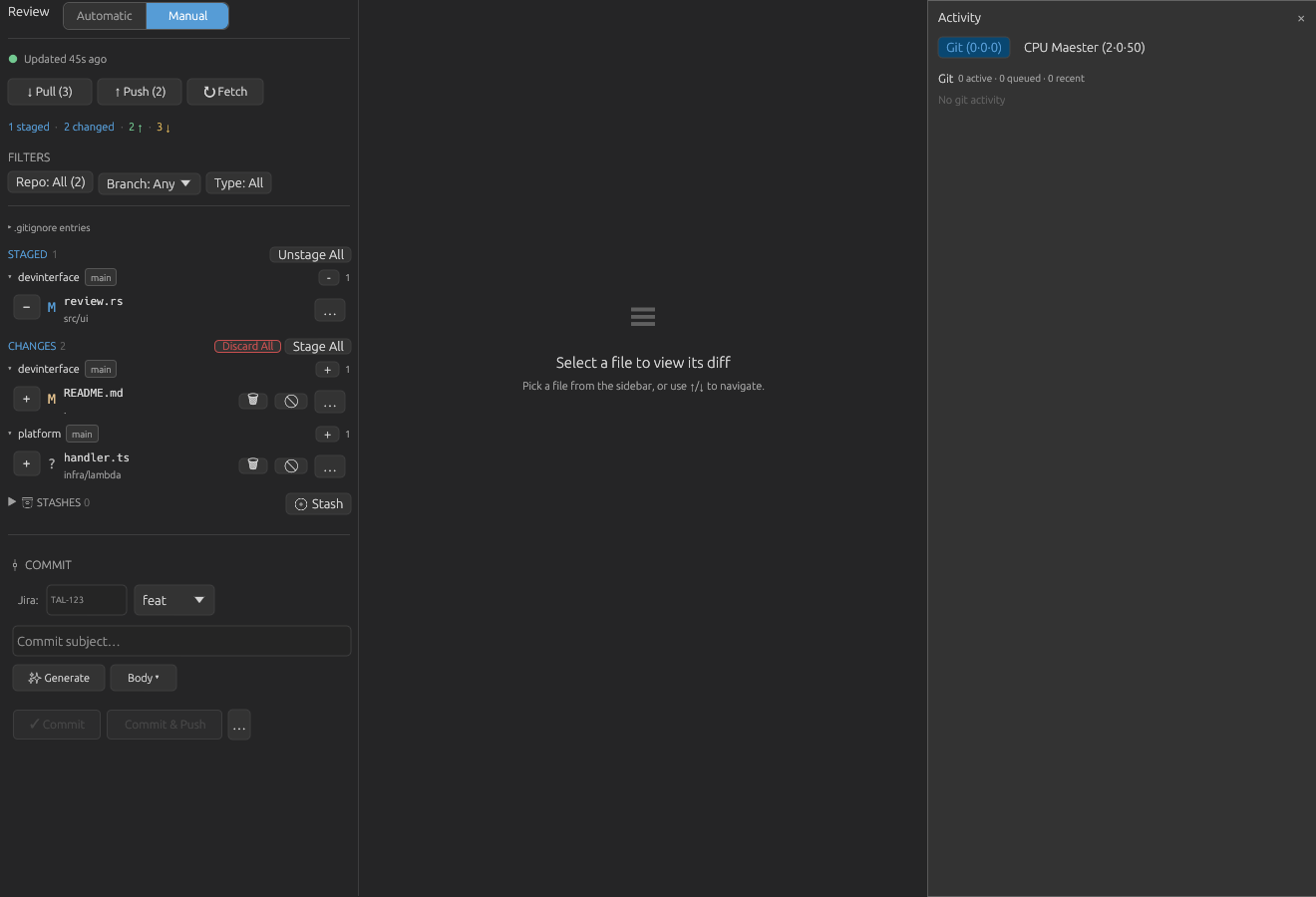 Manual Review separates staged files from working-tree changes and keeps commit controls in the same sidebar.
The top of the sidebar contains:
- Pull, Push, and Fetch. Pull and Push show counts when repositories are behind or ahead.
- A compact status line, such as
1 staged,2 changed, and line totals. - FILTERS for repository, branch, and file type. Repository filters can cover one or many repos in a multi-repo workspace.
- Optional cross-file diff search when the change search panel is open.
If the workspace is not linked to a Git repo, Review shows setup guidance. Aye, m'lord dismisses the prompt so you can use the rest of the app, and Or, found a stronghold here myself initializes a Git repository in the current folder.
When there are no changes, Manual mode shows a clean working-tree state instead of empty file sections.
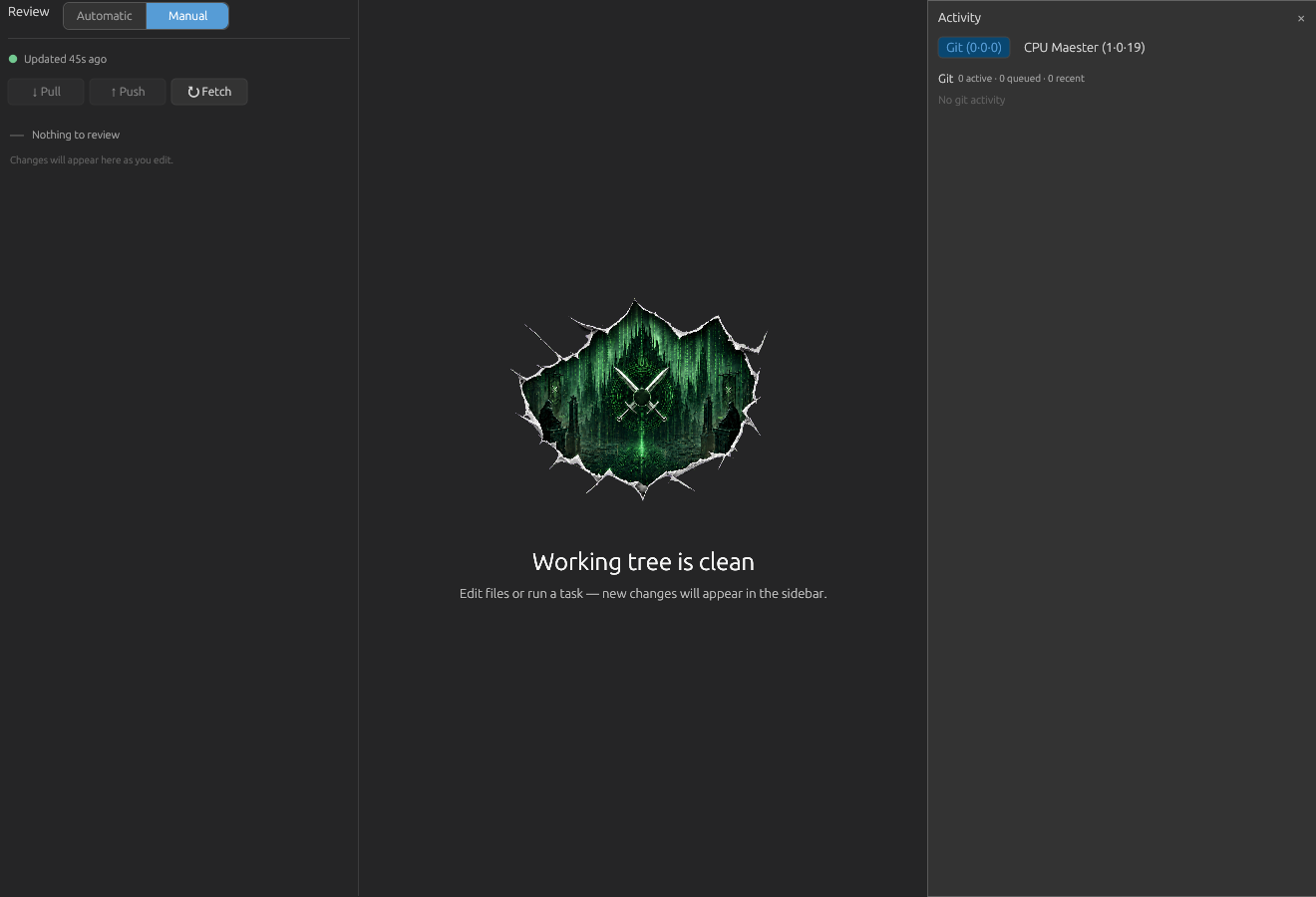 The empty Manual Review state appears when there is nothing staged, changed, or stashed.
Staging Files
Manual mode splits file rows into two sections:
- CHANGES: working-tree changes that are not staged yet.
- STAGED: index changes that are ready to commit.
Each file row shows a status letter, file name, parent directory, and insertion/deletion counts when available. Common status letters are M modified, A added, D deleted, U conflicted, and ? untracked.
For a single file:
- Click
+beside a file in CHANGES to stage it. - Click
-beside a file in STAGED to unstage it. - Click the selectable middle of a row to load the diff.
- Click the file name itself to open the current file in Peruse, Code Overlord's file viewer, when the current copy is available.
- Use the
...file menu for file actions such as opening externally. - On unstaged files, use the trash button to discard changes or delete an untracked file. Use the banish icon to add the path to
.gitignore.
Bulk staging controls are available at several levels:
Stage Allstages every file in CHANGES.Unstage Allunstages every file in STAGED.Discard Alldiscards all working-tree changes in CHANGES. This cannot be undone from Review.- In multi-repo sections, the repo subheader has a repo-level
+or-for staging or unstaging that repo's files.
Tip: If you need only part of a file, open the diff and stage individual hunks instead of staging the whole file.
.gitignore and Stashes
Review helps keep generated files out of commits:
- If untracked files look like dependencies, build output, caches, editor metadata, or secrets, Review can show
These files look fit for banishment to .gitignore:. Add all to .gitignoreadds the suggested patterns.- The
.gitignore entriessection lets you inspect current non-comment entries and remove one if needed.
The STASHES section is collapsed by default. Expand it to preview a stash, apply it, pop it, drop it, or create a new stash with Stash. The themed "vault" text means the Git stash list.
Search Across Changes
Manual mode can search across changed diff text:
- Open the change search panel from Review's search control.
- Type in
Search in diff.... - Results show the file path, line number, and
+or-match context. - Click a result to select the repo and open that file's unstaged diff.
- Use
Xto close the search panel.
This is useful when you remember a function, config key, or deleted string but not the file that changed.
Manual Commit Composer
The commit composer appears at the bottom of the Manual sidebar when there are staged or unstaged files.
It includes:
| Control | What it does |
|---|---|
Jira: |
Adds an optional ticket prefix such as TAL-123. The field auto-uppercased in the UI. |
| Commit type dropdown | Adds a conventional prefix such as feat, fix, refactor, chore, docs, style, test, perf, ci, or build. |
Commit subject... |
The main subject line. The counter warns after 50 characters and turns error-colored after 72. |
Generate |
Uses Gemini to draft a commit message from staged diffs. It is enabled only when files are staged. |
Body |
Expands an optional body field with the hint Tell the tale (optional).... |
| Preview | Shows the full message exactly as it will be submitted, including Jira, type, subject, and body. |
Commit actions are:
Commit: creates a commit from the staged files.Commit & Push: commits and then pushes to the remote....menu:Amend the Last Commit,Commit (Signed-off-by), andUndo the Last Commit.
Commit and Commit & Push stay disabled until at least one file is staged and the subject is not blank.
Diff Viewer
Selecting a file opens the diff viewer in the main pane. The viewer is shared by Manual Review, Automatic Review feature diffs, and History, but editing and staging controls appear only where they are safe.
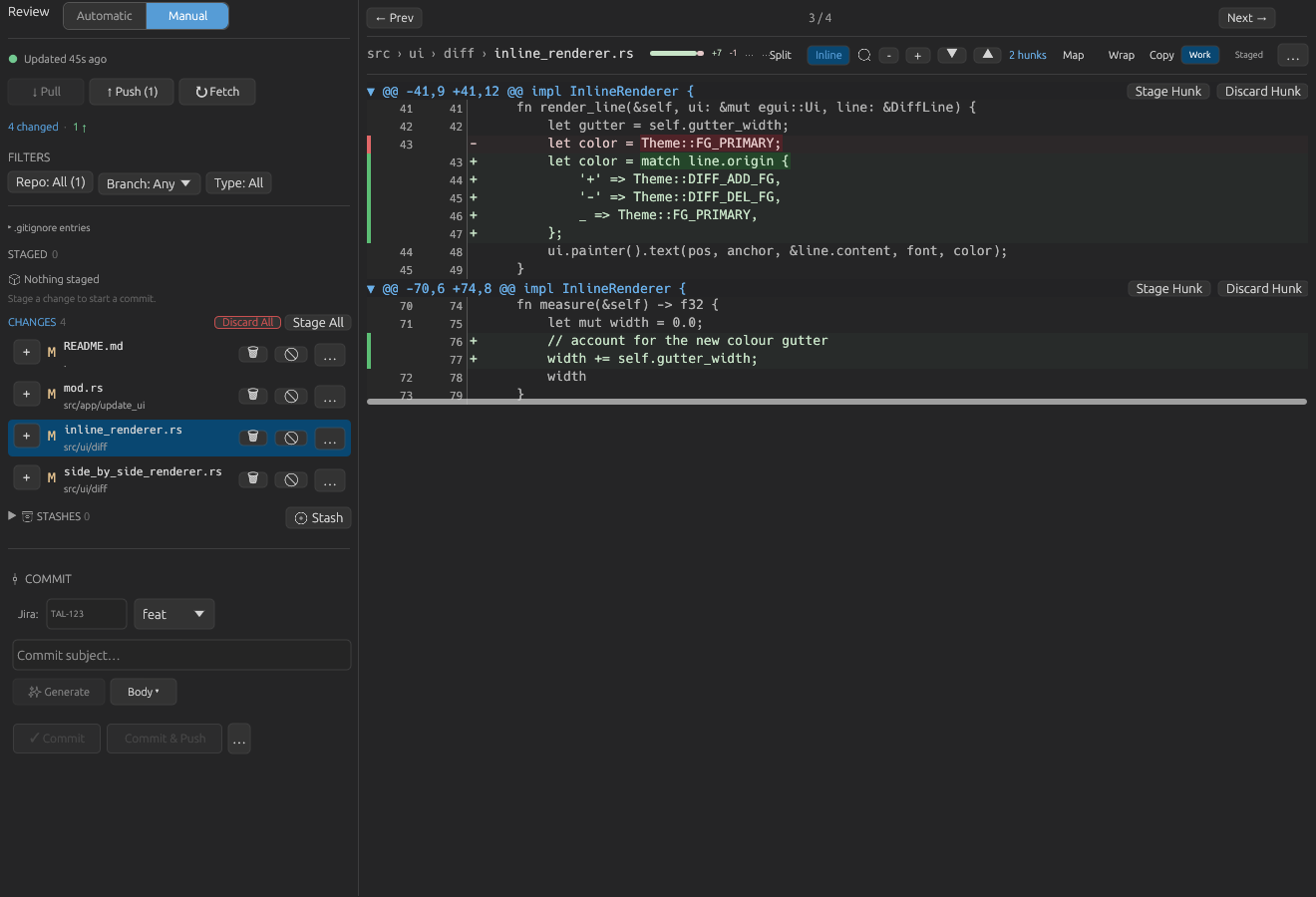 A selected unstaged file shows hunk controls, Work/Staged target toggles, search, map, wrap, copy, and diff mode controls.
The full diff toolbar can include:
- Breadcrumb path, such as
src > ui > diff > inline_renderer.rs. - Diff stats: additions, deletions, total lines, and hunk count.
- Language badge when the extension is recognized.
InlineandSplitlayout toggles.Searchwith live match counts.- Hunk navigation arrows and total hunk count.
Mapminimap toggle for long diffs.Wrapfor soft-wrapping long lines.Copy, which copies the diff content.WorkandStaged, which switch between working-tree and staged diffs for the selected path....overflow menu for file actions and hidden diff controls when the pane is narrow.
If no file is selected, the diff area prompts you to pick one from the sidebar.
 The diff empty state appears when Review has no active file selection.
Inline vs Split Diffs
Inline mode shows old and new lines in a single stream. Deletions are red, additions are green, and changed spans inside paired lines are highlighted.
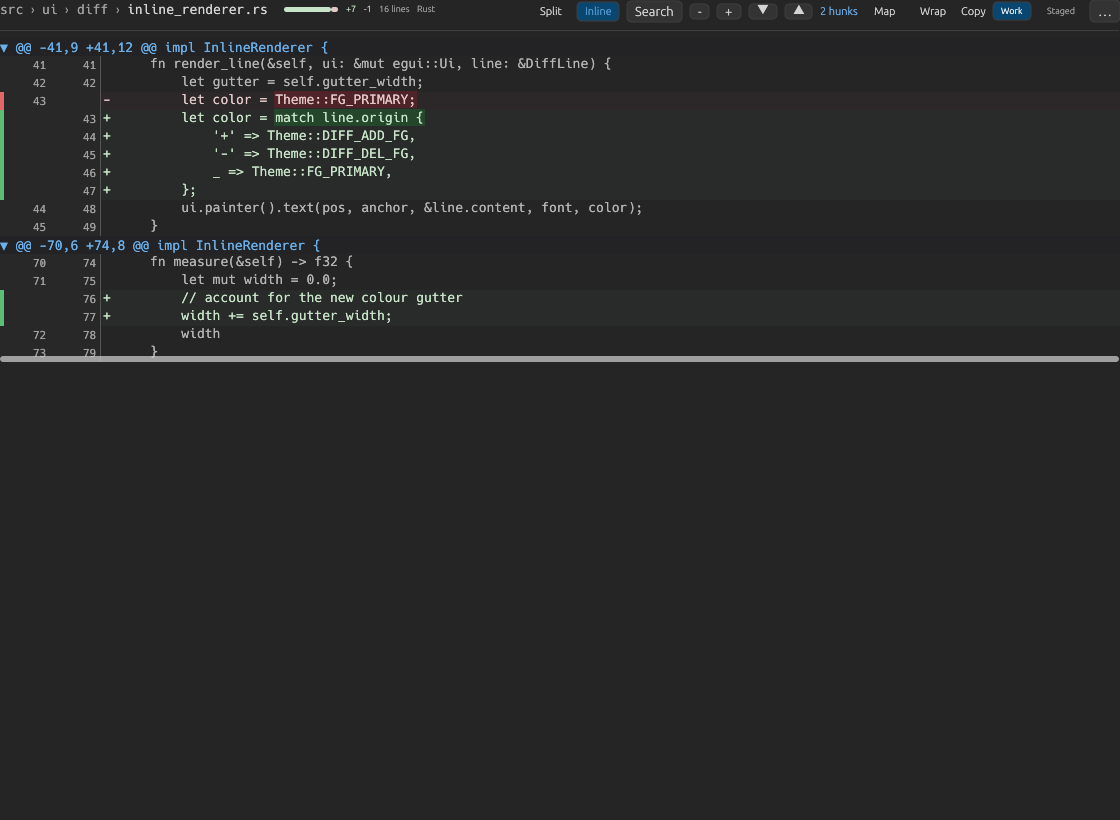 Inline mode keeps context, removals, additions, and hunk headers in one vertical stream.
Split mode shows old content on the left and new content on the right. It is easiest when comparing paired removals and additions. If the pane is too narrow, Code Overlord falls back to Inline even if Split is selected; the Split control also indicates that it needs a wider pane.
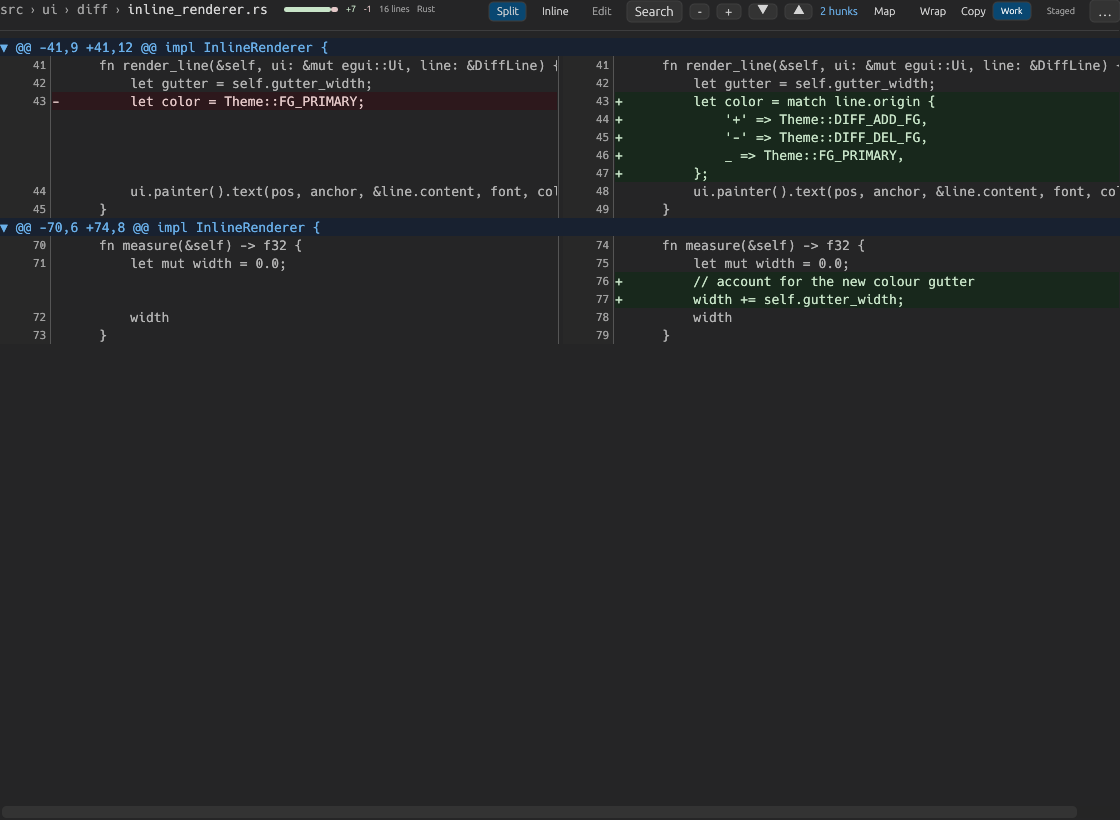 Split mode aligns the old file on the left and the new file on the right, with a shared horizontal scroll area for wide code.
Use the Inline / Split buttons or Cmd/Ctrl+D to toggle modes.
Reading Hunks
A hunk is a contiguous block of changed lines. Hunk headers start with @@ and show the old and new line ranges.
In Inline mode:
- Click a hunk header to collapse or expand it.
- Use the up and down hunk buttons to jump between hunks.
- Press
Nfor the next hunk orShift+Nfor the previous hunk when the diff pane is focused and no text field is active. - Use
+and-hunk toolbar buttons to expand or collapse all hunks when those controls are visible. - Use
Mapto show or hide the minimap. The minimap auto-hides on small diffs and appears for longer diffs.
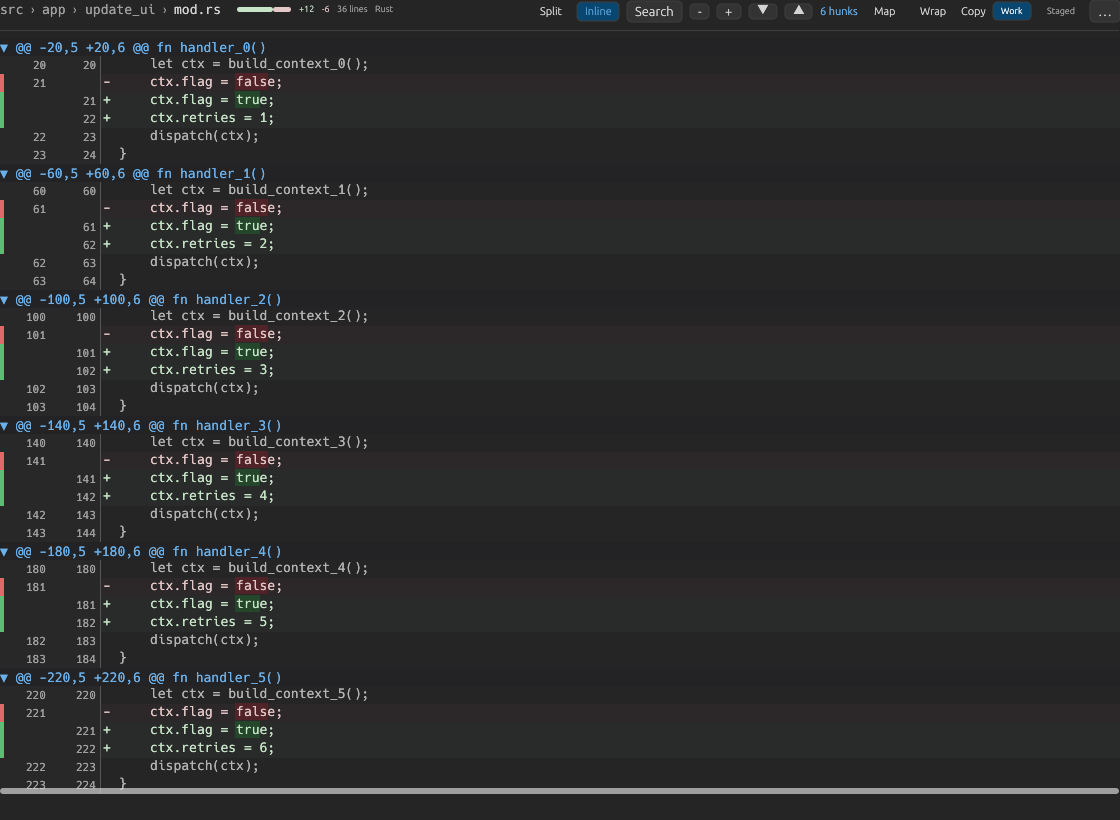 Many-hunk diffs show the hunk count, hunk navigation controls, and repeated hunk headers for each changed region.
Hunk actions depend on the target:
- In
Work/ unstaged diffs, useStage Hunkto stage just that hunk. - In
Work/ unstaged diffs, useDiscard Hunkto throw away just that hunk. - In
Stageddiffs, useUnstage Hunkto move that hunk back to the working tree.
Warning:
Discard Hunk, file discard, andDiscard Allremove working-tree changes. Use them only when you are sure the change is not needed.
New Files and Wide Lines
New files show additions only. The old line-number column is blank because there is no previous version of the file.
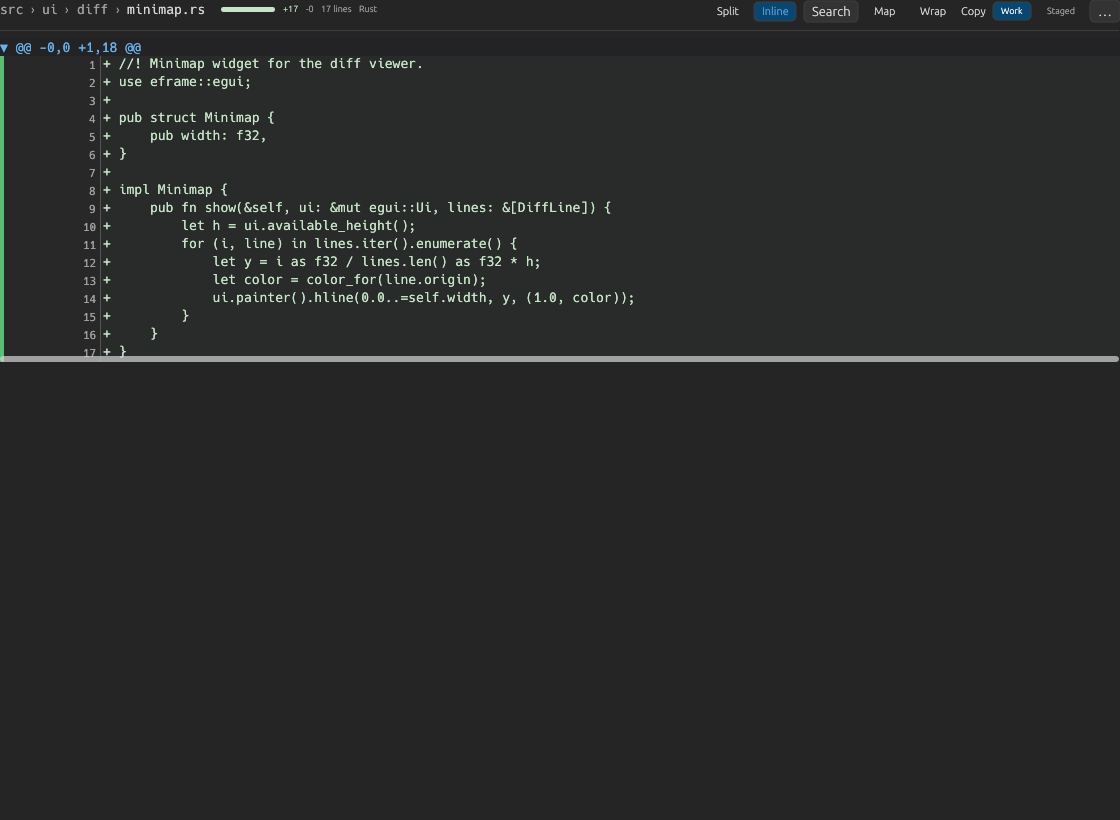 A new file diff is a green addition block with new line numbers only.
Long lines are not wrapped by default. Use the horizontal scrollbar to inspect the right side, or toggle Wrap to soft-wrap the diff.
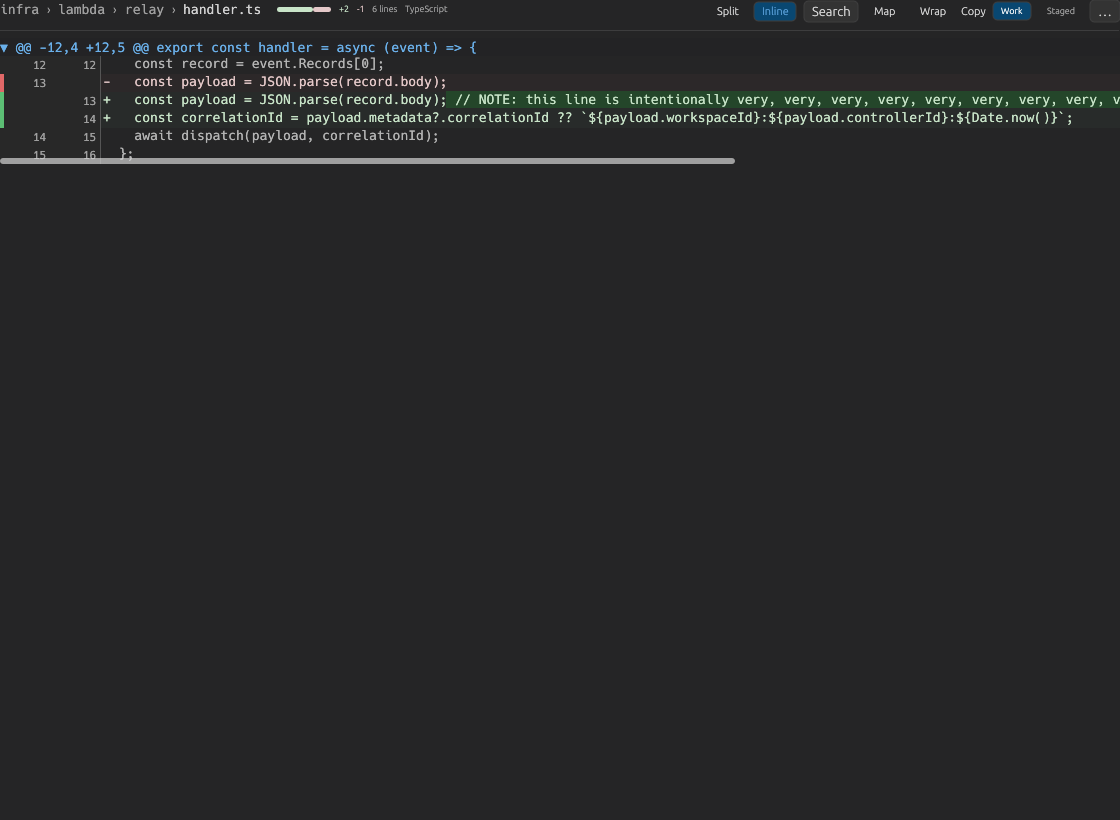 Wide lines can be read with the horizontal scrollbar, or softened with the Wrap control.
For very large diffs, Review protects performance:
- Diffs with more than 1,500 changed lines first show
Diff too large to display inlineand aLoad Diffoption. - Diffs over the large rendering threshold show a
Vast scroll of changesbanner and use virtual scrolling. - Generated files may be called out as candidates for
.gitignore. - Image files use an image diff view when image diff data is available.
- If there is no textual diff payload, Review shows a read-only preview or "no diff payload" message.
Split Edit Mode
For unstaged files in Split mode, the Edit toggle lets you patch directly in the diff viewer.
When editing:
- The right side becomes editable for context and addition lines.
Inscribesaves the edited file content.Retreatexits edit mode without saving from the diff UI.
Edit mode is intentionally unavailable for staged diffs, History diffs, and narrow panes where Split mode is not available.
Review Shortcuts
These shortcuts are active when no text input or terminal has focus:
| Shortcut | Action |
|---|---|
[ |
Previous file in Review's current file list |
] |
Next file in Review's current file list |
Space |
Stage or unstage the active file in Manual mode |
Delete / Backspace |
Discard the active file in Manual mode |
Enter |
Re-open/select the active Review file's diff |
Esc |
Close the Manual diff selection |
C |
Focus the commit subject field |
Cmd/Ctrl+D |
Toggle Inline/Split diff mode |
N |
Next hunk in the focused diff pane |
Shift+N |
Previous hunk in the focused diff pane |
Automatic Review
Automatic mode groups raw file changes into feature-level commits. It is useful when a task changed several files and you want commits organized by intent instead of by file order.
When there are no changes, Automatic mode shows the themed clean state: All is quiet in the realm, with the hint No changes to review yet — edit a scroll or summon a task to begin.
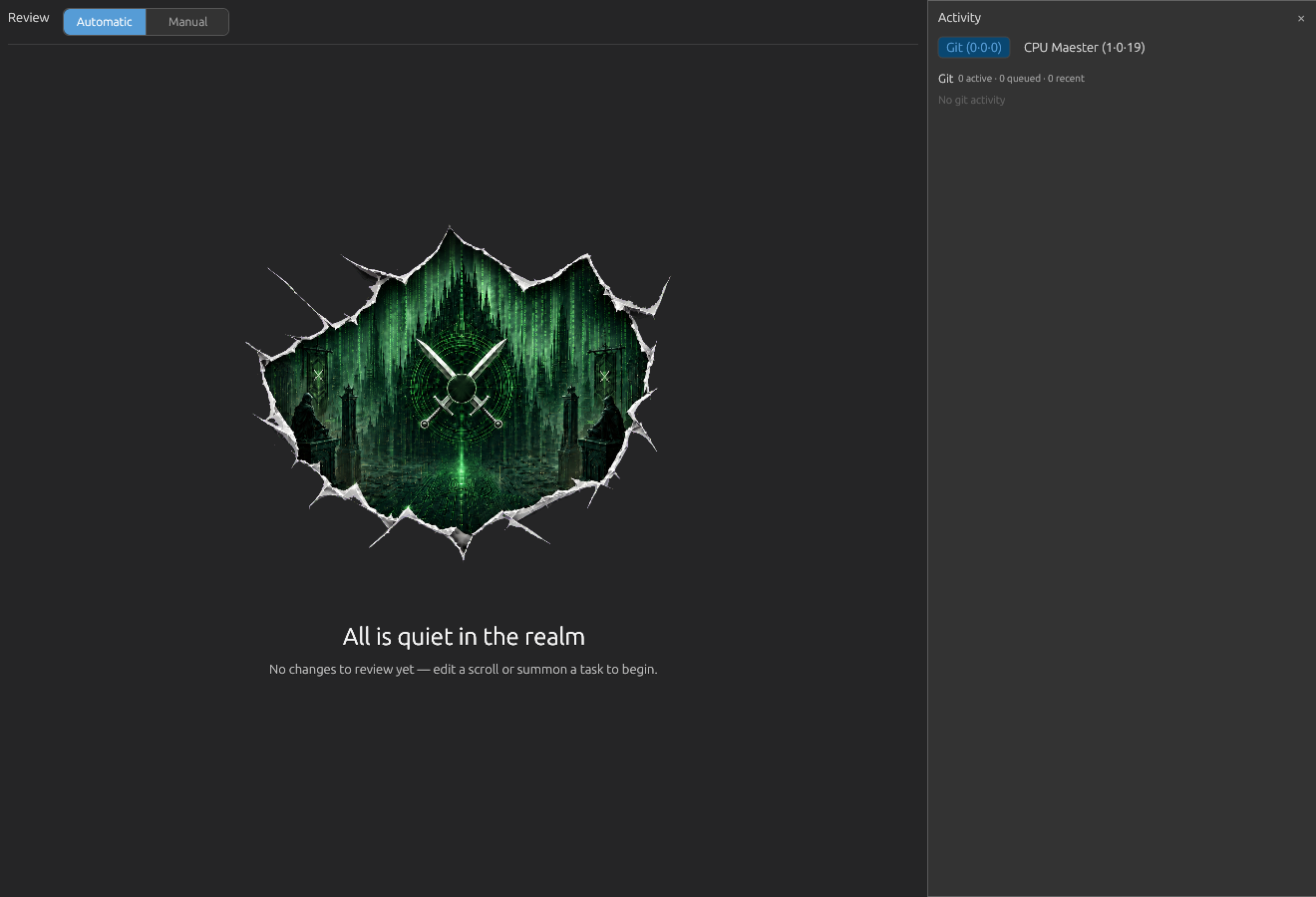 Automatic Review stays quiet until there are files to analyze.
When changes are present, Automatic mode opens in its ready state. The screen leads with a headline such as 2 files changed across 1 repo, then a colored line-count summary (+N lines added in green, -N lines removed in red) when those numbers have been computed. The primary action is Summon the Scribe — its hover tip reads Analyzes your changes into logical commits. Older screenshots may label the same button Analyze Changes.
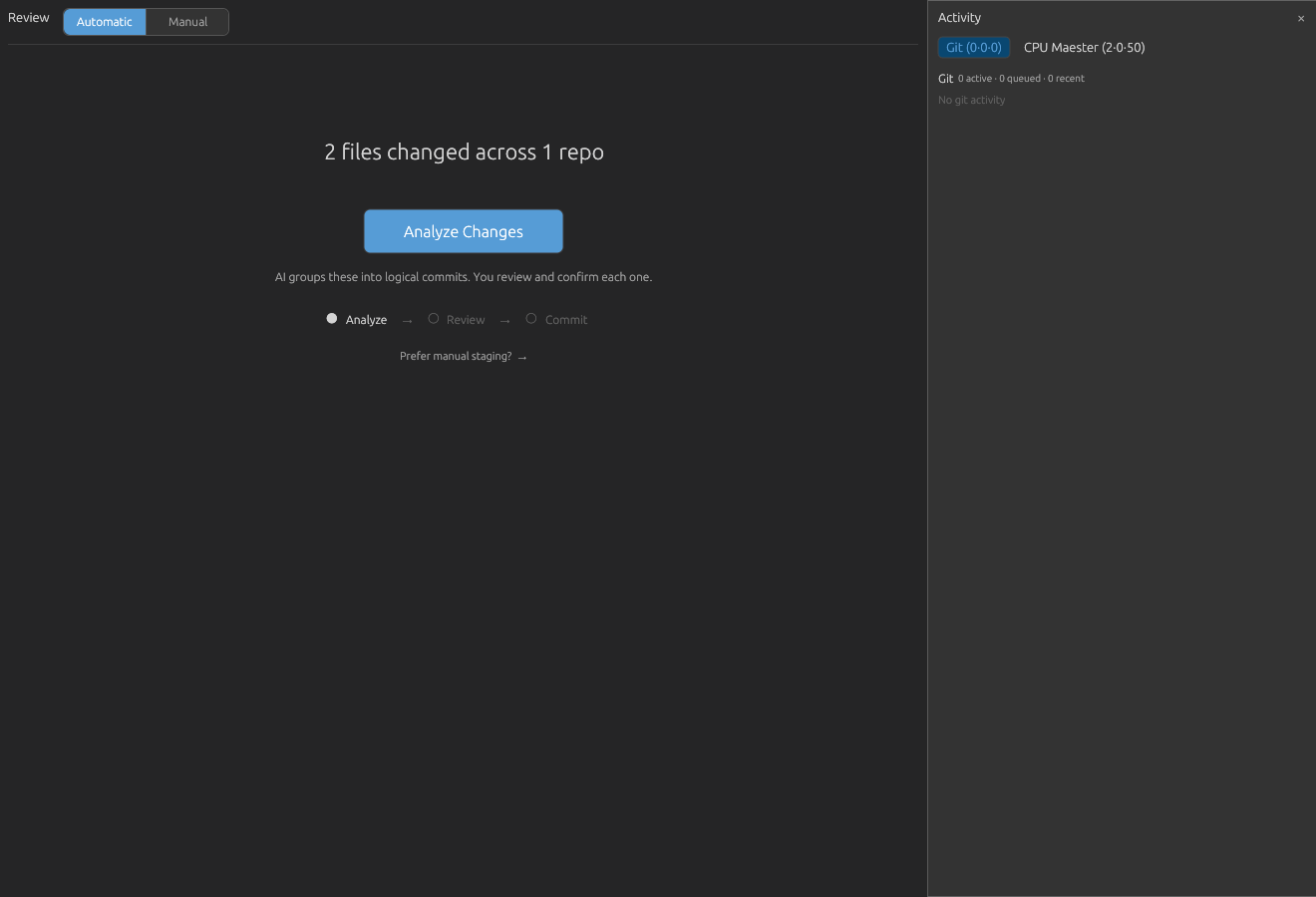 The ready state summarizes the changed files and starts the Scribe analysis flow. This capture is from an earlier build, where the button read
 Analyze Changes.
Below the button, a one-line reminder — The Scribe sorts your changes into logical commits; you pass judgment on each — sits above a three-step progress hint, Scry → Review → Seal (commit), so you can see that analysis is the first of three steps, not a one-shot action. A Rather stage by hand? → link drops straight into Manual review for anyone who wants per-hunk control.
Automatic State Machine
The whole Automatic flow is driven by one reducer-owned state machine, so every screen you see maps to a single internal state. Knowing those states makes the flow predictable:
| State (internal name) | What you see | What can happen next |
|---|---|---|
Empty (IdleEmpty) |
All is quiet in the realm when there are no reviewable files. |
Edit files or switch to Manual. |
Ready for analysis (ReadyForAnalysis) |
File/repo totals, the line-count summary, the Summon the Scribe button, the Scry → Review → Seal stepper, and a link back to Manual staging. |
Start analysis. |
Preflight (Preflight) |
A disabled primary button — Preparing analysis..., Preparing commit..., or Preparing push... — with a spinner, plus a status line such as Checking remote... or Waiting for confirmation... and an elapsed timer. |
Code Overlord fetches, may ask you to confirm a pull or an oversized analysis, then proceeds automatically. |
Analyzing (Analyzing) |
A spinner, Analyzing N files..., an elapsed timer, a note that each attempt runs up to a few minutes and retries once if it stalls, the last few live Scribe progress lines, and Stop Analysis. |
Feature cards appear, analysis is cancelled, or a failure screen appears. |
Reviewing (Reviewing) |
Feature cards, .gitignore suggestions if any, keep/banish controls, and Commit All Kept Features (N). |
Review details, open diffs, banish/restore features, or commit kept features. |
| Discarding (view sub-state) | The feature cards with an inline Banish this feature? confirmation over one card. This is a UI overlay, not a separate reducer state. |
Confirm banish or cancel. |
Committing (Committing) |
Committing features..., per-feature result rows, a N of N committed... counter, and Cancel. |
The done state appears, or the failure state appears. |
Done (Committed) |
All changes committed, a N commits across N repos summary, per-feature result rows, Push All, View in History, and Done - return to review. |
Push, inspect History, or reset Automatic Review. |
Pushing (Pushing) |
The done screen with a spinner and Pushing.... |
Review resets to ready/empty after the post-push refresh, or a failure appears. |
Failed (Failed) |
The Scribe Got Confused, an error summary, a Click to see error details panel, and two actions. When the failure was caused by another session committing the staged changes first, the primary action is Commit Remaining — it reuses the messages the Scribe already wrote — with Re-analyze beside it as the deliberate expensive choice. Other failures keep Re-analyze and Switch to Manual. If commits were pushed but changes remain, the title becomes Commits Pushed with Analyze Remaining Files. |
Commit the remaining generated work, re-analyze from scratch, or move to Manual. |
If an analysis fails for a retryable reason, Automatic Review retries once on its own and shows a brief "…failed once; retrying automatically" notice. If the retry also fails, the failed screen stays put: it auto-clears roughly five minutes later the next time your files change, so you are never stuck staring at a stale error, but it lingers long enough to read.
When someone else commits first
A shared tree often has more than one writer. If another session commits the same changes while the Scribe is writing its commit messages, the Scribe's own commit can find nothing left to commit. That is not a failure — it is the outcome you asked for, reached by another route — so Code Overlord reports it plainly (Already committed — another session committed these changes first.) and carries on instead of discarding the work.
When only some of the work was already committed, the app re-checks what is genuinely outstanding and commits that, reusing every generated message; the model is called again only if the shape of the work itself changed. Recovery is automatic and bounded: if the plan cannot settle after a small number of attempts it stops and explains rather than looping. The failed panel's primary action is then Commit Remaining, which keeps the generated messages instead of regenerating them; Re-analyze stays available as the explicit choice when you want a fresh analysis.
Feature Cards
After analysis, the Scribe presents one card per proposed feature commit. A header above the cards reads AI found N features in your changes, followed by a one-line summary of how it grouped the work.
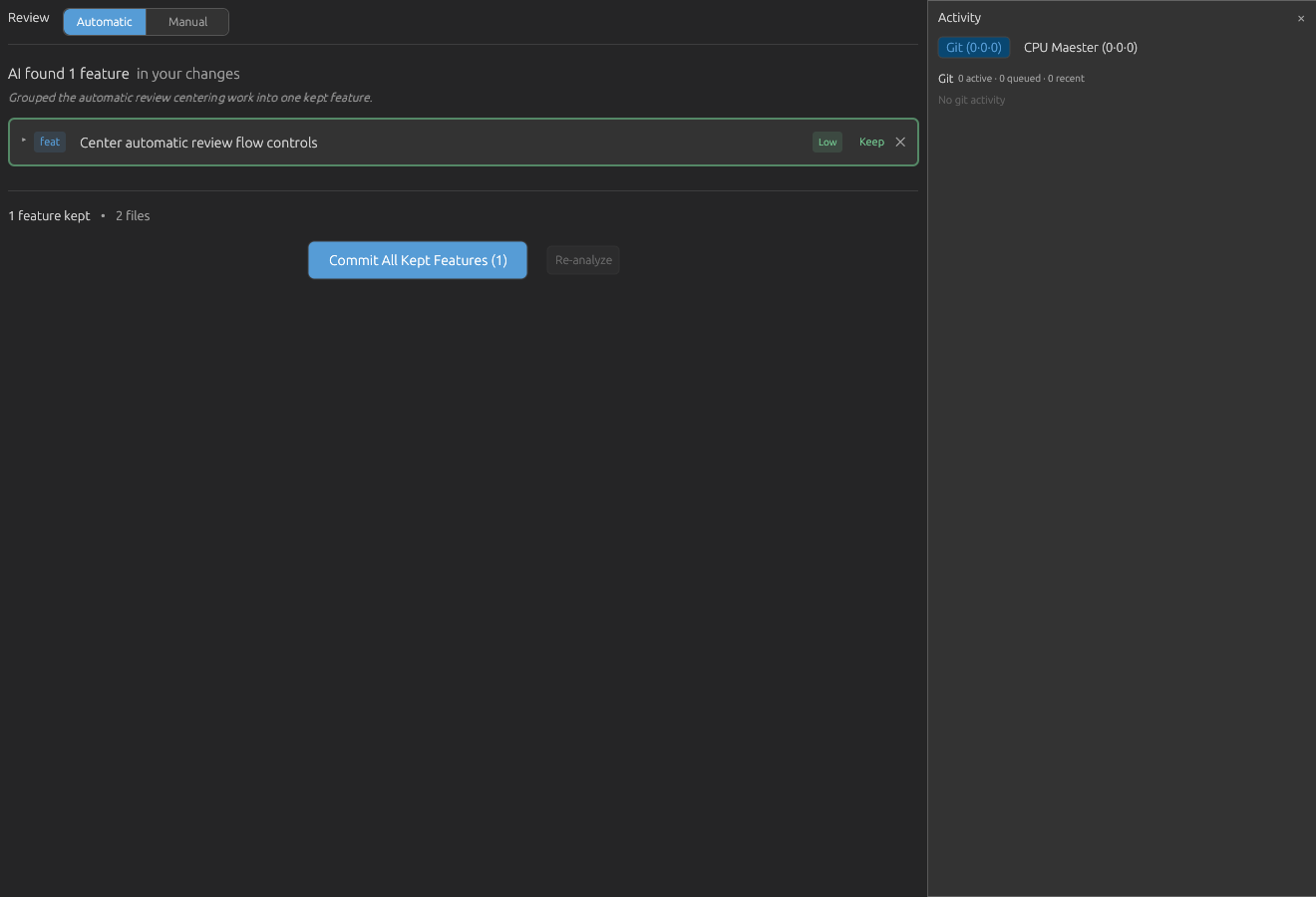 Feature cards show the proposed commit type, title, risk, keep/banish state, and the commit-all action.
Each card can show:
- A commit type badge such as
feat,fix,docs, orchore. - The feature title and optional description.
- A risk badge:
Low,Medium, orHigh. - A risk note when the Scribe has a non-low risk explanation.
- A
Jira:field withTAL-123as the hint. - A live
Commit:preview that updates when the Jira field changes. - A file list grouped by repo, with status letters and per-file explanations.
Feature controls:
- Click the card header (or its chevron) to expand or collapse details.
Keepis a status indicator, shown in green, meaning the feature is currently part of the commit plan. Every card starts kept.- The
✕button (hover:Banish this feature) drops a card from the plan. Banishing is destructive. It opens aBanish this feature?confirmation warning that N files will be reverted to their last committed state; clicking the redConfirm Banishdiscards those files' working-tree changes, whileCancelbacks out. A banished card is greyed with a struck-throughBanishedlabel. Restore(hover:Spare this feature) returns a banished card to the kept set. It re-adds the feature to the plan but does not bring back changes already discarded by a confirmed banish.- Click a file path inside an expanded card to open that feature file's diff.
Commit All Kept Features (N)queues one feature commit per kept feature. It is disabled when nothing is kept.- A running tally under the cards reads
N features kept • N files(a• N discardedsegment appears only once you have banished at least one feature). Re-analyzeis disabled while the current analysis is still valid — its tooltip explains it becomes available only after an analysis fails. Use it from the failed screen or once new changes land.
Warning: Banishing a feature is not the same as un-checking it — it reverts those files on disk. If you only want to leave a feature out of this commit run, banish reverts the work; if you want to keep the changes but split them differently, use Manual review instead.
Automatic Review can also suggest .gitignore updates. The suggestions card says Found ~N files that should be in .gitignore, lets you uncheck patterns, and applies accepted patterns with Add N patterns to .gitignore.
Feature Diff View
Opening a file from a feature card shows the same rich diff renderer, scoped to that feature.
The top bar includes:
Back to features- The feature's commit type and title
File X of Y- The file status letter, path, repo name, and file explanation
The bottom of the view links to the previous or next file in that feature. The diff itself supports Inline/Split, search, hunk navigation, Map, Wrap, and Copy. It is displayed as an unstaged diff because Automatic Review is reviewing the current working-tree changes before committing them.
Automatic Completion
After all kept features are committed, Automatic Review shows the completion state.
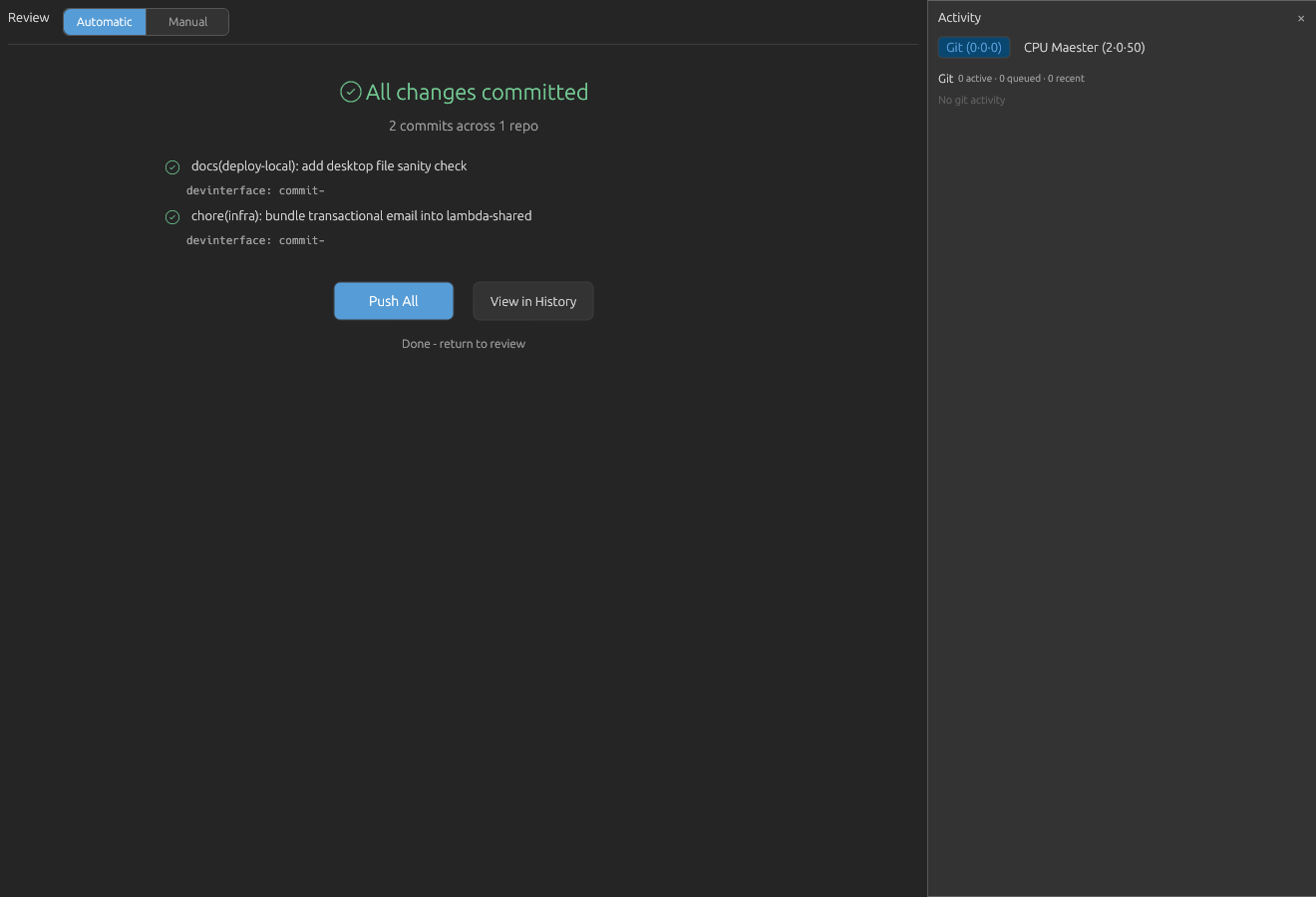 The done state lists committed features and offers Push All, View in History, or return to Review.
The header reads All changes committed with a green check and a summary such as 3 commits across 2 repos — or 3 commits (1 failed) across 2 repos if any feature commit errored — followed by a per-feature result list showing each commit's short SHA in each repo.
Use:
Push Allto push the resulting commits.View in Historyto switch to Git History and inspect the resulting commits.Done - return to reviewto reset Automatic Review.
While Push All runs, the button is replaced by a spinner and Pushing...; once the post-push refresh finishes, Automatic Review resets to its ready or empty state.
Commit Planning
Commit Planning is a related AI-assisted path for splitting changes into one or more planned commits. You may see it when Code Overlord is orchestrating a commit queue rather than the feature-card flow.
It presents:
- An analyzing state with
Reading the runes of your changes..., elapsed time, and recent status lines. - A failed state with
The Scribe could not divide these changesandTry Again. - A single-commit plan with an editable message, commit type badge, file preview,
COMMIT ALL, and optionalRe-analyze. - A multi-commit queue with pending, committed, skipped, and failed statuses, plus
Commit AllandRe-analyze. - A selected commit detail pane with editable message, rationale, included files,
Commit, andSkip. - A done summary that can prompt
New changes detected - Re-analyze.
Conflict Resolution
When a merge or rebase has conflicts, Review switches into conflict tooling.
The header shows:
MERGE IN PROGRESS, orREBASE IN PROGRESS (step/total).- The remaining conflict count.
Abort Mergefor merge flows.Abort RebaseandContinue Rebasefor rebase flows. Continue is enabled only when conflicts are resolved.
The file list groups unresolved and resolved files. Selecting a file opens the conflict viewer.
For each conflict region, you can:
Accept Current (Ours)Accept Incoming (Theirs)Accept BothAccept Both (Reversed)- Use
PrevandNextfor multiple conflict regions. - Compare
Current (Ours),Incoming (Theirs), and, when available,Base (Common Ancestor).
When no conflict markers remain, use Mark as Resolved to stage the file.
Typical Review Cycle
- Sync first with
FetchorPullif your branch is behind. - Inspect CHANGES and STAGED.
- Stage files, stage hunks, or unstage anything that does not belong.
- Read diffs in Inline or Split mode. Use search, hunk navigation,
Map, andWrapas needed. - Commit manually, or switch to Automatic Review to let the Scribe group the work into feature commits.
- Push from Manual Review, from the Automatic done state, or from the toolbar.
- Use Git History to confirm the resulting commits and branch context.
This keeps file-level detail, feature-level reasoning, and Git operations in one place.