Toolbar and Navigation
On this page
- Overview
- Top Toolbar Reference
- Summon and the Dock
- View Navigation
- Repository and Review Controls
- Current Branch Popup
- Diff Toolbar
- Screenshot-Visible Review Toolbar
- Tabs and the New-Tab Split Button
- Resume Menu
- Left Sidebar and Center Navigation
- Keyboard Shortcuts
- Global
- Action Mode / Terminal
- Peruse / File Viewer
- Review Mode
- Screenshot Bottom-Bar Hints
- Practical Navigation Workflows
- Troubleshooting Navigation
Overview
The desktop app uses a custom title bar instead of a native operating-system toolbar. The main navigation areas in current builds are:
COMMAND: run agents, inspect files, use the terminal panes, and start new work.CONTROL: review repository state, diffs, staging, commits, branch sync, and tasks that affect the working tree.CHRONICLE: browse project history, previous sessions, commits, and past activity.
Older screenshots and some internal shortcut descriptions may still use the earlier names Action, Review, and History. In this guide, COMMAND maps to the old Action view, CONTROL maps to Review, and CHRONICLE maps to History.

The compact top toolbar keeps workspace navigation, the three major views, status chips, and update state visible while agents run.
Top Toolbar Reference
The toolbar is laid out from left to right. Some controls are text labels, and some are icon buttons with hover text in the app.
The three view tabs (COMMAND, CONTROL, CHRONICLE) sit in the center, flanked by crossed-sword flourishes. Everything to their left is workspace navigation; everything to their right is status and window controls.
| Control | What it does |
|---|---|
Summon / Close |
Opens or closes the agent launcher (the "dock"). If you are in CONTROL or CHRONICLE, clicking Summon first returns you to COMMAND so the launcher can be used. While the launcher is open, the button reads Close. |
| Workspace badge | Shows the current workspace name, usually uppercased. Hover it to see the full workspace path on disk. |
| Back / Forward arrows | Moves through the app's navigation history. Use these after jumping between files, views, branches, or history entries. |
COMMAND |
Opens the agent and terminal workspace. (Internally, and in the Spellbook, this is still called Action mode.) |
CONTROL |
Opens the review workspace. When uncommitted files exist, the tab shows a count, such as CONTROL (8). A soft attention border can pulse on this tab while a background review is waiting and you are on another view. (Internally Review mode.) |
CHRONICLE |
Opens commit, file, and session history. Hover reads "browse git commit & branch history." (Internally History mode.) |
| Notification bell | A skull-and-crossbones bell that opens the notification center. When there are unread agent notifications it hovers as N unread Omen / N unread Omens; when clear it reads Silence across the realm. Omens are pending agent notifications. |
| Activity indicator | Opens the activity panel showing git fetch, pull, push, and background queue progress. It animates while background git work is running. |
| Branch chip | Opens branch and repository operations for the current workspace (see Current Branch Popup). The chip shows the active branch and a dot/marker when the repo is ahead or behind its remote. |
| Cloud sync chip | Shows whether cloud sync is active, idle, syncing, unavailable, or disconnected. Click it to open cloud sync details. See Cloud Sync. |
| Ascension / update indicator | Appears when an update is available or installing. While installing it hovers as "Ascension underway — installing the update. The app stays usable." Ascension is the app's word for a self-update. |
| LOC chip | Shows net line-of-code change for the selected date range. Hover for the exact range and the signed change. |
Local / Skyforge chip |
Shows whether agents run locally or through Skyforge remote compute. It reads Local on this machine, or a Skyforge state label when remote; hover reads The Skyforge (idle) or Skyforge: <state> (active). See Cloud Sync. |
| Window controls | Minimize, maximize/restore, and close the app window. |
Empty toolbar space acts like a title bar: drag it to move the window, and double-click it to maximize or restore. Interactive controls keep their normal click behavior.
Tip: If the toolbar feels crowded, widen the window. Chips such as
LOC, the update indicator, and the cloud/compute chips only appear when they have something to report, and some collapse into hover text on narrow windows.
Summon and the Dock
Summon is the main entry point for starting agent work. The dock, also called the agent launcher, opens in COMMAND and lets you pick the next agent, task, or command flow.
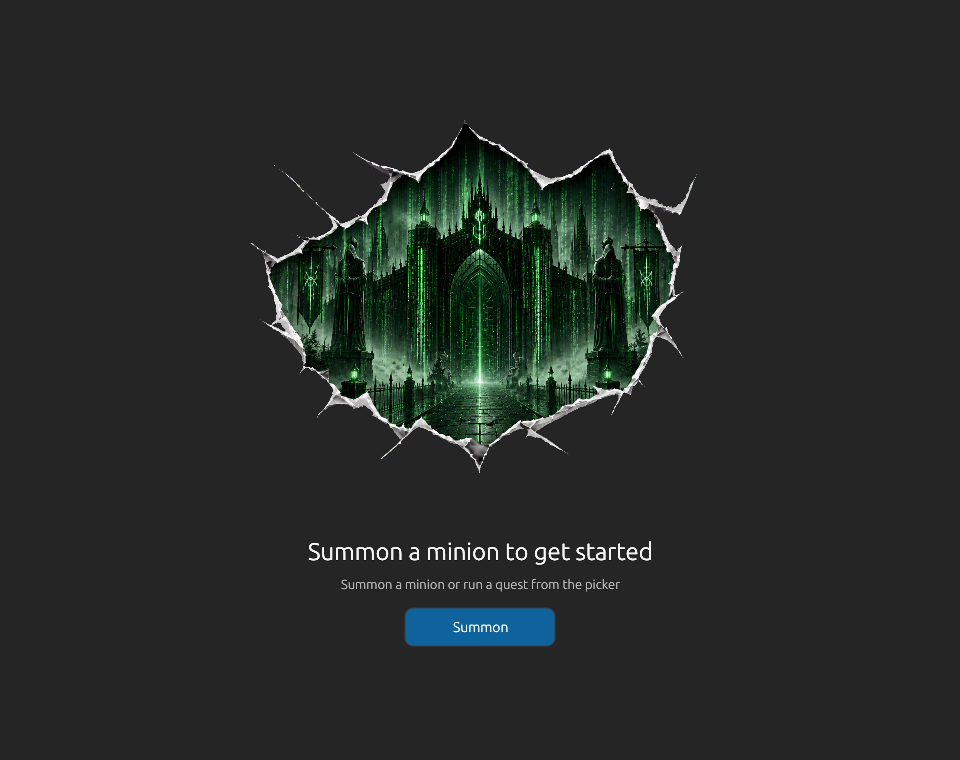
When there is no active agent or task, the center pane shows Summon a minion to get started with a Summon button.
Use Summon when you want to:
- Start a new agent session.
- Launch another instance of the selected agent.
- Return from review or history navigation to the operational workspace.
- Open the picker after closing all tabs.
The button can change to Close while the picker is open. Closing the picker returns you to the previous COMMAND layout.
View Navigation
You can switch views with the toolbar tabs or shortcuts:
| Shortcut | Result |
|---|---|
Ctrl/Cmd+1 |
Switch to COMMAND. |
Ctrl/Cmd+2 |
Switch to CONTROL. |
Ctrl/Cmd+3 |
Switch to CHRONICLE. |
Alt+Left or Ctrl+Left |
Navigate back. |
Alt+Right or Ctrl+Right |
Navigate forward. |
Cmd+[ / Cmd+] on macOS |
Navigate back / forward. |
When no tabs are open, tab-cycling shortcuts fall back to cycling between the major views.
Repository and Review Controls
Repository controls live primarily in CONTROL and in the branch/activity toolbar popups.
Current Branch Popup
Click the branch chip to open branch operations. Current builds provide:
- Repository and branch search, including
Filter repos / branches...and per-repositoryFilter branches.... - Recent branches and branch lists.
- Per-repository
Fetch,Pull, andPushactions when they apply. - Fleet actions such as
Fetch All,Pull All, andPush Allfor multi-repository workspaces. - Branch switching and branch-management actions from the repository branch panel.
The branch chip is context-aware. If a repository is behind its remote, Pull appears with a behind count. If it is ahead, Push appears with an ahead count.
Diff Toolbar
In current source, the diff mode buttons are Inline and Split. Split is the side-by-side comparison mode, but it may collapse to a disabled state when the diff pane is too narrow. Older screenshots may label the same mode Side-by-Side.
The review toolbar can also expose target controls such as staged changes versus working-tree changes, depending on the current review context.
Screenshot-Visible Review Toolbar
The full-window reference screenshot shows an older, more explicit review toolbar row with several controls that are still useful to recognize:
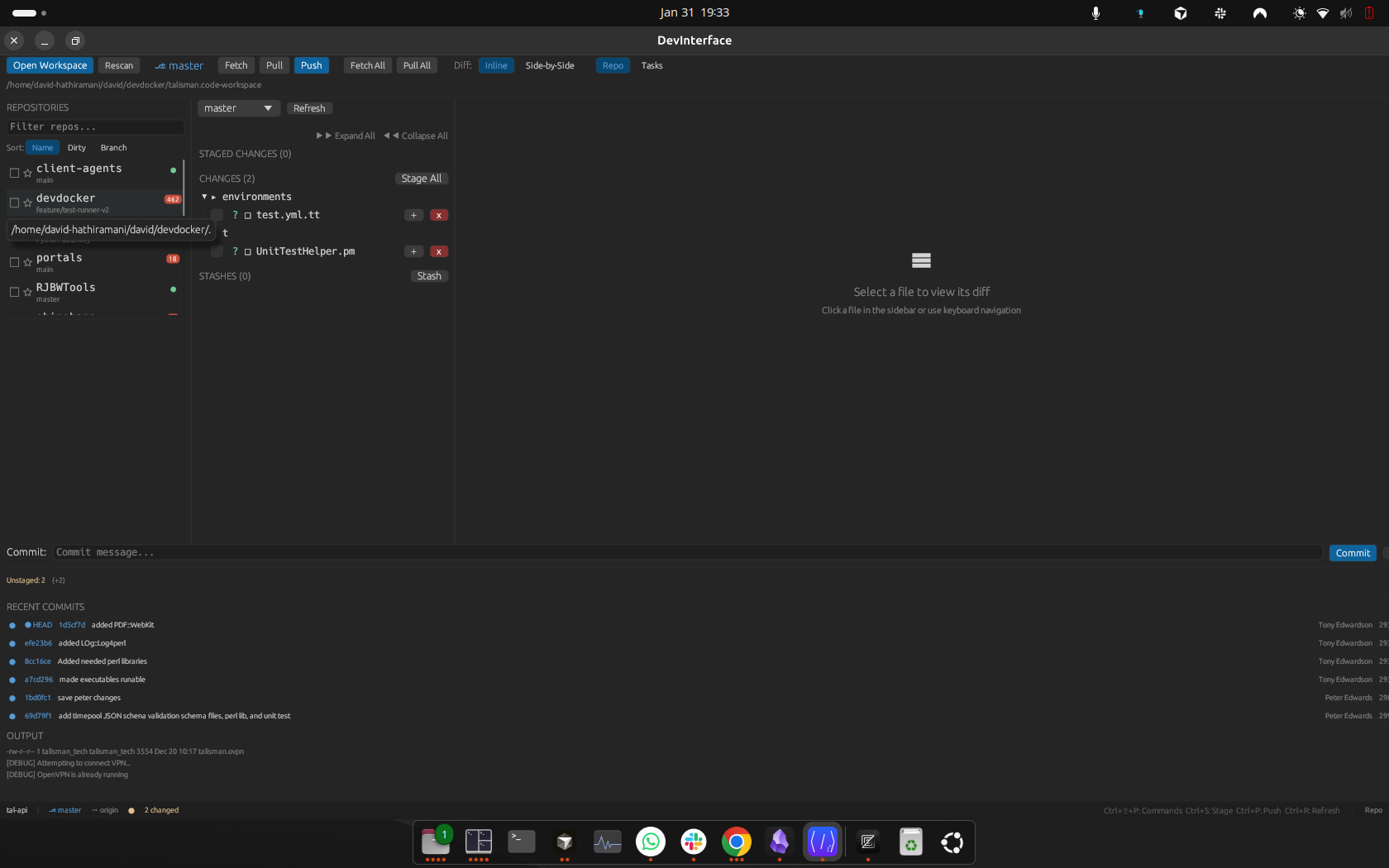
This capture is useful for anatomy: it shows workspace controls, git sync buttons, diff mode toggles, review tabs, and the bottom-right shortcut hints in one place.
| Screenshot label | Current guidance |
|---|---|
Open Workspace |
Opens a folder or workspace file. On the welcome screen, the same flow is labelled OPEN STRONGHOLD. |
Rescan |
Refreshes repository discovery and status after file-system or git changes. |
Fetch, Pull, Push |
Sync the selected repository with its remote. In current builds, these actions are primarily surfaced through the branch popup and activity controls. |
Fetch All, Pull All, Push All |
Run the sync action across workspace repositories when available. Current branch popups expose these as fleet actions. |
Diff: Inline |
Shows changes in a single inline diff stream. |
Diff: Side-by-Side |
Older label for split diff mode. Current builds call this Split. |
Repo / Tasks |
Older review-area tabs. Current primary navigation uses CONTROL for repository review and COMMAND for task/agent work. |
If your installed build still shows the older row, use the on-screen labels. The underlying workflow is the same: open or rescan the workspace, sync repositories, choose a diff layout, then review or stage changes.
Tabs and the New-Tab Split Button
COMMAND uses task and agent tabs for terminal work. Tabs can show status, labels, close buttons, and hidden-overflow controls. File viewers opened from the sidebar are tracked separately in the file area.
The new-tab button changes shape depending on whether resumable sessions exist.
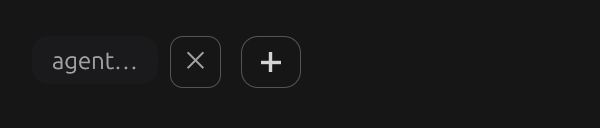
When there are no resumable sessions for the selected context, the tab strip shows a standalone plus button.
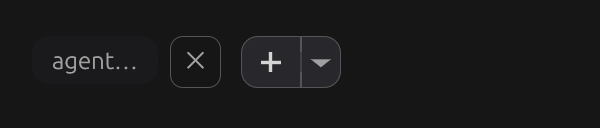
When resumable sessions exist, the plus launches a new instance and the caret opens the resume menu.
Use the split button as follows:
- Click
+to summon another instance of the selected agent or task. - Click the caret to inspect resumable sessions for the current workspace and agent context.
- Use
Ctrl/Cmd+Nfor a new instance. - Use
Ctrl/Cmd+Wto close the current tab.
Right-click menus are intentionally limited. Task and non-agent instance tabs can offer actions such as Rally Again, Resume Session, and Dismiss depending on state. Agent tabs do not use the same right-click menu.
Resume Menu
The resume menu is scoped to the current workspace. It shows past sessions with a title, short summary, relative age, and the folder or agent context.
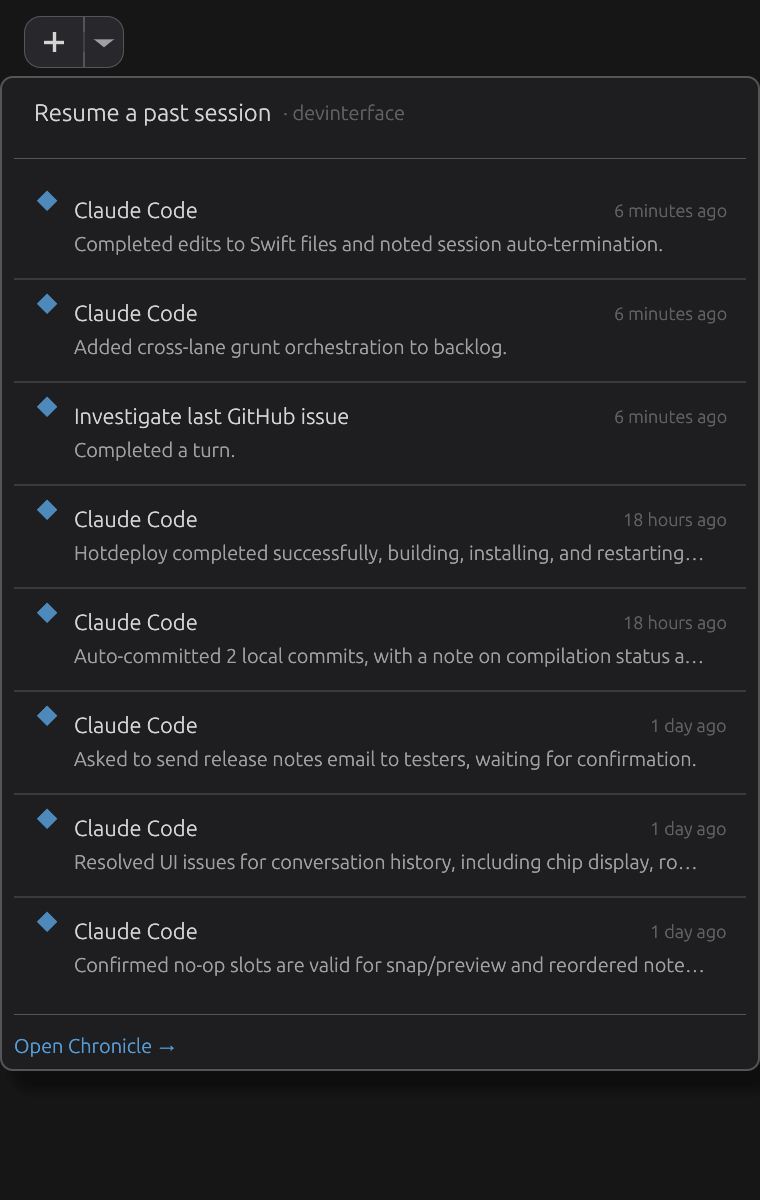
The resume popup lets you restore recent sessions in place, or jump to CHRONICLE for the full session history.
Select a row to resume that session. Use Open Chronicle -> at the bottom when you need a broader history search instead of the quick menu.
Left Sidebar and Center Navigation
The tour screenshots identify the major areas you use while navigating:
- The left sidebar is the war table for repositories, files, scrolls, saved runs, and agent/task lists.
- The center pane is where terminals, file views, diffs, and history viewers appear.
- The right notepad,
Thy Quill, is persistent across views for scratch notes. - The top tabs switch between
COMMAND,CONTROL, andCHRONICLE. - The status chips report cloud state, local versus Skyforge compute, git activity, and line-of-code change.
The layout is intentionally stable: the toolbar remains at the top, the main work area stays in the center, the notepad stays on the right, and shortcut hints/status feedback stay near the bottom.
Keyboard Shortcuts
Open the in-app shortcut reference with Ctrl/Cmd+Shift+/. The app calls this reference the Spellbook. It groups shortcuts into the same four sections used below (GLOBAL, ACTION MODE / TERMINAL, PERUSE / FILE VIEWER, REVIEW MODE) and has a filter box at the top so you can type part of a key or description to jump to it.
The tables below are verified against the app's keymap. On macOS the modifier is shown as Cmd; on Windows and Linux the same chords use Ctrl (written Ctrl/Cmd). A few chords are macOS-only and are marked as such — on Windows/Linux they simply do not appear in the Spellbook.
Global
| Shortcut | Action |
|---|---|
Ctrl/Cmd+1 |
Switch to COMMAND (Spellbook: Action mode). |
Ctrl/Cmd+2 |
Switch to CONTROL (Review mode). |
Ctrl/Cmd+3 |
Switch to CHRONICLE (History mode). |
Alt+Left / Alt+Right |
Navigate back / forward. |
Ctrl+Left / Ctrl+Right |
Navigate back / forward. |
Cmd+[ / Cmd+] (macOS) |
Navigate back / forward. |
Ctrl+PageUp / Ctrl+PageDown |
Previous / next tab, or previous / next view when no tabs exist. |
Cmd+Shift+[ / Cmd+Shift+] (macOS) |
Previous / next tab. |
Ctrl+Shift+Tab / Ctrl+Tab (macOS) |
Previous / next tab. |
Ctrl/Cmd+N |
Open a new instance of the current agent. |
Ctrl/Cmd+W |
Close the current tab. |
Ctrl/Cmd+Q |
Quit the app. |
Ctrl/Cmd+, |
Open the Armoury (Settings). |
Cmd+M (macOS) |
Minimize the window. |
Ctrl/Cmd+= or Ctrl/Cmd++ |
Zoom in. |
Ctrl/Cmd+- |
Zoom out. |
Ctrl/Cmd+0 |
Reset zoom. |
Ctrl/Cmd+Shift+/ |
Open the Spellbook shortcut reference. |
Ctrl/Cmd+Shift+S |
Pull remote (Skyforge) changes down to local. |
Action Mode / Terminal
These apply while a terminal or agent pane is focused in COMMAND.
| Shortcut | Action |
|---|---|
Ctrl/Cmd+/ |
Open the Inscriber for the focused terminal. |
Ctrl/Cmd+F |
Search terminal output. |
F3 / Shift+F3 |
Find next / previous match (also Cmd+G / Cmd+Shift+G on macOS). |
Ctrl/Cmd+Shift+C |
Copy the terminal selection. |
Ctrl/Cmd+Shift+V |
Paste text into the terminal. |
Ctrl/Cmd+Alt+V |
Paste an image from the clipboard. |
Ctrl/Cmd+A |
Select all terminal (or file-viewer) text. |
Ctrl/Cmd+Shift+1 … Ctrl/Cmd+Shift+9 |
Send the selected text to window N. |
Ctrl/Cmd+Alt+M |
Start or stop dictation. |
Ctrl+C |
Forward SIGINT (interrupt) from the Inscriber to the agent. |
Ctrl/Cmd+Enter |
Submit / summon from a compose field (Inscriber, Summon, task editor). |
Peruse / File Viewer
These apply while a file opened from the sidebar is focused.
| Shortcut | Action |
|---|---|
Ctrl/Cmd+F |
Search this file. |
Ctrl/Cmd+A |
Select all file text. |
Ctrl/Cmd+Shift+C |
Copy the selected text. |
Ctrl/Cmd+Shift+1 … Ctrl/Cmd+Shift+9 |
Send the selected text to window N. |
Cmd-click (also Ctrl-click on macOS) |
Open a terminal/file link. |
Review Mode
These apply in CONTROL while reviewing changes.
| Shortcut | Action |
|---|---|
[ / ] |
Previous / next file in the Review diff view. |
Space |
Toggle stage or unstage the selected file. |
Enter |
Open the selected file diff. |
C |
Focus the commit message field. |
Delete / Backspace |
Discard the selected file's changes (manual review mode). |
Screenshot Bottom-Bar Hints
Some builds show a compact hint row in the bottom-right corner. The reference screenshot includes:
Ctrl+Shift+P CommandsCtrl+S StageCtrl+P PushCtrl+R Refresh
Treat those hints as build-specific, on-screen shortcuts. The Spellbook is the authoritative shortcut list for the installed version you are using.
Practical Navigation Workflows
Open or change workspaces:
- Use
Open Workspacewhen it is visible, or start from the welcome screen and clickOPEN STRONGHOLD. - Choose a folder,
.code-workspacefile, or recent workspace. - Wait for repository scanning to finish before relying on branch or diff counts.
Review and sync changes:
- Switch to
CONTROL. - Use the branch chip to inspect repository state.
- Fetch or pull before review when the branch is behind.
- Choose
InlineorSplitdiff mode. - Stage, commit, push, or return to
COMMANDfor agent follow-up.
Resume an interrupted agent:
- Switch to
COMMAND. - Select the relevant agent or task tab context.
- Open the caret side of the new-tab split button.
- Pick a recent session, or click
Open Chronicle ->for the full history.
Troubleshooting Navigation
If a toolbar control is missing, first check the current view and window width. Some controls move into popups, hide until there is repository state, or disable until a workspace is open.
If repository counts look stale, use Rescan when visible, or reopen the branch/activity controls after the background scan finishes.
If the split diff button is disabled, widen the review pane or switch back to Inline.
If shortcut behavior differs from this guide, open the Spellbook with Ctrl/Cmd+Shift+/ and follow the labels shown by your installed build.