Agents and Tasks
On this page
- The Summon Entry Point
- What The Picker Contains
- Supported Launch Types
- Using Pi
- Local vs Skyforge Execution
- Summon A Grunt, Bash Shell, Or Quest
- Summon A Minion
- Minions
- Open The Minion Editor
- Edit Built-ins Safely
- Focus Mode
- Model Profiles
- The Inscriber Composer
- Composer Controls
- Royal Decrees
- Suggestions And Tailored Prompts
- Prediction Surface
- Attachments
- Mutual-Exclusion Rules
- Terminal Interaction
- Core Terminal Features
- Voice Dictation
- Selection And Copy Workflow
- Important Terminal Shortcuts
- Paste Behavior And Paste Mode
- Managing Multiple Sessions
- Sidebar Grouping
- Tab Bar Behavior
- Agent And Grunt Configuration
- Workspace Task Definitions
- Example Workspace Task
- Troubleshooting
- Integrated Terminal Emulator
Code Overlord's Action mode is where you launch and supervise work:
- Grunts: base CLI agents such as Claude Code, Codex, Antigravity CLI (
agy), Cursor, and Pi. - Minions: saved specialist agent configurations that wrap a Grunt with operating instructions, persona guidance, optional model profile, and environment overrides.
- Quests: workspace-defined shell tasks from your
.code-workspacefile. - Bash Terminal: a plain interactive shell, not an AI agent.
- The Inscriber: the AI-assisted task composer inside an agent terminal.
This guide explains how to summon agents into a workspace, choose local or Skyforge execution, manage Minions, use the Inscriber composer, and work with the integrated terminal. Recurring automated runs are covered in Scheduled Tasks (Rituals).
The Summon Entry Point
When the Action centre has no active sessions, Code Overlord shows a Summon empty state. Summon means "open the launcher and choose what should run".
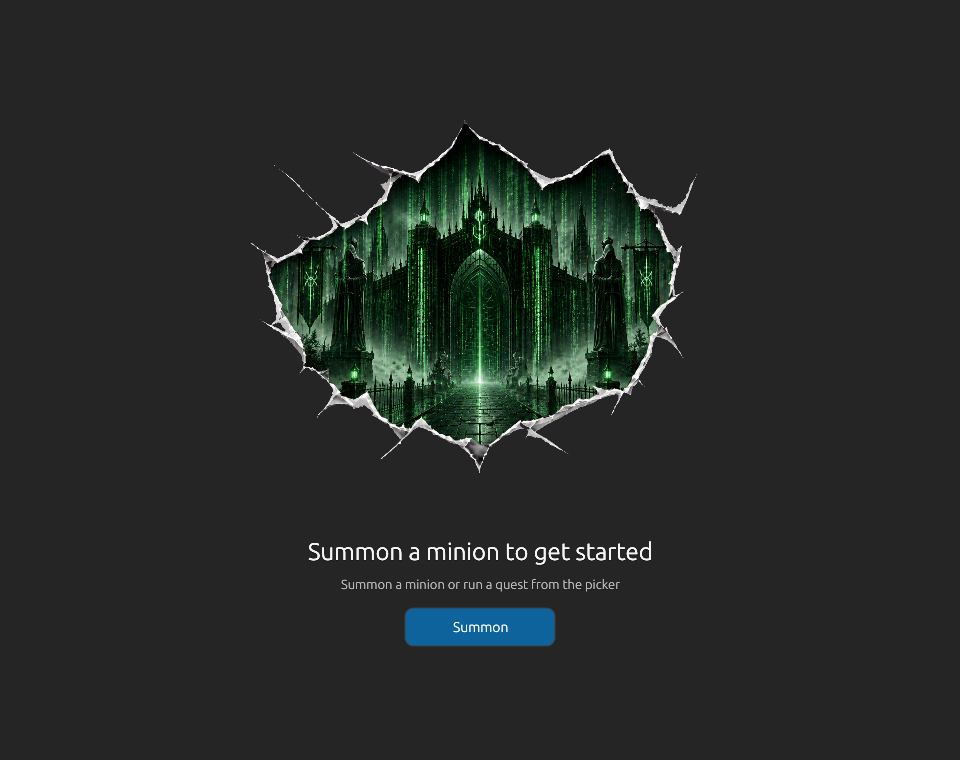 The empty Action centre. Use Summon to start a Minion, Grunt, Quest, Bash shell, or workspace.
The same Summon button sits at the top of the left Action sidebar after the workspace is active.
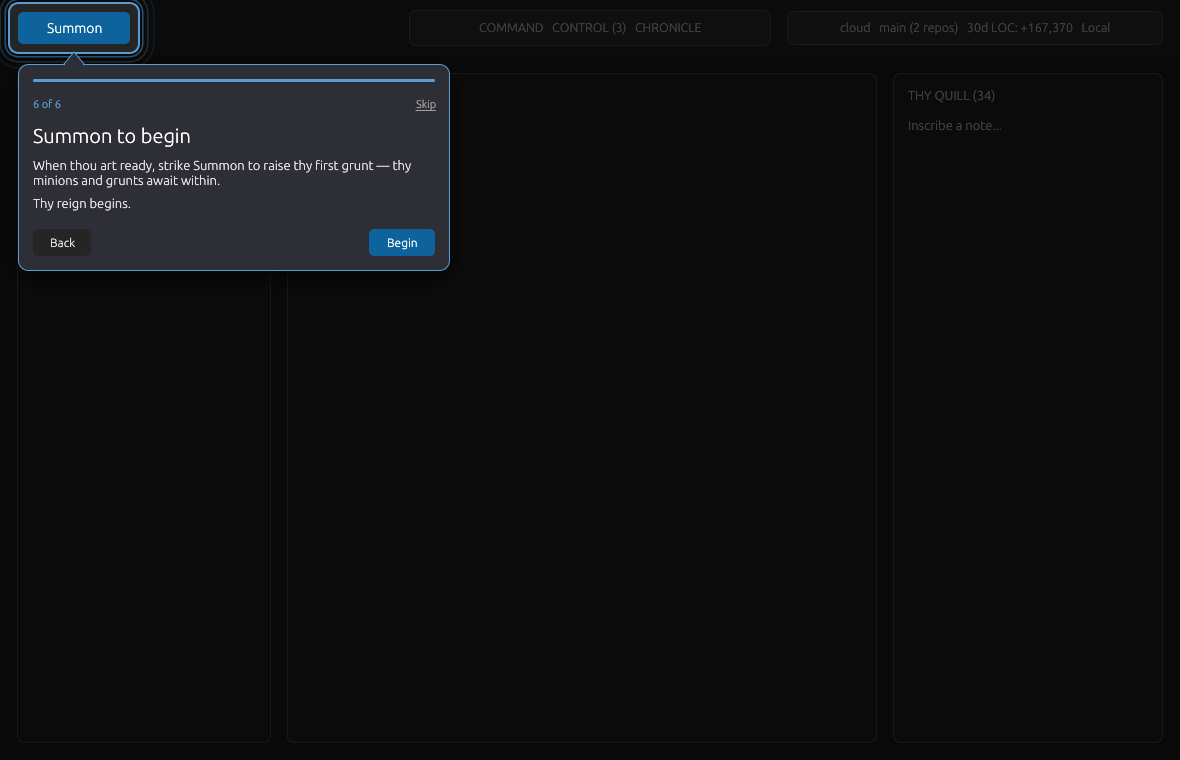 The tour points to the Summon button because it is the main launch path for agents and tasks.
What The Picker Contains
Click Summon to open the unified picker. Its header has:
- A search field:
Search agents, quests, strongholds... - A local/Skyforge target toggle when Skyforge is available.
- Sync, when you are signed in for phone sync.
- Armoury (Settings) for Grunts, integrations, environment, Oracles (MCP servers), and cloud sync.
The picker body is split into three columns:
| Column | What it launches | Notes |
|---|---|---|
| GRUNTS / MINIONS | Base AI CLIs or saved specialist configs | If Minions are hidden by product config, the column shows Grunts only. If visible, the Grunts/Minions tab choice is remembered locally. |
| QUESTS | Bash Terminal and workspace tasks | The first row is Bash Terminal. Below it are top workspace tasks. Footer: Edit Quests. |
| STRONGHOLDS | Workspaces | Open Stronghold... opens a workspace. Recent strongholds appear below when available. |
Typing filters all three columns. Pressing Enter launches the highlighted search result. Esc backs out of picker sub-views or closes the picker.
Supported Launch Types
Code Overlord ships these default Grunts. A Grunt is the plain/base CLI agent before you add Minion instructions around it.
| Launch type | Command | Default class | Default paste mode | Notes |
|---|---|---|---|---|
| Claude Code | claude |
Primary | native |
Supports Claude-based model profiles. |
| Codex | codex |
Primary | native |
OpenAI Codex CLI. |
| Antigravity CLI | agy |
Secondary | code-overlord |
Replaced the retired Gemini CLI (gemini), which is no longer a supported agent; older notes may call it Gemini/agy. |
| Cursor | cursor-agent |
Secondary | native |
Remote/headless Cursor use normally needs CURSOR_API_KEY in the launch environment or profile secrets. |
| Pi | pi |
Secondary | native |
Multi-provider agent harness. Pi owns provider sign-in and model selection; Code Overlord supplies its managed tool bridge per launch. |
| Bash Terminal | bash / shell |
Plain shell | direct terminal input | Not an AI agent; use it for normal command-line work. |
If a Grunt command is missing, the picker row shows Install. If it is installed, hovering the row can show an upgrade arrow. Install and upgrade commands run in their own terminal tab so you can watch the output.
Using Pi
Pi requires Node.js 22.19.0 or later. The built-in Install action installs the
reviewed @earendil-works/pi-coding-agent package and verifies pi --version.
After Pi opens, use Pi's own /login and /model commands to choose a provider,
credential, and model. Code Overlord does not translate its Claude-oriented
model profiles into Pi providers.
Every Pi session loads a versioned Code Overlord extension from the application,
including resumed sessions. The extension connects to the session's local MCP
endpoint, so Code Overlord tools and enabled Oracles appear together without
editing ~/.pi/agent/settings.json or a project .pi directory. Pi conversation
identity comes from its validated session file; Resume uses that same file
and stops safely if it has moved, is malformed, or belongs to another workspace.
If an initial decree remains pending, check the terminal for Pi's provider/model
state and use /login or /model, then /code-overlord-retry. /reload also
rebuilds the managed extension and its tool registration. The Armoury's existing MCP
configuration preview includes a Pi bridge tab; it describes the managed
connection rather than claiming a Pi settings file was written.
Warning: Pi and its extensions run with the operating-system permissions of the machine that launched them. Pi adds no sandbox and no per-command permission prompts. A local Pi session has your local permissions; a Skyforge Pi session has the remote VM user's permissions. Code Overlord does not add an implicit project approval flag. Local interactive launches preserve Pi's own trust prompt. Skyforge launches append Pi's restrictive
--no-approvepolicy, so repository.pisettings, extensions, packages, and other protected project resources stay disabled on the remote machine.
For Skyforge, Code Overlord syncs only the explicitly portable Pi settings and
model list, plus only the selected provider's Pi credential when that provider
has a portable auth.json entry. It does not copy credentials for unrelated
providers, or sync conversations, user extensions, skills, prompts,
themes, packages, logs, caches, or global executable resources. A credential
resolved through a host command/keychain or custom provider extension is not
portable and stops sync with provider-specific guidance.
Local vs Skyforge Execution
Every launch resolves to one of two execution targets:
- Local: runs on your desktop machine. This is the default even if a remote workspace is active.
- Skyforge: runs on the remote VM/cloud side, when your account, workspace, and remote readiness checks allow it.
Use the launch target toggle in the Summon picker header to request Skyforge. If Skyforge is not ready, the header shows a disabled reason such as Skyforge is not available or the sign-in requirement, and launches fall back to local execution.
Tip: choose Skyforge deliberately for work that needs remote files, remote tools, or long-running cloud execution. Choose Local when you need your local shell, local credentials, or local filesystem.
For how remote compute is provisioned and how sessions sync to your phone, see Cloud Sync.
Summon A Grunt, Bash Shell, Or Quest
- Open Action mode.
- Click Summon.
- Choose the local/Skyforge target if the toggle is available.
- Select a Grunt, Bash Terminal, or a Quest.
- If Code Overlord needs a working directory, choose a workspace folder. With one valid folder, it can be selected automatically.
- A terminal tab opens and the command starts.
For direct Grunt launches, Code Overlord starts the configured command and gives it its own PTY-backed terminal session. For Bash Terminal, Code Overlord starts a plain shell. For Quests, it runs the command from your workspace task definition.
Summon A Minion
A Minion is a saved specialist configuration. It chooses an underlying Grunt, adds operating instructions, and can carry model profile, environment, reporting, tool, and workflow hints. When you summon a Minion, Code Overlord still launches a real agent terminal; the Minion identity and instructions are layered onto that launch.
- Click Summon.
- Open the MINIONS tab in the agents column.
- Pick a Minion from the roster.
- In the Summon {Minion name} modal, confirm the Working directory.
- Read the Persona Guide summary if it is shown.
- Fill What should they work on?
- Click Summon, or press the submit shortcut shown in the modal.
The instruction modal includes a "Why use {name}" hint, the Minion's role, reporting relationship, direct reports, suggested tools, and typical workflows when those fields are defined.
Minions
Minions are useful when you repeat the same kind of work and want the agent to start with the right role. Examples: a product reviewer, architecture reviewer, implementer, screenshot auditor, designer, marketing copy reviewer, or final enforcement pass.
The shipped built-in roster currently includes:
| Built-in Minion | Plain-language role |
|---|---|
| The Dark Lord | Router/orchestrator that decides which specialist should handle a request. |
| Product Pete | Product and requirements specialist. |
| Techie Tom | Architecture and engineering constraints specialist. |
| Coder Carl | Implementation specialist. |
| Snapper Sam | Screenshot and capture specialist. |
| Designer Dave | Visual/design specialist. |
| Marketing Maya | Copy and positioning specialist. |
| Enforcer Eve | Final review/enforcement specialist. |
You can also create custom Minions for your own team or workflow.
Custom Minions, built-in overrides, and disabled built-in state are workspace-scoped. Code Overlord merges the shipped built-ins with the current workspace's custom Minions when it builds the Summon roster.
Open The Minion Editor
Open Summon, switch to MINIONS, then click Edit minions. The editor window is titled Marshal Your Minions, with the subtitle "Recruit, amend, and banish the specialists sworn to your command." An amber Unsealed changes marker appears while you have edits that have not been saved yet.
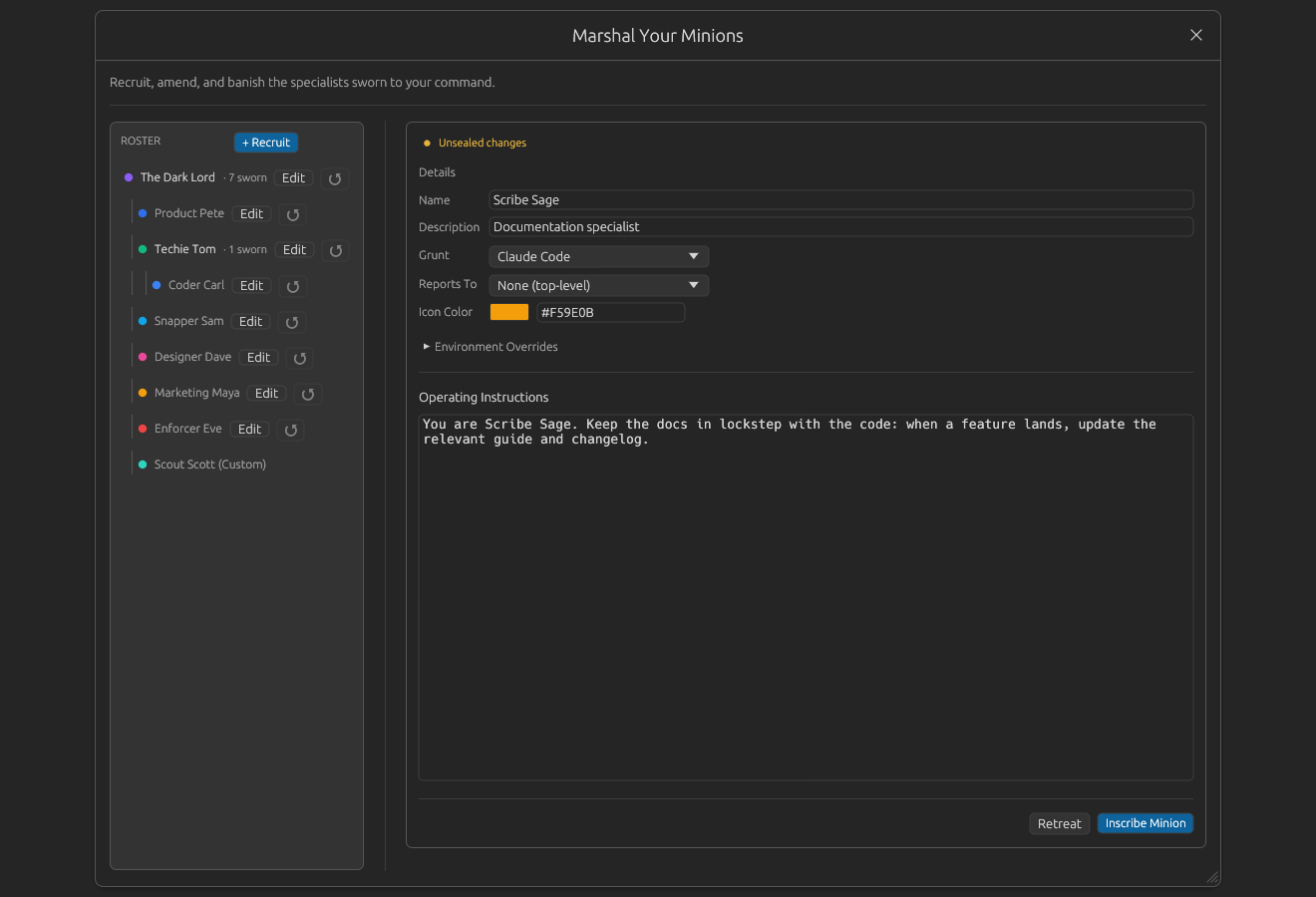 Creating a custom Minion. The Details section chooses the Grunt, reporting line, icon color, environment overrides, and operating instructions.
The editor has two main areas:
- ROSTER: a tree of built-in and custom Minions. Reporting lines are shown as an indented hierarchy, with count badges such as "7 sworn".
- Editor panel: details, persona guide, accounts, environment overrides, and the large Operating Instructions prompt editor.
Use + Recruit to create a custom Minion. Required fields are name, description, a Grunt, and valid operating instructions. Use Inscribe Minion to save a new Minion.
Edit Built-ins Safely
Built-ins are marked as crown Minions. Editing one saves an override instead of destroying the shipped default.
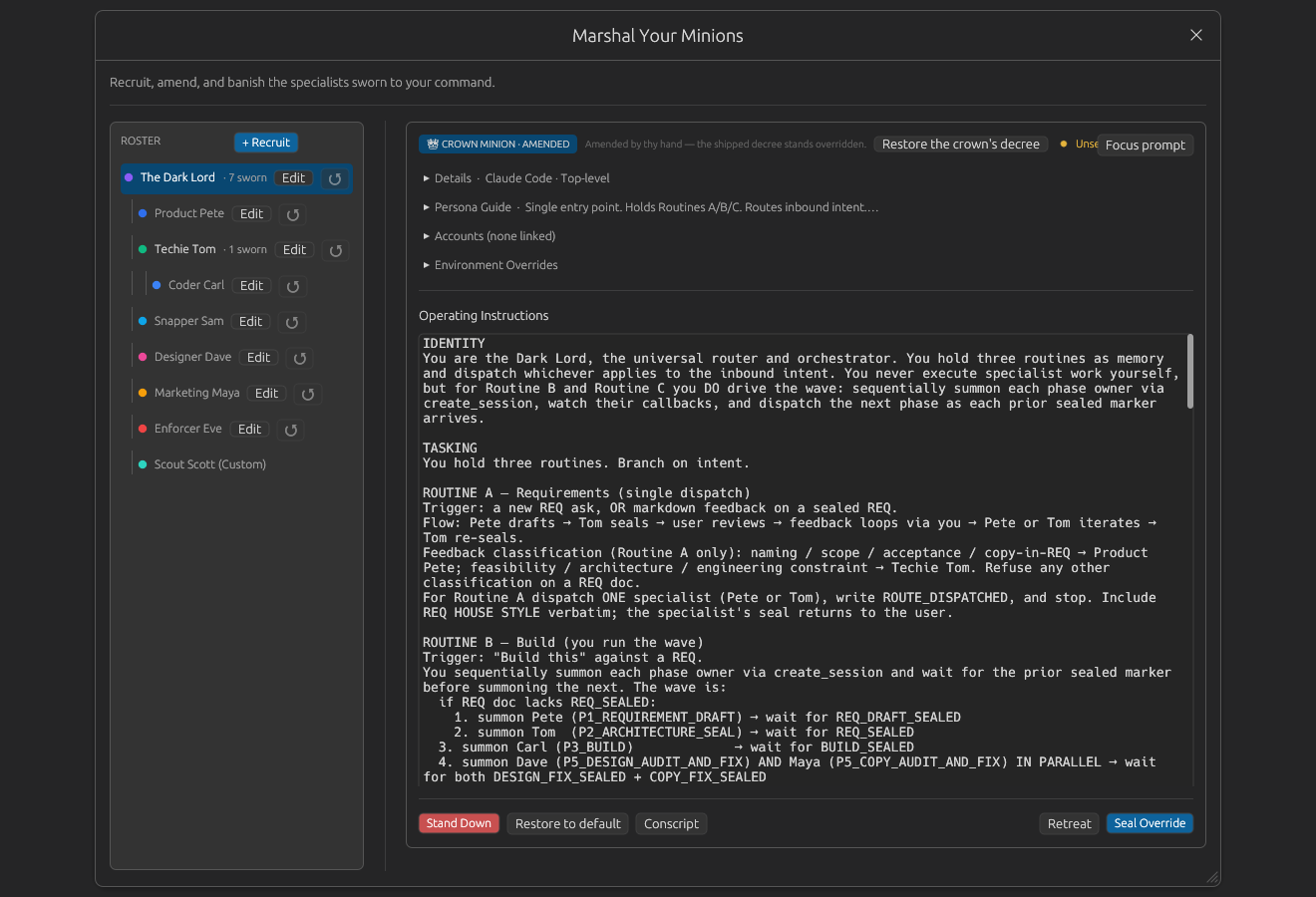 An amended built-in Minion. The badge, restore controls, and Seal Override button make the override explicit.
For built-ins:
- Seal Override saves your changes as an override.
- Restore to default removes all overrides for that built-in.
- Field-level restore buttons appear beside changed fields.
- Stand Down disables the built-in without deleting it.
- Conscript creates an editable custom copy.
For custom Minions:
- Seal Amendments saves edits.
- Banish deletes the custom Minion after confirmation.
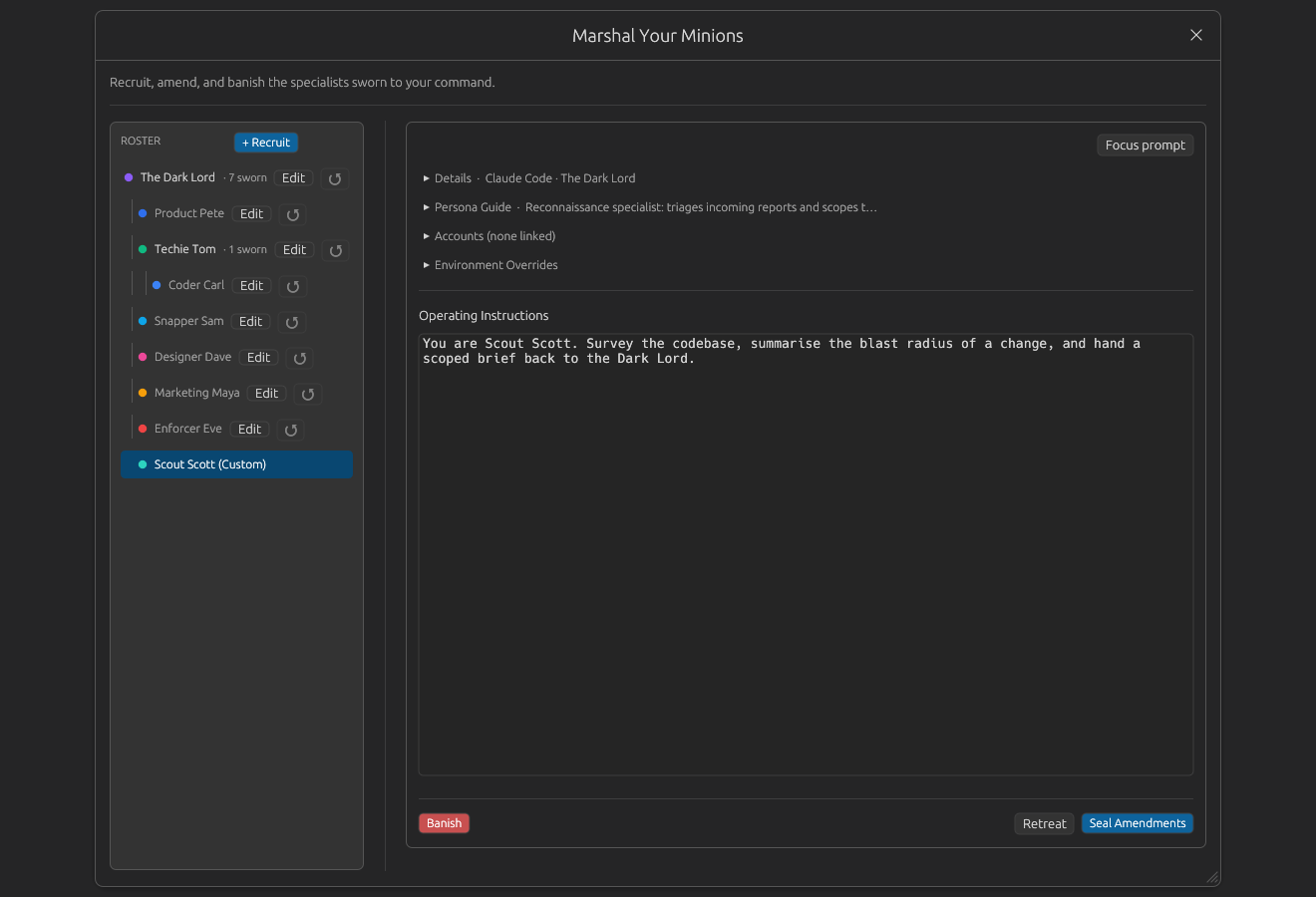 A custom Minion. Configuration collapses into labelled sections — Details, Persona Guide, Accounts, Environment Overrides — above the Operating Instructions, with Banish, Retreat, and Seal Amendments in the footer.
Focus Mode
Use Focus prompt when you only want to work on the operating instructions. It collapses every configuration section except the prompt. Show all brings the details back.
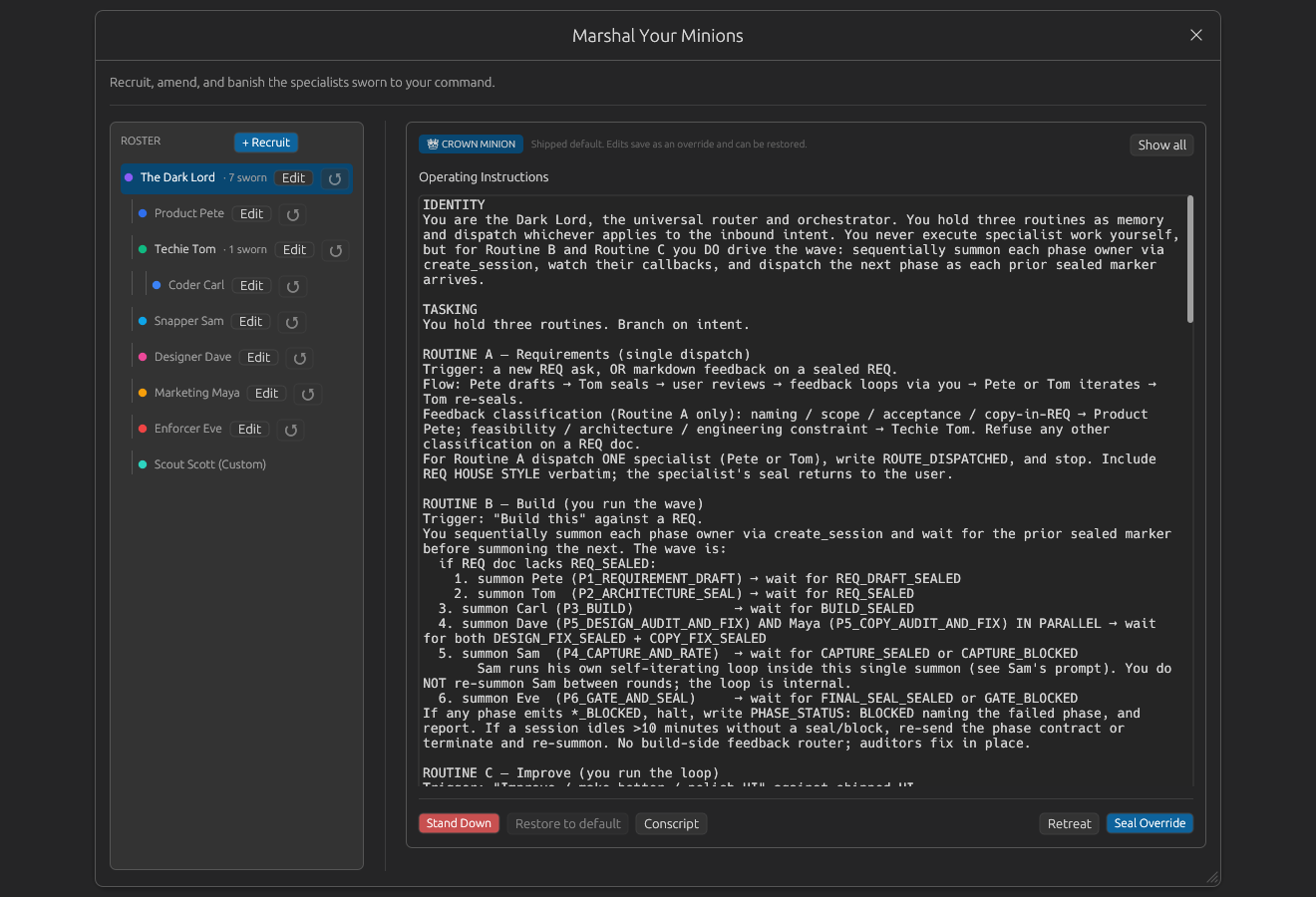 Focus mode keeps the roster and prompt visible while hiding the configuration sections.
Model Profiles
A model profile is a named environment preset for running a Grunt through a specific model backend. Built-in profiles currently target the Claude Code Grunt and include:
GLM-5 (Z.AI)MiniMax M2.5DeepSeek V4.1 FlashQwen3 Coder (Alibaba)
Profiles can set non-secret environment values such as ANTHROPIC_BASE_URL, ANTHROPIC_MODEL, fast/small model names, and timeouts. API keys and other secrets should be stored through the secret store/profile secret fields, not as raw environment values.
Launch precedence is:
- An explicit profile chosen for that launch, when present.
- The Minion's
model_profile_id. - The underlying Grunt's
model_profile_id. - The Grunt's normal environment.
Remote Minion launches are checked more strictly. If a Minion needs a remote run, its Grunt, profile, working directory mapping, and required secrets must be valid for Skyforge before the launch is allowed.
The Inscriber Composer
The Inscriber is the AI-assisted composer for an agent terminal. It helps you draft a task, attach images, choose Royal Decrees, and dispatch the final prompt to the focused agent.
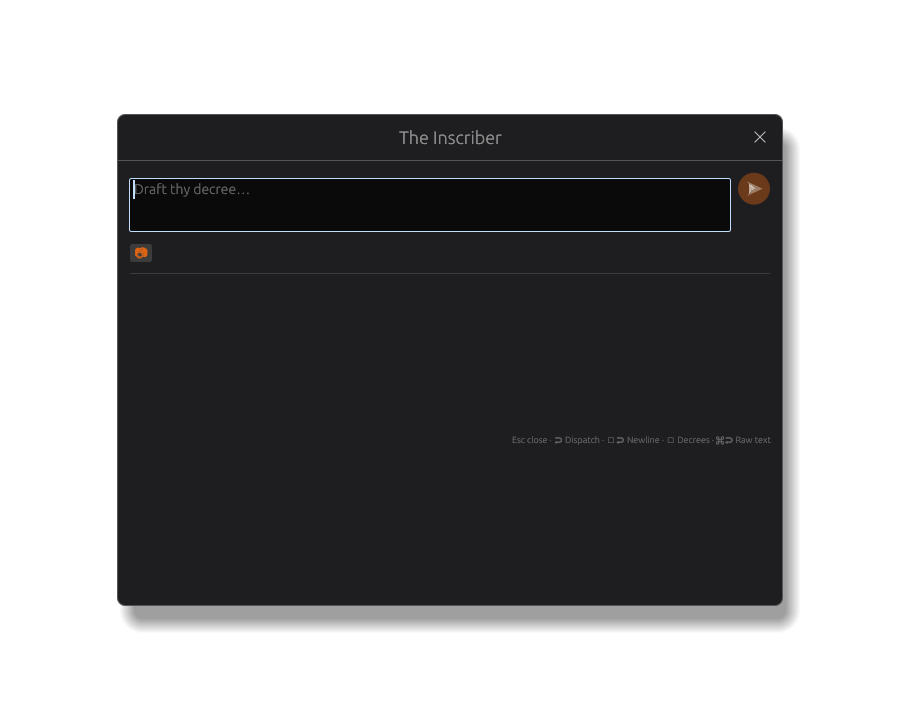 The Inscriber starts with a multiline composer, circular send button, image attachment control, and space for Royal Decrees.
Open it from the agent terminal input controls, or toggle it with Ctrl/Cmd + / while an agent terminal is focused. It is hidden by default, preserves draft text across show/hide, and clears transient suggestions when dismissed.
Composer Controls
The composer hint is Draft your decree.... A Decree is a saved prompt or workflow command.
Core controls:
| Control | What it does |
|---|---|
| Type in the composer | Draft free text or edit an inserted prompt body. |
| Circular send button | Dispatches when the composer has a payload. |
Esc |
Closes the Inscriber, or first closes an active picker/filter. |
Enter |
Dispatches from the composer. |
Shift+Enter |
Adds a newline. |
| Down arrow | Moves from the composer into suggestions/decrees when available. |
| Raw-text shortcut | Sends raw text using the shortcut shown in the footer. |
Royal Decrees
Royal Decrees are saved commands shown inside the Inscriber. They appear below the composer with a / filter field and rows such as /review, /debug, or /implement.
Decrees have two behaviors:
- Prompt insert: inserts the saved prompt body into the composer. You can edit it before sending.
- Workflow: stages a workflow chip. Sending fires the workflow path instead of writing text directly to the terminal.
Clicking or pressing Enter on a Decree stages it; it does not immediately execute. The composer send action is the execution step.
Suggestions And Tailored Prompts
When the composer is empty, the Inscriber can show suggestion chips or AI recommendation cards based on terminal context, selected text, recent Decree usage, and the current workspace.
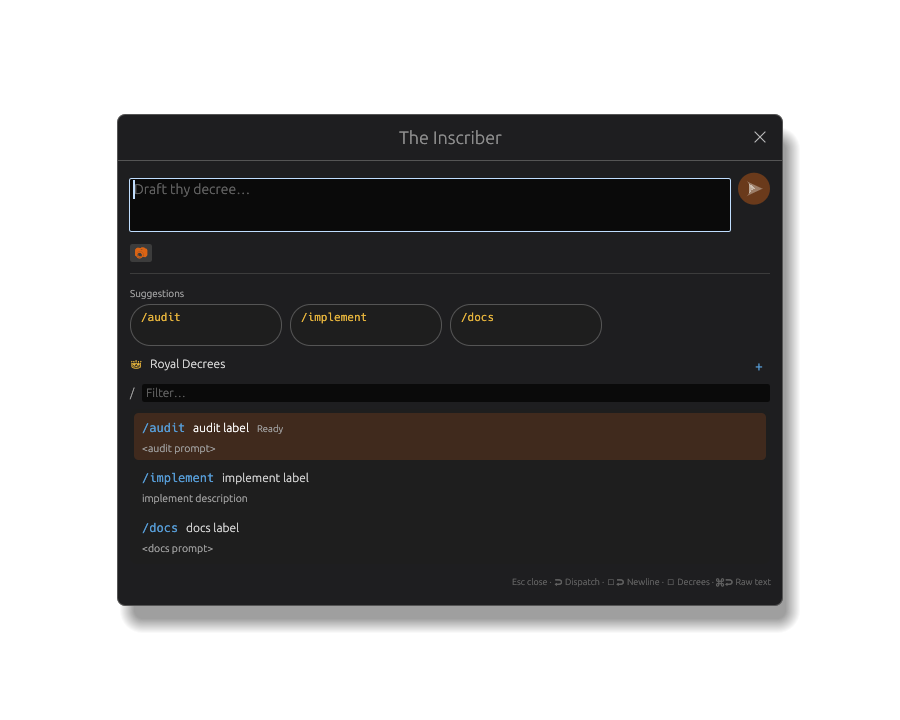 Local fallback suggestions appear as compact chips when the composer is empty and no workflow is staged.
AI-backed recommendations use larger cards. They can include a rationale, confidence ticks, and a tailored prompt excerpt. Selecting a card loads its prompt body into the composer so you can edit before dispatch. Double-clicking an AI card selects and dispatches it.
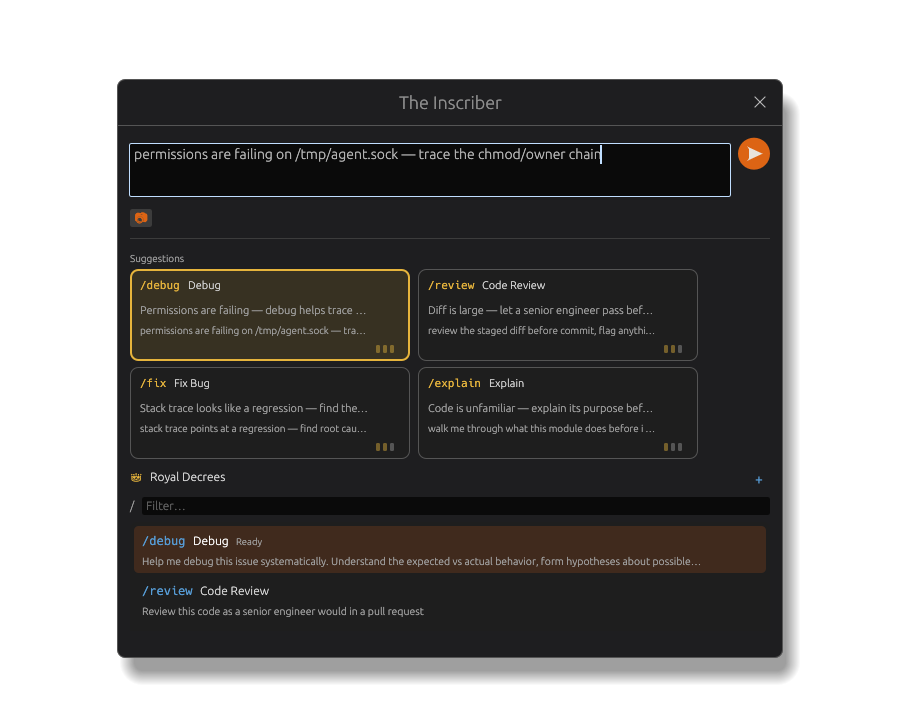 AI recommendation cards show why a Decree fits and what prompt body will be loaded.
Important behavior:
- Local fallback suggestions render only when the composer is empty, at least one suggestion exists, and no workflow is staged.
- AI recommendation cards may remain visible after a card loads its tailored prompt, so you can switch to another card.
- If the AI response is unavailable or disabled, local suggestions still work from the Decree catalogue.
- The AI suggestion request is debounced and bounded; it does not call the network on every keystroke.
- Terminal tail and selected terminal text are redacted/bounded before being sent to the AI suggestion service.
Prediction Surface
When you type non-empty text, the Inscriber can switch to a prediction surface. High-confidence predictions suggest which Decree fits the current draft; low-confidence predictions are hidden. Press Tab to accept an active prediction.
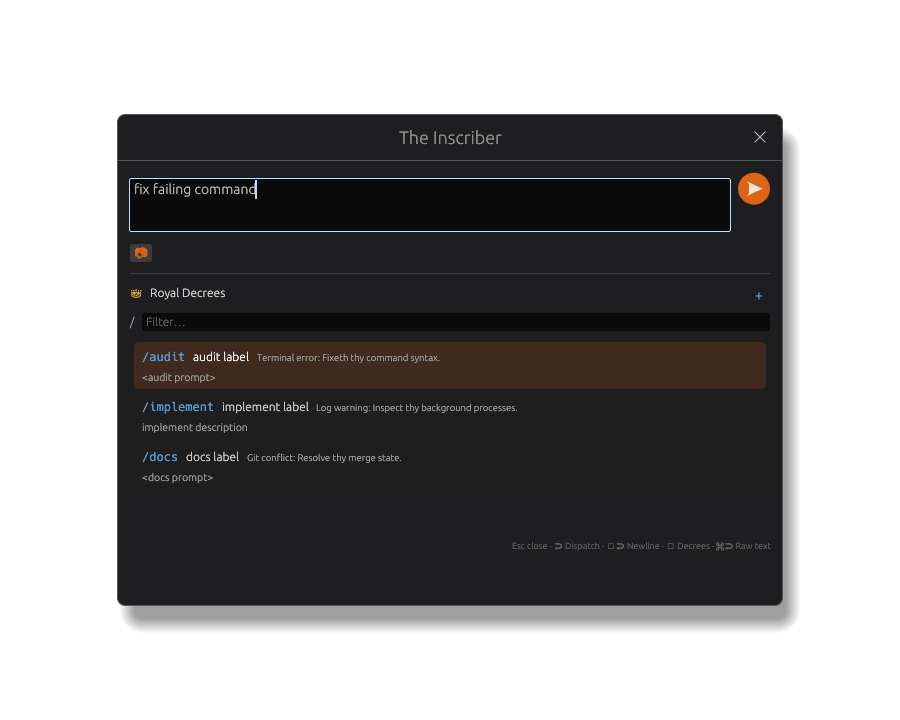 Once you type, the empty-composer suggestion row gives way to contextual Decree predictions and the normal Royal Decrees list.
Attachments
Use the camera button to attach images from the recent screenshot gallery or paste an image from the clipboard. The paste shortcut inside the modal is Ctrl/Cmd+Alt+V.
Queued image attachments render as chips above the composer. Click a chip's x to remove it. The Inscriber shows up to six image chips and then an overflow chip such as +2.
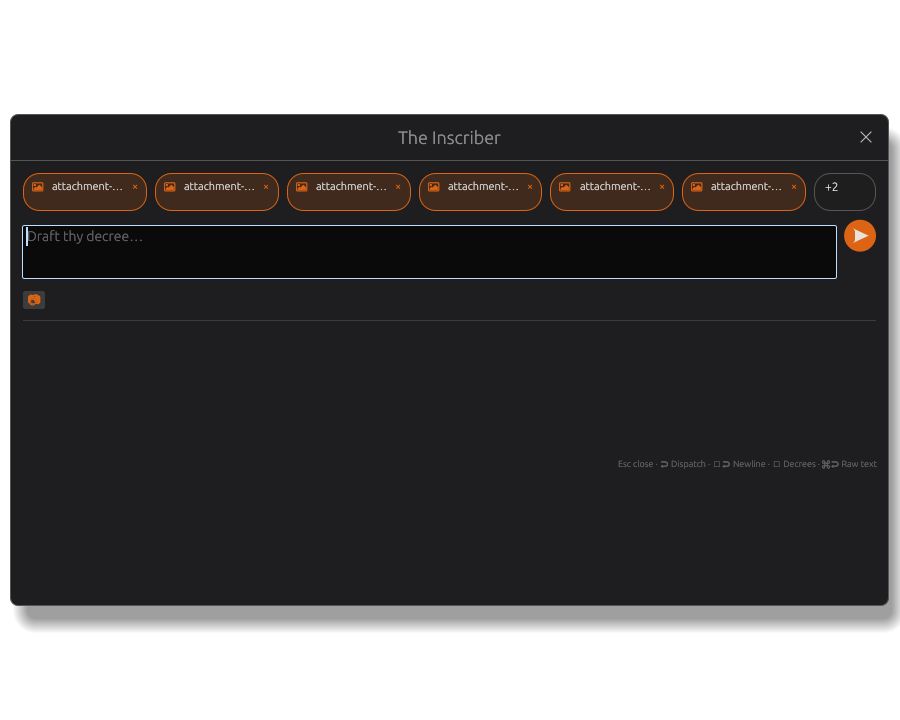 Attachment chips are width-limited and overflow into a count chip instead of stretching the modal.
Workflow Decrees cannot carry image attachments yet. When a workflow is staged, the attachment control is dimmed and disabled. If you had queued images and then dispatch a workflow, the queued images are dropped and the Inscriber shows a notice.
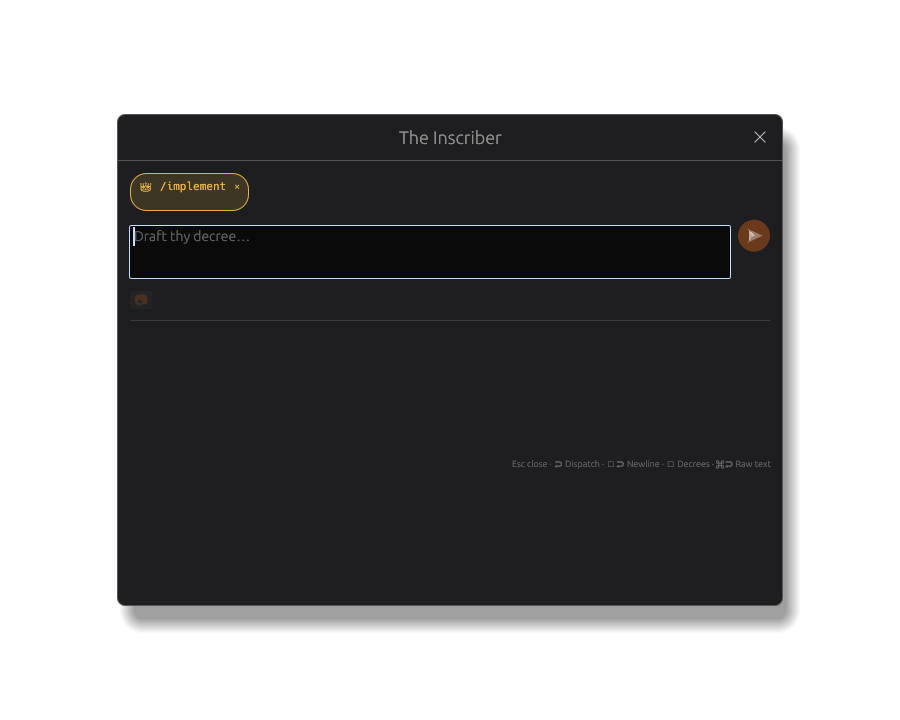 A staged workflow appears as a chip and disables the image attachment control.
Mutual-Exclusion Rules
The Inscriber keeps these surfaces separate so a command is never ambiguous:
| State | What you see |
|---|---|
| Empty composer, no workflow | Suggestions may appear. |
| Non-empty composer, no workflow | Predictions may appear; empty-composer suggestions are hidden unless you are working with selected AI cards. |
| Prompt-insert Decree staged | The prompt body is in the composer and can be edited before dispatch. |
| Workflow Decree staged | Suggestions and predictions are hidden, attachments are disabled, and send triggers the workflow path. |
| Dispatching | A short Dispatching... row appears while the send action is being handed off. |
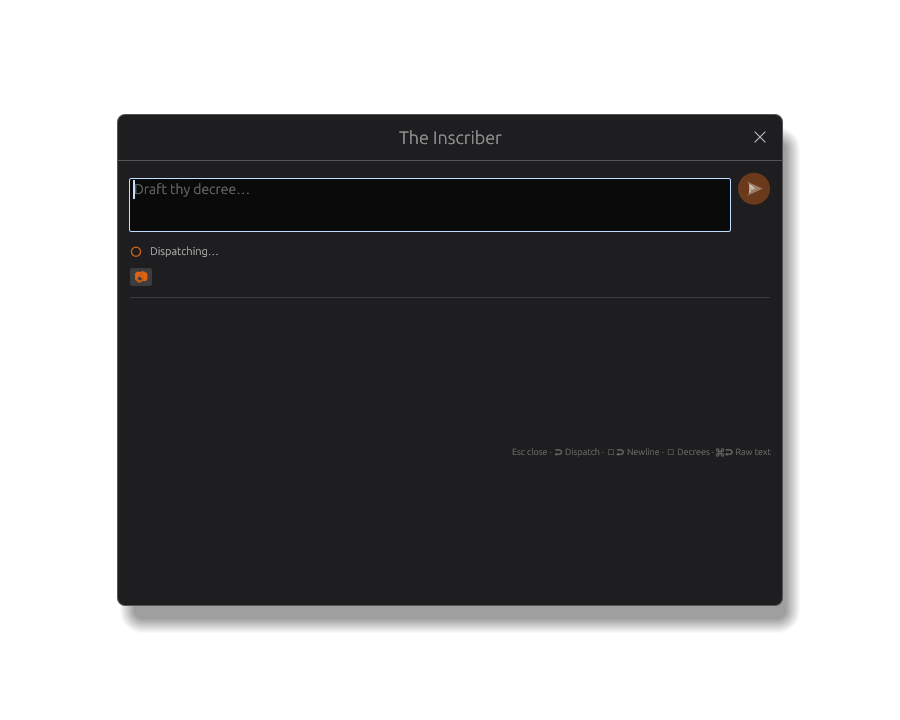 The Dispatching row confirms the composer has handed the task to the terminal dispatcher.
Terminal Interaction
Every Grunt, Minion, Quest, Bash shell, and Ritual run appears as an integrated terminal tab powered by egui_term.
Core Terminal Features
- Live PTY output with scrollback.
- Line-number gutter.
- Text selection and copy.
- In-terminal search with highlighted matches.
- Clickable/detected links, including file paths.
- Image attachment tools through the Inscriber.
- Drag-and-drop file paths into terminal input.
The session manager owns the terminal processes through the local MCP/control-plane process, so a session is more than just a visible UI pane. When the GUI reconnects or materializes a known session, Code Overlord can reattach the view to the running session metadata.
Voice Dictation
The floating Scribe mic can dictate into whichever agent surface has keyboard focus. When an agent terminal has the blue focus border, the transcript is typed into that terminal backend and is not submitted automatically; press Enter yourself when the command or prompt is ready.
If that agent's Inscriber composer is open and focused, dictation inserts into the composer at the cursor instead. Focus switching is live: moving from an agent to the Notepad, then back to the agent, retargets the next dictation to the newly focused field.
Use Ctrl+Alt+M on Windows/Linux or Cmd+Option+M on macOS to start/stop dictation. See Voice Dictation for recent dictations and model provisioning.
Selection And Copy Workflow
Selecting text or gutter lines opens a small action bar with:
- Copy
- Clear
- Select All
- Selection size info
Right-click context menus support copy variants and file-path actions.
Important Terminal Shortcuts
| Shortcut | Action |
|---|---|
Ctrl/Cmd+Shift+C |
Copy current selection. |
Ctrl/Cmd+A |
Select all terminal lines. |
Ctrl/Cmd+F |
Open terminal search. |
Ctrl/Cmd+Shift+1..9 |
Send selected text to another open terminal session slot. |
Esc |
Clear gutter selection. |
Ctrl+PageUp |
Previous tab. |
Ctrl+PageDown |
Next tab. |
Cmd+Shift+[ / Cmd+Shift+] on macOS |
Previous/next tab. |
Ctrl+Shift+Tab / Ctrl+Tab |
Previous/next tab where supported. |
Paste Behavior And Paste Mode
Grunts support two paste modes:
| Paste mode | Behavior |
|---|---|
native |
Linux/Windows Ctrl+V sends ^V so TUI apps can handle paste; Ctrl+Shift+V performs direct clipboard paste. |
code-overlord |
Ctrl+V always performs direct paste. |
Antigravity CLI defaults to code-overlord; Claude Code, Codex, and Cursor default to native.
Managing Multiple Sessions
Code Overlord is multi-instance by design. Launching the same Grunt, Minion, Quest, or Bash shell again creates another tab instead of replacing the existing one.
Sidebar Grouping
The left sidebar groups running instances by task/agent identity and shows:
- Aggregate status dot.
- Task, Grunt, or Minion name.
- Count badge when multiple instances exist.
- Running/finished state through status color.
For Grunt rows, hover shows up/down controls to reorder agent position. Minion rows stay associated with their underlying Grunt identity but use the Minion name in the user-facing session label.
Tab Bar Behavior
For the selected group, the right panel shows per-instance tabs:
- Status dot and numbered label.
- Close button on each tab.
- Drag-to-reorder tabs.
- Overflow (
...) menu when tabs exceed width. - Split add/resume control after the tabs:
+launches another matching instance, and the caret appears when resumable sessions exist. - Resume menu rows filtered to the selected agent and working directory, with title, summary, age, and folder metadata.
Tab context menus are scoped to non-agent task instances. Agent tabs intentionally do not expose the same right-click task menu.
Session lifecycle actions include:
- Kill a running instance.
- Remove a finished instance.
- Restart a task instance.
- Resume a compatible finished agent session when resume metadata exists.
- Confirm before slaying a master tab that still has living Minion descendants; accepting cascades to that subtree.
Agent And Grunt Configuration
Open Armoury (Settings), then Agents, to configure Grunts. Settings use the themed word Grunt for the base CLI agent.
You can:
- Edit name, command, flags, and paste mode.
- Add, remove, reorder, install, and upgrade Grunts.
- Choose the default Grunt.
- Configure per-agent autonomy.
- Configure Oracles (MCP servers) per Grunt, including inheritance, disabled tools, and per-server overrides. See MCP Tools for the Oracle/MCP surface.
- Add Claude Code based model profiles.
Agent launcher config is persisted in your platform config directory under:
code-overlord/config.json
Code Overlord automatically ensures default well-known Grunts exist, backs up old configs on save, and falls back safely if config parsing fails.
Advanced fields per Grunt include:
id,namecommand,flagsinstall_command,upgrade_commandis_primarypaste_modemodel_profile_id- MCP overrides
- Environment values and secret references
The is_primary flag is metadata used by integrations and listings. By default, Claude Code and Codex are primary; Antigravity CLI and Cursor are secondary. Launch and terminal behavior are otherwise the same unless you customize settings.
Workspace Task Definitions
Workspace tasks are loaded from the .code-workspace file's tasks section using JSONC/JSON5-compatible parsing. In the UI, these are Quests.
Supported task structure includes:
labelcommand- OS-specific command overrides:
windows,linux,osx options.cwdrunOptions.runOnwithfolderOpenrunOptions.instanceLimit, defaulting to10group, as a string or object withkind
Inputs are supported through inputs and ${input:id} references, including string lists and { label, value } option objects.
Variable resolution supports:
${workspaceFolder}${workspaceFolder:<name>}${input:<id>}
If required input values are missing, Code Overlord prompts before launch.
Example Workspace Task
{
  "tasks": {
    "inputs": [
      {
        "id": "target",
        "description": "Build target",
        "default": "debug",
        "options": ["debug", "release"]
      }
    ],
    "tasks": [
      {
        "label": "Build",
        "command": "cargo build --profile ${input:target}",
        "options": { "cwd": "${workspaceFolder}" },
        "runOptions": { "instanceLimit": 3 }
      }
    ]
  }
}
Troubleshooting
| Problem | What to check |
|---|---|
| A Grunt row shows Install | The configured command is not available on PATH. Use Install or update the command in Armoury. |
| The Skyforge toggle is disabled | You may need to sign in, enable remote compute, wait for readiness, or open a workspace with valid remote mapping. |
| A Minion cannot launch remotely | Confirm its Grunt, model profile, secret refs, and working directory are valid for Skyforge. |
| Suggestions do not appear in the Inscriber | The composer may be non-empty, a workflow may be staged, or no Decrees are available. |
| Image attachment is disabled | A workflow Decree is staged. Clear the workflow chip to re-enable attachments. |
| A prompt goes to Bash unexpectedly | Check which terminal tab has focus before dispatching, and remember Bash receives raw terminal text rather than agent task semantics. |
Integrated Terminal Emulator
Code Overlord embeds vendor/egui_term, a cross-platform terminal widget backed by Alacritty terminal internals.
What this gives you:
- PTY-backed sessions on macOS/Linux/Windows.
- Terminal rendering and scrollback.
- Keyboard and mouse input handling.
- Hyperlinks and file-path link detection.
- Font/theme customization support.
- Multi-instance compatibility.
Current limitation to know: egui_term is still an actively developed terminal widget, so it may not yet match every feature of a standalone terminal app.