Git History
On this page
Git History is Code Overlord's commit and file history explorer. The UI sometimes calls commits seals and the history index the Chronicle. In plain Git terms, this page lets you browse commits, inspect their diffs, understand branch context, and jump back to Review when you need to change something.
Use History when you want to:
- Inspect recent commits across one or many repos in the workspace.
- Filter by repo, branch, and search terms.
- Review a commit's changed files and read-only diffs.
- Browse a file's evolution over time.
- Cherry-pick or revert a commit from its context menu.
- Confirm that commits made from Code Review landed as expected.
Open History
Open History from the top view controls. The app also switches you here when you choose View in History after Automatic Review commits are finished.
Keyboard shortcut: Cmd/Ctrl+3.
The History screen has two main areas:
- The left sidebar contains filters, browsing tabs, and the commit/file/session list.
- The right pane shows the selected commit or file history detail.
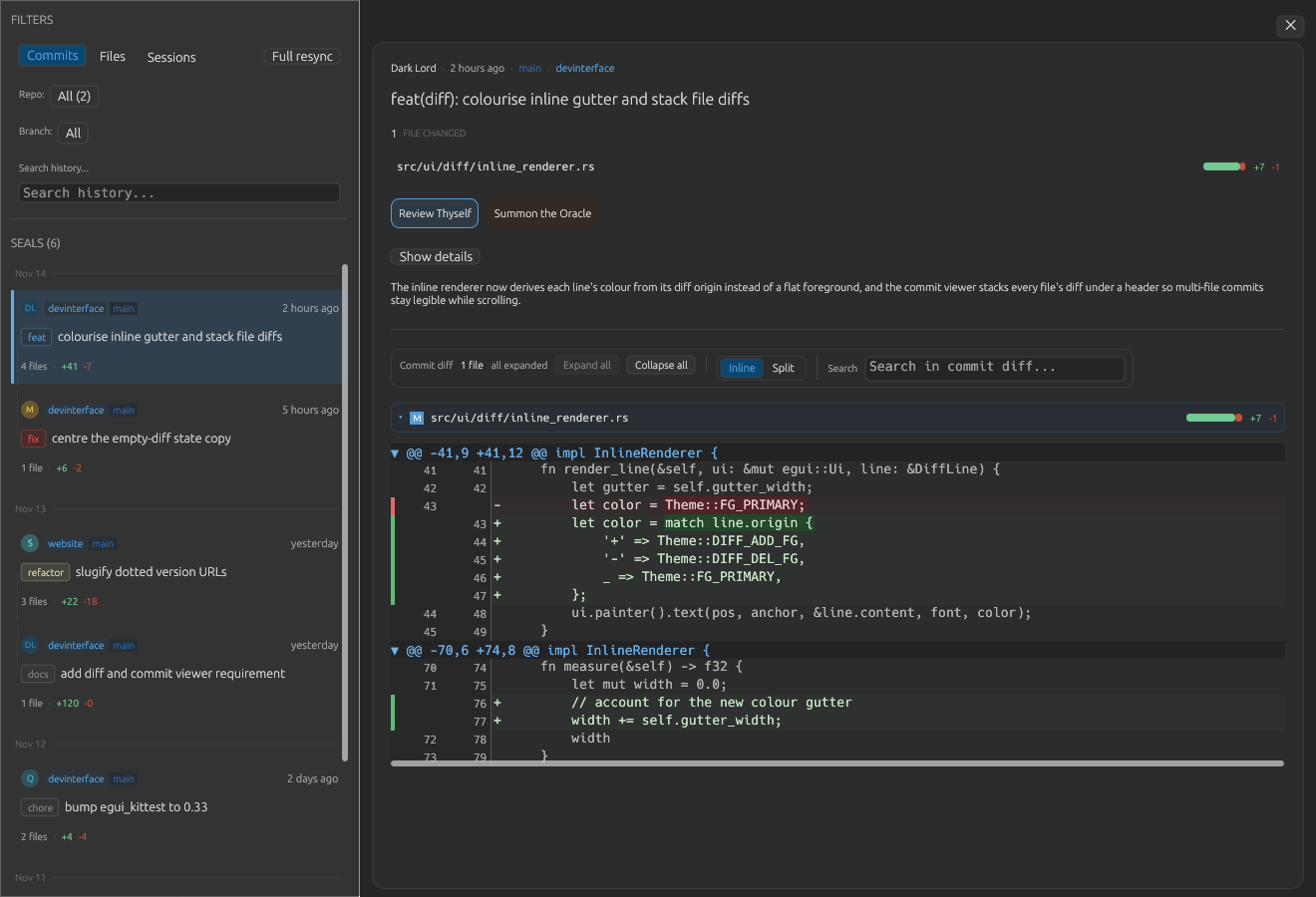 A selected seal, meaning commit, shows metadata, the file list, and the expanded read-only diff.
Sidebar Modes
The sidebar starts with FILTERS and then one of three modes:
| Mode | Use it for |
|---|---|
Commits |
Timeline browsing across selected repos and branches. This list is headed SEALS (N) because each seal is a commit. |
Files |
File-centric history. Use this when you care about a path's evolution more than the full commit timeline. |
Sessions |
Past agent sessions. It is visible in the History sidebar, but Git commit review happens in Commits and Files. |
Full resync reindexes the Chronicle, the local history cache. The tooltip warns that it can take 15 minutes. While a full resync is running, the button changes to a spinner label such as Full resync....
If recent fetches may have made cached history stale, History shows a Chronicle warning and recommends a full resync.
Filters
Use filters before scrolling large histories:
- Repo: shows
All (N)when every repo is included, orX of Nwhen you have selected a subset. - Branch: appears in
Commitsmode.Allclears the branch filter, andCurrentselects the current checked-out branches from the available branch list. - Search history...: filters the visible history list.
Search behavior:
- In
Commits, search matches commit author and commit message. - In
Files, search matches file path, author, and latest commit message. - In
Sessions, search applies to captured session metadata rather than Git commits.
Commit Timeline
In Commits mode, History groups rows by date: Today, Yesterday, weekday names, or month/day labels. Each row can include:
- Author initials avatar.
- Repo badge.
- Branch badge, with a tooltip when there are multiple branches or the branch name is truncated.
- Relative time.
- Conventional commit type chip, such as
feat,fix,docs, orchore. - Commit subject.
- Changed-file count and
+/-stats. - Short SHA on hover.
Click a row to open it. Right-click a row for commit actions:
Cherry-pick to current branchRevert this decree, which means revert this commitCopieth the SHA, which copies the full commit SHACopieth the decree, which copies the commit message
If cherry-pick or revert produces conflicts, Code Overlord detects the merge/rebase conflict state and sends you to Review's conflict tooling.
Commit Detail
The right pane opens a selected commit in a large card. The header includes author, time, branch, repo, and the commit title.
The detail card has two main actions:
Review Thyself: opens the raw commit diff.Summon the Oracle: asks the Oracle, Code Overlord's AI explanation helper, for a commit summary when available.
Show details expands commit metadata:
- Full SHA with copy behavior.
- Author email when available.
- Branches and tags.
- Stats: files, additions, deletions.
- Parent or Parents, shown as shortened SHAs.
- Long commit body text, with
Show full message/Show lesswhen the body is large.
Single-File Commits
For a single-file commit, the commit diff toolbar shows Commit diff, 1 file, and all expanded. The first file diff opens automatically.
Available controls include:
Expand allandCollapse all.Inline/Splitdiff layout.Search in commit diff...with live match count.- The file summary row with change kind, path, and insertion/deletion counts.
- Read-only diff content using the same renderer as Review.
History diffs are intentionally safe to read: they do not include stage, unstage, discard, line note, or edit-mode actions.
Multi-File Commits
Multi-file commits add a file-summary layer above the diffs. This keeps large commits scannable.
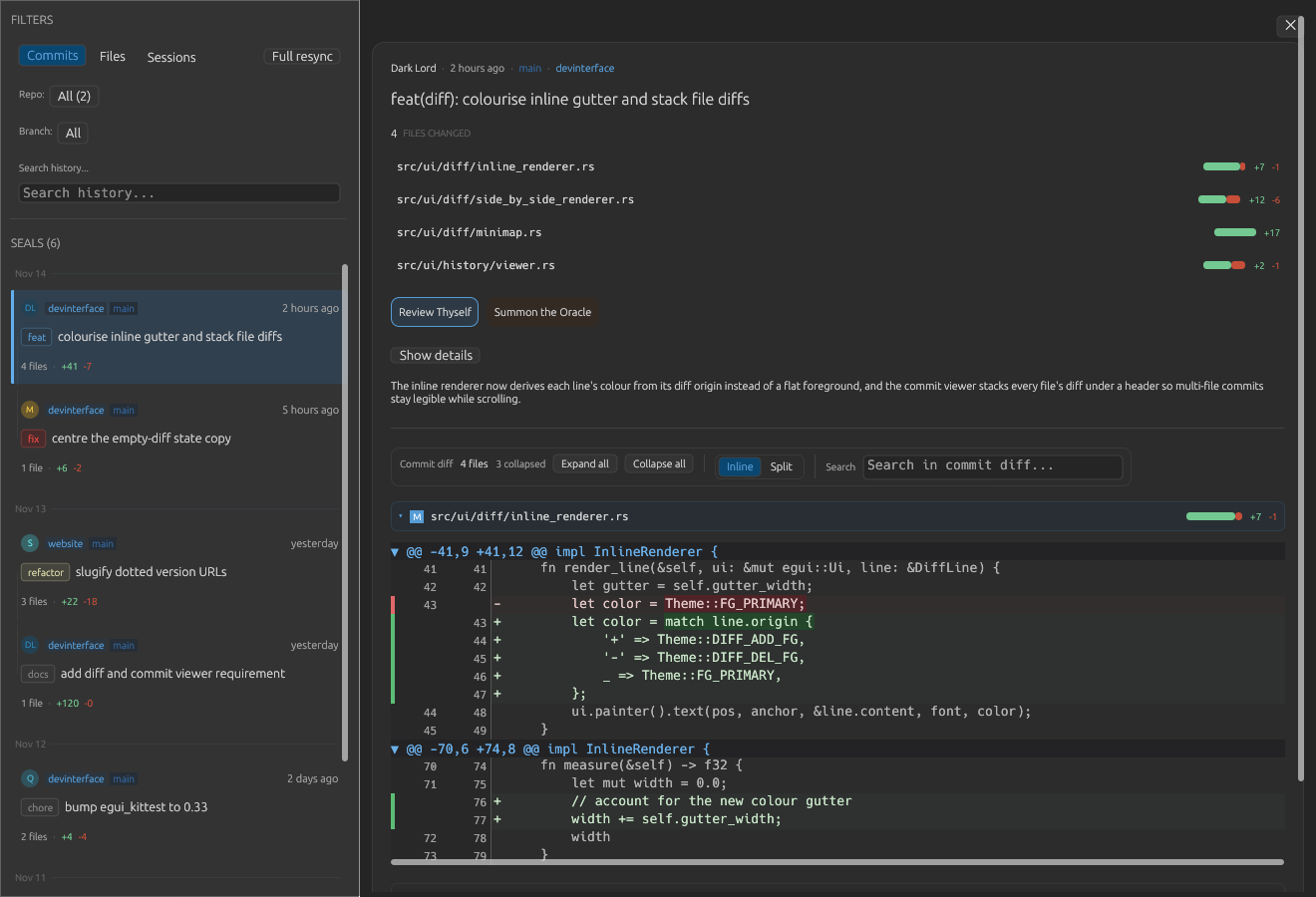 A multi-file commit lists every changed file with its own
 +/- stats. Here four files changed and the toolbar reads Commit diff · 4 files · 3 collapsed, with the first file's read-only diff opened under its summary row.
Use the commit diff toolbar:
- The file count shows how many files changed.
- The section state shows
all expanded,all collapsed, orN collapsed. Expand allopens every file diff.Collapse allcloses every file diff.InlineandSplitapply to all visible commit diffs in that commit detail.- The search field searches across all commit diff payloads.
Click a file summary row to expand or collapse just that file; each expanded section shows that file's read-only diff directly beneath its summary row.
Reading History Diffs
History diffs use the shared Code Overlord diff renderer, so most reading controls match Review:
- Inline and Split layouts.
- Search and match counts.
- Hunk collapse/expand.
- Hunk navigation.
Mapminimap on longer diffs.Wrapfor long lines.- Copy diff content.
- Open the current file in Peruse when the file still exists in the workspace.
- Large-diff warnings and virtual scrolling for very large payloads.
Unavailable in History diffs:
Stage HunkUnstage HunkDiscard Hunk- Inline annotation notes
- Split edit mode
Those write controls only appear in Code Review, where the app is working with your current working tree.
Files Mode
Files mode shows recently changed paths with the latest commit metadata. Each row includes:
- Repo badge.
- Change badge:
Aadded,Mmodified,Ddeleted,Rrenamed,Ccopied, or?other. - Author and relative time.
- File path.
- Latest commit message.
Click a file row to open the file history viewer. The viewer shows the selected commit for that path, the commit message, and the file diff. If a file has multiple commits, the History (N commits) section can expand to show a per-file commit list. Use [ and ] to move between commits for the selected file.
Right-click a file row for Inspect history and file actions.
Branch Information
Branch context appears in several places:
- The
Branch:filter inCommitsmode. - Branch badges on commit rows.
- Branch text in the selected commit card header.
- The
Branchesmetadata row underShow details. - The initial default branch filter, which selects current checked-out branches once branch data is loaded.
Branch state comes from the same live repo status snapshots that feed Review. When branch state changes, History marks its commit and file lists dirty and rebuilds them.
Git Activity Panel
History, Review, fetch, push, commit, status scans, and background history sync all use the Git queue. The Activity button in the toolbar opens a panel that shows what the queue is doing.
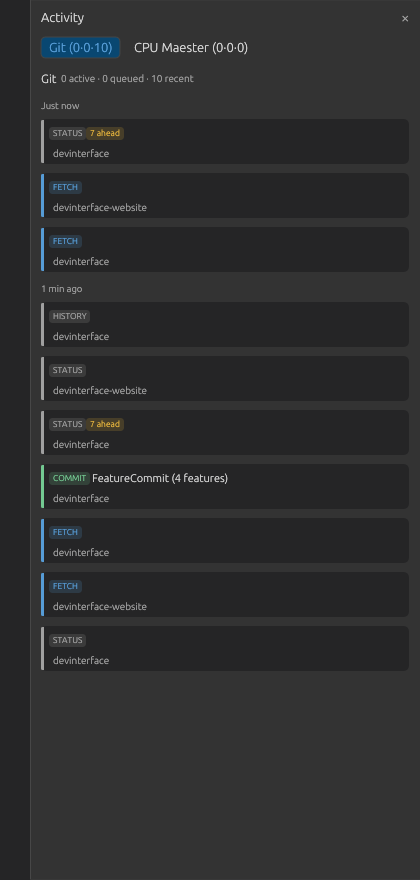 The Activity panel summarizes Git work as active, queued, and recent operations, with tags for status, fetch, commit, push, and history sync work.
In the Activity panel:
- Two tabs sit at the top:
Git (0·0·10)andCPU Maester (0·0·0). The three dot-separated numbers are the active, queued, and recent counts.CPU Maesteris the non-Git background work tab. - The Git section summarizes active, queued, and recent work. When the queue is idle it reads
Git 0 active · 0 queued · 0 recentand showsNo git activity. - Active operations can show
Cancel allor a per-row cancelxwhen cancellation is allowed. - Recent operations are grouped by rough time, such as
Just now,1 min ago, orEarlier. - Rows use tags such as
STATUS,FETCH,COMMIT,PUSH, andHISTORY. A commit made by Automatic Review shows asCOMMIT FeatureCommit (N features), and aSTATUSrow can carry anN ahead/N behindbadge when your branch has diverged from its remote. - Status labels include
queued,running,cancelling,done,failed, andcancelled. - Fetch progress can show object counts, byte counts, and progress bars when Git reports them.
- Queue attribution lines explain waits, such as waiting for a queue slot or a repo operation that is holding a pack-read lock.
Code Overlord prioritizes user-initiated Git work over background and auto-fetch work. Background status scans can be preempted so actions like commit, push, fetch, cherry-pick, or revert are not hidden behind passive refreshes.
Empty States
If no commit is selected, the right pane asks you to pick a seal to inspect.
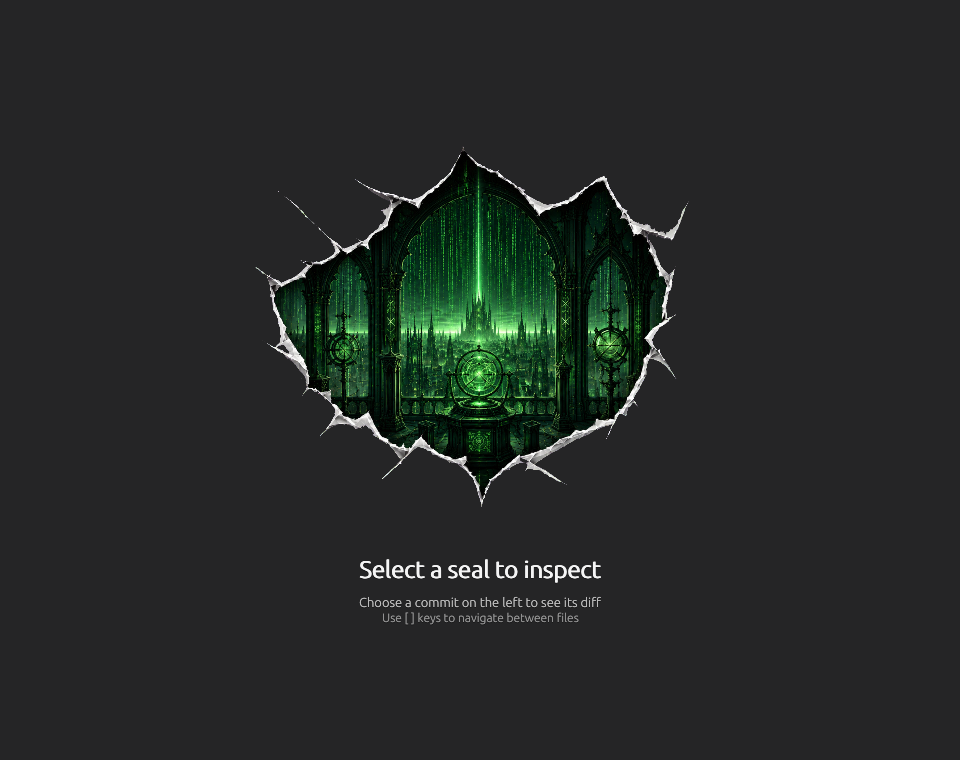 The History empty state appears before you choose a commit from the sidebar.
Other empty states:
Filesmode saysSelect a scroll to inspectbefore a file is selected.- A file with no loaded commits can show
Lost to history. - An empty session list says
No past sessions. - If a commit diff payload is missing, the detail pane says
No diff payload is available for this commit yetorNo diff payload is available for this file.
Status and Cache Integration
History stays synchronized with live Git state:
- Repo status refresh updates branches, tags, stashes, recent commits, staged files, and unstaged files.
- HEAD changes trigger incremental history cache sync.
- Status updates mark commit and file lists for rebuild.
- Background fetch and history sync help remote commits appear without a manual refresh.
- Agent completion notifications can trigger immediate auto-fetch, so new commits and pushes appear quickly.
Because Review and History share repo status data, switching between them should keep staged/unstaged state, branch context, and commit history consistent.
Link Behavior
Code Overlord has shared link detection for URLs and file paths in other text surfaces. In the current History commit viewer, commit messages and diff text are rendered as plain text, so links inside History commit text are not clickable there yet.
Review and History Together
A typical workflow:
- Use History to understand recent commits, parent chains, changed files, and branch context.
- Switch to Code Review to stage, unstage, edit, discard, or commit current working-tree changes.
- Return to History to confirm the resulting commits.
- Use the Activity panel if a fetch, push, history sync, or status refresh seems slow.
Tips
- Use repo and branch filters first in large multi-repo workspaces.
- Use
Filesmode when you care about one path's evolution. - Use
Commitsmode when you care about timeline, branch flow, and commit-level diffs. - If a commit is missing after a fetch, run
Full resync. - If History looks stale after heavy Git activity, check the Activity panel for queued or running Git work.